Salta al contenuto principale
Unisciti alla Community delle riparazioni - Crea un account

HTC One V Camera Replacement

Cosa ti serve

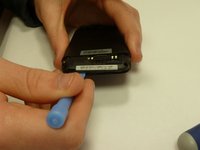
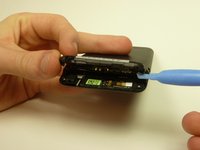
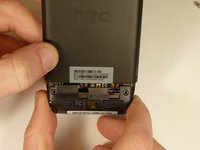
  1. HTC One V Camera Replacement, Disassembling HTC ONE V Bottom Assembly: passo 1, immagine 1 di 3 HTC One V Camera Replacement, Disassembling HTC ONE V Bottom Assembly: passo 1, immagine 2 di 3 HTC One V Camera Replacement, Disassembling HTC ONE V Bottom Assembly: passo 1, immagine 3 di 3
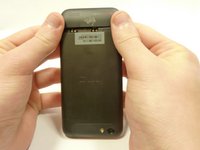
    • Power off your device.

    • Remove the bottom cover by sliding it off.

    Chiedi a FixBot
  2. HTC One V Camera Replacement: passo 2, immagine 1 di 1
    • Remove the SIM card.

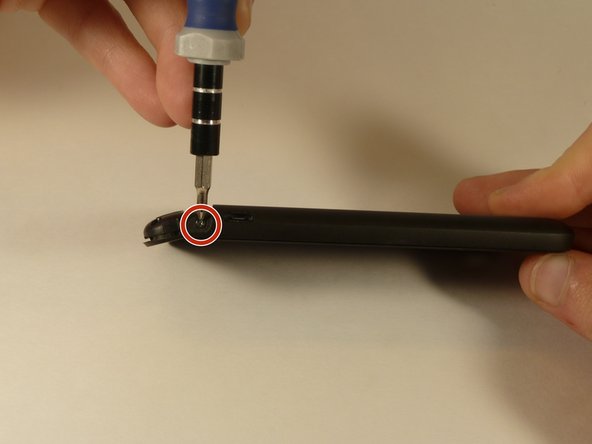
    • Remove the four screws securing the bottom casing.

    • Two 3.0 mm Phillips #0 screws in the top left and right corners.

    • Two 2.0 mm Phillips #0 screws in the bottom left and right corners.

    Chiedi a FixBot
  3. HTC One V Camera Replacement: passo 3, immagine 1 di 2 HTC One V Camera Replacement: passo 3, immagine 2 di 2
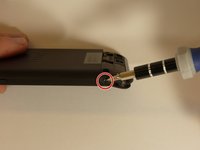
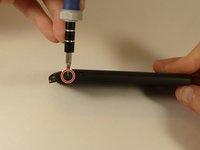
    • Remove the 2.0 mm Phillips #0 screws on either side of the phone.

    Chiedi a FixBot
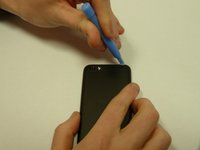
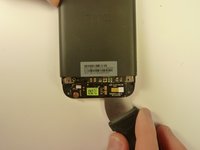
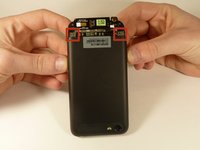
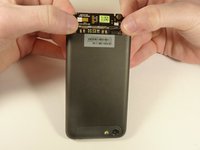
  4. HTC One V Camera Replacement: passo 4, immagine 1 di 3 HTC One V Camera Replacement: passo 4, immagine 2 di 3 HTC One V Camera Replacement: passo 4, immagine 3 di 3
    • Use a plastic opening tool to pry open the bottom casing.

    • Remove the bottom casing by pulling it towards you.

    Chiedi a FixBot
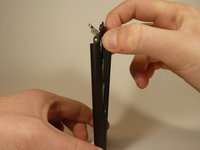
  5. HTC One V Camera Replacement, Disassembling HTC One V Back Case: passo 5, immagine 1 di 3 HTC One V Camera Replacement, Disassembling HTC One V Back Case: passo 5, immagine 2 di 3 HTC One V Camera Replacement, Disassembling HTC One V Back Case: passo 5, immagine 3 di 3
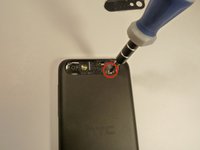
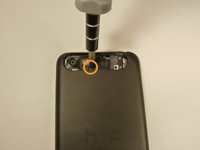
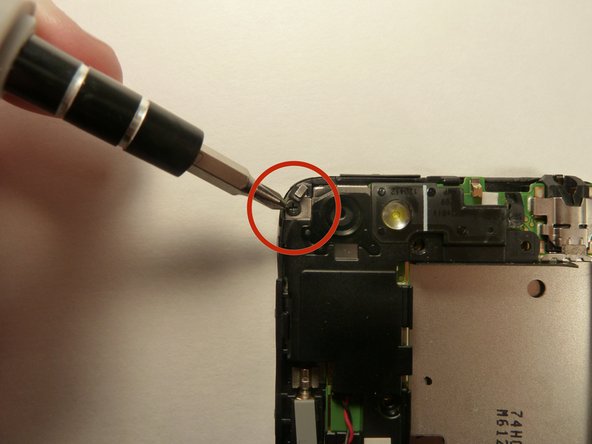
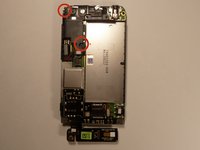
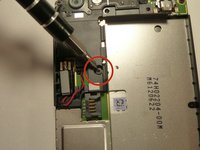
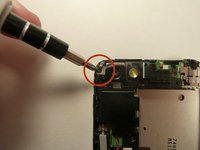
    • Use the plastic opening tool to pry open the rear camera panel.

    • Remove both screws that are securing the back case.

    • One 4.0 mm Phillips #0 screw.

    • One 3.0 mm Phillips #0 screw.

    Chiedi a FixBot
  6. HTC One V Camera Replacement: passo 6, immagine 1 di 3 HTC One V Camera Replacement: passo 6, immagine 2 di 3 HTC One V Camera Replacement: passo 6, immagine 3 di 3
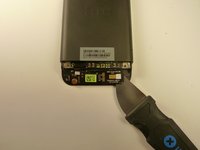
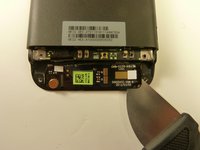
    • Use a Jimmy to pry up the OEM SIM and SD card reader contact.

    • Pry from right to left to avoid potential damages to the ribbon.

    Chiedi a FixBot
  7. HTC One V Camera Replacement: passo 7, immagine 1 di 3 HTC One V Camera Replacement: passo 7, immagine 2 di 3 HTC One V Camera Replacement: passo 7, immagine 3 di 3
    • Using both thumbs, gently push on the two bottom rear corners of the motherboard.

    • Gently and slowly pull the screen out from the front of the phone, while feeding the OEM reader contact through the opening.

    Chiedi a FixBot
  8. HTC One V Camera Replacement, Battery: passo 8, immagine 1 di 1
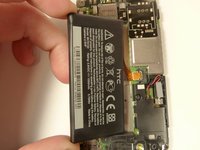
    • Pry up the battery with the flat end of the spudger.

    Chiedi a FixBot
  9. HTC One V Camera Replacement: passo 9, immagine 1 di 3 HTC One V Camera Replacement: passo 9, immagine 2 di 3 HTC One V Camera Replacement: passo 9, immagine 3 di 3
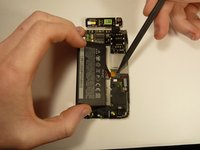
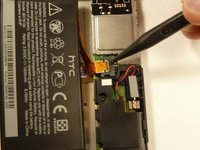
    • Gently lift up the battery away from the edge of its housing.

    • Use the point end of the spudger to push the connection out of its housing.

    Chiedi a FixBot
  10. HTC One V Camera Replacement, Camera Lens: passo 10, immagine 1 di 3 HTC One V Camera Replacement, Camera Lens: passo 10, immagine 2 di 3 HTC One V Camera Replacement, Camera Lens: passo 10, immagine 3 di 3
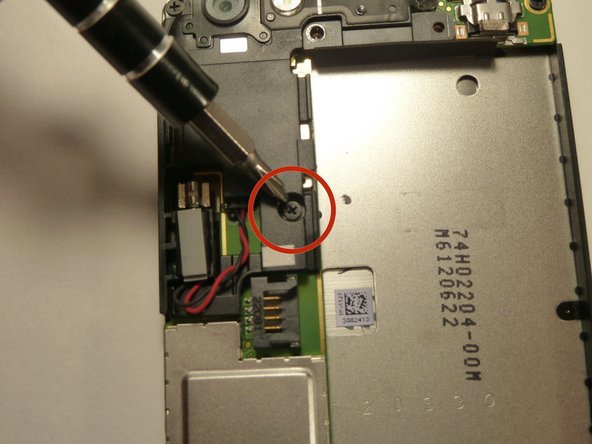
    • Remove the two 3.0 mm Phillips #0 screws, that are securing the camera lens.

    Chiedi a FixBot
  11. HTC One V Camera Replacement: passo 11, immagine 1 di 1
    • Pry off the camera lens using a plastic opening tool.

    Chiedi a FixBot
  12. HTC One V Camera Replacement, Vibrator: passo 12, immagine 1 di 2 HTC One V Camera Replacement, Vibrator: passo 12, immagine 2 di 2
    Strumento utilizzato in questo passaggio:
    Tweezers
    $4.99
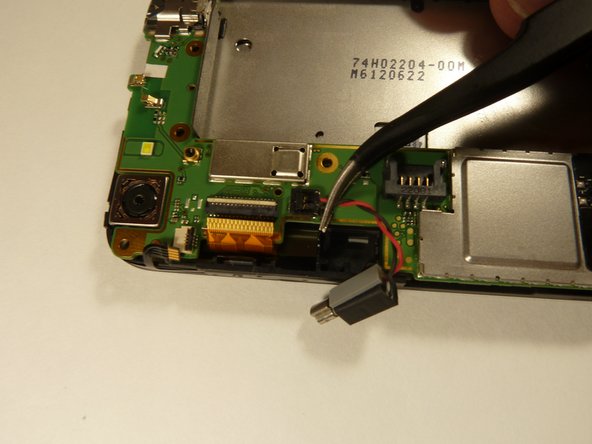
    • Pry the vibrator out of the housing with a spudger.

    • Using the tweezers, pull up on the connecting wires detaching the vibrator from the motherboard.

    Chiedi a FixBot
  13. HTC One V Camera Replacement, Motherboard: passo 13, immagine 1 di 3 HTC One V Camera Replacement, Motherboard: passo 13, immagine 2 di 3 HTC One V Camera Replacement, Motherboard: passo 13, immagine 3 di 3
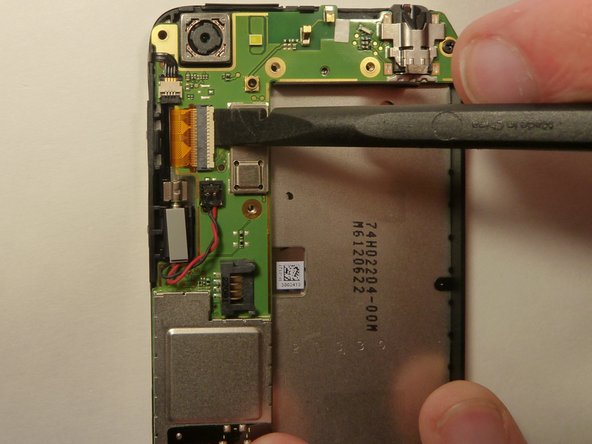
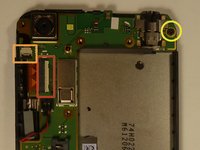
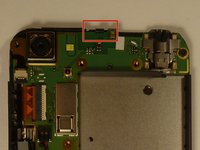
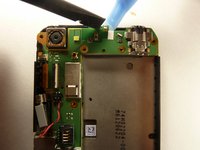
    • Using the spudger lift the tabs on the highlighted, red and orange, ribbon connectors. Gently pull out the ribbons from their connectors.

    • Remove the 3.0 mm Phillips #0 screw.

    Chiedi a FixBot
  14. HTC One V Camera Replacement: passo 14, immagine 1 di 3 HTC One V Camera Replacement: passo 14, immagine 2 di 3 HTC One V Camera Replacement: passo 14, immagine 3 di 3
    Strumento utilizzato in questo passaggio:
    Tweezers
    $4.99
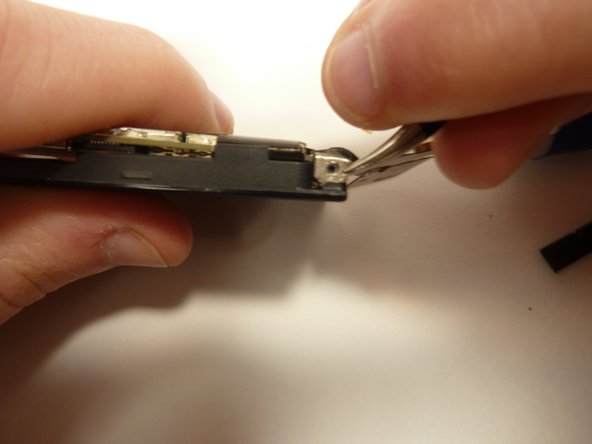
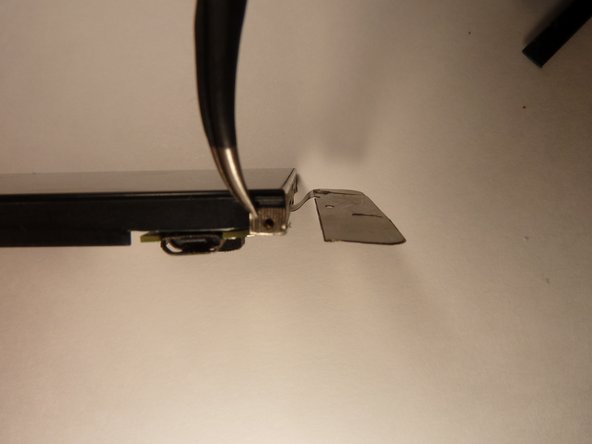
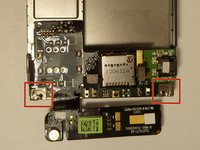
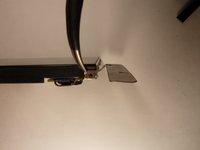
    • Using tweezers, pull back on the tape located on the bottom corners of the motherboard.

    Chiedi a FixBot
  15. HTC One V Camera Replacement: passo 15, immagine 1 di 2 HTC One V Camera Replacement: passo 15, immagine 2 di 2
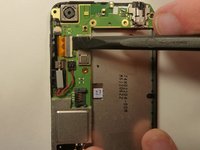
    • Use the spudger to push back the latch holding on the motherboard. While the latch is pushed back use the plastic opening tool to pry up the motherboard.

    Chiedi a FixBot
  16. HTC One V Camera Replacement: passo 16, immagine 1 di 1
    • Place your phone on its side so that you can gently pull up on the motherboard to expose its last connector.

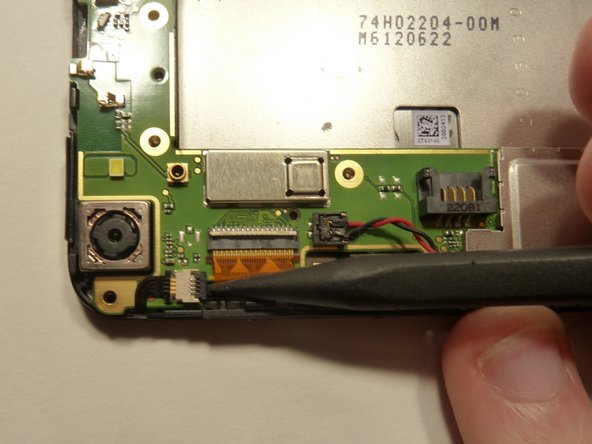
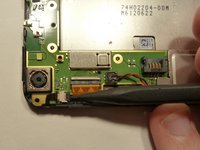
    • Using the flat end of the spudger, pop of the connector.

    Chiedi a FixBot
  17. HTC One V Camera Replacement, Camera: passo 17, immagine 1 di 2 HTC One V Camera Replacement, Camera: passo 17, immagine 2 di 2
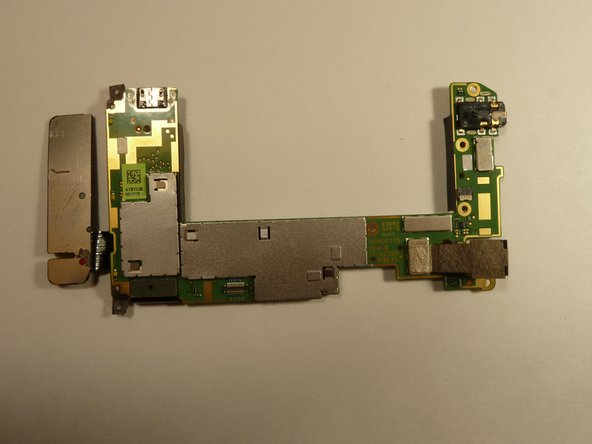
    • Flip motherboard over so the backside is up.

    Chiedi a FixBot
  18. HTC One V Camera Replacement: passo 18, immagine 1 di 2 HTC One V Camera Replacement: passo 18, immagine 2 di 2
    Strumento utilizzato in questo passaggio:
    Tweezers
    $4.99
    • Pull the camera back using the tweezers, and hold it.

    • Use the spudger to unlock the camera's ribbon from its connector.

    • Using the tweezers, pull up on the ribbon and release the camera form the motherboard.

    • The ribbon is connected to the back of the LCD display by tape. Slowly pull the ribbon back and the tape will follow.

    Chiedi a FixBot
Conclusione

To reassemble your device, follow these instructions in reverse order.

Altre 2 persone hanno completato questa guida.

Team

USF Tampa, Team 1-3, Blackwell Winter 2015 Membro di USF Tampa, Team 1-3, Blackwell Winter 2015

USFT-BLACKWELL-W15S1G3

4 Membri

16 guide realizzate

0Commenti sulla guida

Aggiungi Commento

Visualizza statistiche:

Ultime 24 ore: 3

Ultimi 7 giorni: 7

Ultimi 30 giorni: 45

Tutti i Tempi: 1,218