Salta al contenuto principale
Unisciti alla Community delle riparazioni - Crea un account

HP Stream 11-d010nr Clickpad Replacement

Cosa ti serve

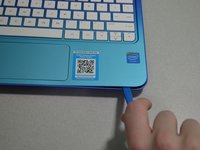
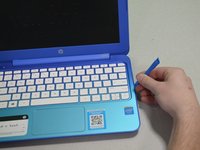
  1. HP Stream 11-d010nr Clickpad Replacement, Pry out the inserts: passo 1, immagine 1 di 2 HP Stream 11-d010nr Clickpad Replacement, Pry out the inserts: passo 1, immagine 2 di 2
    • Unplug and turn off the HP Stream 11 before disassembling the device.

    • Using a spudger, gently pry off the two elliptical rubber inserts located in the top corners.

    • Carefully remove the two circular rubber inserts positioned beneath the removed elliptical inserts.

    Chiedi a FixBot

    Aggiungi Commento

  2. HP Stream 11-d010nr Clickpad Replacement, Unscrew the back cover: passo 2, immagine 1 di 1
    • Using a Phillips #1 screwdriver, remove the eleven 5.6 mm screws securing the back cover.

    • Keep the screws in a safe place for reassembly.

    Chiedi a FixBot

    Aggiungi Commento

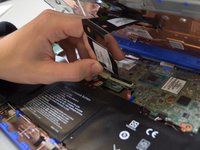
  3. HP Stream 11-d010nr Clickpad Replacement, Pry the keyboard casing up: passo 3, immagine 1 di 2 HP Stream 11-d010nr Clickpad Replacement, Pry the keyboard casing up: passo 3, immagine 2 di 2
    • Using an iFixit opening tool, carefully pry open the case to separate the keyboard from the main body. Work slowly to avoid damaging the edges.

    • HP Stream 11s tend to be really difficult to open. If your device is not opening with a standard iFixit opening tool, use a nylon spudger, then the metal spudger, or a metal Jimmy as the last resort.

    • When using the metal spudger or Jimmy, be careful not to bring these tools into contact with any electronic components of the device as this can damage the device.

    Chiedi a FixBot

    Aggiungi Commento

  4. HP Stream 11-d010nr Clickpad Replacement, Identify the connectors: passo 4, immagine 1 di 1
    • Carefully lift the keyboard and identify the three ribbon cables connecting the main body of the laptop to the keyboard.

    • Lift the keyboard with extreme care to avoid damaging the delicate ribbon cables. Applying excessive force can easily tear or break them easily.

    Chiedi a FixBot

    Aggiungi Commento

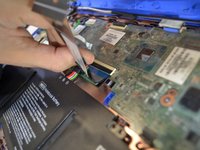
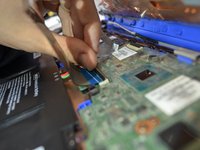
  5. HP Stream 11-d010nr Clickpad Replacement, Disconnect the cables: passo 5, immagine 1 di 3 HP Stream 11-d010nr Clickpad Replacement, Disconnect the cables: passo 5, immagine 2 di 3 HP Stream 11-d010nr Clickpad Replacement, Disconnect the cables: passo 5, immagine 3 di 3
    • Using a spudger, gently lift the flaps on the ZIF connectors to release the three ribbon cables securely attached to them.

    • Carefully disconnect the three ribbon cables.

    Chiedi a FixBot

    Aggiungi Commento

  6. HP Stream 11-d010nr Clickpad Replacement, Lift the keyboard out: passo 6, immagine 1 di 1
    • Gently lift the keyboard out of the laptop to fully detach it from the device.

    • While handling, avoid damaging any remaining components.

    Chiedi a FixBot

    Aggiungi Commento

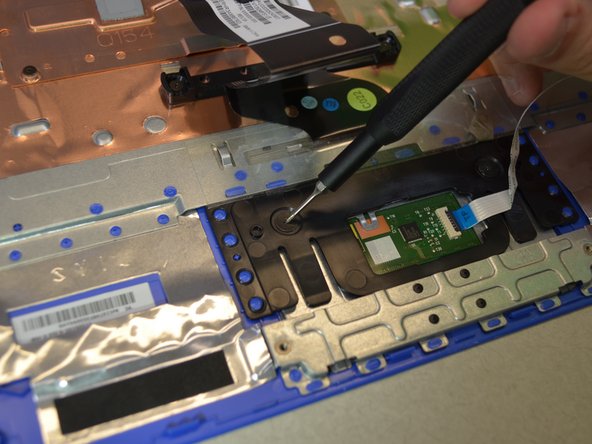
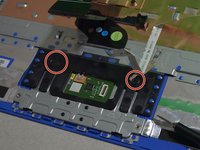
  7. HP Stream 11-d010nr Clickpad Replacement, Clickpad: passo 7, immagine 1 di 2 HP Stream 11-d010nr Clickpad Replacement, Clickpad: passo 7, immagine 2 di 2
    • Remove the two 2mm #000 Phillips screws.

    Chiedi a FixBot

    Aggiungi Commento

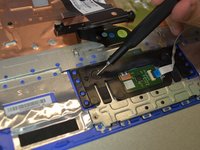
  8. HP Stream 11-d010nr Clickpad Replacement: passo 8, immagine 1 di 1
    • Release the clickpad by lifting the keyboard up.

    • When installing the new clickpad, make sure the black tabs go into the laptop.

    Chiedi a FixBot

    Aggiungi Commento

Conclusione

To reassemble your device, follow these instructions in reverse order.

Annulla: non ho completato questa guida.

Team

Cal Poly, Team S1-G3, White Winter 2019 Membro di Cal Poly, Team S1-G3, White Winter 2019

CPSU-WHITE-W19S1G3

4 Membri

11 guide realizzate

0Commenti sulla guida

Aggiungi Commento

Visualizza statistiche:

Ultime 24 ore: 3

Ultimi 7 giorni: 5

Ultimi 30 giorni: 24

Tutti i Tempi: 594