Salta al contenuto principale
Unisciti alla Community delle riparazioni - Crea un account

HP ProBook 4520s Keyboard Replacement

Cosa ti serve

  1. HP ProBook 4520s Keyboard Replacement, Battery: passo 1, immagine 1 di 2 HP ProBook 4520s Keyboard Replacement, Battery: passo 1, immagine 2 di 2
    • Flip the 4520s upside-down with the front toward you.

    • Push the two latches below the battery inwards at the same time.

    Chiedi a FixBot
  2. HP ProBook 4520s Keyboard Replacement: passo 2, immagine 1 di 1
    • Remove the battery by holding the latches and sliding the battery away from you.

    Chiedi a FixBot
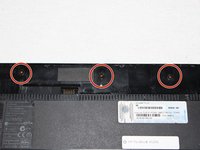
  3. HP ProBook 4520s Keyboard Replacement, Switch Cover: passo 3, immagine 1 di 2 HP ProBook 4520s Keyboard Replacement, Switch Cover: passo 3, immagine 2 di 2
    • Use a Phillips #1 screwdriver to remove three 2mm screws where the battery was located.

    Chiedi a FixBot
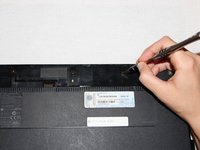
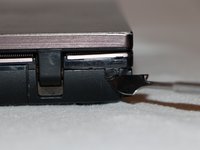
  4. HP ProBook 4520s Keyboard Replacement: passo 4, immagine 1 di 2 HP ProBook 4520s Keyboard Replacement: passo 4, immagine 2 di 2
    • Flip the 4520s over and rotate it so the back is facing you.

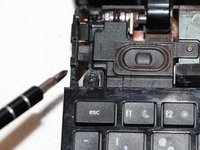
    • Use a metal spudger to peel off two rubber caps located on either side of the battery port.

    Chiedi a FixBot
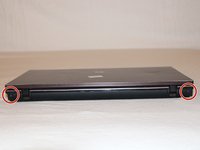
  5. HP ProBook 4520s Keyboard Replacement: passo 5, immagine 1 di 1
    • Use a Phillips #1 screwdriver to remove the 3mm screws behind the caps.

    Chiedi a FixBot
  6. HP ProBook 4520s Keyboard Replacement: passo 6, immagine 1 di 3 HP ProBook 4520s Keyboard Replacement: passo 6, immagine 2 di 3 HP ProBook 4520s Keyboard Replacement: passo 6, immagine 3 di 3
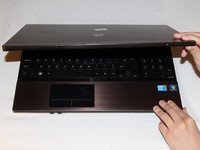
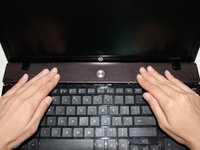
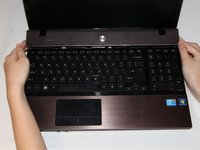
    • Rotate the 4520s and then open it with the screen facing you.

    • The switch cover is located above the keyboard. Push the switch cover away from you until it comes loose from the 4520s.

    • Lift the switch cover away from the 4520s and set it aside.

    Chiedi a FixBot
  7. HP ProBook 4520s Keyboard Replacement, Keyboard: passo 7, immagine 1 di 2 HP ProBook 4520s Keyboard Replacement, Keyboard: passo 7, immagine 2 di 2
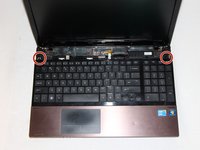
    • Use a Phillips #1 screwdriver to remove the two 7mm screws located on either side of the keyboard panel.

    Chiedi a FixBot
  8. HP ProBook 4520s Keyboard Replacement: passo 8, immagine 1 di 1
    • Slide the keyboard panel away from you to free it from the 4520s.

    • Do not yank the keyboard panel away from the 4520s. This may damage the cable.

    Chiedi a FixBot
  9. HP ProBook 4520s Keyboard Replacement: passo 9, immagine 1 di 2 HP ProBook 4520s Keyboard Replacement: passo 9, immagine 2 di 2
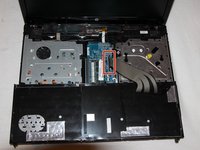
    • Gently raise up the keyboard and flip it over to reveal a ribbon cable.

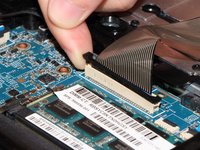
    • Release the ribbon cable by carefully lifting the black tab upwards, one side at a time.

    • Remove the cable and lift the keyboard panel up. Set it aside.

    • When reassembling, feed the ribbon cable into the port. Press down on the tab to pinch the cable in place.

    Chiedi a FixBot
Conclusione

To reassemble your device, follow these steps in reverse order.

Altre 7 persone hanno completato questa guida.

Team

UC Davis, Team 1-3, Oliver Fall 2016 Membro di UC Davis, Team 1-3, Oliver Fall 2016

UCD-OLIVER-F16S1G3

5 Membri

8 guide realizzate

1Commento della guida

hp probook 4520s disassembly

https://youtu.be/8749zmz0lls

mohamed - Rispondi Condividi

Aggiungi Commento

Visualizza statistiche:

Ultime 24 ore: 4

Ultimi 7 giorni: 8

Ultimi 30 giorni: 61

Tutti i Tempi: 5,198