Introduzione
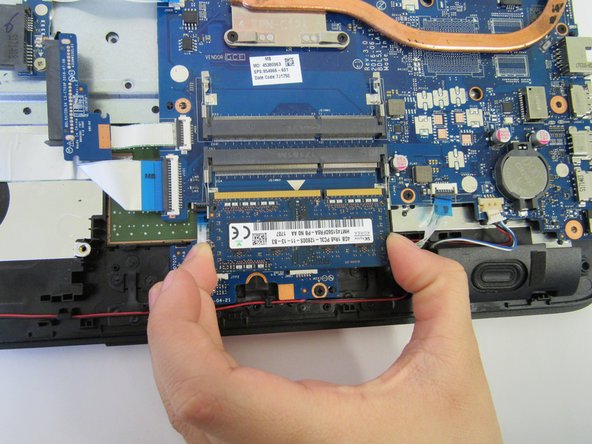
This guide will help assist you in replacing the RAM component in your laptop. Use this guide if HP Notebook 15-ba018ds is having low storage space. Beware of all the wires that may get damaged during this process.
Cosa ti serve
-
-
-
Flip the laptop over so the battery is exposed which will be next to the hinges on the top left and right.
 Chiedi a FixBot
-
-
-
Place your thumbs on the slide locks that are next to the hinges and simultaneously push them toward each other to unlock the battery.
-
While still holding onto the slide locks, push the battery away from the laptop with your index fingers.
-
-
-
-
-
-
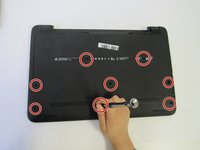
Unscrew the 8 screws on the back cover.
-
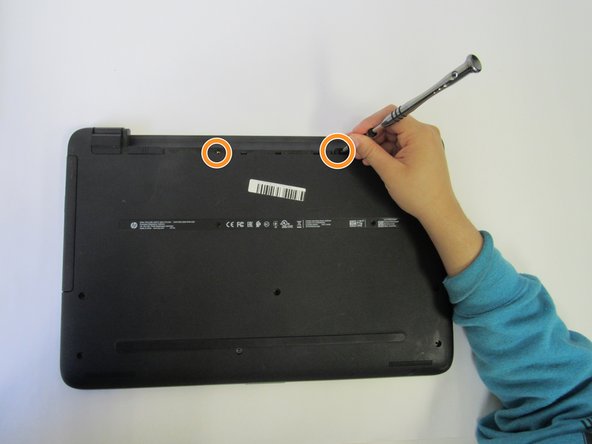
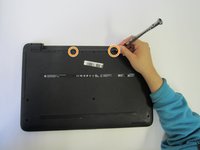
There are also two screws in the battery area that you unscrew.
-
-
-
Use an opening tool and wedge it under the edge and go around the whole laptop to help remove the back cover.
-
-




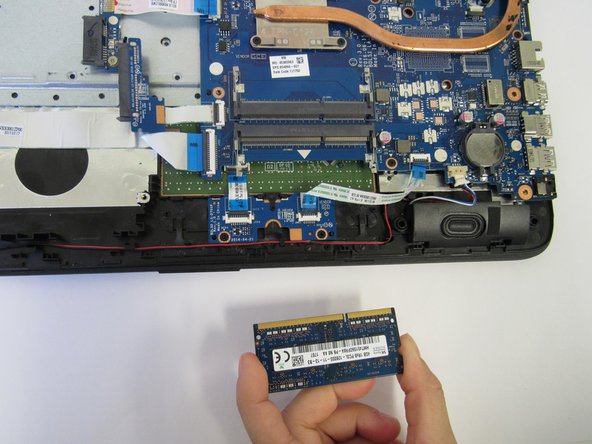
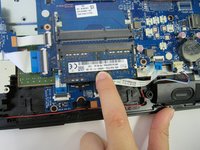
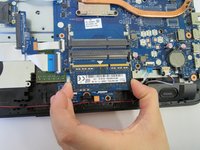
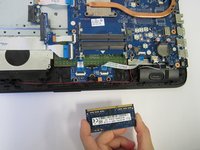
To reassemble your device, follow these instructions in reverse order.
Annulla: non ho completato questa guida.
Altre 3 persone hanno completato questa guida.

Team

University of North Texas, Team S3-G2, Raign Fall 2018 Membro di University of North Texas, Team S3-G2, Raign Fall 2018
UNT-RAIGN-F18S3G2
4 Membri
4 guide realizzate
