Introduzione
Use this guide to replace the speakers for your HP Chromebook 14-Q010DX.
A speaker is a piece of hardware that reproduces sound from a video or audio played on your device. If you notice that the speaker is not producing sound or the audio isn't clear/distorted, a faulty speaker might be the root of this problem.
Before using this guide, examine the speaker port of any debris. Usually, a small buildup of debris and dust might cause the speaker ports to be covered causing the speaker to transmit spotty audio. The buildup can be cleared by canned air or a dust blower.
Before starting, make sure to turn off the device and unplug it from all power sources.
Cosa ti serve
-
-
Flip the laptop so the base of the laptop is facing you.
-
Using the #00 screwdriver, unscrew the 13 screws.
 Chiedi a FixBot
-
-
-
Start from the top right corner of the laptop and work clockwise with an iFixit opening tool or spudger to pry the keyboard from the frame of the laptop.
-
-
-
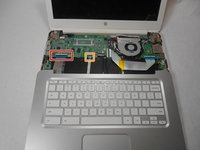
Gently pull the keyboard in the opposite direction of the screen, so the wires beneath are exposed.
-
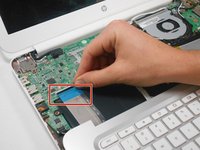
Lift the black flap and pull the blue ribbon gently towards you until it is disconnected.
-
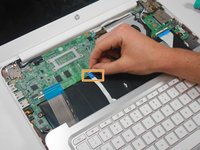
Lift the white flap and pull the blue ribbon towards you until it is disconnected.
-
-
-
-
Lift keyboard slightly and remove the strip gently to prevent damaging any parts.
-
-
-
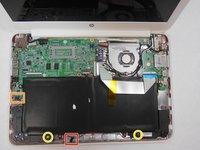
Undo the black tape located on the bottom from the frame of the laptop.
-
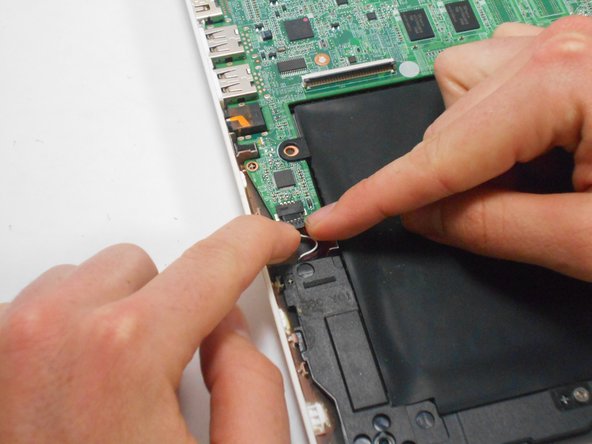
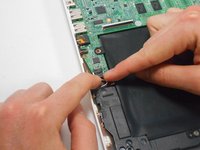
Using fingers or the spudger, slide out the black connector indicated on the left.
-
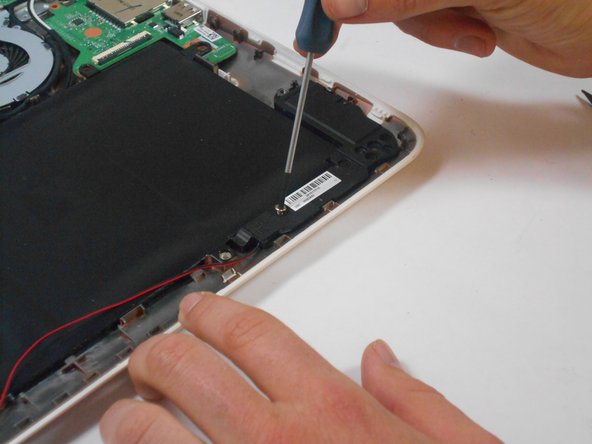
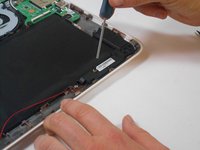
Use a #00 screwdriver to remove the two screws.
-





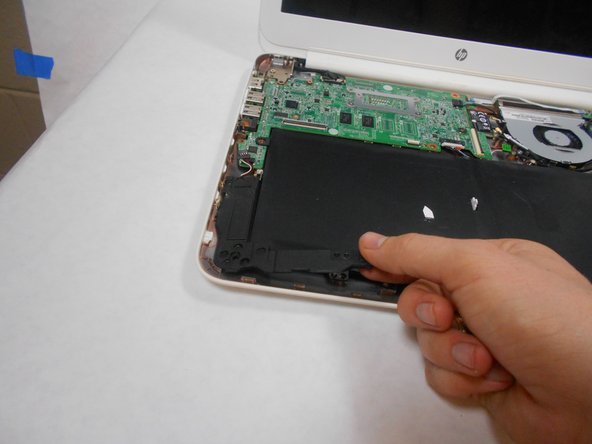
To reassemble your device, follow these instructions in reverse order.
Annulla: non ho completato questa guida.
Altre 3 persone hanno completato questa guida.

Team

USF Tampa, Team 17-2, Watkins Winter 2015 Membro di USF Tampa, Team 17-2, Watkins Winter 2015
USFT-WATKINS-W15S17G2
4 Membri
8 guide realizzate
