Salta al contenuto principale
Unisciti alla Community delle riparazioni - Crea un account

Fujitsu LifeBook N3510 Fan Replacement

Cosa ti serve

    1. Fujitsu LifeBook N3510 Fan Replacement, Battery: passo 1, immagine 1 di 1
      • Locate the two clips on the bottom of the computer that support the battery.

      Chiedi a FixBot

      Aggiungi Commento

    2. Fujitsu LifeBook N3510 Fan Replacement: passo 2, immagine 1 di 1
      • Using your fingers, push the clips inward and then upward.

      • Lift the battery out of the computer.

      Chiedi a FixBot

      Aggiungi Commento

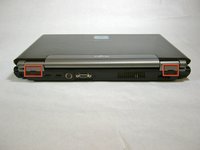
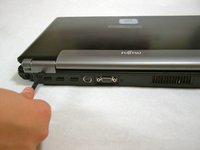
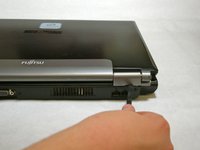
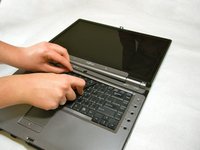
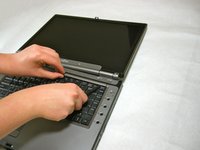
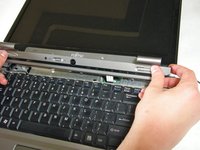
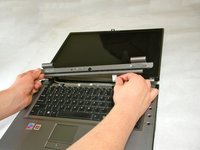
    1. Fujitsu LifeBook N3510 Fan Replacement, Hinge Cover: passo 3, immagine 1 di 3 Fujitsu LifeBook N3510 Fan Replacement, Hinge Cover: passo 3, immagine 2 di 3 Fujitsu LifeBook N3510 Fan Replacement, Hinge Cover: passo 3, immagine 3 di 3
      • Use a spudger to lift the back of the hinge cover on the left and right sides of the computer.

      Chiedi a FixBot

      Aggiungi Commento

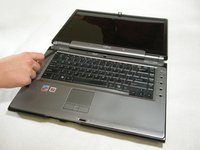
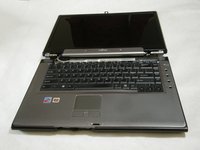
    2. Fujitsu LifeBook N3510 Fan Replacement: passo 4, immagine 1 di 1
      • Lay the computer flat on a stable surface with the monitor pointing away from you.

      Chiedi a FixBot

      Aggiungi Commento

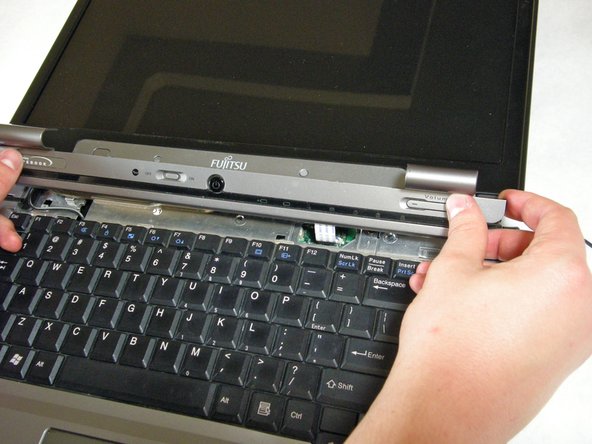
    3. Fujitsu LifeBook N3510 Fan Replacement: passo 5, immagine 1 di 3 Fujitsu LifeBook N3510 Fan Replacement: passo 5, immagine 2 di 3 Fujitsu LifeBook N3510 Fan Replacement: passo 5, immagine 3 di 3
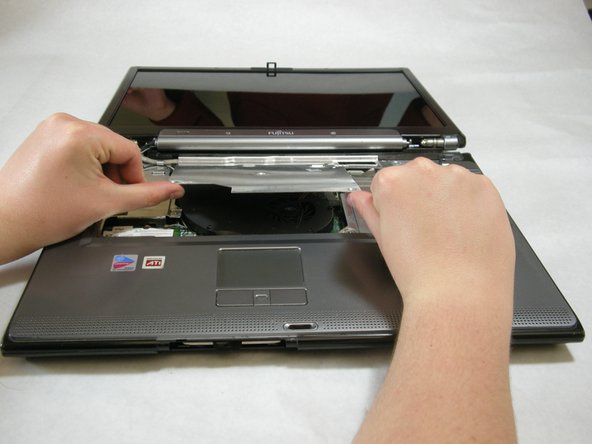
      • Use a spudger to partially lift the hinge cover.

      Chiedi a FixBot

      Aggiungi Commento

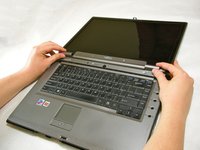
    4. Fujitsu LifeBook N3510 Fan Replacement: passo 6, immagine 1 di 2 Fujitsu LifeBook N3510 Fan Replacement: passo 6, immagine 2 di 2
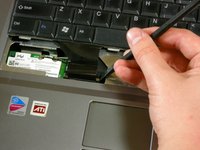
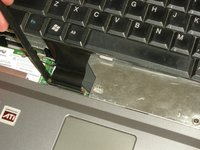
      • The hinge cover has a ribbon cable that is attached to the motherboard. To prevent damage, lift the hinge cover slowly.

      • Lift the hinge cover enough to expose the ribbon cable.

      Chiedi a FixBot

      Aggiungi Commento

    5. Fujitsu LifeBook N3510 Fan Replacement: passo 7, immagine 1 di 2 Fujitsu LifeBook N3510 Fan Replacement: passo 7, immagine 2 di 2
      • Disconnect the ribbon cable from the motherboard and remove the hinge cover from the computer.

      Chiedi a FixBot

      Aggiungi Commento

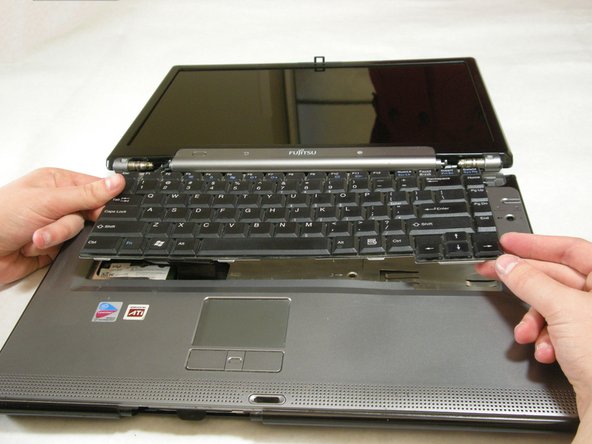
    1. Fujitsu LifeBook N3510 Fan Replacement, Keyboard: passo 8, immagine 1 di 3 Fujitsu LifeBook N3510 Fan Replacement, Keyboard: passo 8, immagine 2 di 3 Fujitsu LifeBook N3510 Fan Replacement, Keyboard: passo 8, immagine 3 di 3
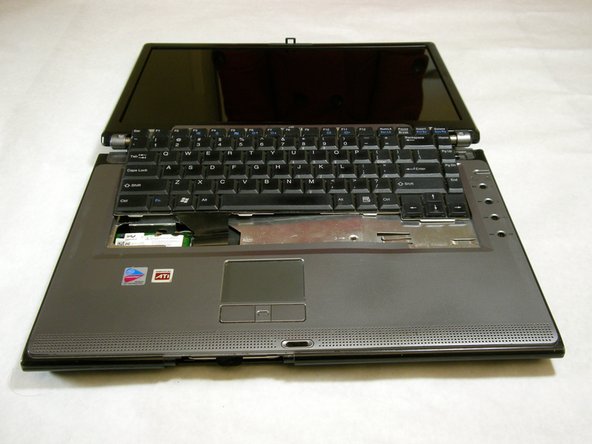
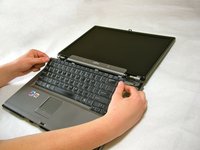
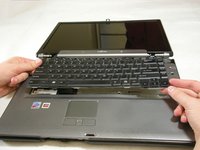
      • The keyboard has a ribbon cable that is attached to the motherboard. To prevent damage, lift keyboard slowly.

      • Lift the keyboard enough to expose the ribbon cable.

      Chiedi a FixBot

      Aggiungi Commento

    2. Fujitsu LifeBook N3510 Fan Replacement: passo 9, immagine 1 di 2 Fujitsu LifeBook N3510 Fan Replacement: passo 9, immagine 2 di 2
      • Use a spudger to release the ribbon cable from the motherboard.

      Chiedi a FixBot

      Aggiungi Commento

    3. Fujitsu LifeBook N3510 Fan Replacement: passo 10, immagine 1 di 2 Fujitsu LifeBook N3510 Fan Replacement: passo 10, immagine 2 di 2
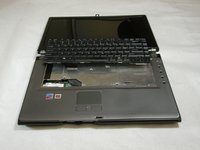
      • After the ribbon has been detached, carefully remove the keyboard.

      Chiedi a FixBot

      Aggiungi Commento

    1. Fujitsu LifeBook N3510 Fan Replacement, Metal Motherboard Cover: passo 11, immagine 1 di 1
      • Remove the following screws, all labeled "3."

      • Two 8.63mm screws.

      • One 7.65mm screw.

      • One 5.74mm screw.

      • Remove the following screw, labeled "15."

      • One 17.81mm screw.

      Chiedi a FixBot

      Aggiungi Commento

    2. Fujitsu LifeBook N3510 Fan Replacement: passo 12, immagine 1 di 3 Fujitsu LifeBook N3510 Fan Replacement: passo 12, immagine 2 di 3 Fujitsu LifeBook N3510 Fan Replacement: passo 12, immagine 3 di 3
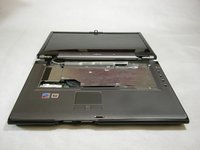
      • Lift the cover with fingers and remove.

      Chiedi a FixBot

      Aggiungi Commento

    1. Fujitsu LifeBook N3510 Fan Replacement, Fan: passo 13, immagine 1 di 3 Fujitsu LifeBook N3510 Fan Replacement, Fan: passo 13, immagine 2 di 3 Fujitsu LifeBook N3510 Fan Replacement, Fan: passo 13, immagine 3 di 3
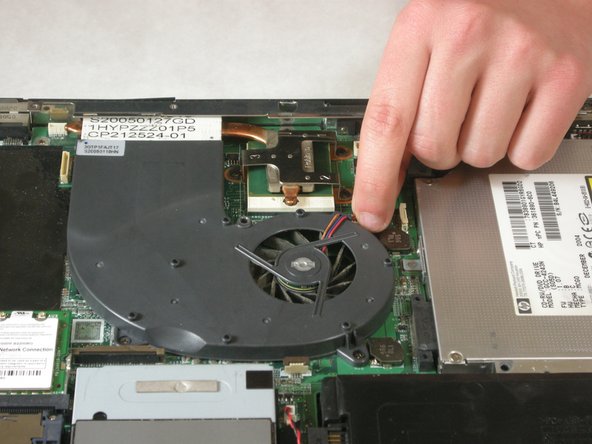
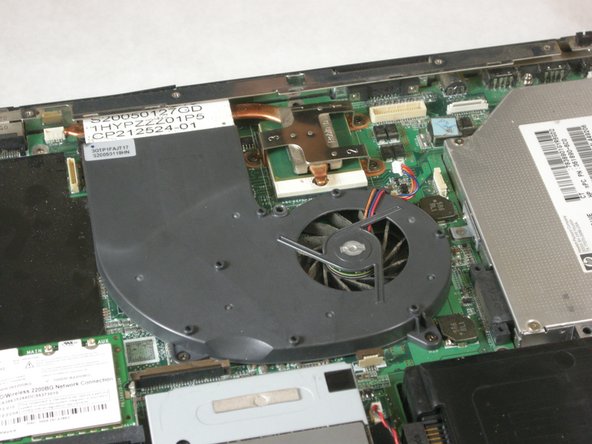
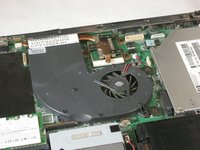
      • Detach fan cable from motherboard.

      Chiedi a FixBot

      Aggiungi Commento

    2. Fujitsu LifeBook N3510 Fan Replacement: passo 14, immagine 1 di 1
      • Remove labeled screws.

      Chiedi a FixBot

      Aggiungi Commento

    3. Fujitsu LifeBook N3510 Fan Replacement: passo 15, immagine 1 di 2 Fujitsu LifeBook N3510 Fan Replacement: passo 15, immagine 2 di 2
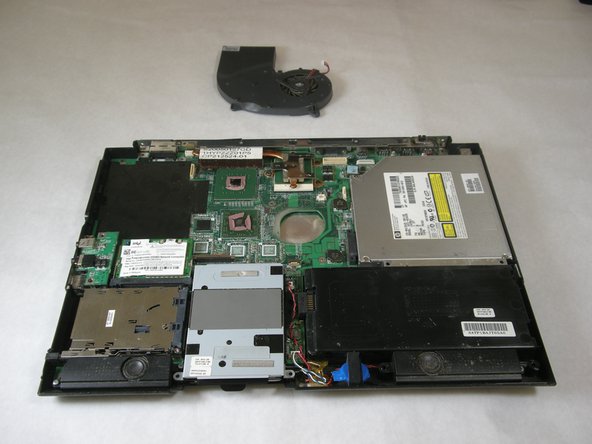
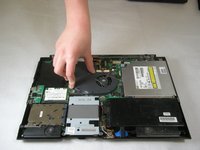
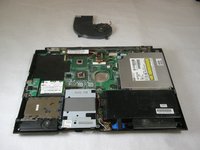
      • Remove fan.

      Chiedi a FixBot

      Aggiungi Commento

Conclusione

To reassemble your device, follow these instructions in reverse order.

Annulla: non ho completato questa guida.

Un'altra persona ha completato questa guida.

Neil Daniels

Membro da: 01/17/11

1.411 Reputazione

11 guide realizzate

Team

Cal Poly, Team 5-18, Amido Winter 2011 Membro di Cal Poly, Team 5-18, Amido Winter 2011

CPSU-AMIDO-W11S5G18

3 Membri

23 guide realizzate

0Commenti sulla guida

Aggiungi Commento

Visualizza statistiche:

Ultime 24 ore: 0

Ultimi 7 giorni: 8

Ultimi 30 giorni: 25

Tutti i Tempi: 4,427