Questa traduzione è stata generata automaticamente e non è stata ancora revisionata da una persona. Parli questa lingua? Dai un’occhiata.

Sostituzione della scheda figlia del Dell VRC100-R

Steven Pineda e 5 altri collaboratori
Ultimo aggiornamento il 17 ago 2026
Visualizzazioni: 7509
Visualizza statistiche:
- Ultime 24 ore:
- 23
- Ultimi 7 giorni:
- 77
- Ultimi 30 giorni:
- 176
- Tutti i Tempi:
- 7.509
Commenti: 2
1 commento sui passaggi, 1commento della guida.
Vai ai commenti della guidaCompletato: 22 23
22 persone hanno contrassegnato questa guida come "completata". Sarai il prossimo?
23 persone hanno contrassegnato questa guida come "completata". Compreso te, ottimo lavoro!
Preferiti: 0 1
Nessuno ha preferito (e si è iscritto) questa guida. Sarai il primo?
1 persona ha aggiunto ai preferiti (e si è iscritta a) questa guida, e sei tu!
Guida Studente in Evidenza
Questa guida è frutto del duro lavoro dei nostri bravissimi studenti e il nostro staff iFixit la trova eccezionalmente brillante.
Introduzione
Vai al passo 1 ↓Se devi reinstallare una nuova unità joystick, accedi alla scheda figlia con questa guida. Poiché la scheda figlia comunica con la scheda madre, puoi sostituire la scheda figlia anche se il controller non esegue correttamente le sue funzioni. Per questa guida, avrai bisogno di uno strumento di apertura e di un cacciavite a croce Phillips #0. Non dovrai eseguire passaggi difficili, ma apri i connettori ZIF con attenzione.
Cosa ti serve
Strumenti
-
Spudger4.9


-
-
-
Orienta il controller in modo che l'anello nero sia rivolto verso il basso e i pulsanti siano rivolti lontano da te.
-
Posiziona il pollice sulla piccola freccia presente sulla copertura della batteria del controller e spingi con decisione verso l'alto.
-
Fai scorrere la copertura per rimuoverla e separala dal controller.
 Chiedi a FixBot
-
-
-
Rimuovi la batteria destra spingendo verso il basso il polo positivo ed estraendo la batteria verso di te.
-
Ripeti la procedura per la batteria sinistra.
-
-
-
-
-
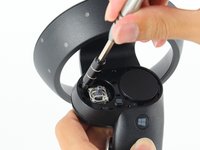
Tieni premuto il joystick con il pollice sinistro per fare spazio allo strumento di apertura in plastica.
-
Inserisci lo strumento di apertura in plastica nel cerchio sopra il joystick e fai leva verso l'alto per sollevare il pannello frontale.
-
Fai scorrere lo strumento di apertura in plastica lungo il perimetro finché non riesci a sollevare il pannello frontale.
-
-
-
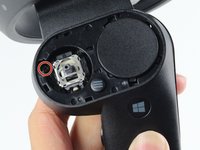
Afferra il joystick e tiralo verso l'esterno rispetto al controller per rimuoverlo.
-
-
-
-
-
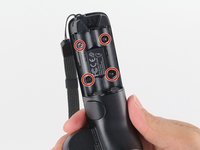
Gira il controller e orientalo in modo che il lato sottile sia rivolto verso l'alto.
-
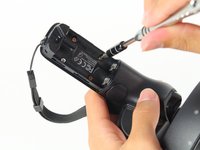
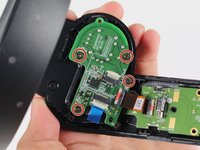
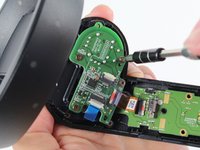
Rimuovi le quattro viti a croce Phillips da 4 mm.
-
-
-
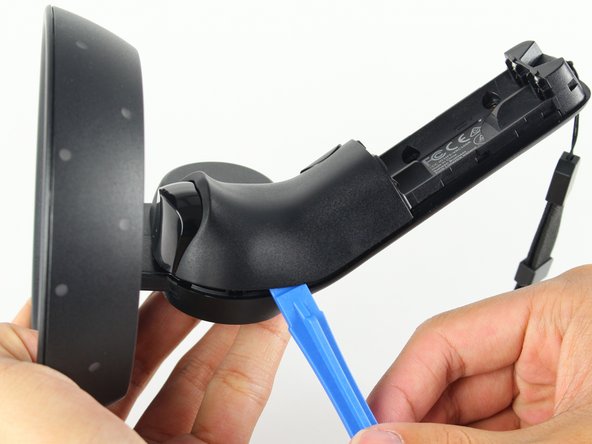
Ruota il controller di 90 gradi in senso orario e inserisci uno strumento di apertura in plastica blu nella piega del pannello posteriore.
-
Spingi verso il basso l'estremità dello strumento di apertura in plastica più vicina a te per sollevare il pannello.
-
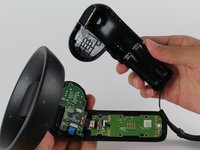
Fai scorrere lo strumento di apertura in plastica lungo il perimetro del pannello posteriore finché non riesci a rimuoverlo.
-
-
-
-
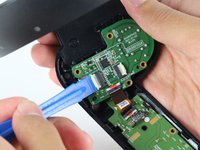
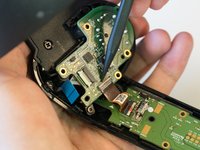
Usa la punta dello strumento di apertura in plastica blu o l'unghia per sollevare delicatamente la linguetta di blocco bianca.
-
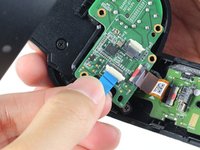
Afferra il cavo blu e tiralo via dalla presa.
-
-
-
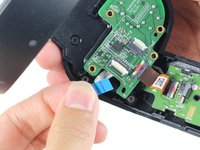
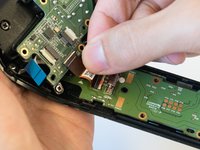
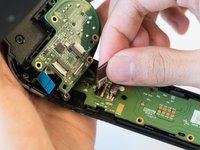
Usa la punta di uno spudger o l'unghia per sollevare delicatamente la piccola aletta bianca che trattiene il cavo a nastro arancione.
-
Afferra il cavo arancione ed estrailo dalla presa.
-
-
-
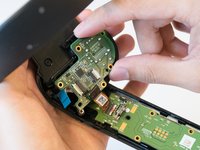
Posiziona due dita sul perimetro della scheda figlia e sollevala dal controller.
-













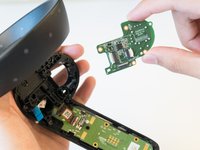
Per rimontare il dispositivo, segui queste istruzioni in ordine inverso.
Annulla: non ho completato questa guida.
Altre 22 persone hanno completato questa guida.

Team

Cal Poly, Team S18-G3, Livingston Spring 2018 Membro di Cal Poly, Team S18-G3, Livingston Spring 2018
CPSU-LIVINGSTON-S18S18G3
4 Membri
60 guide realizzate
