Salta al contenuto principale
Unisciti alla Community delle riparazioni - Crea un account

Dell Inspiron 1545 Display Replacement

Cosa ti serve

  1. Dell Inspiron 1545 Display Replacement, Battery: passo 1, immagine 1 di 1
    • Before attempting to remove the battery ensure that the laptop is disconnected from all power sources and turned off.

    • Turn the laptop over to its back.

    Chiedi a FixBot
  2. Dell Inspiron 1545 Display Replacement: passo 2, immagine 1 di 1
    • Slide the release latch while simultaneously pulling backwards on the battery.

    Chiedi a FixBot
  3. Dell Inspiron 1545 Display Replacement: passo 3, immagine 1 di 1
    • Slide the battery out of the battery bay.

    Chiedi a FixBot
  4. Dell Inspiron 1545 Display Replacement, Center Control Cover: passo 4, immagine 1 di 1
    • After removing the battery, remove the two screws (3mm Phillips #1) beneath it. These screws hold the Center Control Cover in place.

    Chiedi a FixBot
  5. Dell Inspiron 1545 Display Replacement: passo 5, immagine 1 di 1
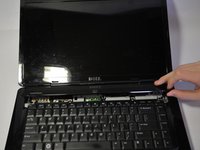
    • Flip the laptop over to the front and open the display as far as possible.

    Chiedi a FixBot
  6. Dell Inspiron 1545 Display Replacement: passo 6, immagine 1 di 3 Dell Inspiron 1545 Display Replacement: passo 6, immagine 2 di 3 Dell Inspiron 1545 Display Replacement: passo 6, immagine 3 di 3
    • The Center Control Cover is VERY fragile, be careful when using prying tools.

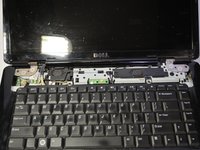
    • Pry the Center Control Cover from the laptop. On the right there is a small divot, it is advised that you start removing the panel from here.

    • Carefully lift the Center Control Cover away from the laptop.

    Chiedi a FixBot
  7. Dell Inspiron 1545 Display Replacement, Keyboard: passo 7, immagine 1 di 1
    • Remove the two screws (5mm Phillips #1) at the top of the keyboard.

    Chiedi a FixBot
  8. Dell Inspiron 1545 Display Replacement: passo 8, immagine 1 di 1
    • Slide the keyboard out and away from the laptop and lift it up to access the keyboard connector.

    • Do not pull hard on the keyboard while removing it, you may damage the keyboard or the keyboard connector.

    Chiedi a FixBot
  9. Dell Inspiron 1545 Display Replacement: passo 9, immagine 1 di 1
    • Lift the connector latch that secures the keyboard cable to the connector on the motherboard and remove the cable.

    Chiedi a FixBot
  10. Dell Inspiron 1545 Display Replacement: passo 10, immagine 1 di 1
    • Lift the keyboard up and away from the laptop.

    Chiedi a FixBot
  11. Dell Inspiron 1545 Display Replacement, Display: passo 11, immagine 1 di 1
    • Remove the two screws (5.5mm, Phillips #1) from the laptop base.

    Chiedi a FixBot
  12. Dell Inspiron 1545 Display Replacement: passo 12, immagine 1 di 1
    • Remove black and white wires from the WLAN that lead to the display by pulling straight up.

    • Unwind the wires so they can be freely pulled through in the next step.

    Chiedi a FixBot
  13. Dell Inspiron 1545 Display Replacement: passo 13, immagine 1 di 1
    • Turn the laptop over to its standard position.

    • Disconnect the Wed cable and Camera1 cable from the respective Motherboard connectors as marked. Unsecure the wires so they are loose.

    • Pull the black and white wires previously connected to the WLAN through the hole.

    Chiedi a FixBot
  14. Dell Inspiron 1545 Display Replacement: passo 14, immagine 1 di 1
    • Remove the Camera1 cable, the Wed cable, and the black and white wires from the routing guides.

    • Remove the four screws (5mm Phillips #1) (two on either side) that secure the display assembly.

    Chiedi a FixBot
  15. Dell Inspiron 1545 Display Replacement: passo 15, immagine 1 di 1
    • Lift the display assembly off the computer.

    Chiedi a FixBot
Conclusione

To reassemble your device, follow these instructions in reverse order.

Altre 11 persone hanno completato questa guida.

Nathan Lemay

Membro da: 04/16/14

3.160 Reputazione

15 guide realizzate

Team

Cal Poly, Team 9-14, Regan Spring 2014 Membro di Cal Poly, Team 9-14, Regan Spring 2014

CPSU-REGAN-S14S9G14

4 Membri

15 guide realizzate

3Commenti sulla guida

wow that is really good

Mck - Isolutions - Rispondi Condividi

AWESOME, but how to know if display is faulty or some issue in the other device causing blank screen

Kumar Bhrigu - Rispondi Condividi

put it back toghther, then plug in a external monitor

Feyrowan - Rispondi Condividi

Aggiungi Commento

Visualizza statistiche:

Ultime 24 ore: 1

Ultimi 7 giorni: 10

Ultimi 30 giorni: 74

Tutti i Tempi: 6,356