Salta al contenuto principale
Unisciti alla Community delle riparazioni - Crea un account

Battery Removal

Solo Prerequisita
Questa è una guida che contiene solo i prerequisiti! Questa guida fa parte di un'altra procedura e non è destinata ad essere utilizzata da sola.

Cosa ti serve

  1. Battery Removal, Shut down the laptop: passo 1, immagine 1 di 3 Battery Removal, Shut down the laptop: passo 1, immagine 2 di 3 Battery Removal, Shut down the laptop: passo 1, immagine 3 di 3
    • If you've installed an operating system, follow the appropriate steps to safely shut down the laptop.

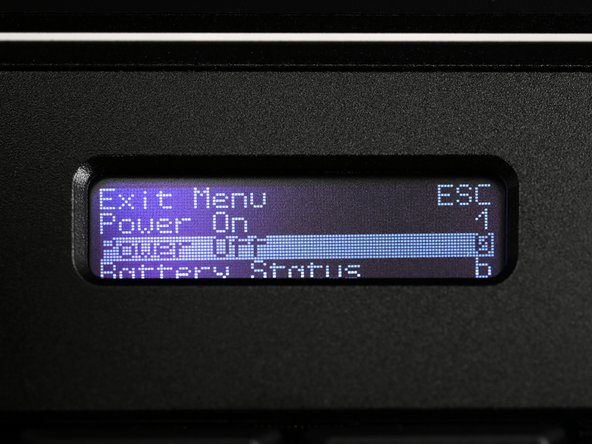
    • If you've not yet installed an operating system, or the laptop is not responsive, you can shut it down with these steps:

    • Turn on the OLED screen by pressing the Hyper key (diagonal arrow) and Enter at the same time.

    • Use the arrow keys to select Power Off on the OLED screen.

    • Press Enter to shut down the laptop.

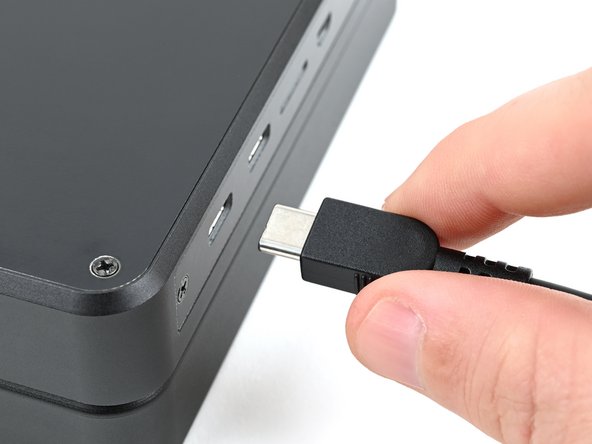
    • Disconnect all cables from the laptop.

  2. Battery Removal, Turn off the standby power: passo 2, immagine 1 di 2 Battery Removal, Turn off the standby power: passo 2, immagine 2 di 2
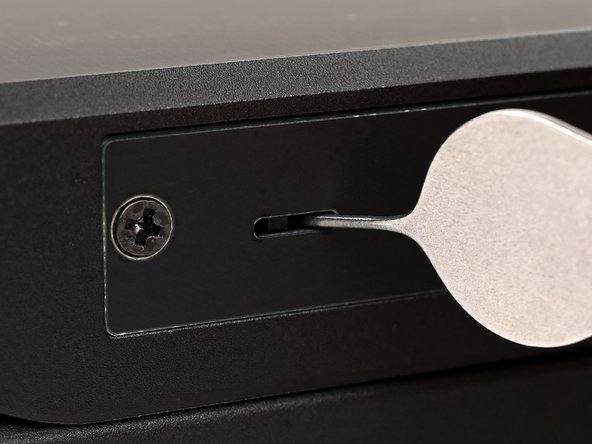
    • Use a small tool, like a SIM eject tool or a bent paperclip, to turn off the standby power switch by sliding the switch away from the headset jack.

    • The standby power switch is located in a small recess on the same side as the headset jack.

  3. Battery Removal, Remove the bottom cover screws: passo 3, immagine 1 di 2 Battery Removal, Remove the bottom cover screws: passo 3, immagine 2 di 2
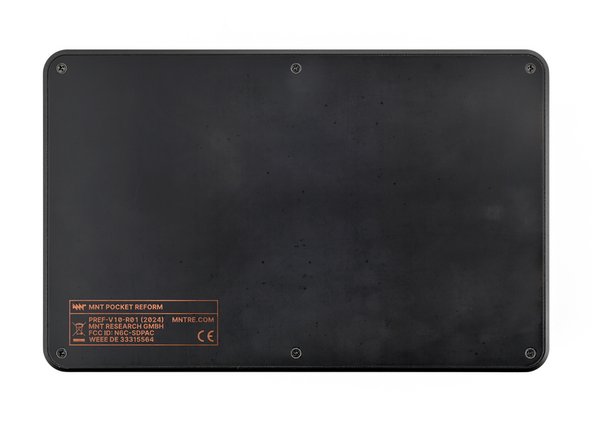
    • Place the laptop on your work surface so the bottom cover, with the regulatory info box, is facing up.

    • Use a Phillips screwdriver to remove the six 4.8 mm‑long screws securing the bottom cover.

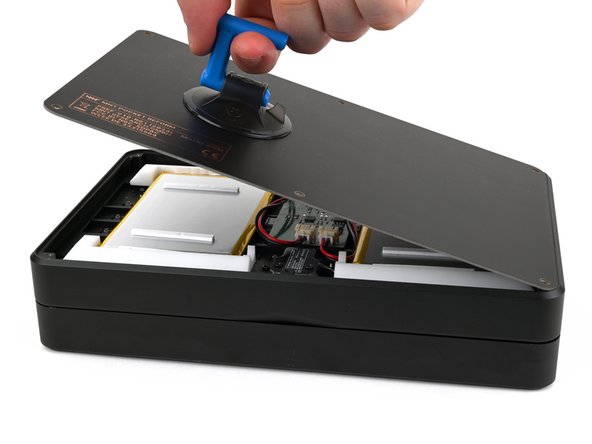
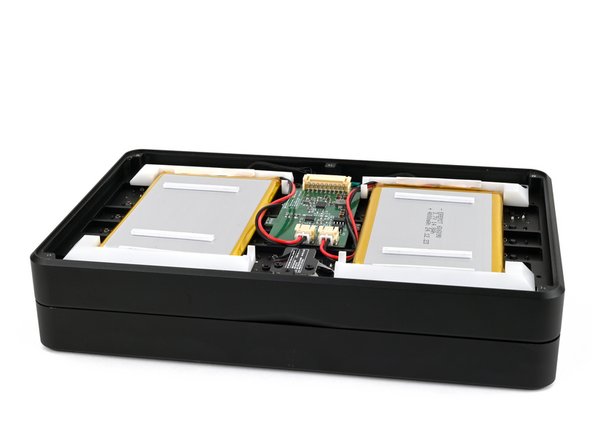
  4. Battery Removal, Remove the bottom cover: passo 4, immagine 1 di 3 Battery Removal, Remove the bottom cover: passo 4, immagine 2 di 3 Battery Removal, Remove the bottom cover: passo 4, immagine 3 di 3
    • The bottom cover is made of printed circuit board (PCB) material. Press gently but firmly near an edge when applying the suction handle to avoid breaking the cover.

    • Apply a suction handle to the bottom cover.

    • Use the suction handle to lift the bottom cover off of the laptop.

    • Alternatively, you can use a thin prying tool to lift the cover, or tilt the laptop until the cover falls out.

    • During reassembly, place the bottom cover on the laptop so the info box is opposite the hinges.

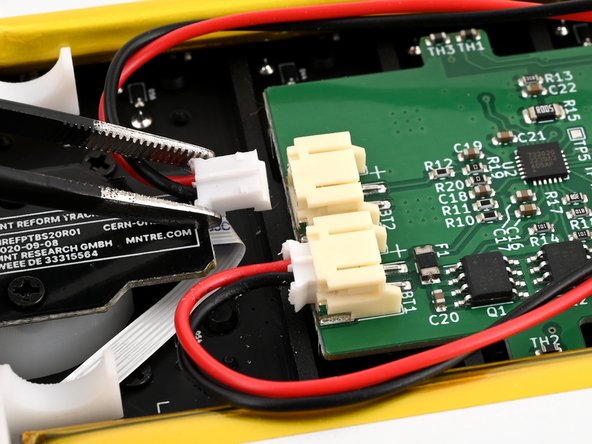
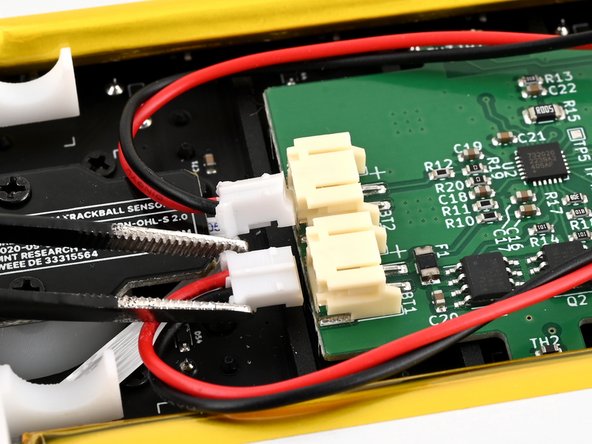
  5. Battery Removal, Disconnect the batteries: passo 5, immagine 1 di 3 Battery Removal, Disconnect the batteries: passo 5, immagine 2 di 3 Battery Removal, Disconnect the batteries: passo 5, immagine 3 di 3
    • Be careful not to damage the lithium-polymer batteries when working around them with metal tools. If the batteries are damaged or deformed in any way, take appropriate precautions.

    • Use a pair of tweezers or your fingers to disconnect the batteries' sliding connectors from the charger board.

  6. Battery Removal, Remove the batteries: passo 6, immagine 1 di 3 Battery Removal, Remove the batteries: passo 6, immagine 2 di 3 Battery Removal, Remove the batteries: passo 6, immagine 3 di 3
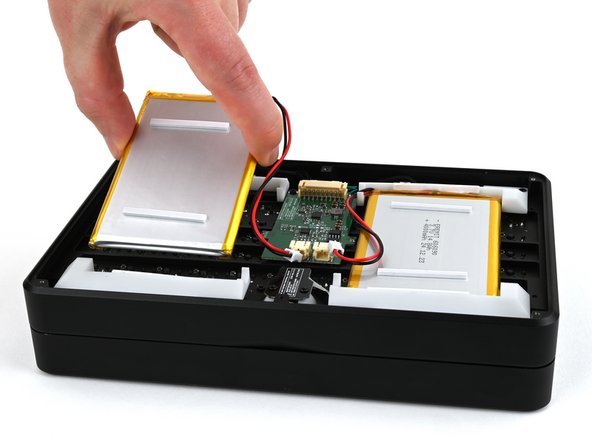
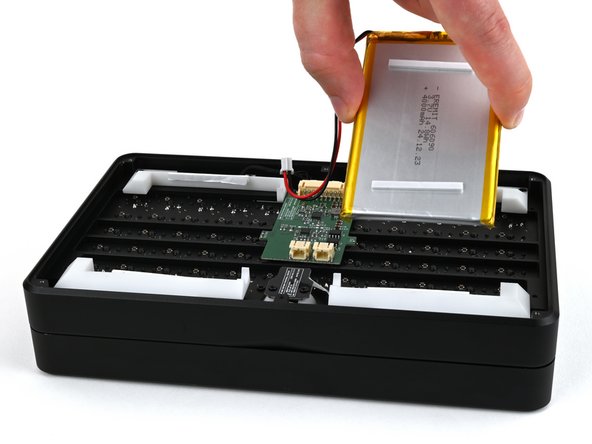
    • Lift the batteries out of the frame.

    • During reassembly, install the batteries so the foam stickers face up, the sides of the batteries with wires are towards the hinges, and the wires run towards the middle of the laptop.

Conclusione

To reassemble your device, follow these instructions in reverse order.

Spencer Pennington

Membro da: 09/09/23

23.915 Reputazione

125 Guide realizzate

Team

Guide Team Membro di Guide Team

Staff

10 Membri

16.060 Guide realizzate

0Commenti sulla guida

Aggiungi Commento

Visualizza Statistiche:

Ultime 24 Ore: 0

Ultimi 7 Giorni: 1

Ultimi 30 Giorni: 4

Tutti i Tempi: 47