Salta al contenuto principale
Unisciti alla Community delle riparazioni - Crea un account

Asus Eee PC 900 RAM Replacement

Cosa ti serve

    1. Asus Eee PC 900 RAM Replacement, Battery: passo 1, immagine 1 di 3 Asus Eee PC 900 RAM Replacement, Battery: passo 1, immagine 2 di 3 Asus Eee PC 900 RAM Replacement, Battery: passo 1, immagine 3 di 3
      • Slide the battery's locking tabs from the locked position to unlocked positions.

      • The right tab is unlocked when a red dot is showing.

      • The left tab will have to be held in the unlocked position in order to release the battery.

      Chiedi a FixBot

      Aggiungi Commento

    2. Asus Eee PC 900 RAM Replacement: passo 2, immagine 1 di 1
      • Slide the battery out while holding the left locking tab in the unlocked position.

      Chiedi a FixBot

      Aggiungi Commento

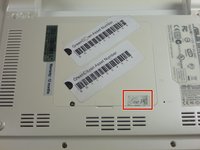
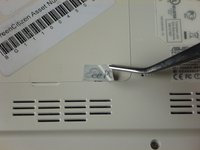
    1. Asus Eee PC 900 RAM Replacement, RAM: passo 3, immagine 1 di 2 Asus Eee PC 900 RAM Replacement, RAM: passo 3, immagine 2 di 2
      Strumento utilizzato in questo passaggio:
      Tweezers
      $4.99
      • Remove the sticker from the RAM compartment using a pair of tweezers.

      Chiedi a FixBot

      Aggiungi Commento

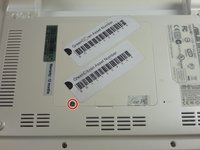
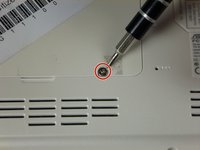
    2. Asus Eee PC 900 RAM Replacement: passo 4, immagine 1 di 2 Asus Eee PC 900 RAM Replacement: passo 4, immagine 2 di 2
      • Remove the two 4.8 mm screws using a Phillips #0 screwdriver.

      Chiedi a FixBot

      Aggiungi Commento

    3. Asus Eee PC 900 RAM Replacement: passo 5, immagine 1 di 1
      • Open up the cover from the bottom by carefully prying it open with a plastic opening tool.

      • Be gentle when prying open the cover in order to not damage it.

      Chiedi a FixBot

      Aggiungi Commento

    4. Asus Eee PC 900 RAM Replacement: passo 6, immagine 1 di 1
      • Remove the back cover by pulling up on the side that had the screws.

      Chiedi a FixBot

      Aggiungi Commento

    5. Asus Eee PC 900 RAM Replacement: passo 7, immagine 1 di 2 Asus Eee PC 900 RAM Replacement: passo 7, immagine 2 di 2
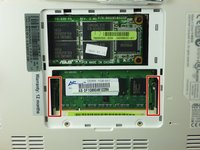
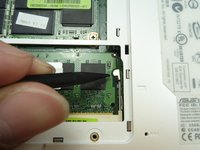
      • Use a spudger to push the top of the pin on the right towards the right (so it isn't holding the RAM chip).

      • Do the same for the left pin. Push the top of the pin towards the left.

      • The RAM should pop up.

      Chiedi a FixBot

      Aggiungi Commento

    6. Asus Eee PC 900 RAM Replacement: passo 8, immagine 1 di 1
      • Remove the RAM chip by grabbing the top of the chip and pulling it upwards.

      • Be gentle when removing the RAM because it is a very delicate part and you do not want to break any of the pins in the computer.

      Chiedi a FixBot

      Aggiungi Commento

Conclusione

To reassemble your device, follow these instructions in reverse order.

Annulla: non ho completato questa guida.

Altre 5 persone hanno completato questa guida.

Team

Cal Poly, Team 3-27, Amido Winter 2012 Membro di Cal Poly, Team 3-27, Amido Winter 2012

CPSU-AMIDO-W12S3G27

4 Membri

16 guide realizzate

0Commenti sulla guida

Aggiungi Commento

Visualizza statistiche:

Ultime 24 ore: 2

Ultimi 7 giorni: 14

Ultimi 30 giorni: 49

Tutti i Tempi: 9,834