Questa traduzione è stata generata automaticamente e non è stata ancora revisionata da una persona. Parli questa lingua? Dai un’occhiata.
Introduzione
Questa guida, insieme alle guide prerequisite, mostrerà come rimuovere e sostituire la fotocamera nel tablet Arnova 7K G3.
Cosa ti serve
-
-
-
Rimuovi quattro viti a croce Phillips da 5 mm da ogni angolo del tablet.
 Chiedi a FixBot
-
-
-
Inserisci lo strumento di apertura iFixit negli incavi tra le coperture e separale tirando.
-
-
-
Ripeti il passaggio due finché 3/4 della cover posteriore non sono sganciate.
-
Procedi a rimuovere la cover posteriore tirandola delicatamente a mano.
-
-
-
-
Strumento utilizzato in questo passaggio:Tweezers$4.99
-
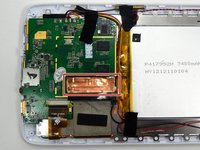
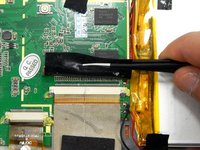
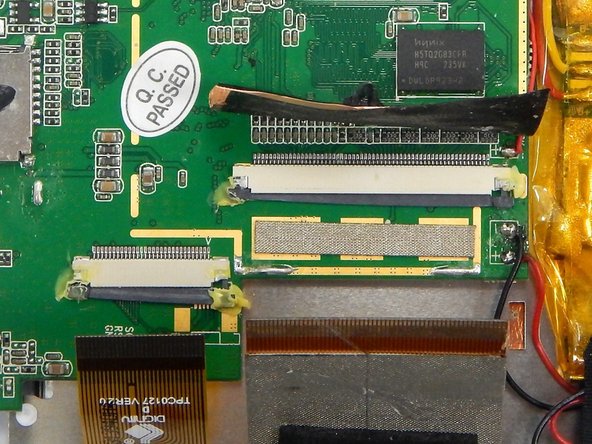
Stacca la copertura di rame che copre il connettore a nastro usando un paio di pinzette.
-
-
-
-
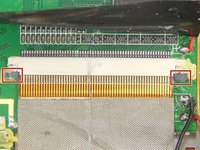
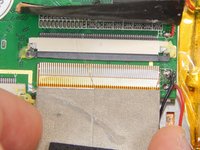
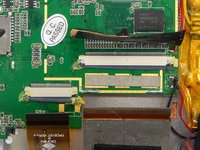
Individua i due perni grigi sul connettore del cavo a nastro.
-
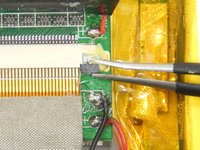
Afferra il primo perno con le pinzette e tiralo delicatamente verso il nastro. Ripeti l'operazione.
-
Sfila delicatamente il cavo a nastro dalla porta di connessione.
-
-
-
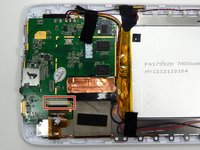
Individua il secondo connettore a nastro.
-
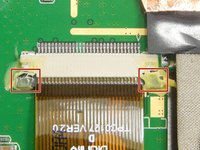
Individua i pin del secondo connettore a nastro. Ripeti il secondo passaggio per sbloccare i pin.
-
Estrai delicatamente il nastro dalla porta di connessione.
-
-
-
-
-
Rimuovi le due viti a croce Phillips #00 dalla scheda madre.
-
-
-
Solleva delicatamente la scheda madre e riorientala in modo più efficiente per individuare i componenti desiderati.
-
-
-
-
-
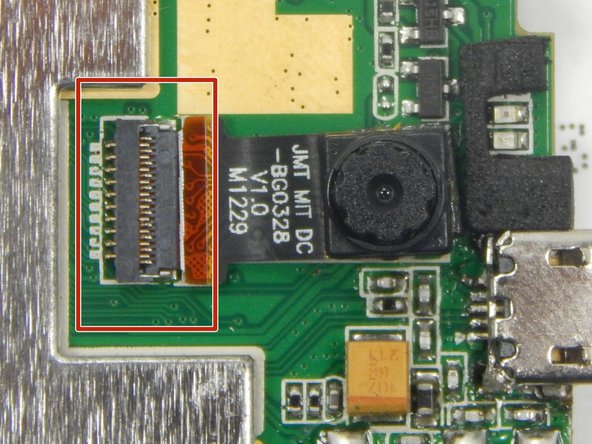
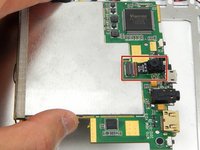
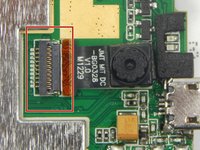
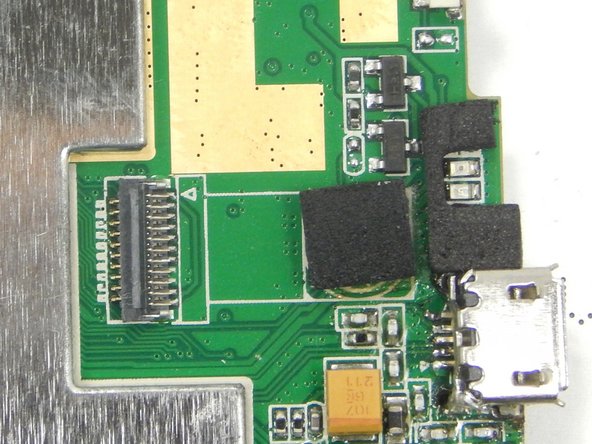
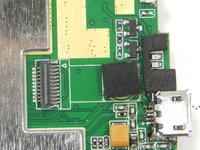
Individua la fotocamera e la connessione del cavo a nastro della fotocamera sul lato posteriore della scheda madre.
-
-
Strumento utilizzato in questo passaggio:Tweezers$4.99
-
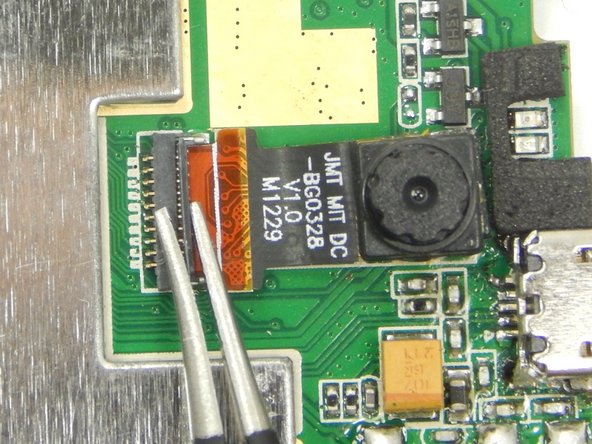
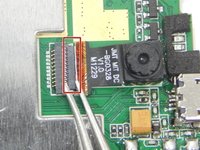
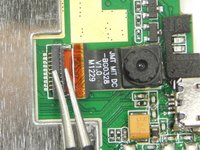
Sblocca la clip del connettore a nastro della fotocamera usando un paio di pinzette.
-
-
-
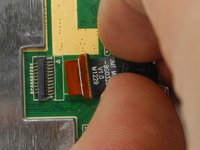
Rimuovi delicatamente a mano la fotocamera e il suo cavo a nastro allontanandola dalla scheda madre.
-
-










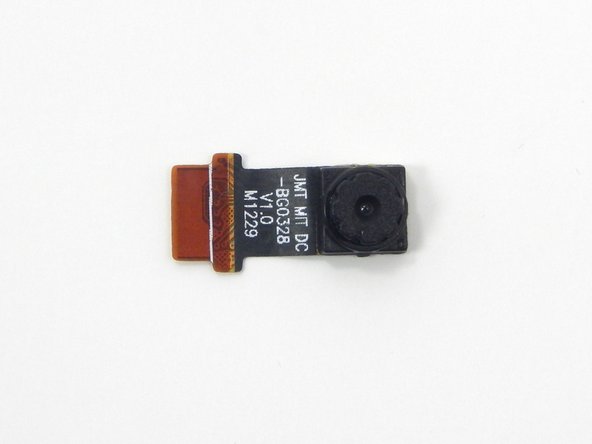
Per rimontare il dispositivo, segui queste istruzioni in ordine inverso.

Team

Michigan Tech, Team 1-2, Lauer Spring 2015 Membro di Michigan Tech, Team 1-2, Lauer Spring 2015
MTU-LAUER-S15S1G2
2 Membri
60 guide realizzate
