Salta al contenuto principale
Unisciti alla Community delle riparazioni - Crea un account

ASUS Eee PC 1018P RAM Replacement

Cosa ti serve

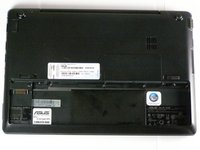
  1. ASUS Eee PC 1018P RAM Replacement, Battery: passo 1, immagine 1 di 1
    • Lay the laptop flat on a hard surface with the bottom facing up and the battery pack on the side closest to you.

    Chiedi a FixBot

    Aggiungi Commento

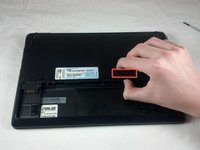
  2. ASUS Eee PC 1018P RAM Replacement: passo 2, immagine 1 di 2 ASUS Eee PC 1018P RAM Replacement: passo 2, immagine 2 di 2
    • Use both index fingers to push both spring tabs inwards towards the center of the laptop.

    Chiedi a FixBot

    Aggiungi Commento

  3. ASUS Eee PC 1018P RAM Replacement: passo 3, immagine 1 di 3 ASUS Eee PC 1018P RAM Replacement: passo 3, immagine 2 di 3 ASUS Eee PC 1018P RAM Replacement: passo 3, immagine 3 di 3
    • With the spring tabs pressed inward, use your fingernails to lift of the edge of the battery, pivoting it up and towards you.

    • Pull the battery pack up and away from you to completely free it from its recess in the case.

    Chiedi a FixBot

    Aggiungi Commento

  4. ASUS Eee PC 1018P RAM Replacement, RAM: passo 4, immagine 1 di 1
    • With the battery removed, locate the RAM cover.

    Chiedi a FixBot

    Aggiungi Commento

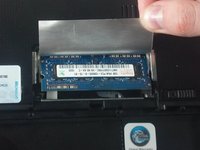
  5. ASUS Eee PC 1018P RAM Replacement: passo 5, immagine 1 di 2 ASUS Eee PC 1018P RAM Replacement: passo 5, immagine 2 di 2
    • Use your thumb to pry up the exposed edge of the RAM cover. Once this edge is lifted, the cover will come free.

    • With the RAM cover removed, carefully peel back the silver foil that protects the RAM.

    Chiedi a FixBot

    Aggiungi Commento

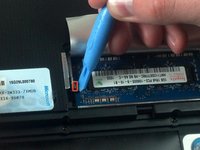
  6. ASUS Eee PC 1018P RAM Replacement: passo 6, immagine 1 di 2 ASUS Eee PC 1018P RAM Replacement: passo 6, immagine 2 di 2
    • Use the plastic opening tool to push aside the two silver tabs that hold down the RAM module.

    • In order to detach the tabs , use the plastic opening tool to pull the tab slightly toward the battery pack, then push outward away from the RAM module.

    • The RAM module will pop upward at a slight angle when both tabs are detached.

    Chiedi a FixBot

    Aggiungi Commento

  7. ASUS Eee PC 1018P RAM Replacement: passo 7, immagine 1 di 2 ASUS Eee PC 1018P RAM Replacement: passo 7, immagine 2 di 2
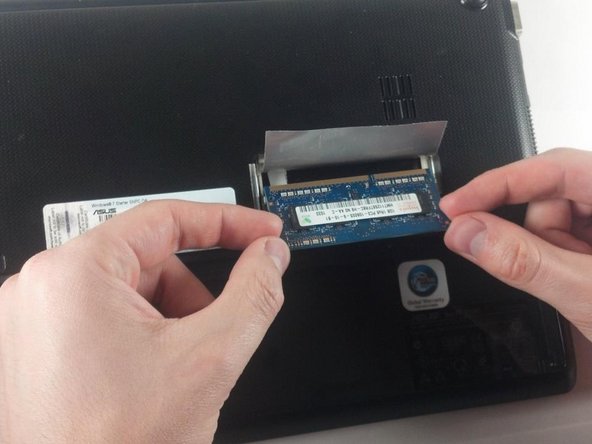
    • Carefully grasping the edges of the RAM module, slowly pull it free from the pin connectors underneath the edge of the foil.

    • Pull the RAM out at the same angle that it pops up naturally to. Ripping the RAM free at other angles can damage the fragile pins.

    Chiedi a FixBot

    Aggiungi Commento

  8. ASUS Eee PC 1018P RAM Replacement: passo 8, immagine 1 di 1
    • Remove RAM module entirely for repair or replacement.

    Chiedi a FixBot

    Aggiungi Commento

Conclusione

To reassemble your device, follow these instructions in reverse order.

Annulla: non ho completato questa guida.

Un'altra persona ha completato questa guida.

Team

Cal Poly, Team 8-13, Maness Winter 2012 Membro di Cal Poly, Team 8-13, Maness Winter 2012

CPSU-MANESS-W12S8G13

4 Membri

11 guide realizzate

0Commenti sulla guida

Aggiungi Commento

Visualizza statistiche:

Ultime 24 ore: 2

Ultimi 7 giorni: 12

Ultimi 30 giorni: 39

Tutti i Tempi: 3,789