Introduzione
How to replace a scratched, cracked, or unresponsive trackpad on a Dell XPS 15 9560 laptop.
Before using this guide, check for other possible causes of trackpad issues.
- Trackpad Drivers: Your issue may be related to drivers. Watch this video by MDTechVideos for a fix.
- Dust or Debris: Clean the trackpad by spraying isopropyl alcohol on a microfiber cloth. Apply medium pressure and wipe in small circles on and around the trackpad.
Before you begin this repair, power off your laptop and unplug it from the charging adapter and any peripherals, like an external display.
Cosa ti serve
-
-
Using a Phillips #0 screwdriver, remove four 4.0 mm screws of the hard drive bracket.
-
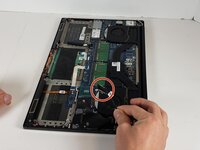
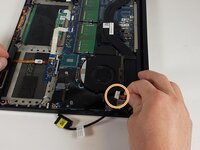
Unplug the hard drive cable.
-
-
-
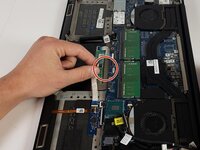
Disconnect the white ribbon cables, and use a spudger or your fingernail to gently lift the looped tab away from the connector. It should pop up easily.
-
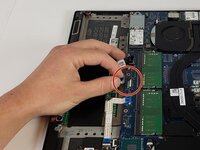
Next, use the spudger or your fingernail to push the plastic tab away from the socket. It should move slightly.
-
Now, pull the white ribbon cables out.
-





To reassemble your device, follow these instructions in reverse order. Take your e-waste to an R2 or e-Stewards certified recycler.



Team

Embry-Riddle Aeronautical University, Team 2-6, Rauch Spring 2022 Membro di Embry-Riddle Aeronautical University, Team 2-6, Rauch Spring 2022
ERAU-RAUCH-S22S2G6
3 Membri
2 Guide realizzate
