Salta al contenuto principale
Unisciti alla Community delle riparazioni - Crea un account
Retina MacBook 2015 Lower Case Assembly Replacement

Cosa ti serve

  1. Retina MacBook 2015 Lower Case Assembly Replacement, Unfasten the lower case: passo 1, immagine 1 di 1
    Strumento utilizzato in questo passaggio:
    Magnetic Project Mat
    $19.95
    • Before proceeding, unplug and power down your MacBook. Close the display and flip it upside-down.

    • Remove the following eight screws securing the lower case:

    • Two 1.8 mm P5 Pentalobe screws

    • Four 2.9 mm P5 Pentalobe screws

    • Two 6.1 mm P5 Pentalobe screws

    • Note the orientation of the screws as you remove them—they need to be reinstalled at a slight angle.

    • Throughout this repair, keep track of each screw and make sure it goes back exactly where it came from to avoid damaging your device.

    Chiedi a FixBot

    Aggiungi Commento

  2. Retina MacBook 2015 Lower Case Assembly Replacement: passo 2, immagine 1 di 3 Retina MacBook 2015 Lower Case Assembly Replacement: passo 2, immagine 2 di 3 Retina MacBook 2015 Lower Case Assembly Replacement: passo 2, immagine 3 di 3
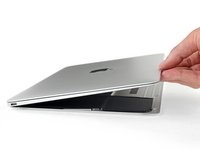
    • Wedge your fingers between the upper case and the lower case, starting from the rear of the MacBook between the hinges.

    • Lift the lower case only slightly to avoid damaging the cables that connect the lower case to the upper case.

    • Keeping a firm grip, lift steadily until the lower case separates slightly from the upper case.

    • You may experience a lot of resistance when lifting the lower case. If necessary, slide an opening pick or other ESD-safe pry tool down the side edges of the lower case to pop the two hidden retaining clips free.

    • During reassembly, to re-engage the clips, press firmly near both side edges of the lower case (near where the pick is inserted in the third image) until you hear the clips snap into place.

    Chiedi a FixBot

    Aggiungi Commento

  3. Retina MacBook 2015 Lower Case Assembly Replacement: passo 3, immagine 1 di 1
    • While holding the lower case in place, carefully flip the MacBook over so the Apple logo faces up.

    Chiedi a FixBot

    Aggiungi Commento

  4. Retina MacBook 2015 Lower Case Assembly Replacement: passo 4, immagine 1 di 2 Retina MacBook 2015 Lower Case Assembly Replacement: passo 4, immagine 2 di 2
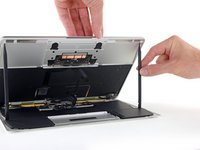
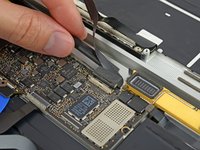
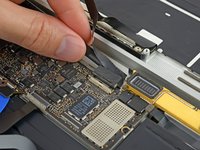
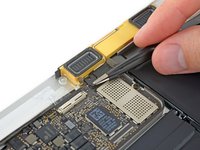
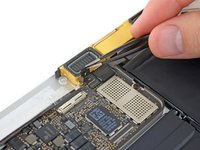
    • Lift the upper case and display together from the front edge and raise it to about a 45˚ angle.

    • It may be helpful to prop the MacBook open in this position for the next step.

    Chiedi a FixBot

    Aggiungi Commento

  5. Retina MacBook 2015 Lower Case Assembly Replacement: passo 5, immagine 1 di 3 Retina MacBook 2015 Lower Case Assembly Replacement: passo 5, immagine 2 di 3 Retina MacBook 2015 Lower Case Assembly Replacement: passo 5, immagine 3 di 3
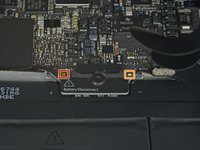
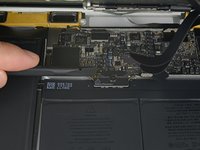
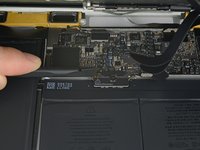
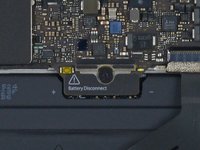
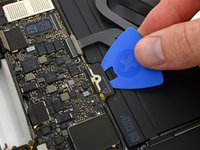
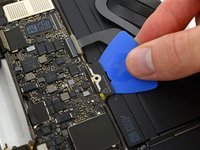
    • Use the flat end of a spudger to press and hold the small gold 'battery disconnect' button.

    • If the power LED is lit up, continue holding the button until the LED goes dark, and then release. This may take up to 10 seconds.

    • If the LED does not light, release the button after 5-10 seconds. Press and hold it again for 5-10 seconds, and release. Finally, press and hold it a third time for 5-10 seconds, and release.

    • This step ensures the MacBook is fully powered down and safe to work on.

    Chiedi a FixBot

    Aggiungi Commento

  6. Retina MacBook 2015 Lower Case Assembly Replacement: passo 6, immagine 1 di 1
    • Close the MacBook and carefully flip it upside-down.

    Chiedi a FixBot

    Aggiungi Commento

  7. Retina MacBook 2015 Lower Case Assembly Replacement: passo 7, immagine 1 di 1
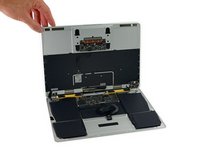
    • Lifting from the front edge, open the lower case to an angle of about 45°.

    • Take care not to damage the ribbon cables that still attach the lower case to the MacBook.

    Chiedi a FixBot

    Aggiungi Commento

  8. Retina MacBook 2015 Lower Case Assembly Replacement: passo 8, immagine 1 di 2 Retina MacBook 2015 Lower Case Assembly Replacement: passo 8, immagine 2 di 2
    Strumento utilizzato in questo passaggio:
    Tweezers
    $4.99
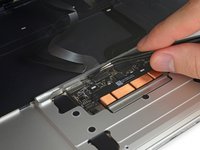
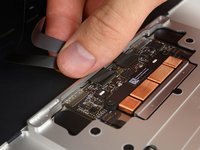
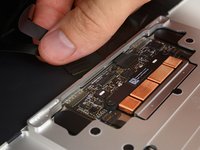
    • Use tweezers to peel back the tape covering the trackpad cable ZIF connector.

    Chiedi a FixBot

    Aggiungi Commento

  9. Retina MacBook 2015 Lower Case Assembly Replacement: passo 9, immagine 1 di 2 Retina MacBook 2015 Lower Case Assembly Replacement: passo 9, immagine 2 di 2
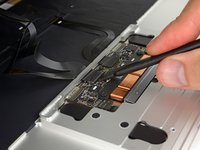
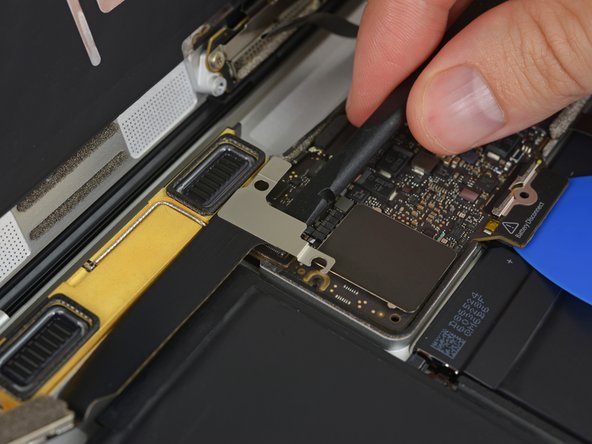
    • Use a spudger to carefully flip up the retaining flap on the trackpad cable ZIF connector.

    Chiedi a FixBot

    Aggiungi Commento

  10. Retina MacBook 2015 Lower Case Assembly Replacement: passo 10, immagine 1 di 2 Retina MacBook 2015 Lower Case Assembly Replacement: passo 10, immagine 2 di 2
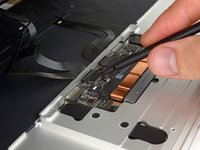
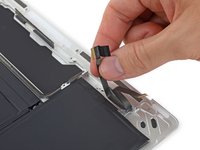
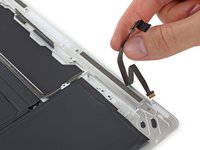
    • Disconnect the trackpad ribbon cable from the trackpad by pulling it gently through its slot in the frame.

    Chiedi a FixBot

    Aggiungi Commento

  11. Retina MacBook 2015 Lower Case Assembly Replacement: passo 11, immagine 1 di 2 Retina MacBook 2015 Lower Case Assembly Replacement: passo 11, immagine 2 di 2
    • Carefully turn the MacBook over, so that the lower case lays flat.

    • Raise the upper case/display assembly to about a 90° angle, and prop it up against something sturdy so you don't have to hold it.

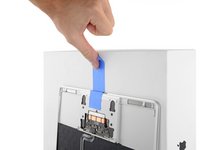
    • Add a piece of tape near the track pad to secure the upper case and prevent accidental movement.

    • It's possible to open the MacBook all the way and lay both sides down flat, but this may damage the flex cables and is not recommended.

    Chiedi a FixBot

    Aggiungi Commento

  12. Retina MacBook 2015 Lower Case Assembly Replacement: passo 12, immagine 1 di 2 Retina MacBook 2015 Lower Case Assembly Replacement: passo 12, immagine 2 di 2
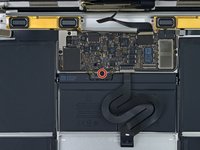
    • Remove the single 2.9 mm T5 Torx screw securing the battery connector to the logic board.

    • 2015 models have a silver grounding clip with two foam pads directly under this screw, which may come loose. Be sure to reinstall it during reassembly.

    Chiedi a FixBot

    Aggiungi Commento

  13. Retina MacBook 2015 Lower Case Assembly Replacement: passo 13, immagine 1 di 2 Retina MacBook 2015 Lower Case Assembly Replacement: passo 13, immagine 2 di 2
    Strumento utilizzato in questo passaggio:
    Battery Blocker
    $5.95
    • As an added precaution, you may physically disconnect the battery by inserting a battery isolation pick between the logic board and the battery connector.

    Chiedi a FixBot

    Aggiungi Commento

  14. Retina MacBook 2015 Lower Case Assembly Replacement: passo 14, immagine 1 di 1
    • Remove the two screws securing the USB-C port cable bracket:

    • 1.1 mm Tri-point Y00 screw

    • Some variations of this model may use a Phillips #00 screw.

    • 3.5 mm T5 Torx screw

    Chiedi a FixBot

    Aggiungi Commento

  15. Retina MacBook 2015 Lower Case Assembly Replacement: passo 15, immagine 1 di 2 Retina MacBook 2015 Lower Case Assembly Replacement: passo 15, immagine 2 di 2
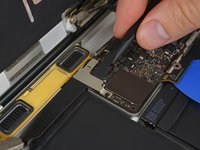
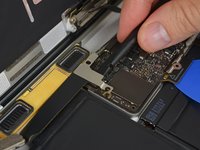
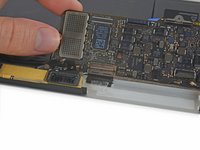
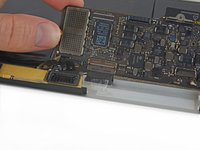
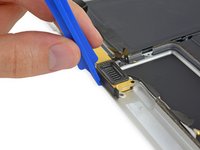
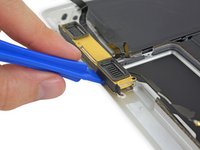
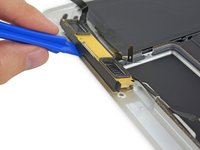
    • Use the flat end of a spudger to disconnect the USB-C port cable bracket by prying it straight up from the logic board.

    • To reconnect this cable, first line up the metal bracket over the screw holes, then press down on the middle of the bracket. Make sure it's aligned correctly, or you may damage the connector.

    Chiedi a FixBot

    Aggiungi Commento

  16. Retina MacBook 2015 Lower Case Assembly Replacement: passo 16, immagine 1 di 2 Retina MacBook 2015 Lower Case Assembly Replacement: passo 16, immagine 2 di 2
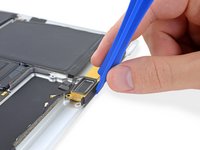
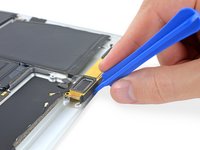
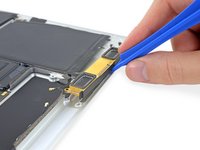
    • Use a spudger to flip open the retaining flap on the audio jack board cable ZIF connector.

    Chiedi a FixBot

    Aggiungi Commento

  17. Retina MacBook 2015 Lower Case Assembly Replacement: passo 17, immagine 1 di 1
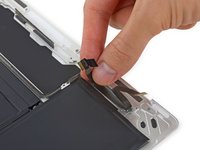
    • Disconnect the audio jack board ribbon cable by pulling it straight back out of the ZIF connector.

    • During reassembly, orient the ribbon cable so that the side with the white stripe faces you, as shown.

    Chiedi a FixBot

    Aggiungi Commento

  18. Retina MacBook 2015 Lower Case Assembly Replacement, Retina MacBook 2015 Lower Case Assembly Removal: passo 18, immagine 1 di 2 Retina MacBook 2015 Lower Case Assembly Replacement, Retina MacBook 2015 Lower Case Assembly Removal: passo 18, immagine 2 di 2
    Strumento utilizzato in questo passaggio:
    Tweezers
    $4.99
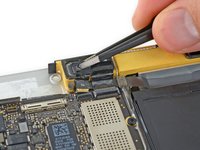
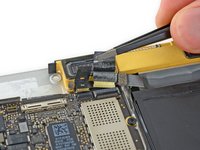
    • Use tweezers to peel back the tape covering the display cable connector.

    Chiedi a FixBot

    Aggiungi Commento

  19. Retina MacBook 2015 Lower Case Assembly Replacement: passo 19, immagine 1 di 2 Retina MacBook 2015 Lower Case Assembly Replacement: passo 19, immagine 2 di 2
    • It's possible the metal retaining flap on the display cable connector may flip open, remaining stuck to the tape.

    • If so, use the flat end of a spudger to hold down the retaining flap while peeling the tape away with the tweezers.

    Chiedi a FixBot

    Aggiungi Commento

  20. Retina MacBook 2015 Lower Case Assembly Replacement: passo 20, immagine 1 di 1
    • Use the flat end of a spudger to flip open the retaining flap on the display cable connector.

    • Try to keep it clear of the tape, or it may re-adhere and make cable removal difficult.

    Chiedi a FixBot

    Aggiungi Commento

  21. Retina MacBook 2015 Lower Case Assembly Replacement: passo 21, immagine 1 di 3 Retina MacBook 2015 Lower Case Assembly Replacement: passo 21, immagine 2 di 3 Retina MacBook 2015 Lower Case Assembly Replacement: passo 21, immagine 3 di 3
    Strumento utilizzato in questo passaggio:
    iOpener
    $14.95
    • Carefully slide the flat end of a spudger underneath the display cable to separate the adhesive holding it to the lower case.

    • Take care not to damage the cable. If it doesn't separate easily, heat the cable and/or the case directly beneath it with a hair dryer or iOpener to soften the adhesive, and try again.

    Chiedi a FixBot

    Aggiungi Commento

  22. Retina MacBook 2015 Lower Case Assembly Replacement: passo 22, immagine 1 di 1
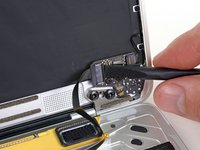
    • Disconnect the display cable by gently pulling it straight out of its connector.

    • Immediately close the retaining flap.

    • The flap must remain closed when the cable is reinserted during reassembly. Carefully line up the cable with the gold contacts facing down, and gently slide it into the connector. Take care not to crimp or damage the cable. When fully inserted, the indentations on the sides should not be visible.

    Chiedi a FixBot

    Aggiungi Commento

  23. Retina MacBook 2015 Lower Case Assembly Replacement: passo 23, immagine 1 di 1
    • Separate the upper case assembly from the lower case assembly.

    Chiedi a FixBot

    Aggiungi Commento

  24. Retina MacBook 2015 Lower Case Assembly Replacement, Logic Board: passo 24, immagine 1 di 3 Retina MacBook 2015 Lower Case Assembly Replacement, Logic Board: passo 24, immagine 2 di 3 Retina MacBook 2015 Lower Case Assembly Replacement, Logic Board: passo 24, immagine 3 di 3
    Strumento utilizzato in questo passaggio:
    Tweezers
    $4.99
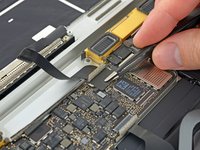
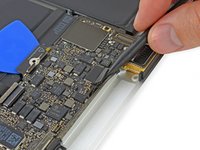
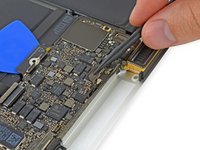
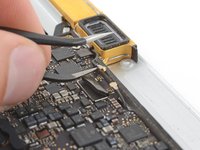
    • Use tweezers to peel up the tape covering the two ZIF connectors—one for the right speaker cable, and one for the audio jack board cable.

    Chiedi a FixBot

    Aggiungi Commento

  25. Retina MacBook 2015 Lower Case Assembly Replacement: passo 25, immagine 1 di 3 Retina MacBook 2015 Lower Case Assembly Replacement: passo 25, immagine 2 di 3 Retina MacBook 2015 Lower Case Assembly Replacement: passo 25, immagine 3 di 3
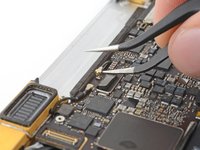
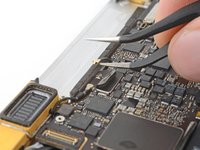
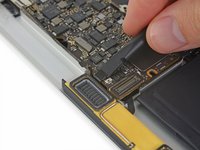
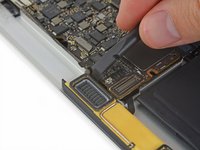
    • Use the point of a spudger to flip up both ZIF connector retaining flaps.

    Chiedi a FixBot

    Aggiungi Commento

  26. Retina MacBook 2015 Lower Case Assembly Replacement: passo 26, immagine 1 di 2 Retina MacBook 2015 Lower Case Assembly Replacement: passo 26, immagine 2 di 2
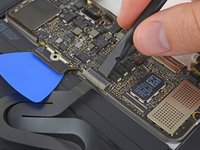
    • Carefully pull straight back on the two pieces of tape you just peeled up to disconnect the two ribbon cables.

    Chiedi a FixBot

    Aggiungi Commento

  27. Retina MacBook 2015 Lower Case Assembly Replacement: passo 27, immagine 1 di 2 Retina MacBook 2015 Lower Case Assembly Replacement: passo 27, immagine 2 di 2
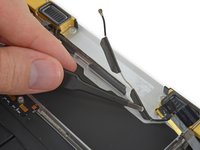
    • Use the point of a spudger to peel up the foam pad covering the two antenna connectors.

    Chiedi a FixBot

    Aggiungi Commento

  28. Retina MacBook 2015 Lower Case Assembly Replacement: passo 28, immagine 1 di 3 Retina MacBook 2015 Lower Case Assembly Replacement: passo 28, immagine 2 di 3 Retina MacBook 2015 Lower Case Assembly Replacement: passo 28, immagine 3 di 3
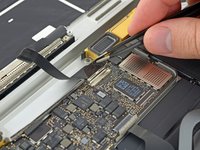
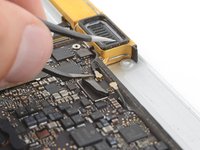
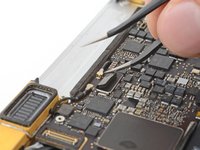
    • Insert one arm of your angled tweezers under the metal neck of the first antenna connector and pry up to disconnect it.

    • The antenna connectors and sockets are extremely fragile. Be very careful to lift only on the connector, and not on the socket itself. Do not lift under the cable, or put any unnecessary strain on it.

    Chiedi a FixBot

    Aggiungi Commento

  29. Retina MacBook 2015 Lower Case Assembly Replacement: passo 29, immagine 1 di 3 Retina MacBook 2015 Lower Case Assembly Replacement: passo 29, immagine 2 di 3 Retina MacBook 2015 Lower Case Assembly Replacement: passo 29, immagine 3 di 3
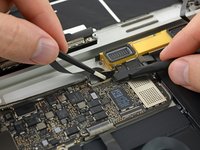
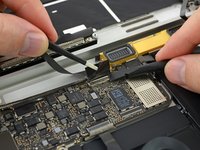
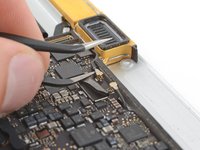
    • Pry up the second antenna connector to disconnect it.

    • The antenna connectors and sockets are extremely fragile. Be very careful to lift only on the connector, and not on the socket itself. Do not lift under the cable, or put any unnecessary strain on it.

    Chiedi a FixBot

    Aggiungi Commento

  30. Retina MacBook 2015 Lower Case Assembly Replacement: passo 30, immagine 1 di 2 Retina MacBook 2015 Lower Case Assembly Replacement: passo 30, immagine 2 di 2
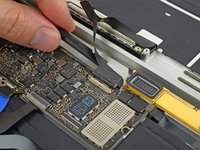
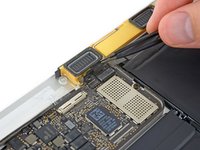
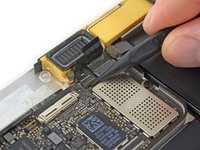
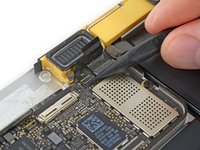
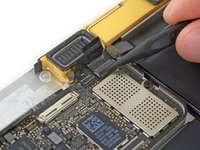
    • Use a spudger to disconnect the left speaker cable connector by prying it straight up from the logic board.

    Chiedi a FixBot

    Aggiungi Commento

  31. Retina MacBook 2015 Lower Case Assembly Replacement: passo 31, immagine 1 di 2 Retina MacBook 2015 Lower Case Assembly Replacement: passo 31, immagine 2 di 2
    • Use a spudger to flip up the retaining flap on the trackpad cable ZIF connector.

    Chiedi a FixBot

    Aggiungi Commento

  32. Retina MacBook 2015 Lower Case Assembly Replacement: passo 32, immagine 1 di 2 Retina MacBook 2015 Lower Case Assembly Replacement: passo 32, immagine 2 di 2
    • Disconnect the trackpad cable from the logic board by gently pulling it straight out of its connector.

    • During reassembly, check that your ZIF connector flaps are flipped up before reinserting their cables.

    Chiedi a FixBot

    Aggiungi Commento

  33. Retina MacBook 2015 Lower Case Assembly Replacement: passo 33, immagine 1 di 1
    • Remove the single 3.5 mm T5 Torx screw securing the logic board to the lower case.

    Chiedi a FixBot

    Aggiungi Commento

  34. Retina MacBook 2015 Lower Case Assembly Replacement: passo 34, immagine 1 di 3 Retina MacBook 2015 Lower Case Assembly Replacement: passo 34, immagine 2 di 3 Retina MacBook 2015 Lower Case Assembly Replacement: passo 34, immagine 3 di 3
    • Flip up the front edge of the logic board.

    • Handle the logic board only by its edges.

    • Lift and detach the EMI tape securing the logic board to the lower case.

    • If the tape feels stuck, heat it with a hair dryer or iOpener to soften the adhesive.

    • Reattach the tape securely during reassembly.

    Chiedi a FixBot

    Aggiungi Commento

  35. Retina MacBook 2015 Lower Case Assembly Replacement: passo 35, immagine 1 di 1
    • Remove the logic board.

    Chiedi a FixBot

    Aggiungi Commento

  36. Retina MacBook 2015 Lower Case Assembly Replacement, Right Speaker: passo 36, immagine 1 di 1
    Strumento utilizzato in questo passaggio:
    Tweezers
    $4.99
    • Using tweezers, remove the foam pad covering the screw on the left side of the right speaker.

    • If you pull on the foam portion, it will tear. Try to get your tweezers under the adhesive pad holding the foam to the top of the screw.

    Chiedi a FixBot

    Aggiungi Commento

  37. Retina MacBook 2015 Lower Case Assembly Replacement: passo 37, immagine 1 di 1
    • Remove the two 4.1 mm T3 Torx screws securing the right speaker.

    Chiedi a FixBot

    Aggiungi Commento

  38. Retina MacBook 2015 Lower Case Assembly Replacement: passo 38, immagine 1 di 3 Retina MacBook 2015 Lower Case Assembly Replacement: passo 38, immagine 2 di 3 Retina MacBook 2015 Lower Case Assembly Replacement: passo 38, immagine 3 di 3
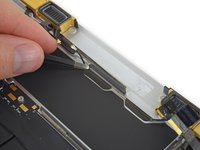
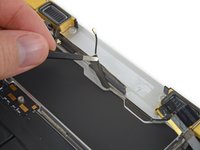
    • Using tweezers, carefully peel up the tape securing the right antenna cable to the lower case.

    Chiedi a FixBot

    Aggiungi Commento

  39. Retina MacBook 2015 Lower Case Assembly Replacement: passo 39, immagine 1 di 1
    • Prepare an iOpener and heat the lower case directly beneath the right speaker for 1-2 minutes, in order to soften up the adhesive securing the speaker.

    Chiedi a FixBot

    Aggiungi Commento

  40. Retina MacBook 2015 Lower Case Assembly Replacement: passo 40, immagine 1 di 3 Retina MacBook 2015 Lower Case Assembly Replacement: passo 40, immagine 2 di 3 Retina MacBook 2015 Lower Case Assembly Replacement: passo 40, immagine 3 di 3
    • Use a plastic opening tool to pry under the top edge of the right speaker, and separate it from the lower case.

    Chiedi a FixBot

    Aggiungi Commento

  41. Retina MacBook 2015 Lower Case Assembly Replacement: passo 41, immagine 1 di 1
    • Remove the right speaker.

    Chiedi a FixBot

    Aggiungi Commento

  42. Retina MacBook 2015 Lower Case Assembly Replacement, Left Speaker: passo 42, immagine 1 di 1
    Strumento utilizzato in questo passaggio:
    Tweezers
    $4.99
    • Using tweezers, remove the foam pad covering the screw on the right side of the left speaker.

    • If you pull on the foam portion, it will tear. Try to get your tweezers under the adhesive pad holding the foam to the top of the screw.

    Chiedi a FixBot

    Aggiungi Commento

  43. Retina MacBook 2015 Lower Case Assembly Replacement: passo 43, immagine 1 di 1
    • Remove the two 4.1 mm T3 Torx screws securing the left speaker to the lower case.

    Chiedi a FixBot

    Aggiungi Commento

  44. Retina MacBook 2015 Lower Case Assembly Replacement: passo 44, immagine 1 di 1
    • Prepare an iOpener and heat the lower case directly beneath the left speaker, in order to soften up the adhesive securing the speaker.

    Chiedi a FixBot

    Aggiungi Commento

  45. Retina MacBook 2015 Lower Case Assembly Replacement: passo 45, immagine 1 di 3 Retina MacBook 2015 Lower Case Assembly Replacement: passo 45, immagine 2 di 3 Retina MacBook 2015 Lower Case Assembly Replacement: passo 45, immagine 3 di 3
    • Use a plastic opening tool to pry under the top edge of the left speaker, and separate it from the lower case.

    Chiedi a FixBot

    Aggiungi Commento

  46. Retina MacBook 2015 Lower Case Assembly Replacement: passo 46, immagine 1 di 1
    • Remove the left speaker assembly.

    Chiedi a FixBot

    Aggiungi Commento

  47. Retina MacBook 2015 Lower Case Assembly Replacement, Lower Case Assembly: passo 47, immagine 1 di 3 Retina MacBook 2015 Lower Case Assembly Replacement, Lower Case Assembly: passo 47, immagine 2 di 3 Retina MacBook 2015 Lower Case Assembly Replacement, Lower Case Assembly: passo 47, immagine 3 di 3
    • Carefully peel away the audio board ribbon cable from the adhesive securing it to the lower case.

    • Take care not to damage the cable. If the adhesive offers a lot of resistance, first soften the adhesive by heating the lower case directly beneath with an iOpener, and try again.

    • Remove the audio board ribbon cable.

    Chiedi a FixBot

    Aggiungi Commento

  48. Retina MacBook 2015 Lower Case Assembly Replacement: passo 48, immagine 1 di 1
    • Lower case assembly remains.

    • The battery is strongly glued into place and is commonly replaced together with the lower case. If you need to replace the battery separately, follow the battery guide. The battery should not be re-used or reinstalled after removal.

    Chiedi a FixBot

    Aggiungi Commento

Conclusione

To reassemble your device, follow these instructions in reverse order. To avoid logic board damage, when your MacBook repair is complete but before powering it on, connect it to low-voltage power using a 5-Watt iPhone charger and a USB-C to USB-A cable.

Annulla: non ho completato questa guida.

Altre 12 persone hanno completato questa guida.

Geoff Wacker

Membro da: 09/30/13

92.727 Reputazione

89 guide realizzate

3Commenti sulla guida

Nice guide and though indeed not easy, not difficult if you're careful... note I invested in the set of iFixit tools and having those really is a good investment... given they saved me a Macbook that the repair shop said would cost 2000Eur to repair (and would give me 200Eur as a scrap price)... found the bottom case/battery set on eBay for 150... did the guide, and back in business :)

aknabi - Rispondi Condividi

Great guide. Saved a big bill for a MacBook dropped in water. Battery needed replacing. Worked perfect.

dlmacbeth - Rispondi Condividi

Does anyone know the correct orientation of that touchpad cable?

Repair Ninja - Rispondi Condividi
Aggiungi Commento

Visualizza statistiche:

Ultime 24 ore: 2

Ultimi 7 giorni: 21

Ultimi 30 giorni: 109

Tutti i Tempi: 23,804