Introduzione
Follow this guide to remove and replace the kickstand on a Microsoft Surface Pro X.
Warning: Make sure to remove the SSD from the Surface before starting any repairs. This will disconnect the battery and prevent damage to the Surface.
Cosa ti serve
-
-
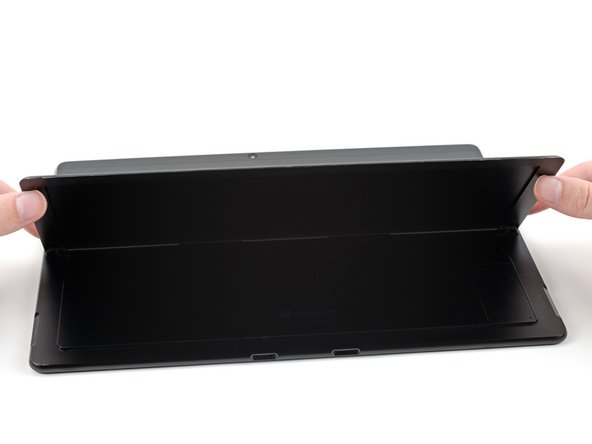
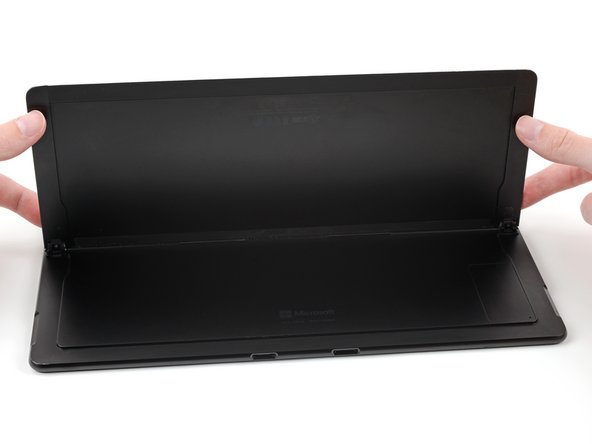
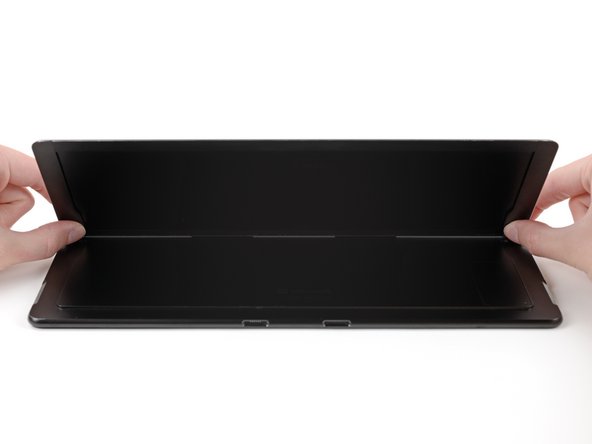
Lift the kickstand to at least a 90° angle, so that it is perpendicular to the Surface's screen. The further you open the hinge, the easier it is to access the SSD and SIM card door.
-
-
-
Insert a SIM card eject tool or a paperclip into the small hole in the bottom right corner of the SSD and SIM card door, located near the bottom right corner of the Surface.
-
Press firmly to open the door.
-
-
-
Lift the SSD and SIM card door and remove it from the Surface.
-
-
-
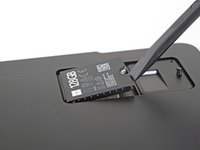
Use a T3 Torx screwdriver to remove the 2.4 mm screw securing the SSD.
-
-
-
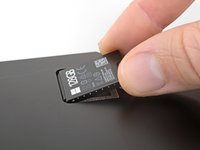
Use your finger or a spudger to lift the SSD just enough that it clears the edges of its recess.
-
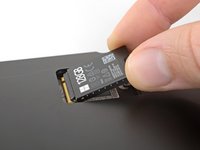
Gently pull the SSD straight out of its socket.
-
-
-
-
Place your Surface screen-side down on your work surface.
-
-
-
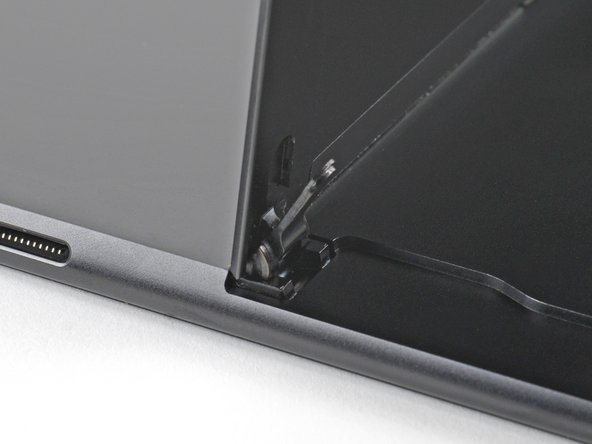
Use a T3 Torx screwdriver to remove two 2.5 mm screws securing the kickstand to the kickstand hinges.
-
-
-
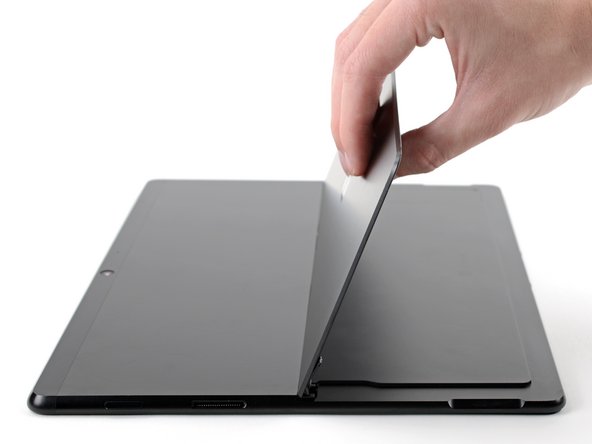
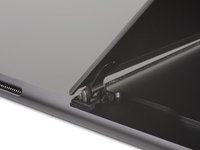
Hold both hinges and the kickstand.
-
Move the kickstand down to a 45° angle.
-
-
-
Tilt the bottom edge of the kickstand toward the hinges.
-
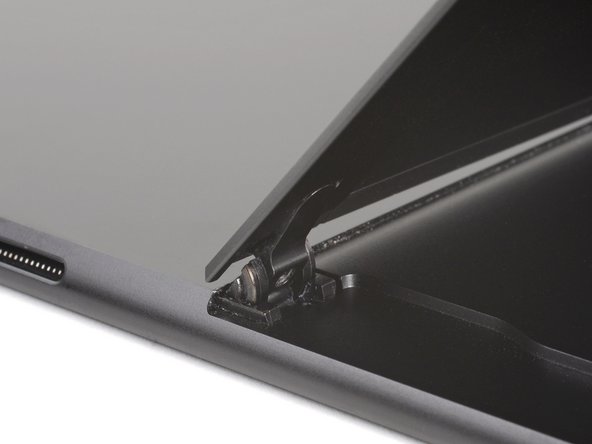
Insert the hinges into the kickstand recesses.
-
Check to see if the faces of the hinges are flush with the underside of the kickstand.
-














To reassemble your device, follow these instructions in reverse order.
Repair didn’t go as planned? Try some basic troubleshooting, or ask our Microsoft Surface Pro X Answers community for help.
Annulla: non ho completato questa guida.
Un'altra persona ha completato questa guida.


3Commenti sulla guida
The hinge replacement guide is vague, there should be one that's more specific. It'd be cool if you gave a link to the kickstand replacement in case the kickstand screw taps are stripped or unusable (sheered screw half in hole).
Otherwise, I thank you for what you do, much appreciated..
