Salta al contenuto principale
Unisciti alla Community delle riparazioni - Crea un account

MacBook Pro 15" Unibody Mid 2010 Subwoofer & Right Speaker Replacement

Cosa ti serve

  1. MacBook Pro 15" Unibody Mid 2010 Subwoofer & Right Speaker Replacement, Lower Case: passo 1, immagine 1 di 1
    • Remove the following ten screws securing the lower case to the upper case:

    • Three 13.5 mm (14.1 mm) Phillips screws.

    • Seven 3 mm Phillips screws.

    • When removing these screws, note how they come out at a slight angle. They must be reinstalled the same way.

    Chiedi a FixBot

    Aggiungi Commento

  2. MacBook Pro 15" Unibody Mid 2010 Subwoofer & Right Speaker Replacement: passo 2, immagine 1 di 1
    • Using both hands, lift the lower case near the vent to pop it off two clips securing it to the upper case.

    • Remove the lower case and set it aside.

    Chiedi a FixBot

    Aggiungi Commento

  3. MacBook Pro 15" Unibody Mid 2010 Subwoofer & Right Speaker Replacement, Battery: passo 3, immagine 1 di 1
    • Remove the two 7.4 mm Tri-point screws securing the battery to the upper case.

    • Note: For certain repairs (e.g. hard drive), removing the battery is not necessary but it prevents any accidental shorting of electronics on the motherboard. If you do not remove the battery, please be careful as parts of the motherboard might be electrified.

    • You do not necessarily have to follow steps 3-6 to remove the battery in order to replace the hard drive. However it is recommended to remove all power sources from electronics before working on them.

    Chiedi a FixBot

    Aggiungi Commento

  4. MacBook Pro 15" Unibody Mid 2010 Subwoofer & Right Speaker Replacement: passo 4, immagine 1 di 1
    • Use the tip of your finger to carefully peel back the corner of the warning label to reveal a hidden Tri-point screw.

    • Remove the last 7.4 mm Tri-point screw securing the battery to the upper case.

    Chiedi a FixBot

    Aggiungi Commento

  5. MacBook Pro 15" Unibody Mid 2010 Subwoofer & Right Speaker Replacement: passo 5, immagine 1 di 2 MacBook Pro 15" Unibody Mid 2010 Subwoofer & Right Speaker Replacement: passo 5, immagine 2 di 2
    • Lift the battery by its plastic pull tab and slide it away from the long edge of the upper case.

    • Do not try to completely remove the battery just yet.

    Chiedi a FixBot

    Aggiungi Commento

  6. MacBook Pro 15" Unibody Mid 2010 Subwoofer & Right Speaker Replacement: passo 6, immagine 1 di 1
    • Tilt the battery away from the logic board enough to access the battery cable connector.

    • Pull the battery cable connector away from its socket on the logic board and remove the battery from the upper case.

    • Pull the battery cable connector away from the center of the logic board.

    • If you're installing a new battery, you should calibrate it after installation:

    • Charge it to 100%, and then keep charging it for at least 2 more hours. Next, unplug and use it normally to drain the battery. When you see the low battery warning, save your work, and keep your laptop on until it goes to sleep due to low battery. Wait at least 5 hours, then charge your laptop uninterrupted to 100%.

    • If you notice any unusual behavior or problems after installing your new battery, you may need to reset your MacBook's SMC.

    Chiedi a FixBot

    Aggiungi Commento

  7. MacBook Pro 15" Unibody Mid 2010 Subwoofer & Right Speaker Replacement, Optical Drive: passo 7, immagine 1 di 1
    • Use the flat end of a spudger to pry the AirPort/Bluetooth ribbon cable connector up off the logic board.

    Chiedi a FixBot

    Aggiungi Commento

  8. MacBook Pro 15" Unibody Mid 2010 Subwoofer & Right Speaker Replacement: passo 8, immagine 1 di 1
    • Disconnect the camera cable by pulling its connector away from the socket (toward the optical drive) on the logic board.

    Chiedi a FixBot

    Aggiungi Commento

  9. MacBook Pro 15" Unibody Mid 2010 Subwoofer & Right Speaker Replacement: passo 9, immagine 1 di 1
    • Use the flat end of a spudger to pry the optical drive connector up off the logic board.

    Chiedi a FixBot

    Aggiungi Commento

  10. MacBook Pro 15" Unibody Mid 2010 Subwoofer & Right Speaker Replacement: passo 10, immagine 1 di 2 MacBook Pro 15" Unibody Mid 2010 Subwoofer & Right Speaker Replacement: passo 10, immagine 2 di 2
    • Remove the two Phillips screws securing the AirPort/Bluetooth board housing.

    • Carefully rotate the AirPort/Bluetooth board housing (with AirPort/Antenna cables still attached) out of the lower case.

    Chiedi a FixBot

    Aggiungi Commento

  11. MacBook Pro 15" Unibody Mid 2010 Subwoofer & Right Speaker Replacement: passo 11, immagine 1 di 1
    • Remove the following three Phillips screws securing the optical drive to the upper case:

    • One 4.5 mm Phillips screw securing the optical drive bracket to the upper case near the fan.

    • Two 2.5 mm Phillips screws securing the optical drive to the upper case near the optical drive opening.

    Chiedi a FixBot

    Aggiungi Commento

  12. MacBook Pro 15" Unibody Mid 2010 Subwoofer & Right Speaker Replacement: passo 12, immagine 1 di 1
    • Lift the optical drive near its connector and pull it away from the upper case to remove it from the computer.

    Chiedi a FixBot

    Aggiungi Commento

  13. MacBook Pro 15" Unibody Mid 2010 Subwoofer & Right Speaker Replacement, Subwoofer & Right Speaker: passo 13, immagine 1 di 2 MacBook Pro 15" Unibody Mid 2010 Subwoofer & Right Speaker Replacement, Subwoofer & Right Speaker: passo 13, immagine 2 di 2
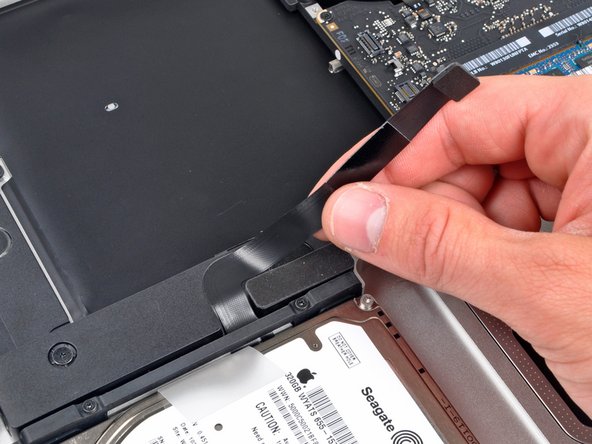
    • Use the flat end of a spudger to pry the hard drive/IR sensor cable connector up off the logic board.

    • Peel the hard drive cable up from the channel within the subwoofer and right speaker.

    Chiedi a FixBot

    Aggiungi Commento

  14. MacBook Pro 15" Unibody Mid 2010 Subwoofer & Right Speaker Replacement: passo 14, immagine 1 di 1
    • Using the flat end of a spudger, pry the subwoofer connector straight up off the logic board.

    Chiedi a FixBot

    Aggiungi Commento

  15. MacBook Pro 15" Unibody Mid 2010 Subwoofer & Right Speaker Replacement: passo 15, immagine 1 di 1
    • Remove the following six screws securing the subwoofer and right speaker to the upper case:

    • Two 3.2 mm Phillips screws.

    • Two 12.3 mm Phillips screws.

    • One 2.5 mm Phillips screw.

    • One 8.3 mm Phillips screw.

    Chiedi a FixBot

    Aggiungi Commento

  16. MacBook Pro 15" Unibody Mid 2010 Subwoofer & Right Speaker Replacement: passo 16, immagine 1 di 1
    • Lift the subwoofer and right speaker assembly out of the upper case.

    Chiedi a FixBot

    Aggiungi Commento

  17. MacBook Pro 15" Unibody Mid 2010 Subwoofer & Right Speaker Replacement: passo 17, immagine 1 di 2 MacBook Pro 15" Unibody Mid 2010 Subwoofer & Right Speaker Replacement: passo 17, immagine 2 di 2
    • Before securing the AirPort/Bluetooth bracket to the upper case, be sure the small plastic tab on its left edge is inserted into the small void cut into the black plastic optical drive opening.

    Chiedi a FixBot

    Aggiungi Commento

Conclusione

To reassemble your device, follow these instructions in reverse order.

Annulla: non ho completato questa guida.

Altre 29 persone hanno completato questa guida.

2Commenti sulla guida

I just completed this install and it went smooth as silk. I did run into one problem with a screw that had a stripped head, but other than that, it went perfectly. Just take your time, follow the instructions and before you know it, you’ll have that sound that you were missing.

Lon Adams - Rispondi Condividi

Smooth guide, great images, now a new speaker and sub from China working perfectly!

Resyn Thesis - Rispondi Condividi

Aggiungi Commento

Visualizza statistiche:

Ultime 24 ore: 3

Ultimi 7 giorni: 21

Ultimi 30 giorni: 109

Tutti i Tempi: 33,127