Introduzione
Usa questa guida per sostituire una batteria esaurita.
Cosa ti serve
-
-
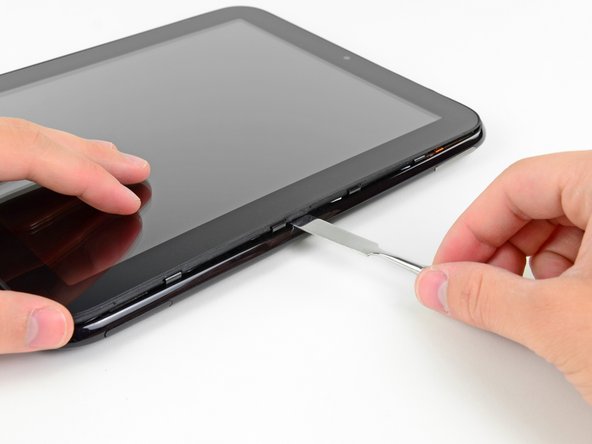
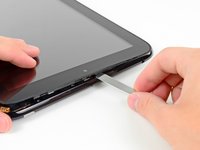
Nei passaggi seguenti, utilizzerai uno spudger di metallo per togliere il pannello frontale dal case posteriore del tuo TouchPad.
-
-
-
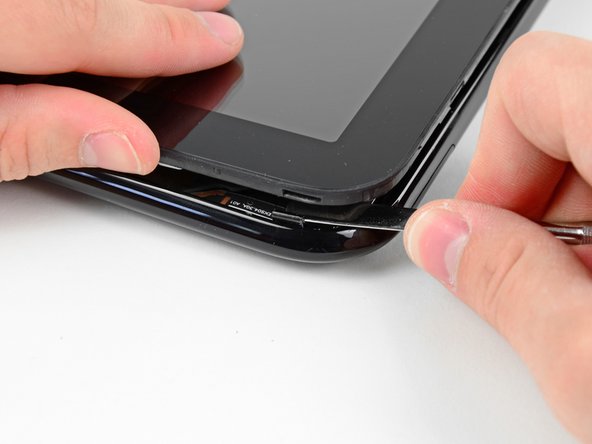
Inserisci uno spudger piatto di metallo nello spazio tra l'anello esterno in gomma sul gruppo pannello frontale e il case posteriore in plastica nera vicino al connettore USB.
-
Solleva il gruppo pannello frontale dal case posteriore, facendo attenzione a non danneggiare l'LCD o il pannello di vetro.
-
-
-
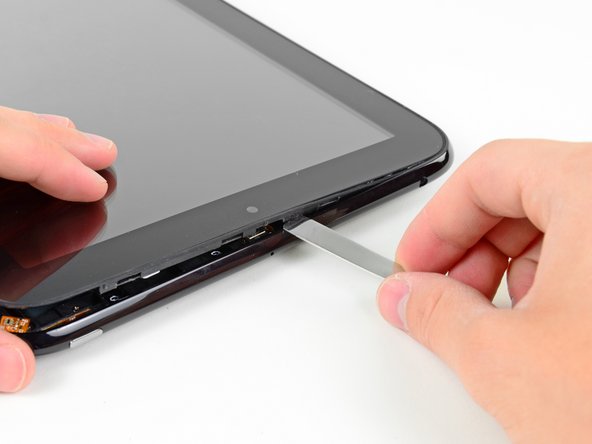
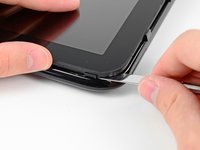
Come nel passaggio precedente, usa uno spudger per sollevare il pannello frontale dal case posteriore lungo il suo lato lungo, dalla parte del TouchPad con il pulsante del volume.
-
Continua a sollevare il gruppo pannello frontale lungo il lato del pulsante del volume del TouchPad finché non si forma uno spazio tra esso e il case posteriore.
-
-
-
-
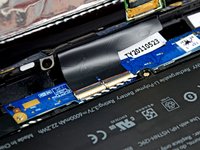
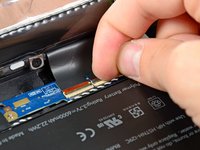
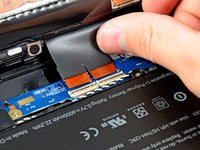
Usa il bordo di uno strumento di apertura di plastica per staccare i due pezzi di nastro in rame che coprono la scheda di connessione USB. Si trovano vicino alla batteria e alla scheda madre.
-
-
-
Estrai il connettore del motore a vibrazione direttamente dalla sua presa nella scheda di connessione USB.
-
Rimuovi la scheda completamente dal TouchPad.
-
NB: Verifica prima che ci sia un connettore prima di tirare! Il motore a vibrazione potrebbe essere stato saldato direttamente alla scheda di connessione USB. Ciò richiede che il motore venga sollevato e rimosso insieme alla scheda stessa.
-











Per riassemblare il tuo dispositivo, segui queste istruzioni nell’ordine inverso.
Annulla: non ho completato questa guida.
Altre 59 persone hanno completato questa guida.
Un ringraziamento speciale a questi traduttori:
100%


Questi traduttori ci stanno aiutando ad aggiustare il mondo! Vuoi partecipare?
Inizia a tradurre ›

8Commenti sulla guida
Removing the screen is easily the most difficult, time consuming and frustrating part of the whole process. Once removed, the rest, while tedious, is not particularly difficult.
Replaced the battery, and still not powering up. Is there some sort of step missing to activate the battery? I have two devices which has the same issue, and can't power them up again after replacing the battery which is fully charged.
A little late, but you can Google:
tpdebrick-v004
Procedure to slap everything back into a slightly corrupted touchpad so it will start taking a charge if not below critical voltage.
Very well done! I could have used a little more “here is a clip that holds the screen frame to the body frame…” because I was gently prying the screen out of its own frame. But luckily never snapped it.
i have 2 units, 1 of which went below battery critical and is in that protective state now where it won’t take a charge. Going to take the battery from the other unit so I can power this one on and the flash the battery system firmware to reset and hopefully initiate the charging capabilities.
i honestly can’t believe this was built back in 2011 because they did a pretty good job.
And I just happened to see an original charging barrel at my friends house while visiting in another state. He was just charging his iPhone with it so I begged him to trade me for a wall wart that I had. Super lucky find.
thanks again for posting this guide.
And to anyone still reading, the newest nightly builds will crash your touchpad for sure.
Written 4/3/2019
james
