Salta al contenuto principale

Framework Desktop Power Button Board Replacement

Cosa ti serve

  1. Framework Desktop Power Button Board Replacement, Power down your Desktop: passo 1, immagine 1 di 3 Framework Desktop Power Button Board Replacement, Power down your Desktop: passo 1, immagine 2 di 3 Framework Desktop Power Button Board Replacement, Power down your Desktop: passo 1, immagine 3 di 3
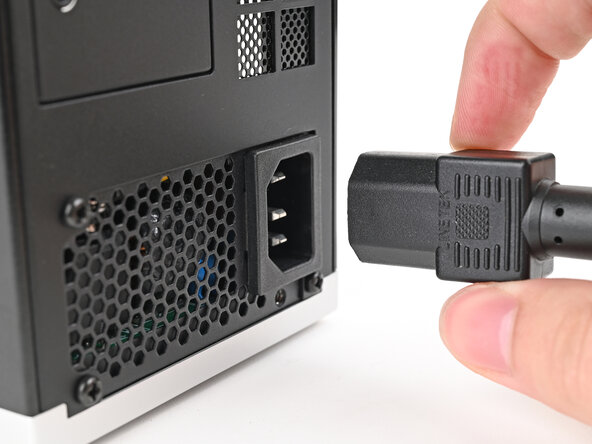
    • Before you begin repairs, shut down your Desktop from the operating system and unplug it.

    • Wait one minute before continuing to allow your Desktop to fully power down.

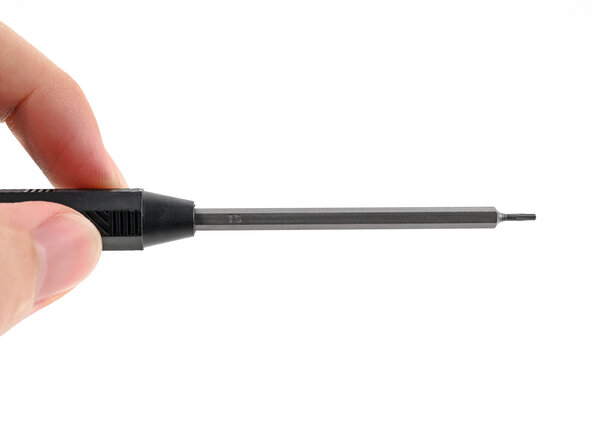
    • Make sure your Framework Desktop Screwdriver has the T5 Torx bit (labeled as T5) facing outwards. If it's not, pull the bit out and flip it.

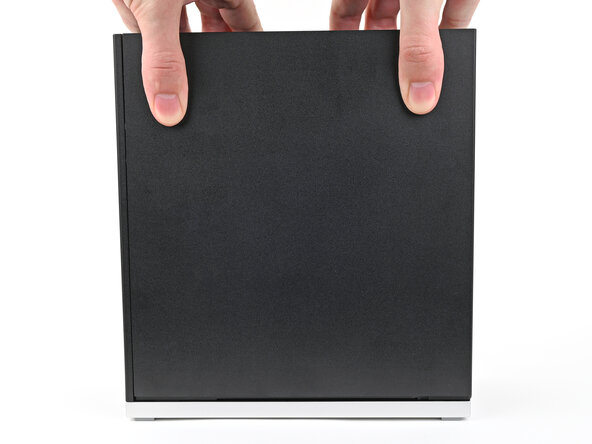
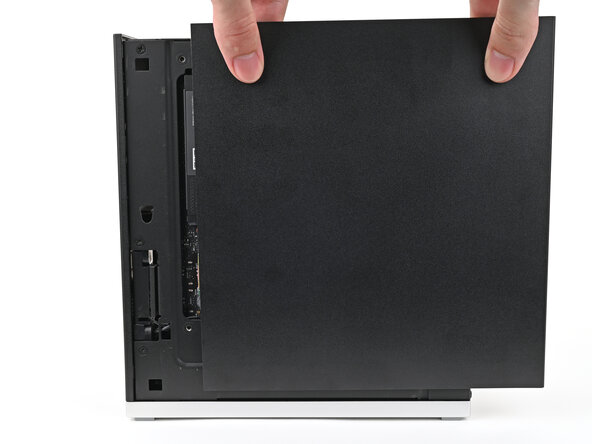
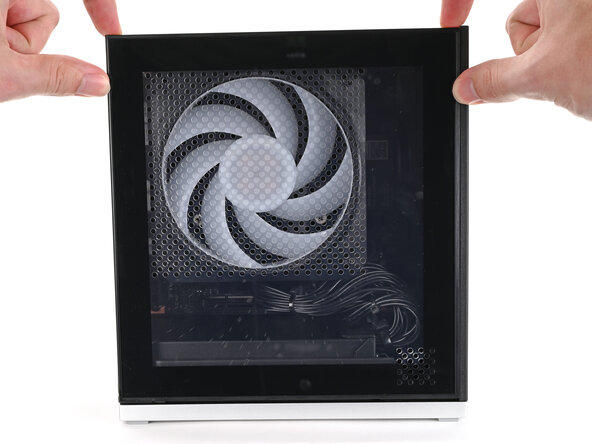
  2. Framework Desktop Power Button Board Replacement, Remove the Left Panel: passo 2, immagine 1 di 3 Framework Desktop Power Button Board Replacement, Remove the Left Panel: passo 2, immagine 2 di 3 Framework Desktop Power Button Board Replacement, Remove the Left Panel: passo 2, immagine 3 di 3
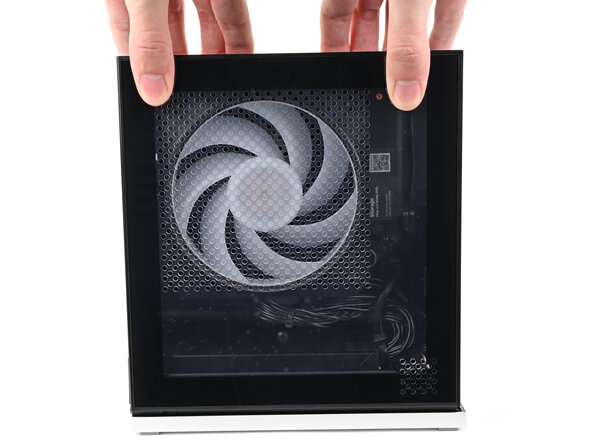
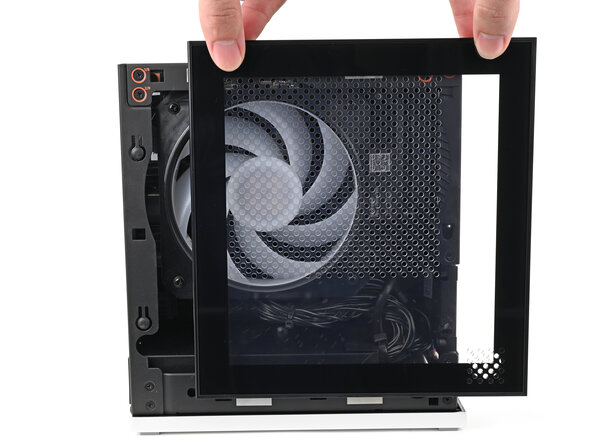
    • Use your fingers to grip the top of the Left Panel and slide it upward to release its clips.

    • Remove the Left Panel.

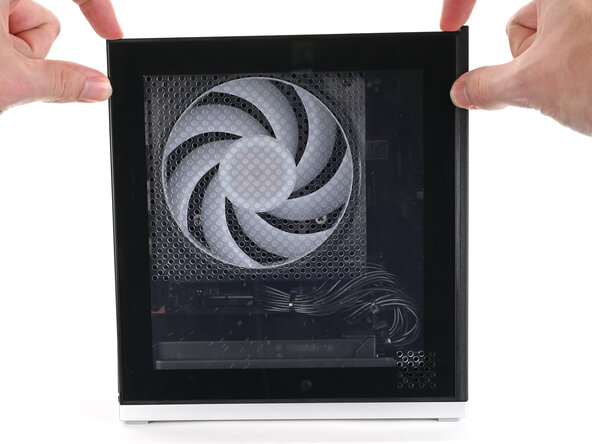
  3. Framework Desktop Power Button Board Replacement, Remove the Right Panel: passo 3, immagine 1 di 3 Framework Desktop Power Button Board Replacement, Remove the Right Panel: passo 3, immagine 2 di 3 Framework Desktop Power Button Board Replacement, Remove the Right Panel: passo 3, immagine 3 di 3
    • Use your fingers to grip the top of the Right Panel and slide it upward to release its clips.

    • Remove the Right Panel.

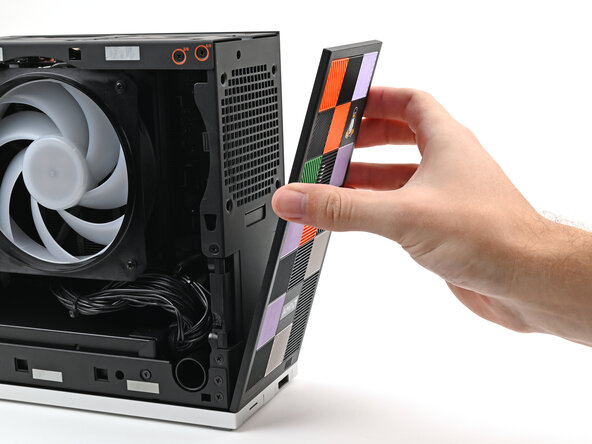
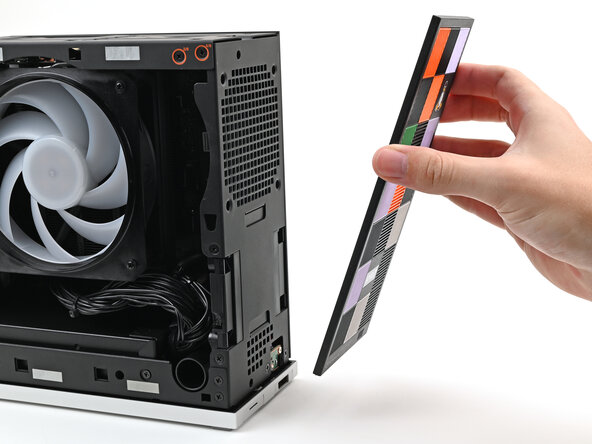
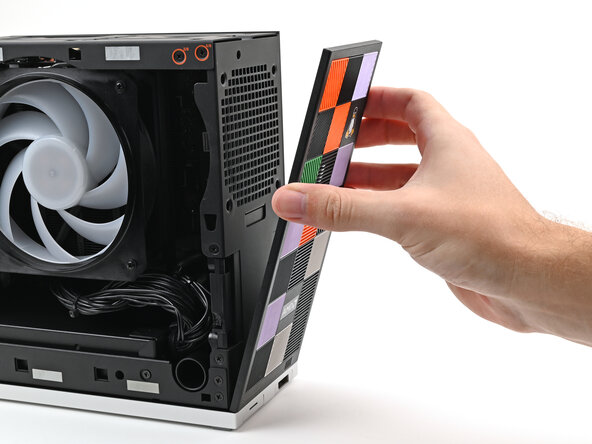
  4. Framework Desktop Power Button Board Replacement, Remove the Front Panel: passo 4, immagine 1 di 3 Framework Desktop Power Button Board Replacement, Remove the Front Panel: passo 4, immagine 2 di 3 Framework Desktop Power Button Board Replacement, Remove the Front Panel: passo 4, immagine 3 di 3
    • Use your fingers to pull the Front Panel off the magnets securing it to the chassis.

  5. Framework Desktop Power Button Board Replacement, Remove the top plate screws: passo 5, immagine 1 di 2 Framework Desktop Power Button Board Replacement, Remove the top plate screws: passo 5, immagine 2 di 2
    • While holding the Desktop steady, use your Framework Desktop Screwdriver to remove the eight 4.0 mm‑long Phillips screws securing the top plate.

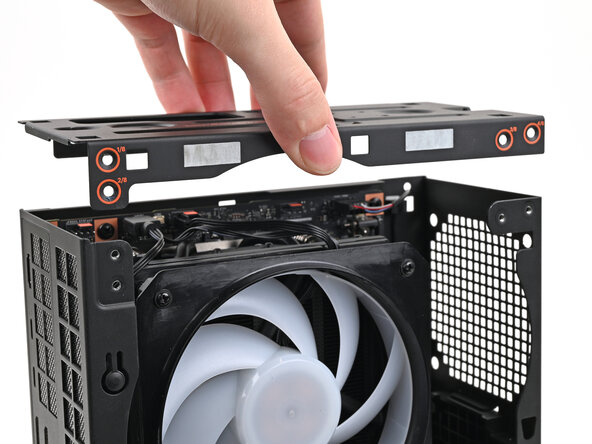
  6. Framework Desktop Power Button Board Replacement, Remove the top plate: passo 6, immagine 1 di 2 Framework Desktop Power Button Board Replacement, Remove the top plate: passo 6, immagine 2 di 2
    • Lift the top plate off the Desktop and remove it.

  7. Framework Desktop Power Button Board Replacement, Reposition the Desktop: passo 7, immagine 1 di 2 Framework Desktop Power Button Board Replacement, Reposition the Desktop: passo 7, immagine 2 di 2
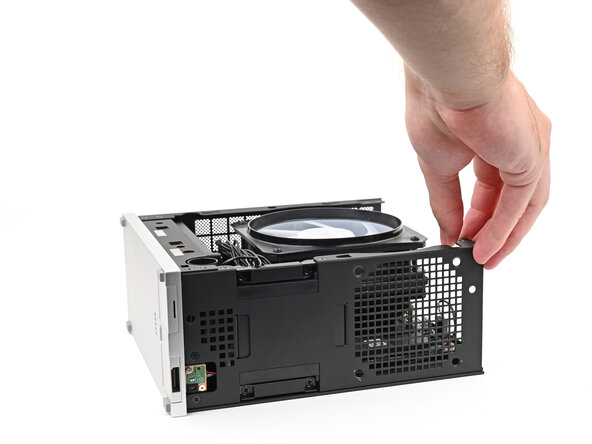
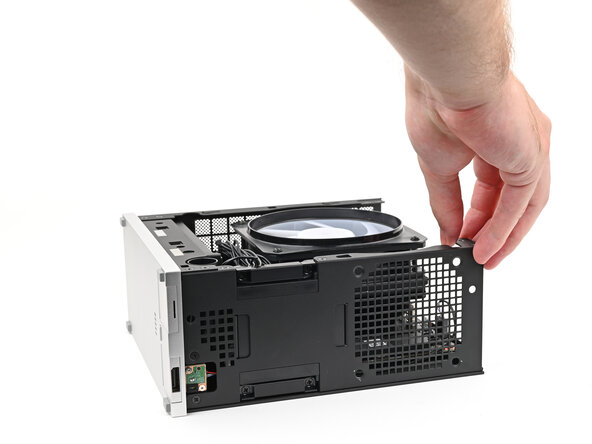
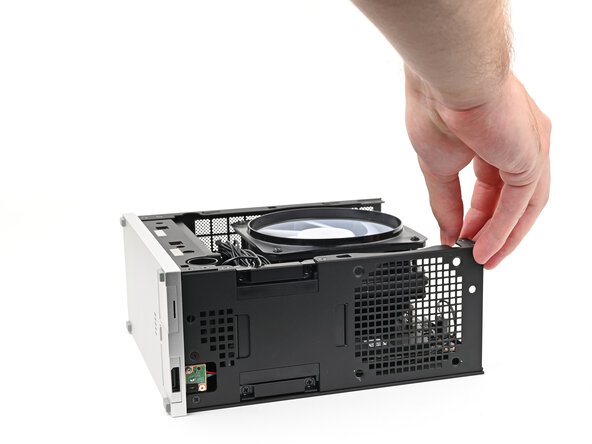
    • Rotate the Desktop onto its right side so the Mainboard is facing upward.

  8. Framework Desktop Power Button Board Replacement, Disconnect the power button: passo 8, immagine 1 di 2 Framework Desktop Power Button Board Replacement, Disconnect the power button: passo 8, immagine 2 di 2
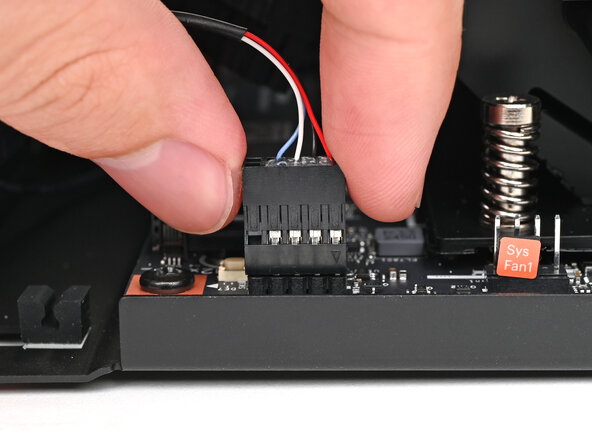
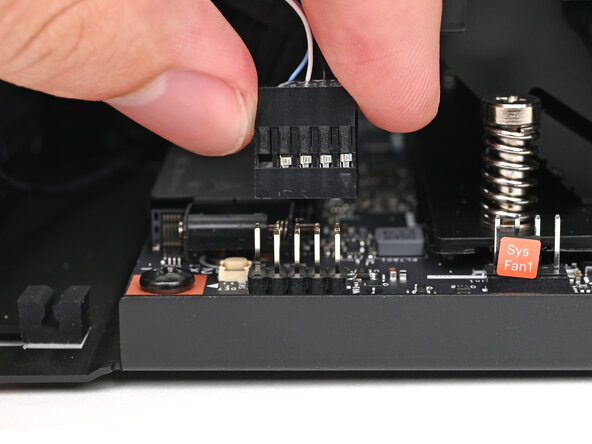
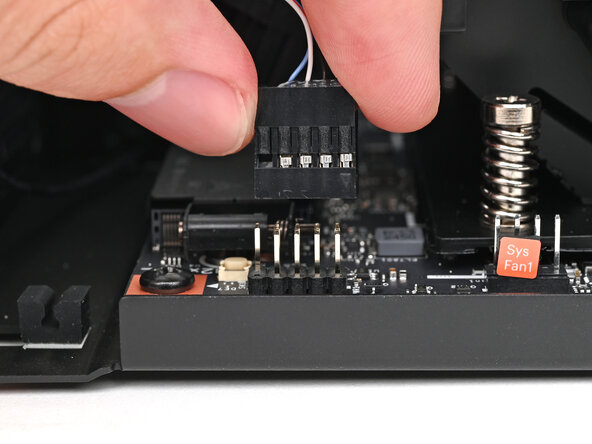
    • Use your fingers to lift the power button cable connector off its nine‑pronged socket on the Mainboard.

  9. Framework Desktop Power Button Board Replacement, Reroute the power button cable: passo 9, immagine 1 di 2 Framework Desktop Power Button Board Replacement, Reroute the power button cable: passo 9, immagine 2 di 2
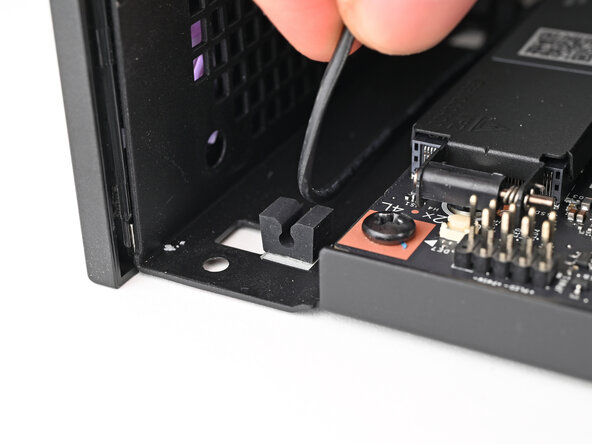
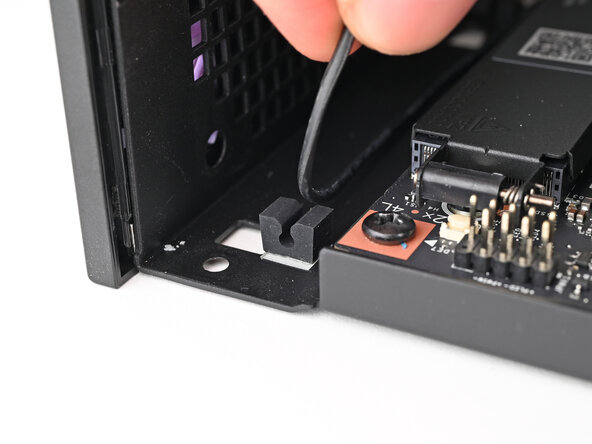
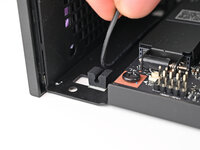
    • Pull the power button cable out of its rubber clips in the chassis.

  10. Framework Desktop Power Button Board Replacement, Reposition the Desktop: passo 10, immagine 1 di 2 Framework Desktop Power Button Board Replacement, Reposition the Desktop: passo 10, immagine 2 di 2
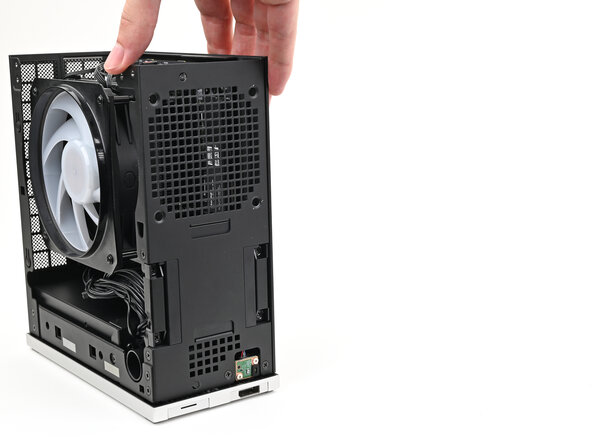
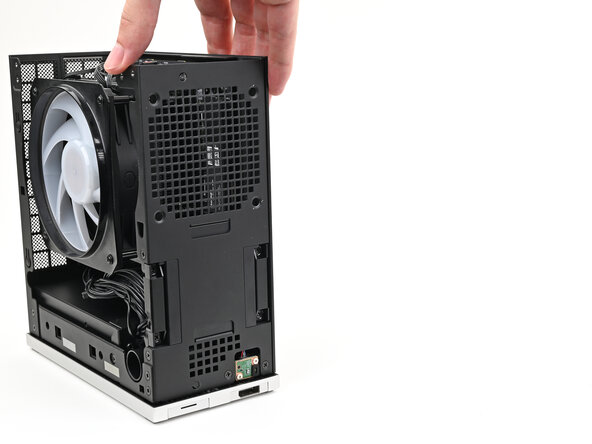
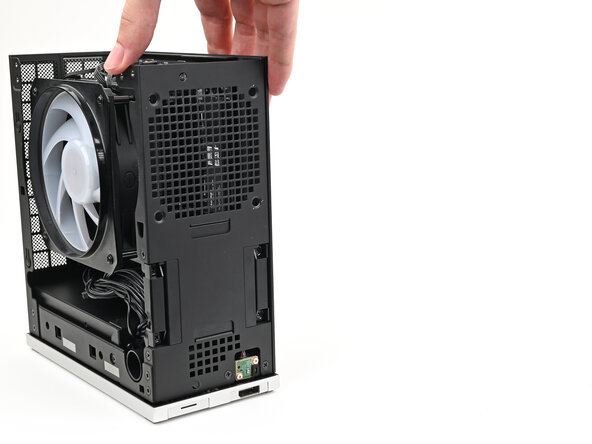
    • Rotate the Desktop so it sits upright.

  11. Framework Desktop Power Button Board Replacement, Remove the Power Button Board screws: passo 11, immagine 1 di 2 Framework Desktop Power Button Board Replacement, Remove the Power Button Board screws: passo 11, immagine 2 di 2
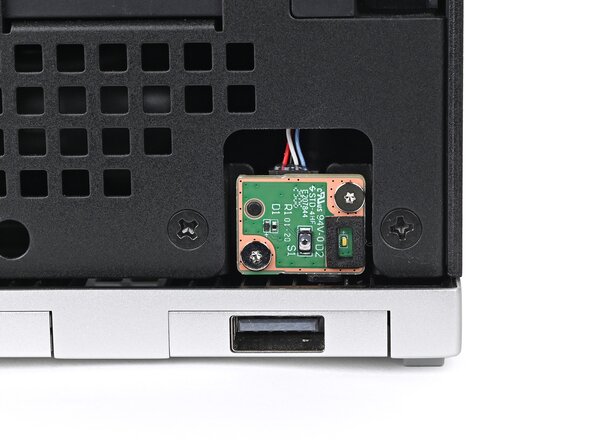
    • Use your Framework Desktop Screwdriver to remove the two 4.5 mm‑long screws securing the Power Button Board.

  12. Framework Desktop Power Button Board Replacement, Reposition the Power Button Board: passo 12, immagine 1 di 2 Framework Desktop Power Button Board Replacement, Reposition the Power Button Board: passo 12, immagine 2 di 2
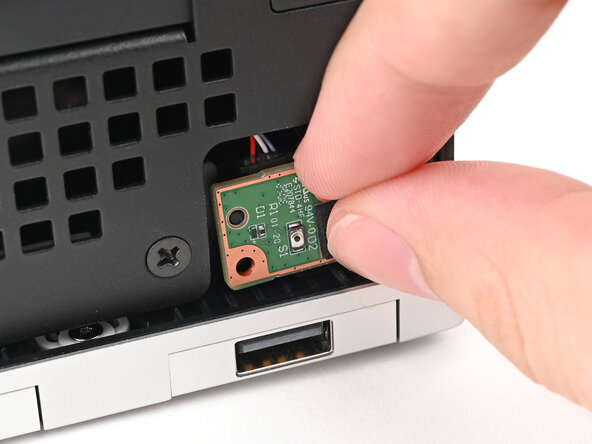
    • Use your finger to pull the Power Button Board off its alignment peg.

  13. Framework Desktop Power Button Board Replacement, Remove the Power Button Board: passo 13, immagine 1 di 3 Framework Desktop Power Button Board Replacement, Remove the Power Button Board: passo 13, immagine 2 di 3 Framework Desktop Power Button Board Replacement, Remove the Power Button Board: passo 13, immagine 3 di 3
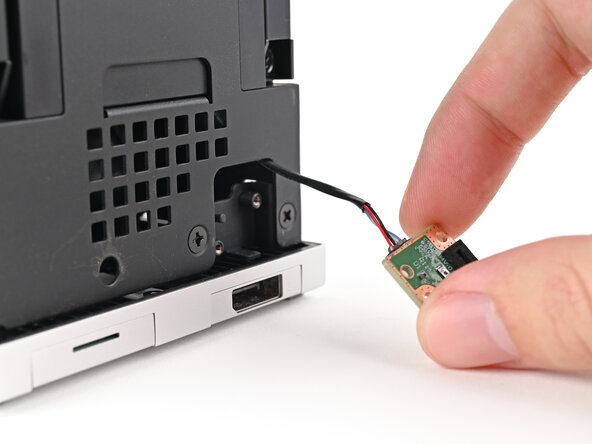
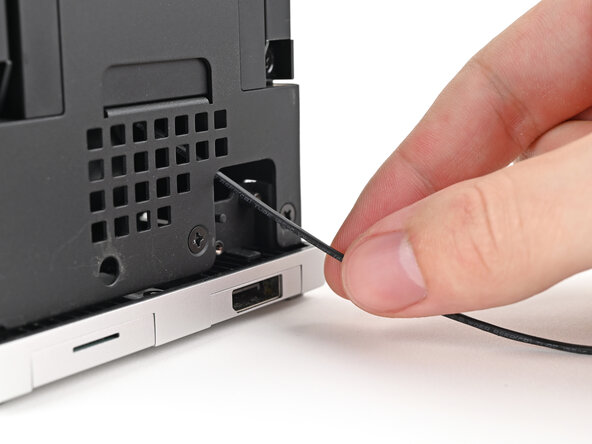
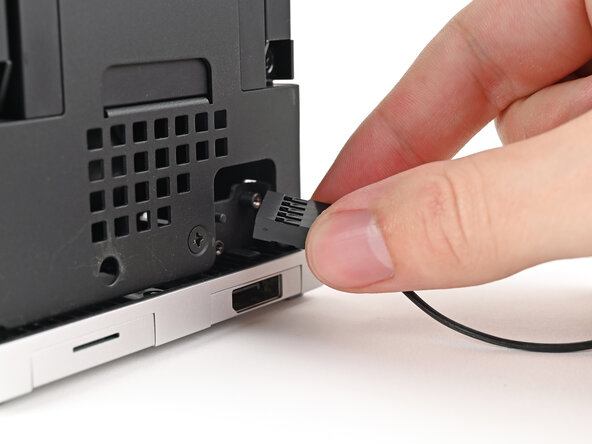
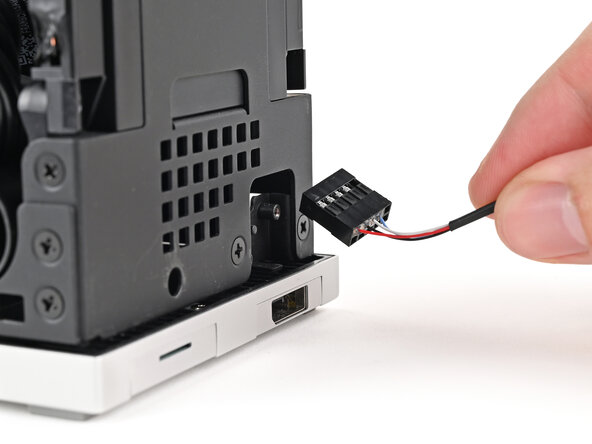
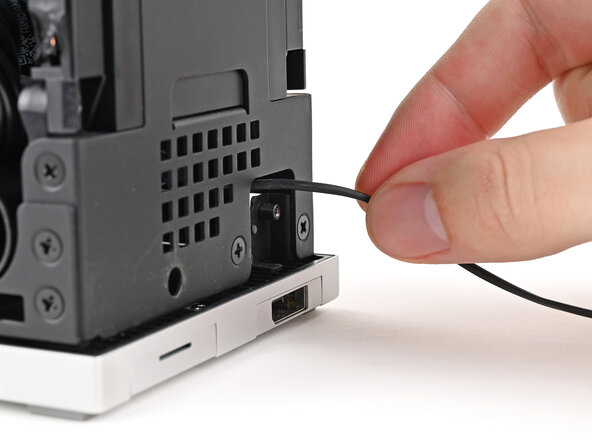
    • Pull the Power Button Board away from the Desktop, threading its cable through the chassis.

  14. Framework Desktop Power Button Board Replacement, Disassembly complete: passo 14, immagine 1 di 1
    • Congratulations on completing disassembly! The remaining steps will show how to reassemble your Framework Desktop.

  15. Framework Desktop Power Button Board Replacement, Place the Power Button Board: passo 15, immagine 1 di 3 Framework Desktop Power Button Board Replacement, Place the Power Button Board: passo 15, immagine 2 di 3 Framework Desktop Power Button Board Replacement, Place the Power Button Board: passo 15, immagine 3 di 3
    • Insert the Power Button Board cable into the slot in the Desktop.

    • Grip the cable from the top of the Desktop and thread it through the chassis.

  16. Framework Desktop Power Button Board Replacement, Reposition the Power Button Board: passo 16, immagine 1 di 2 Framework Desktop Power Button Board Replacement, Reposition the Power Button Board: passo 16, immagine 2 di 2
    • Place the board into its slot in the Desktop so the alignment peg is threaded through its hole in the board.

  17. Framework Desktop Power Button Board Replacement, Install the Power Button Board screws: passo 17, immagine 1 di 2 Framework Desktop Power Button Board Replacement, Install the Power Button Board screws: passo 17, immagine 2 di 2
    • Use your Framework Desktop Screwdriver to install the two 4.5 mm‑long screws securing the Power Button Board.

  18. Framework Desktop Power Button Board Replacement, Reposition the Desktop: passo 18, immagine 1 di 2 Framework Desktop Power Button Board Replacement, Reposition the Desktop: passo 18, immagine 2 di 2
    • Rotate the Desktop onto its right side so the Mainboard is facing upward.

  19. Framework Desktop Power Button Board Replacement, Reroute the power button cable: passo 19, immagine 1 di 2 Framework Desktop Power Button Board Replacement, Reroute the power button cable: passo 19, immagine 2 di 2
    • Press the power button cable into its rubber clips in the chassis.

  20. Framework Desktop Power Button Board Replacement, Connect the power button: passo 20, immagine 1 di 2 Framework Desktop Power Button Board Replacement, Connect the power button: passo 20, immagine 2 di 2
    • Slide the power button cable over the nine-pronged connector on the Mainboard.

  21. Framework Desktop Power Button Board Replacement, Reposition the Desktop: passo 21, immagine 1 di 2 Framework Desktop Power Button Board Replacement, Reposition the Desktop: passo 21, immagine 2 di 2
    • Rotate the Desktop so it sits upright.

  22. Framework Desktop Power Button Board Replacement, Place the top plate: passo 22, immagine 1 di 2 Framework Desktop Power Button Board Replacement, Place the top plate: passo 22, immagine 2 di 2
    • Place the top plate on top of the Desktop, making sure it slots into the chassis so the orange circles are visible.

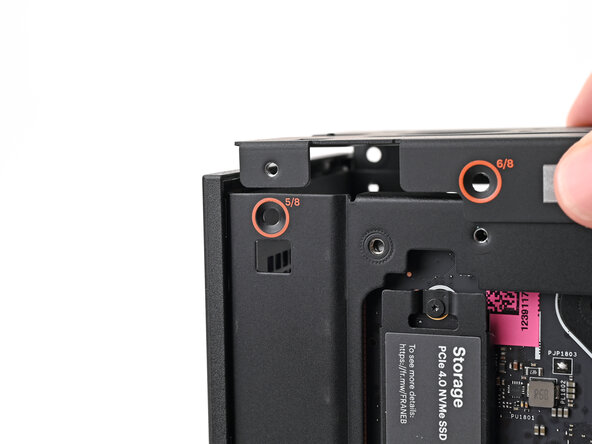
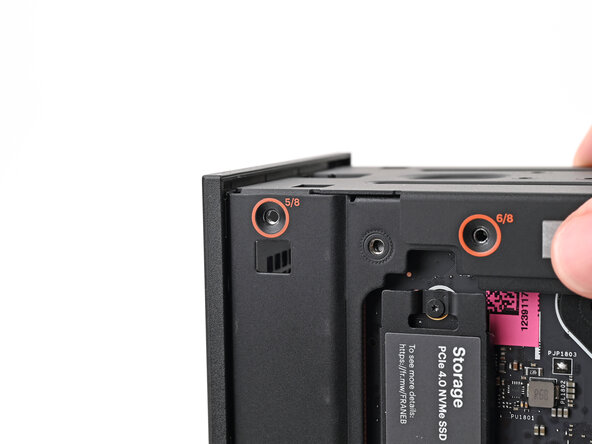
  23. Framework Desktop Power Button Board Replacement: passo 23, immagine 1 di 2 Framework Desktop Power Button Board Replacement: passo 23, immagine 2 di 2
    • Make sure the matching screw hole on the top plate labeled "5/8" is slotted on the inside of the Chassis so that the orange circle is visible.

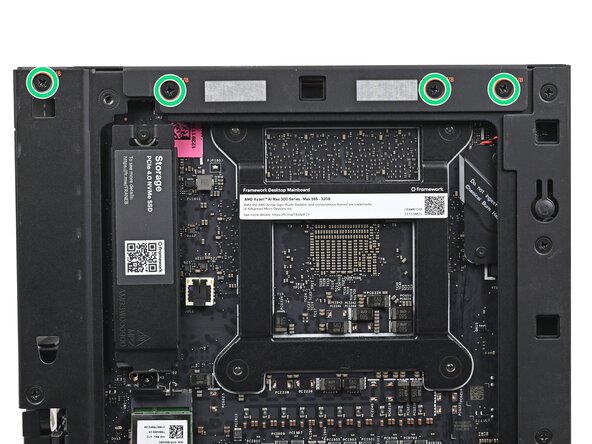
  24. Framework Desktop Power Button Board Replacement, Install the top plate screws: passo 24, immagine 1 di 2 Framework Desktop Power Button Board Replacement, Install the top plate screws: passo 24, immagine 2 di 2
    • While holding the Desktop steady, use your Framework Desktop Screwdriver to install the eight 4.0 mm‑long Phillips screws securing the top plate.

  25. Framework Desktop Power Button Board Replacement, Install the Front Panel: passo 25, immagine 1 di 3 Framework Desktop Power Button Board Replacement, Install the Front Panel: passo 25, immagine 2 di 3 Framework Desktop Power Button Board Replacement, Install the Front Panel: passo 25, immagine 3 di 3
    • Lay the bottom of the Front Panel on the small, protruding lip in the silver base to align its tabs.

    • Press the Front Panel flat to the chassis and let it align to the magnets.

  26. Framework Desktop Power Button Board Replacement, Install the Right Panel: passo 26, immagine 1 di 3 Framework Desktop Power Button Board Replacement, Install the Right Panel: passo 26, immagine 2 di 3 Framework Desktop Power Button Board Replacement, Install the Right Panel: passo 26, immagine 3 di 3
    • Slide the Right Panel onto the right edge of the chassis, from top to bottom, and press it flat to ensure its clips are slotted into place.

    • There should be a small gap between the bottom of the Right Panel and the silver base.

    • Push the Right Panel towards the base of the computer to engage the clips.

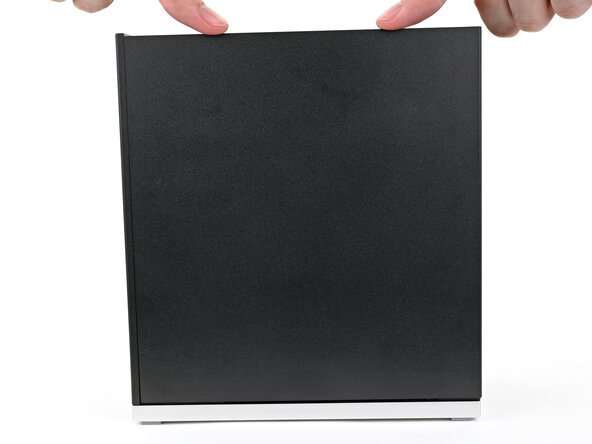
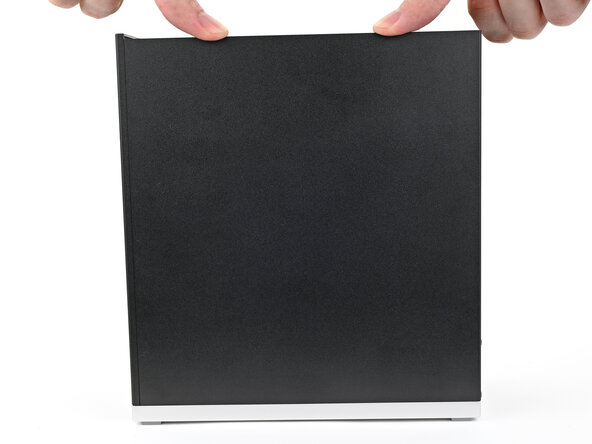
  27. Framework Desktop Power Button Board Replacement, Install the Left Panel: passo 27, immagine 1 di 3 Framework Desktop Power Button Board Replacement, Install the Left Panel: passo 27, immagine 2 di 3 Framework Desktop Power Button Board Replacement, Install the Left Panel: passo 27, immagine 3 di 3
    • Slide the Left Panel onto the left edge of the chassis and press it flat to ensure its clips are slotted into place.

    • There should be a small gap between the bottom of the Left Panel and the silver base.

    • Push the Left Panel towards the base of the computer to close the gap and engage the clips.

Conclusione

You finished fixing your Framework Desktop!

Take your e-waste to an R2 or e-Stewards certified recycler.

If you need help, contact Framework support.

Alex Diaz-Kokaisl

Membro da: 01/16/22

212.557 Reputazione

1.039 Guide realizzate

0Commenti sulla guida

Aggiungi Commento

Visualizza Statistiche:

Ultime 24 Ore: 1

Ultimi 7 Giorni: 21

Ultimi 30 Giorni: 69

Tutti i Tempi: 110