Salta al contenuto principale

iPhone 16 Pro Loudspeaker Replacement

Cosa ti serve

  1. iPhone 16 Pro Loudspeaker Replacement, Prepare the phone for disassembly: passo 1, immagine 1 di 2 iPhone 16 Pro Loudspeaker Replacement, Prepare the phone for disassembly: passo 1, immagine 2 di 2
    • Allow the phone's battery to drain below 25%, as a charged lithium-ion battery is a potential safety hazard.

    • Unplug any cables from the phone.

    • Hold the power and either volume buttons and slide to power off the phone.

  2. iPhone 16 Pro Loudspeaker Replacement, Tape over any cracks: passo 2, immagine 1 di 2 iPhone 16 Pro Loudspeaker Replacement, Tape over any cracks: passo 2, immagine 2 di 2
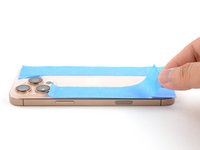
    • If the screen or back glass is badly cracked, lay overlapping strips of packing tape over the glass to protect yourself and make disassembly easier.

    • Make sure there's a smooth area near the bottom edge that's big enough for a suction cup to stick to.

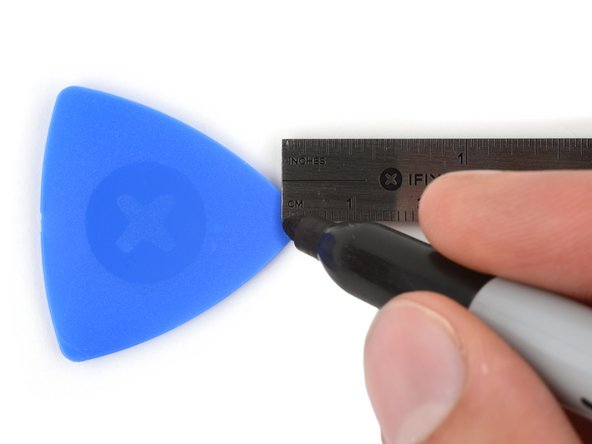
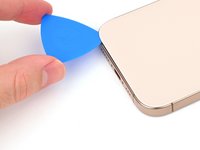
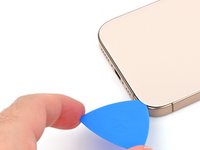
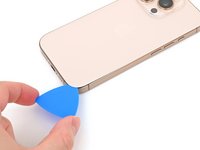
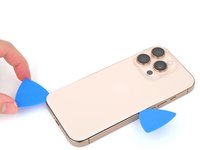
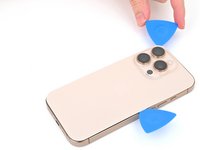
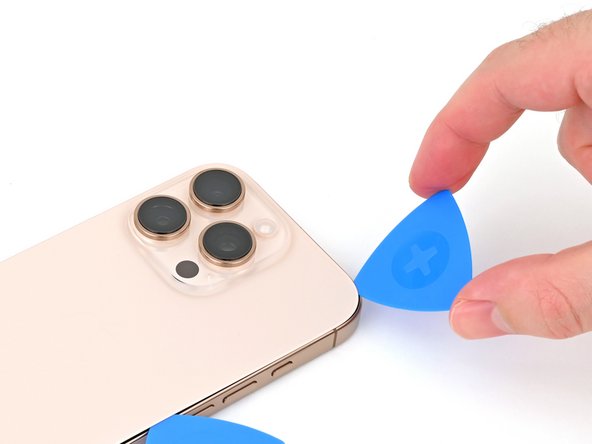
  3. iPhone 16 Pro Loudspeaker Replacement, Mark your opening picks: passo 3, immagine 1 di 3 iPhone 16 Pro Loudspeaker Replacement, Mark your opening picks: passo 3, immagine 2 di 3 iPhone 16 Pro Loudspeaker Replacement, Mark your opening picks: passo 3, immagine 3 di 3
    • If inserted too far, an opening pick can damage your device. Follow this step to mark your pick and prevent damage.

    • Measure 3 mm from the tip and mark the opening pick with a permanent marker.

    • You can also mark the other corners of the pick with different measurements.

    • Alternatively, tape a coin to a pick 3 mm from the tip.

  4. iPhone 16 Pro Loudspeaker Replacement, Remove the pentalobe screws: passo 4, immagine 1 di 2 iPhone 16 Pro Loudspeaker Replacement, Remove the pentalobe screws: passo 4, immagine 2 di 2
    • Use a P2 pentalobe screwdriver to remove the two 7.4 mm‑long screws on either side of the USB-C port.

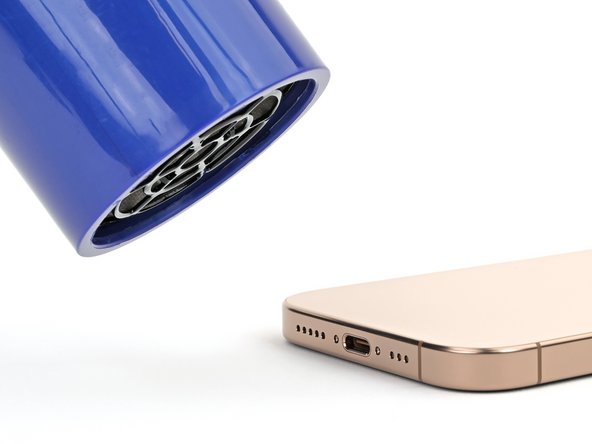
  5. iPhone 16 Pro Loudspeaker Replacement, Heat the bottom edge: passo 5, immagine 1 di 2 iPhone 16 Pro Loudspeaker Replacement, Heat the bottom edge: passo 5, immagine 2 di 2
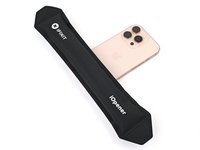
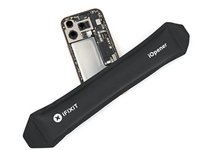
    • Apply a heated iOpener to the bottom edge of the back glass for two minutes.

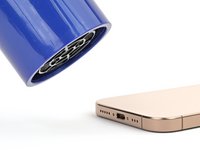
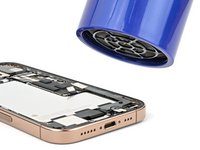
    • Alternatively, you can use a hair dryer or heat gun to heat the bottom edge of the back glass until it's hot to the touch.

    • Be careful not to heat the phone hotter than this—the battery is susceptible to heat damage.

  6. iPhone 16 Pro Loudspeaker Replacement, Insert an opening pick: passo 6, immagine 1 di 3 iPhone 16 Pro Loudspeaker Replacement, Insert an opening pick: passo 6, immagine 2 di 3 iPhone 16 Pro Loudspeaker Replacement, Insert an opening pick: passo 6, immagine 3 di 3
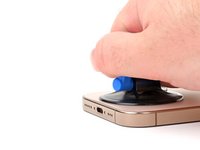
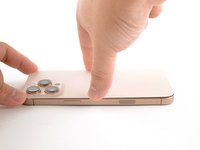
    • Apply a suction handle to the bottom edge of the back glass, above the USB-C port.

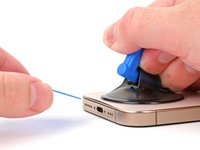
    • Pull up on the handle with a strong, steady force to create a gap between the back glass and the frame.

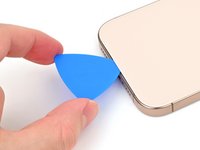
    • Insert the tip of an opening pick into the gap.

  7. iPhone 16 Pro Loudspeaker Replacement, Back glass information: passo 7, immagine 1 di 2 iPhone 16 Pro Loudspeaker Replacement, Back glass information: passo 7, immagine 2 di 2
    • As you slice the adhesive securing the back glass in the next steps, be careful of the following areas:

    • There's a delicate cable connecting the back glass to the phone, right next to the volume up button. Don't insert your pick here to avoid slicing the cable.

    • There are multiple spring contacts around the perimeter of the phone. Be extra careful not to insert your pick deeper than suggested in each step to avoid bending these contacts.

    • If you damage the spring contacts, gently bend them back with a spudger or opening pick so they align with their gold contact pads on the back glass.

  8. iPhone 16 Pro Loudspeaker Replacement, Separate the bottom edge adhesive: passo 8, immagine 1 di 3 iPhone 16 Pro Loudspeaker Replacement, Separate the bottom edge adhesive: passo 8, immagine 2 di 3 iPhone 16 Pro Loudspeaker Replacement, Separate the bottom edge adhesive: passo 8, immagine 3 di 3
    • Don't insert your pick deeper than 5 mm on the bottom edge to avoid damaging the spring contact.

    • Slide your pick back and forth along the bottom edge to separate the adhesive.

    • Leave your pick inserted in the bottom right corner to prevent the adhesive from resealing.

  9. iPhone 16 Pro Loudspeaker Replacement, Heat the right edge: passo 9, immagine 1 di 1
    • Heat the right edge of the back glass until it's hot to the touch.

  10. iPhone 16 Pro Loudspeaker Replacement, Separate the bottom right corner adhesive: passo 10, immagine 1 di 2 iPhone 16 Pro Loudspeaker Replacement, Separate the bottom right corner adhesive: passo 10, immagine 2 di 2
    • Slide your pick around the bottom right corner and halfway up the right edge, or until you feel a hard stop at a clip securing the back glass.

    • Don't slice near the volume buttons to avoid damaging the wireless charging/flash cable.

    • Leave this pick inserted to prevent the adhesive from resealing.

  11. iPhone 16 Pro Loudspeaker Replacement, Heat the left edge: passo 11, immagine 1 di 1
    • Heat the left edge of the back glass until it's hot to the touch.

  12. iPhone 16 Pro Loudspeaker Replacement, Separate the left edge adhesive: passo 12, immagine 1 di 2 iPhone 16 Pro Loudspeaker Replacement, Separate the left edge adhesive: passo 12, immagine 2 di 2
    • Insert a second opening pick at the bottom edge.

    • Slide the second pick around the bottom left corner and along the left edge of the screen to separate the adhesive and release the metal clips.

    • You'll hear and feel the metal clips release as you pass them.

    • Leave this pick inserted at the top left corner to prevent the adhesive from resealing.

  13. iPhone 16 Pro Loudspeaker Replacement, Heat the top edge: passo 13, immagine 1 di 1
    • Heat the top edge of the back glass, including the area around the volume buttons, until it's hot to the touch.

  14. iPhone 16 Pro Loudspeaker Replacement, Separate the top edge adhesive: passo 14, immagine 1 di 2 iPhone 16 Pro Loudspeaker Replacement, Separate the top edge adhesive: passo 14, immagine 2 di 2
    • Don't insert your pick deeper than 3 mm along the top edge to avoid damaging the spring contacts.

    • Slide your opening pick across the top edge and around the top right corner to the volume up button to separate the adhesive.

    • You'll hear and feel clicks as the top two clips release.

  15. iPhone 16 Pro Loudspeaker Replacement, Swing open the back glass: passo 15, immagine 1 di 2 iPhone 16 Pro Loudspeaker Replacement, Swing open the back glass: passo 15, immagine 2 di 2
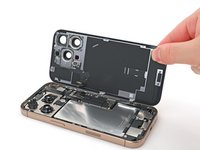
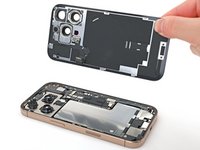
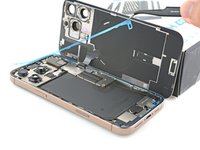
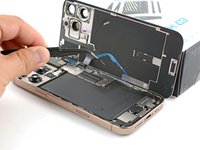
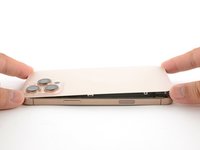
    • Don't try to fully remove the back glass just yet—it's still attached with a delicate ribbon cable. Follow the next few steps to remove it safely.

    • If the back glass doesn't swing open easily, don't force it—go back around the perimeter with your pick to check for missed sections of adhesive or stuck clips.

    • You may need to lift the back glass up slightly before swinging it open to fully disengage the clips.

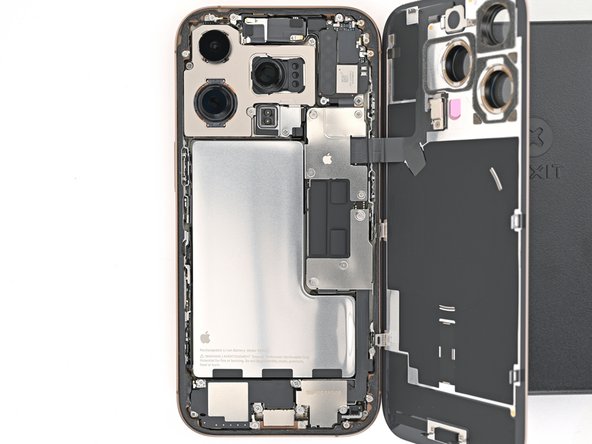
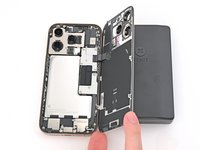
    • Gently swing open the back glass towards the volume buttons.

    • Support the back glass with a clean, sturdy object like a small box to avoid straining the cable.

    • Remove the opening picks.

    • Consider using polyimide tape to protect the rear camera lenses while you're working inside the phone. Don't push against the lenses to avoid damaging the delicate stabilizers.

  16. iPhone 16 Pro Loudspeaker Replacement, Disconnect the battery: passo 16, immagine 1 di 2 iPhone 16 Pro Loudspeaker Replacement, Disconnect the battery: passo 16, immagine 2 di 2
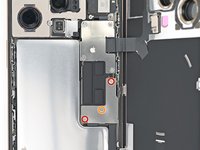
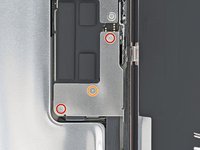
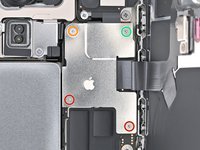
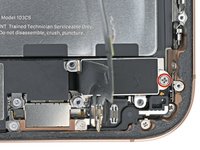
    • Use a tri-point Y000 screwdriver to remove the three screws securing the lower connector cover:

    • Two 1.2 mm‑long screws

    • One 1.0 mm‑long screw

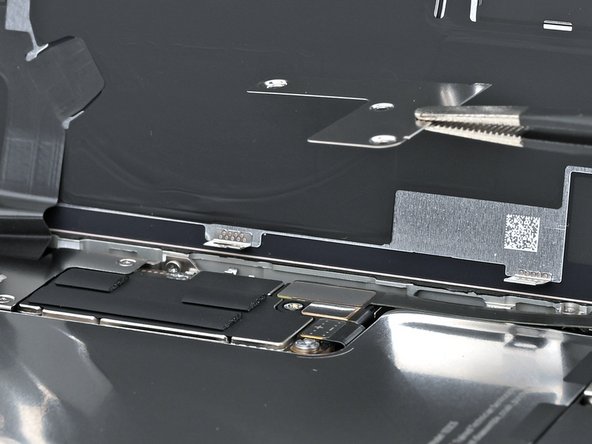
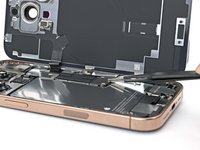
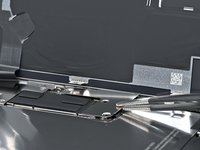
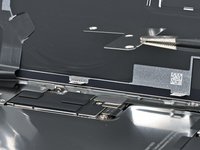
  17. iPhone 16 Pro Loudspeaker Replacement: passo 17, immagine 1 di 3 iPhone 16 Pro Loudspeaker Replacement: passo 17, immagine 2 di 3 iPhone 16 Pro Loudspeaker Replacement: passo 17, immagine 3 di 3
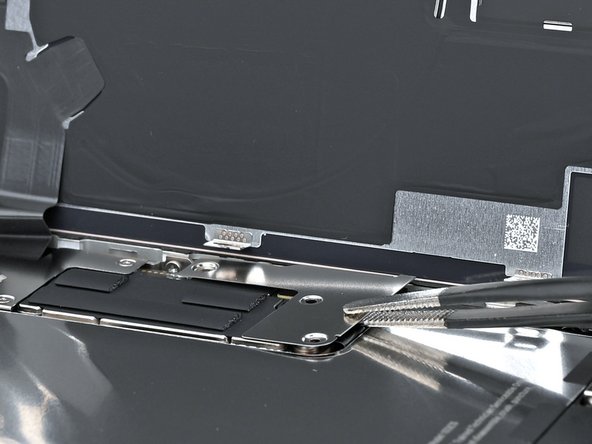
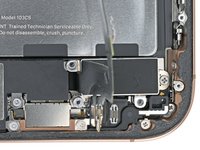
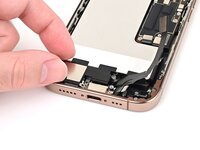
    • Use tweezers or your fingers to pick up and remove the lower connector cover.

  18. iPhone 16 Pro Loudspeaker Replacement: passo 18, immagine 1 di 3 iPhone 16 Pro Loudspeaker Replacement: passo 18, immagine 2 di 3 iPhone 16 Pro Loudspeaker Replacement: passo 18, immagine 3 di 3
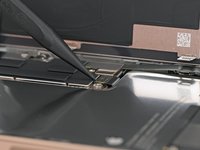
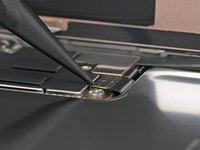
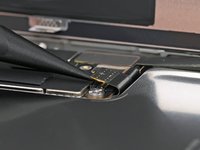
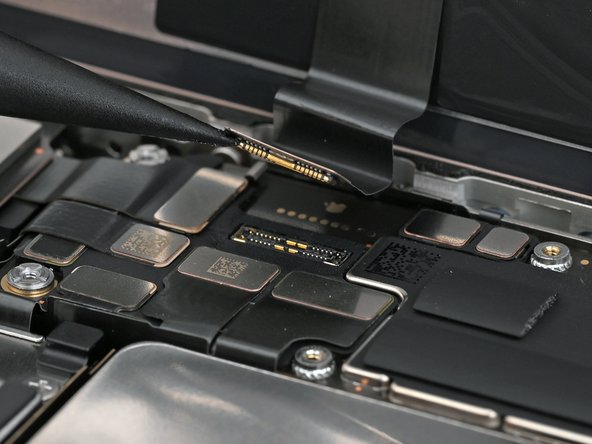
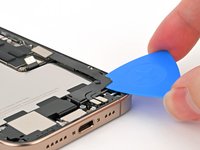
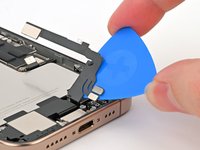
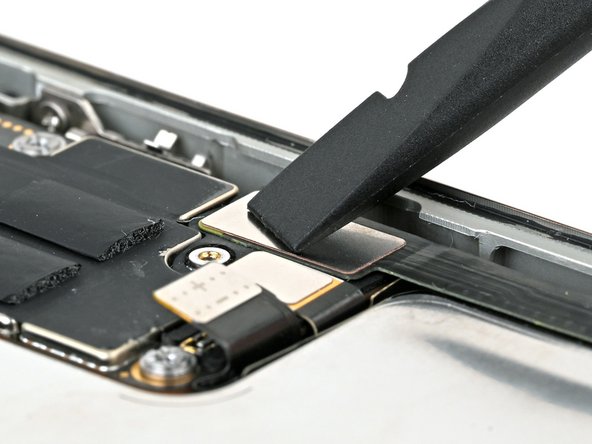
    • Use the point of a spudger to pry up and disconnect the battery press connector.

  19. iPhone 16 Pro Loudspeaker Replacement, Disconnect the back glass: passo 19, immagine 1 di 2 iPhone 16 Pro Loudspeaker Replacement, Disconnect the back glass: passo 19, immagine 2 di 2
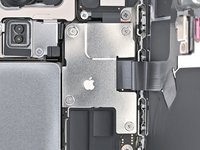
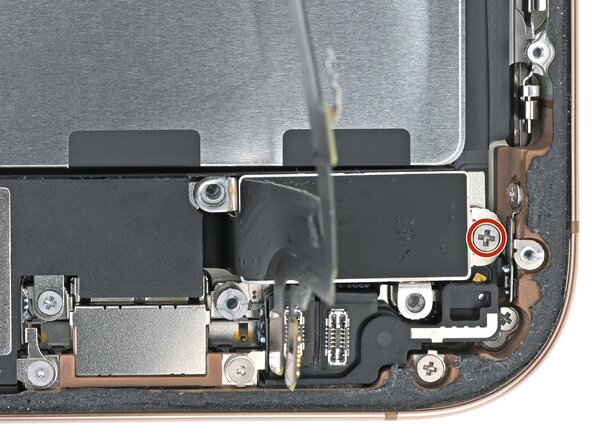
    • Use a tri-point Y000 screwdriver to remove the four screws securing the upper connector cover:

    • Two 1.0 mm‑long screws

    • One 1.2 mm‑long screw

    • One 1.6 mm‑long screw

  20. iPhone 16 Pro Loudspeaker Replacement: passo 20, immagine 1 di 2 iPhone 16 Pro Loudspeaker Replacement: passo 20, immagine 2 di 2
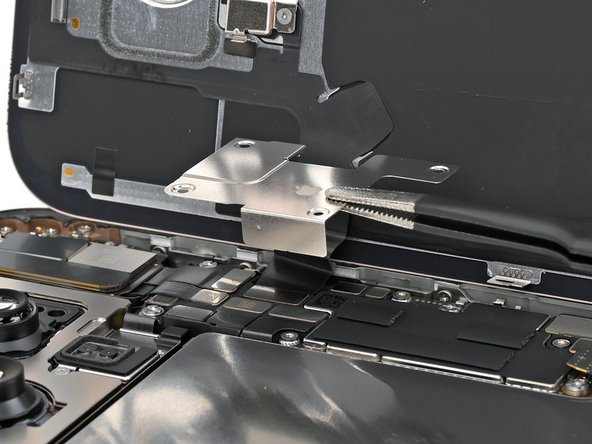
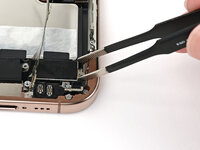
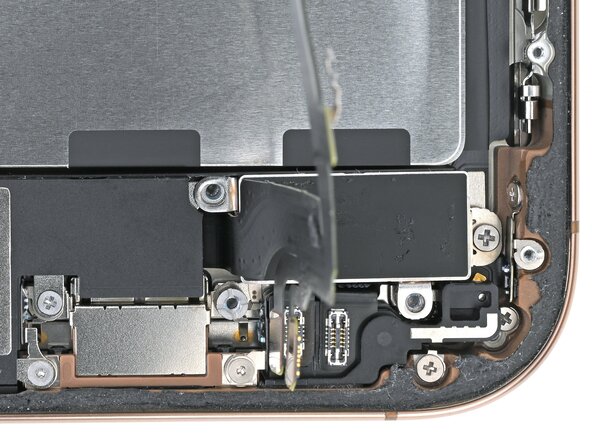
    • Use tweezers or your fingers to pick up and remove the upper connector cover.

  21. iPhone 16 Pro Loudspeaker Replacement: passo 21, immagine 1 di 2 iPhone 16 Pro Loudspeaker Replacement: passo 21, immagine 2 di 2
    • Use the point of a spudger to pry up and disconnect the back glass press connector.

  22. iPhone 16 Pro Loudspeaker Replacement, Remove the back glass: passo 22, immagine 1 di 2 iPhone 16 Pro Loudspeaker Replacement, Remove the back glass: passo 22, immagine 2 di 2
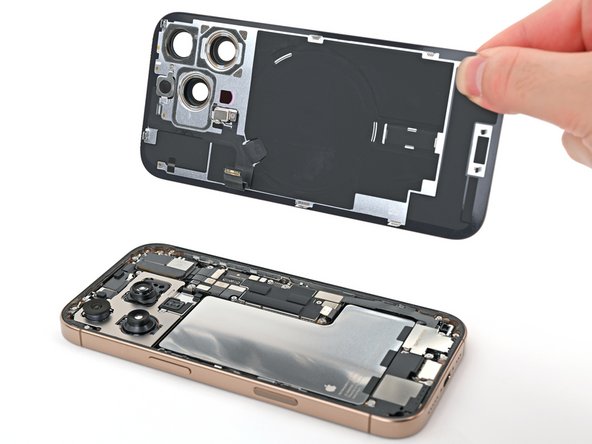
    • Lift the back glass off the frame and remove it.

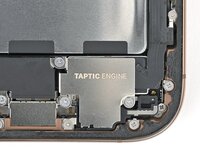
  23. iPhone 16 Pro Loudspeaker Replacement, Remove the Taptic Engine cover: passo 23, immagine 1 di 2 iPhone 16 Pro Loudspeaker Replacement, Remove the Taptic Engine cover: passo 23, immagine 2 di 2
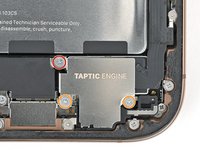
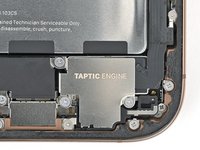
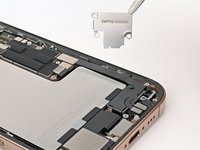
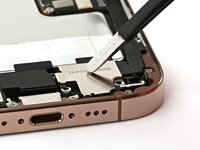
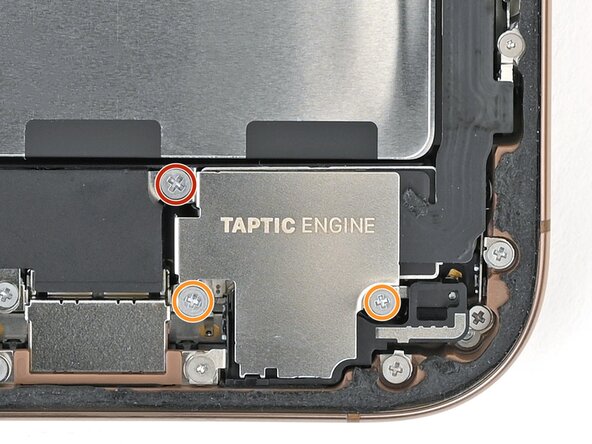
    • Use a Phillips screwdriver to remove the three screws securing the Taptic Engine cover:

    • One 3.0 mm‑long screw

    • Two 1.7 mm‑long screws

  24. iPhone 16 Pro Loudspeaker Replacement: passo 24, immagine 1 di 3 iPhone 16 Pro Loudspeaker Replacement: passo 24, immagine 2 di 3 iPhone 16 Pro Loudspeaker Replacement: passo 24, immagine 3 di 3
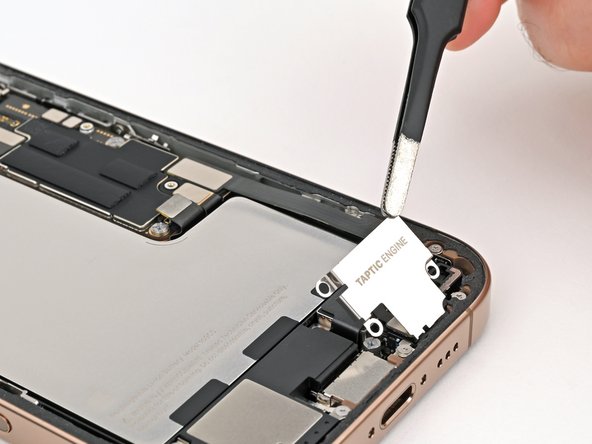
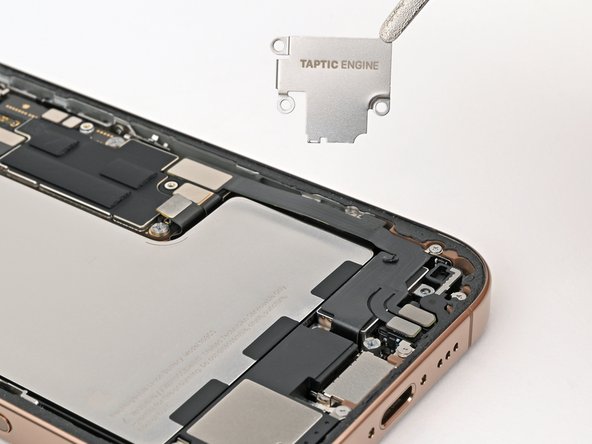
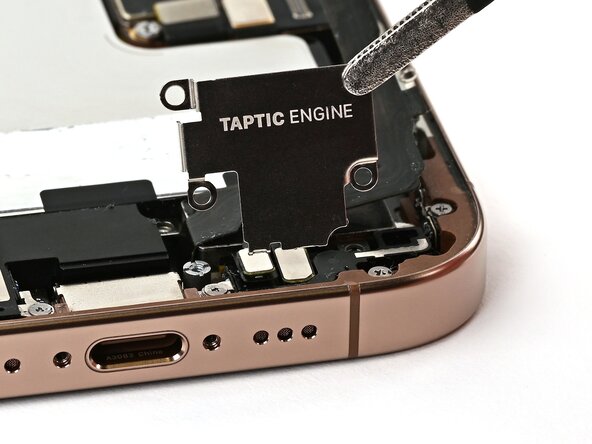
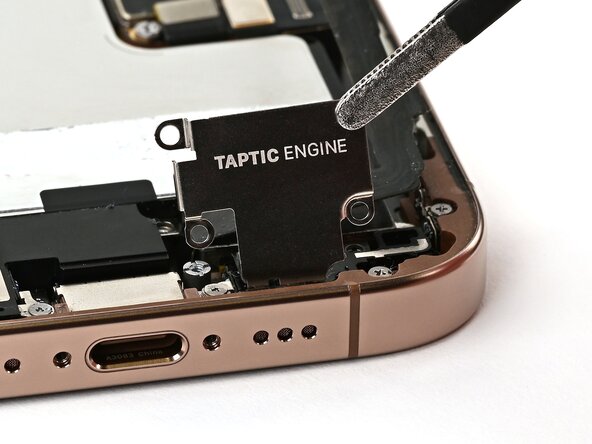
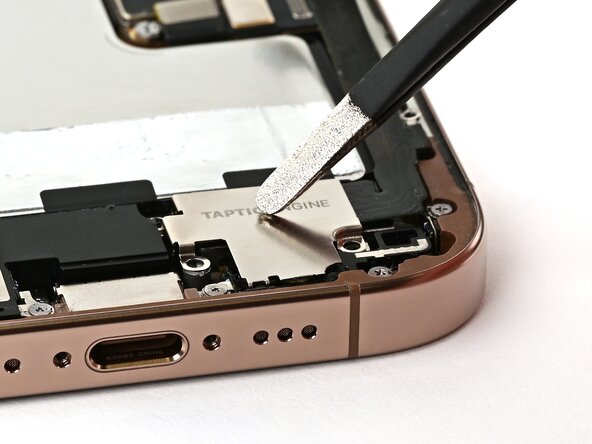
    • Use tweezers or your fingers to lift the top edge of the Taptic Engine cover.

    • Once the bottom edge unlatches from the frame, remove the Taptic Engine cover.

  25. iPhone 16 Pro Loudspeaker Replacement, Disconnect the lower assembly cable: passo 25, immagine 1 di 2 iPhone 16 Pro Loudspeaker Replacement, Disconnect the lower assembly cable: passo 25, immagine 2 di 2
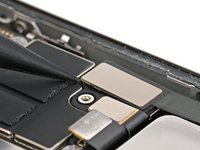
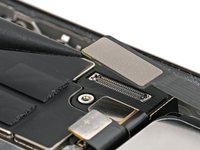
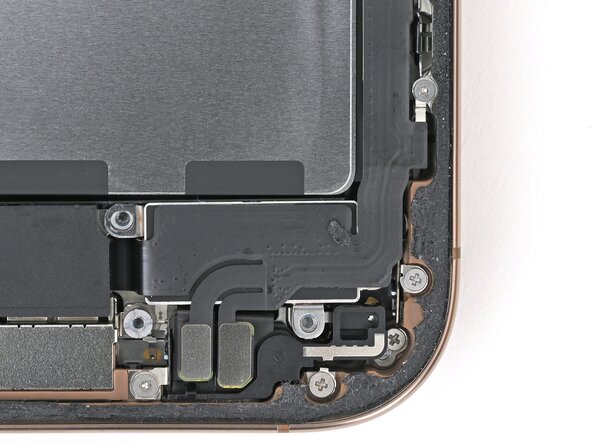
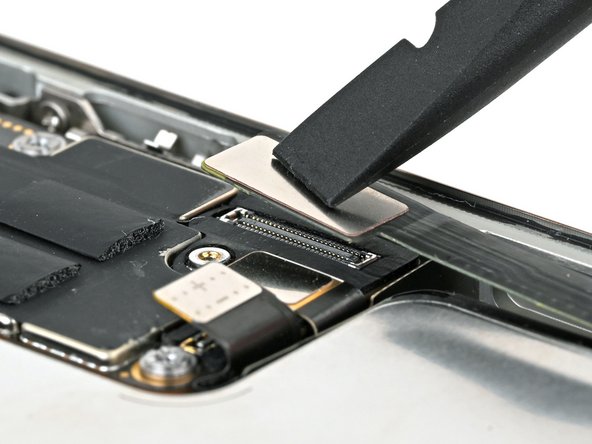
    • Use the point of a spudger to pry up and disconnect the lower assembly cable press connector from the logic board.

  26. iPhone 16 Pro Loudspeaker Replacement: passo 26, immagine 1 di 3 iPhone 16 Pro Loudspeaker Replacement: passo 26, immagine 2 di 3 iPhone 16 Pro Loudspeaker Replacement: passo 26, immagine 3 di 3
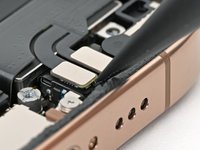
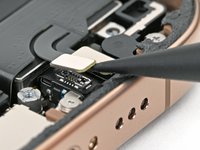
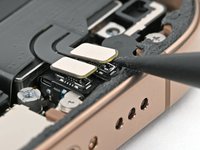
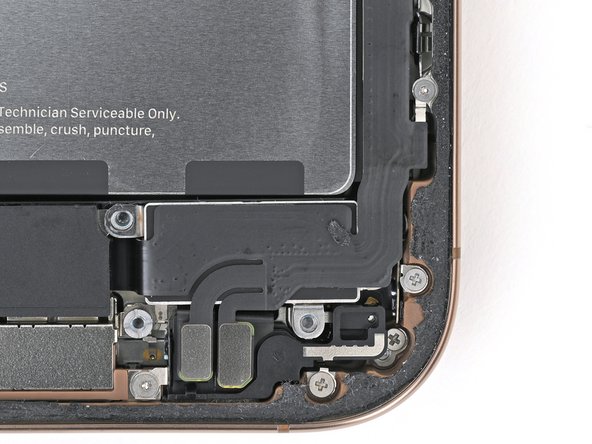
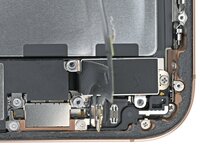
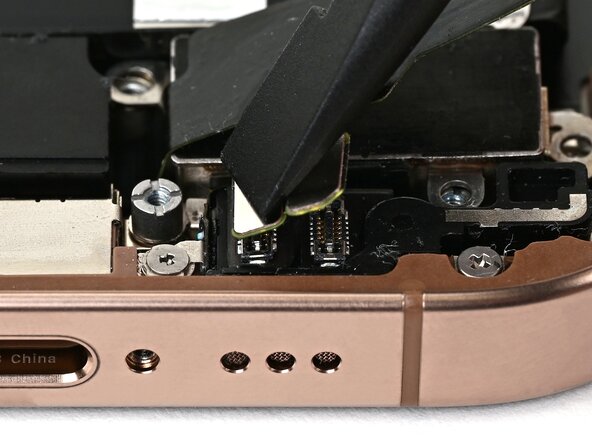
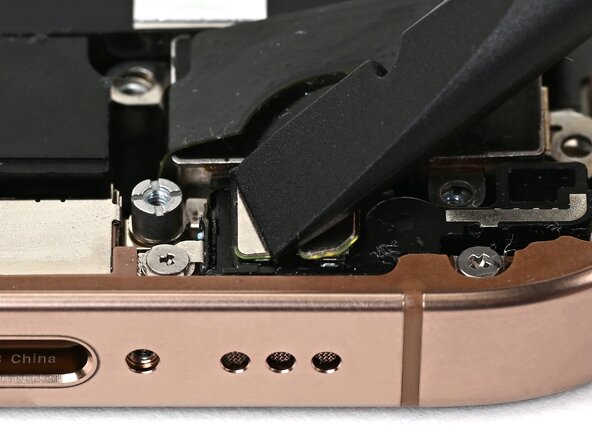
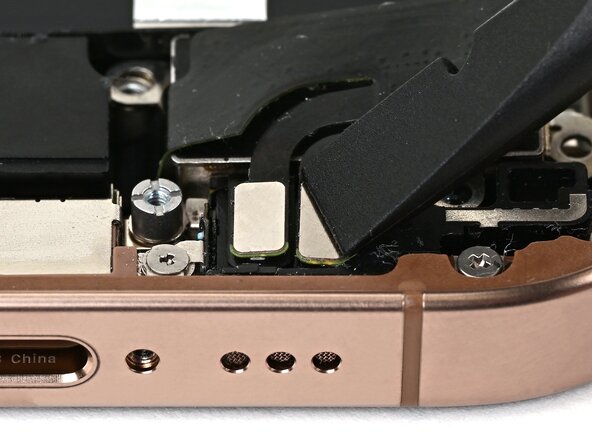
    • Use the point of a spudger to pry up and disconnect the two press connectors near the bottom right edge of the frame.

  27. iPhone 16 Pro Loudspeaker Replacement: passo 27, immagine 1 di 2 iPhone 16 Pro Loudspeaker Replacement: passo 27, immagine 2 di 2
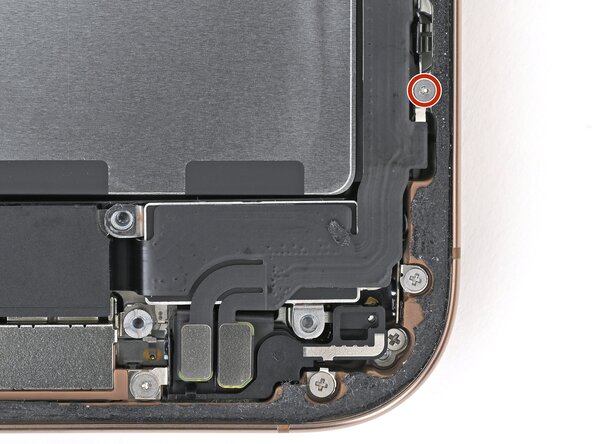
    • Use a tri-point Y000 screwdriver to remove the 1.0 mm‑long screw securing the lower assembly cable.

  28. iPhone 16 Pro Loudspeaker Replacement: passo 28, immagine 1 di 2 iPhone 16 Pro Loudspeaker Replacement: passo 28, immagine 2 di 2
    • Use an iOpener or hair dryer to heat up the lower assembly cable section on top of the Taptic Engine until it's hot to the touch.

  29. iPhone 16 Pro Loudspeaker Replacement: passo 29, immagine 1 di 2 iPhone 16 Pro Loudspeaker Replacement: passo 29, immagine 2 di 2
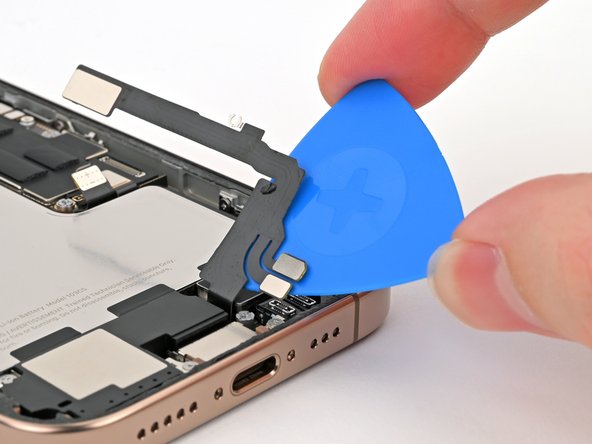
    • Slide an opening pick under the lower assembly cable to separate it from the Taptic Engine.

    • Carefully bend the cable out of the way so you can access the Taptic Engine.

  30. iPhone 16 Pro Loudspeaker Replacement, Remove the Taptic Engine: passo 30, immagine 1 di 2 iPhone 16 Pro Loudspeaker Replacement, Remove the Taptic Engine: passo 30, immagine 2 di 2
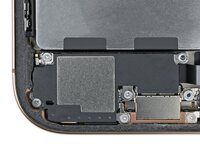
    • Use a Phillips screwdriver to remove the 1.9 mm‑long screw securing the Taptic Engine.

  31. iPhone 16 Pro Loudspeaker Replacement: passo 31, immagine 1 di 2 iPhone 16 Pro Loudspeaker Replacement: passo 31, immagine 2 di 2
    • Slide the tip of an opening pick along the top edge of the Taptic Engine to separate the plastic buffer strip adhered to it.

  32. iPhone 16 Pro Loudspeaker Replacement: passo 32, immagine 1 di 3 iPhone 16 Pro Loudspeaker Replacement: passo 32, immagine 2 di 3 iPhone 16 Pro Loudspeaker Replacement: passo 32, immagine 3 di 3
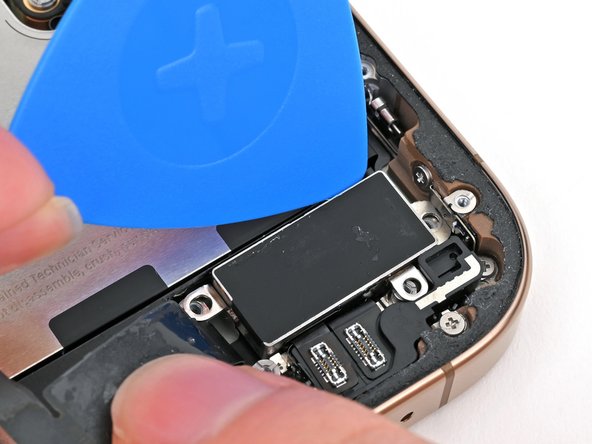
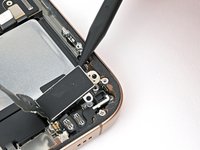
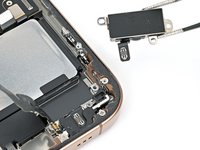
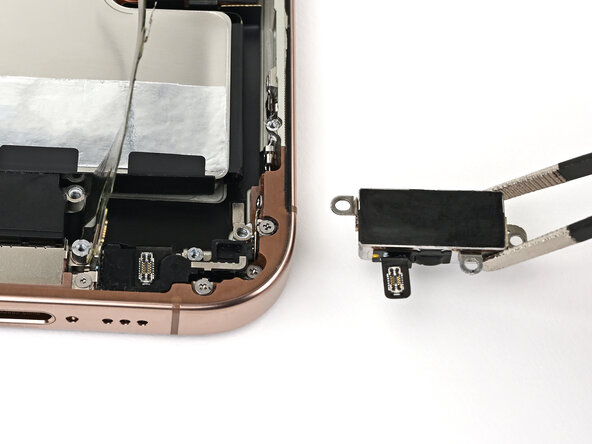
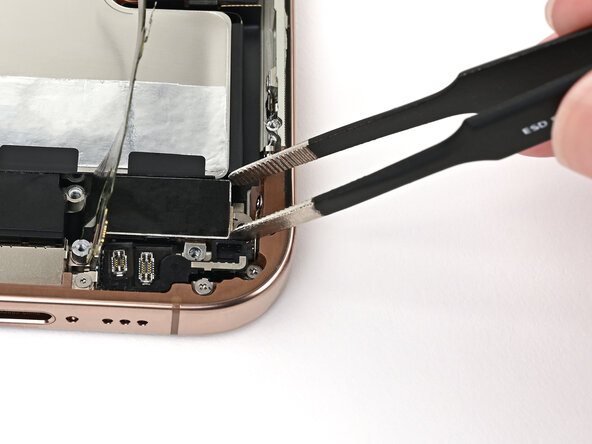
    • Use the point of a spudger to pry up the Taptic Engine from its top-right corner.

    • Be careful not to pry against the battery.

    • Remove the Taptic Engine.

  33. iPhone 16 Pro Loudspeaker Replacement, Remove the loudspeaker: passo 33, immagine 1 di 2 iPhone 16 Pro Loudspeaker Replacement, Remove the loudspeaker: passo 33, immagine 2 di 2
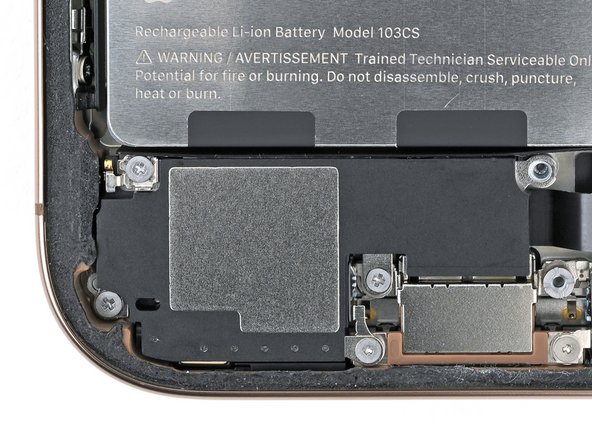
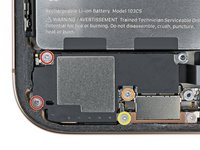
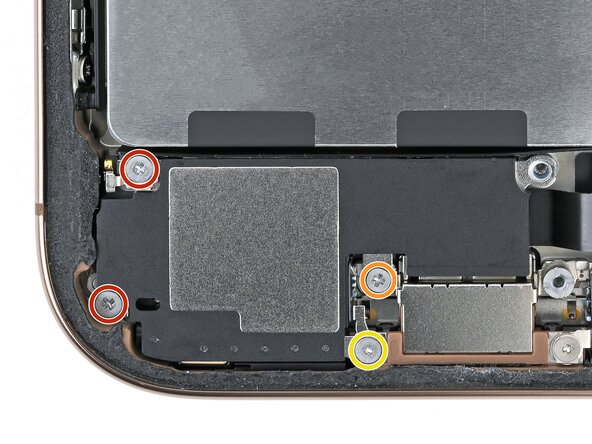
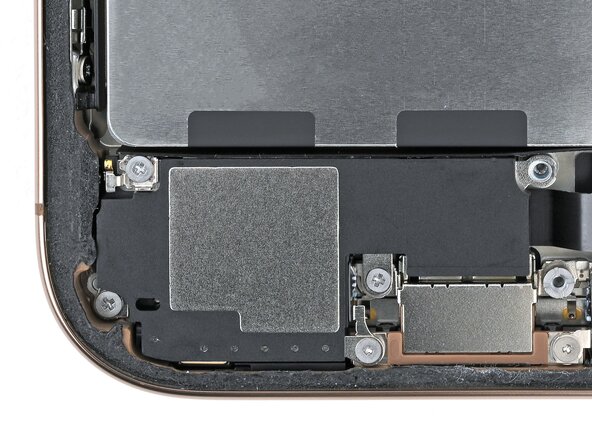
    • Remove the four screws securing the loudspeaker:

    • Two 1.6 mm‑long Phillips screws

    • One 2.0 mm‑long Phillips screw

    • One 1.3 mm‑long tri-point Y000 screw

  34. iPhone 16 Pro Loudspeaker Replacement: passo 34, immagine 1 di 3 iPhone 16 Pro Loudspeaker Replacement: passo 34, immagine 2 di 3 iPhone 16 Pro Loudspeaker Replacement: passo 34, immagine 3 di 3
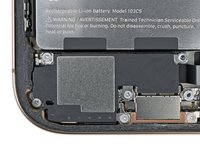
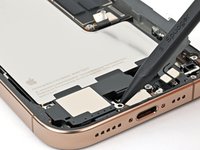
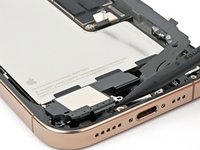
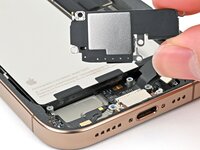
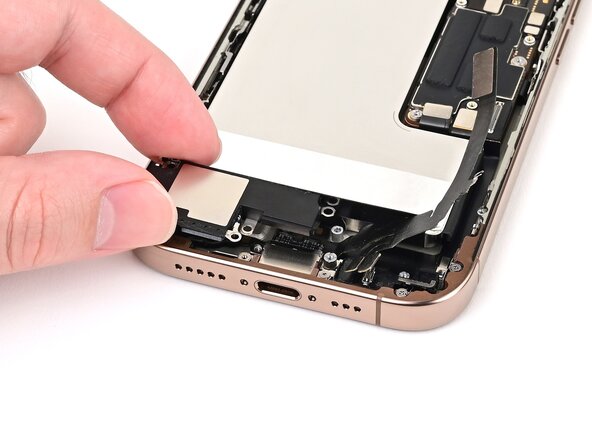
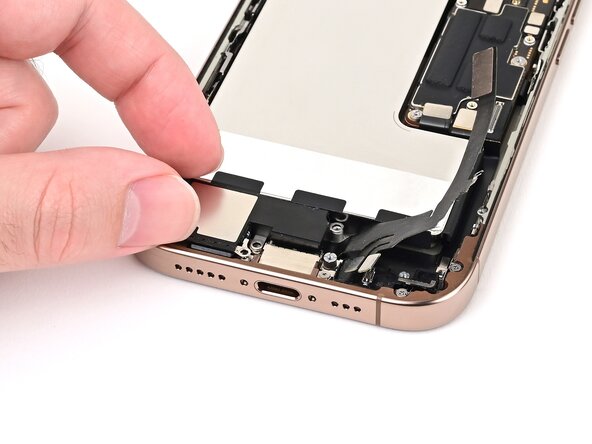
    • Insert the point of a spudger underneath the loudspeaker's bottom-right screw hole.

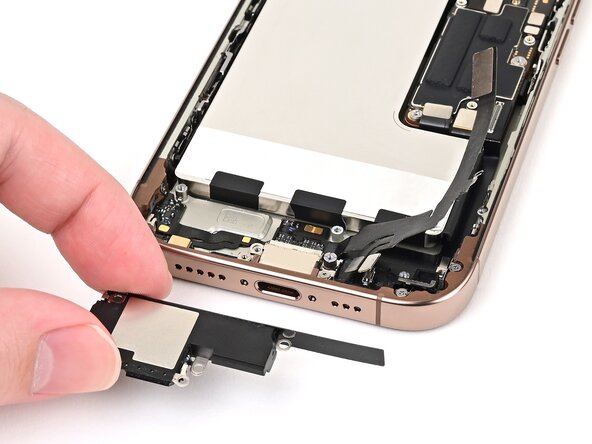
    • Pry up and remove the loudspeaker.

  35. iPhone 16 Pro Loudspeaker Replacement, Disassembly complete: passo 35, immagine 1 di 1
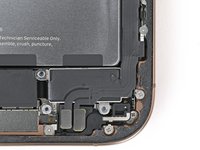
    • Congratulations on completing disassembly! The remaining steps will show how to reassemble your iPhone. Some of the reassembly photos show the Pro Max model, but the procedure is correct for the Pro.

  36. iPhone 16 Pro Loudspeaker Replacement, Transfer the battery shim: passo 36, immagine 1 di 3 iPhone 16 Pro Loudspeaker Replacement, Transfer the battery shim: passo 36, immagine 2 di 3 iPhone 16 Pro Loudspeaker Replacement, Transfer the battery shim: passo 36, immagine 3 di 3
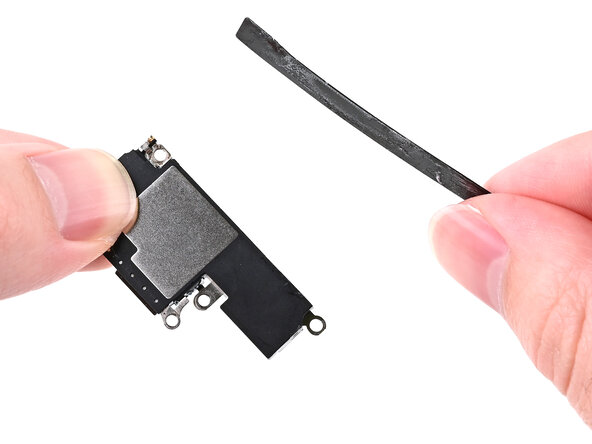
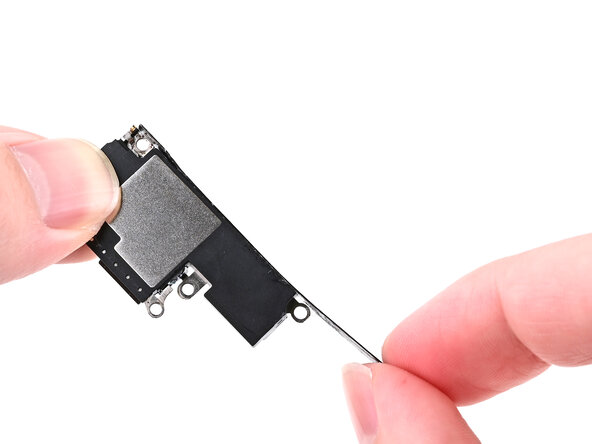
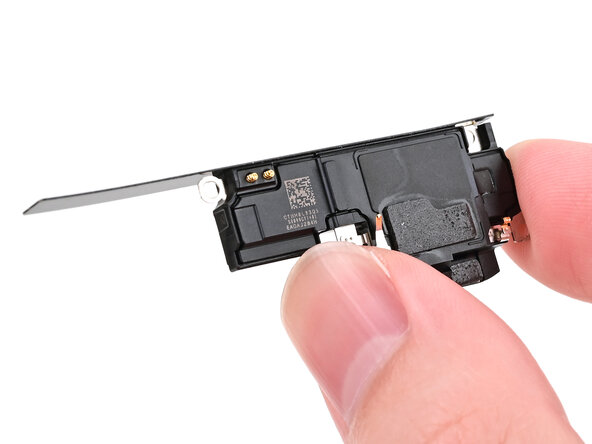
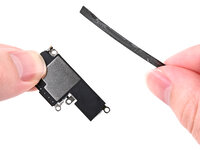
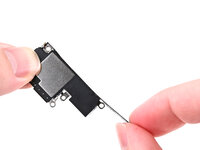
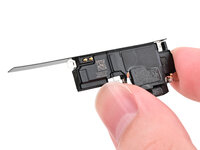
    • If the black plastic shim beneath the battery didn't come out with the loudspeaker, skip this step.

    • Align the battery shim so it's flush with the new loudspeaker's left edge and underside. Press it onto the loudspeaker to adhere it.

    • If the shim isn't sticky, set it into the phone alongside the loudspeaker in the next step.

  37. iPhone 16 Pro Loudspeaker Replacement, Install the loudspeaker: passo 37, immagine 1 di 3 iPhone 16 Pro Loudspeaker Replacement, Install the loudspeaker: passo 37, immagine 2 di 3 iPhone 16 Pro Loudspeaker Replacement, Install the loudspeaker: passo 37, immagine 3 di 3
    • Align the bottom edge of the loudspeaker with the frame.

    • Set the loudspeaker into its recess.

  38. iPhone 16 Pro Loudspeaker Replacement: passo 38, immagine 1 di 2 iPhone 16 Pro Loudspeaker Replacement: passo 38, immagine 2 di 2
    • Install the four screws securing the loudspeaker:

    • Two 1.6 mm‑long Phillips screws

    • One 2.0 mm‑long Phillips screw

    • One 1.3 mm‑long tri-point Y000 screw

  39. iPhone 16 Pro Loudspeaker Replacement, Install the Taptic Engine: passo 39, immagine 1 di 2 iPhone 16 Pro Loudspeaker Replacement, Install the Taptic Engine: passo 39, immagine 2 di 2
    • Use blunt-nose tweezers or your fingers to align the Taptic Engine with its screw posts and place it in the frame.

  40. iPhone 16 Pro Loudspeaker Replacement: passo 40, immagine 1 di 2 iPhone 16 Pro Loudspeaker Replacement: passo 40, immagine 2 di 2
    • Use a Phillips screwdriver to install the 1.9 mm‑long screw securing the Taptic Engine, located on its right edge.

  41. iPhone 16 Pro Loudspeaker Replacement, Connect the lower assembly cable: passo 41, immagine 1 di 3 iPhone 16 Pro Loudspeaker Replacement, Connect the lower assembly cable: passo 41, immagine 2 di 3 iPhone 16 Pro Loudspeaker Replacement, Connect the lower assembly cable: passo 41, immagine 3 di 3
    • Use your finger or a spudger to connect the two lower assembly press connectors.

    • These press connectors can be tricky. Align each connector over its socket and press down—first on one side, then the other—until it clicks into place. Don't try to force them. If you're having trouble, reposition them and try again.

  42. iPhone 16 Pro Loudspeaker Replacement: passo 42, immagine 1 di 2 iPhone 16 Pro Loudspeaker Replacement: passo 42, immagine 2 di 2
    • Use a tri-point Y000 screwdriver to install the 1.0 mm‑long screw securing the lower assembly cable.

  43. iPhone 16 Pro Loudspeaker Replacement: passo 43, immagine 1 di 2 iPhone 16 Pro Loudspeaker Replacement: passo 43, immagine 2 di 2
    • Use your finger or a spudger to connect the lower assembly cable press connector, located in the bottom-right corner of the logic board.

  44. iPhone 16 Pro Loudspeaker Replacement, Install the Taptic Engine cover: passo 44, immagine 1 di 3 iPhone 16 Pro Loudspeaker Replacement, Install the Taptic Engine cover: passo 44, immagine 2 di 3 iPhone 16 Pro Loudspeaker Replacement, Install the Taptic Engine cover: passo 44, immagine 3 di 3
  45. iPhone 16 Pro Loudspeaker Replacement: passo 45, immagine 1 di 2 iPhone 16 Pro Loudspeaker Replacement: passo 45, immagine 2 di 2
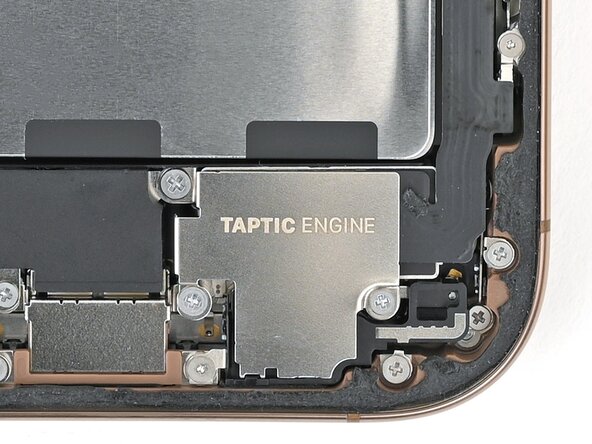
    • Use a Phillips screwdriver to install the three screws securing the Taptic Engine cover:

    • One 3.0 mm‑long screw

    • Two 1.7 mm‑long screws

  46. iPhone 16 Pro Loudspeaker Replacement, Remove the leftover adhesive: passo 46, immagine 1 di 3 iPhone 16 Pro Loudspeaker Replacement, Remove the leftover adhesive: passo 46, immagine 2 di 3 iPhone 16 Pro Loudspeaker Replacement, Remove the leftover adhesive: passo 46, immagine 3 di 3
    Attrezzo utilizzato in questo passaggio:
    Tweezers
    $4.99
    • Work around the fragile grounding clips as you're cleaning the frame. If you bend one out of place, gently bend it back with your fingers or tweezers.

    • Use blunt nose tweezers or your fingers to remove large pieces of adhesive from the frame perimeter.

    • Use a spudger to scrape the adhesive residue off of the frame.

    • If the adhesive feels stubborn, apply some heat using a hair dryer or heat gun and try again.

  47. iPhone 16 Pro Loudspeaker Replacement, Clean the back glass: passo 47, immagine 1 di 2 iPhone 16 Pro Loudspeaker Replacement, Clean the back glass: passo 47, immagine 2 di 2
    Attrezzo utilizzato in questo passaggio:
    Microfiber Cleaning Cloths
    $3.99
    • If you're reusing your back glass, apply a few drops of highly-concentrated isopropyl alcohol (over 90%) to a microfiber or lint-free cloth and wipe around the perimeter to prepare the surface for new adhesive.

  48. iPhone 16 Pro Loudspeaker Replacement, Clean the frame: passo 48, immagine 1 di 1
    • Wrap a lint-free cloth or a coffee filter over the point of a spudger and apply a few drops of highly-concentrated isopropyl alcohol (over 90%) to it.

    • Wipe in one direction along the perimeter of the frame to clean the adhesive residue.

    • Take your time doing this. A clean frame allows replacement adhesive to lay evenly, ensuring a better bond.

  49. iPhone 16 Pro Loudspeaker Replacement, Apply the replacement adhesive: passo 49, immagine 1 di 1
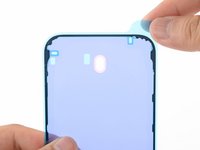
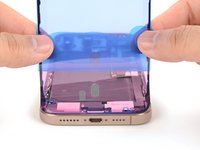
    • Lay the adhesive sheet over the frame to determine its proper orientation.

    • Use features such as the camera cutout and notches along the top and bottom edges to visualize how the adhesive will lay in the frame.

  50. iPhone 16 Pro Loudspeaker Replacement: passo 50, immagine 1 di 2 iPhone 16 Pro Loudspeaker Replacement: passo 50, immagine 2 di 2
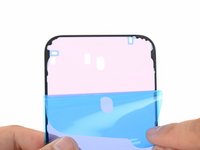
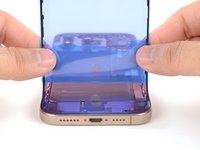
    • Grab the tab in the corner of the adhesive sheet and peel the liner to expose a third of the adhesive.

    • The exposed adhesive is very sticky. Don't let it touch anything until you're ready to apply it to the frame.

    • If your adhesive has multiple liners, peel the liner that exposes the side that sticks to the frame.

  51. iPhone 16 Pro Loudspeaker Replacement: passo 51, immagine 1 di 3 iPhone 16 Pro Loudspeaker Replacement: passo 51, immagine 2 di 3 iPhone 16 Pro Loudspeaker Replacement: passo 51, immagine 3 di 3
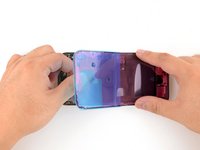
    • Carefully align the exposed edge of the adhesive strip with the corresponding edge of the iPhone's frame.

    • Once the adhesive is pressed into place, you can't reposition it—you'll have to remove it and start over with new adhesive.

    • When it's correctly aligned, gently press the exposed adhesive strip onto the frame.

  52. iPhone 16 Pro Loudspeaker Replacement: passo 52, immagine 1 di 3 iPhone 16 Pro Loudspeaker Replacement: passo 52, immagine 2 di 3 iPhone 16 Pro Loudspeaker Replacement: passo 52, immagine 3 di 3
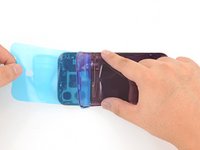
    • Continue peeling away the liner from the adhesive, gently pressing the adhesive into place.

    • If you've correctly aligned the adhesive, the edges will fall perfectly into place.

    • If your adhesive is slightly misaligned, gently pull the long edges into alignment with the frame.

    • If the adhesive begins to crease or wrinkle, remove it and start over with fresh adhesive.

    • If you don't have another set of adhesive strips handy, it's okay to temporarily put your iPhone back together and use it normally without any adhesive. Just keep in mind that your iPhone's water resistance will be compromised until you replace the adhesive.

  53. iPhone 16 Pro Loudspeaker Replacement: passo 53, immagine 1 di 2 iPhone 16 Pro Loudspeaker Replacement: passo 53, immagine 2 di 2
    • Use a spudger to press the adhesive around the entire perimeter of your iPhone.

    • Work around the fragile grounding clips. If you bend one out of place, gently bend it back with your fingers or tweezers.

    • Don't press too hard, or you'll stretch and deform the adhesive.

  54. iPhone 16 Pro Loudspeaker Replacement: passo 54, immagine 1 di 3 iPhone 16 Pro Loudspeaker Replacement: passo 54, immagine 2 di 3 iPhone 16 Pro Loudspeaker Replacement: passo 54, immagine 3 di 3
    • Use a spudger or your fingers to lift the pull tab connected to the large front liner. The pull tab is often in a corner of the liner.

    • Use the pull tab to peel off the large front liner from the adhesive.

    • At this point, you may still have liner covering the perimeter, which prevents the adhesive from accidentally sticking to anything while you're reassembling your iPhone. Don't remove these small release liners just yet.

  55. iPhone 16 Pro Loudspeaker Replacement, Connect the back glass: passo 55, immagine 1 di 1
    • Prop up the back glass along the right edge of your iPhone.

  56. iPhone 16 Pro Loudspeaker Replacement: passo 56, immagine 1 di 1
    • Use your finger or the flat end of a spudger to press and connect the back glass connector onto the logic board.

  57. iPhone 16 Pro Loudspeaker Replacement, Connect the battery: passo 57, immagine 1 di 1
    • Use your finger or a spudger to press and connect the battery press connector onto the logic board.

    • This is a good point to test your repair before sealing up your iPhone. Power on your iPhone and make sure it works as expected. Power it back down and continue reassembly.

    • If your iPhone doesn't turn on, connect it to a power source and try again.

    • If you've replaced the logic board and the screen fails to turn on, you'll need to follow the screen guide to manually connect the display connector.

  58. iPhone 16 Pro Loudspeaker Replacement, Install the connector covers: passo 58, immagine 1 di 1
    • Align the back glass connector cover by its screw holes and lay it in place.

  59. iPhone 16 Pro Loudspeaker Replacement: passo 59, immagine 1 di 1
    • Use a tri-point Y000 driver to install the four screws securing the back glass connector cover:

    • Two 1.3 mm‑long screws

    • Two 1.0 mm‑long screws

  60. iPhone 16 Pro Loudspeaker Replacement: passo 60, immagine 1 di 1
    • Align the battery connector cover by its screw holes and lay it in place.

  61. iPhone 16 Pro Loudspeaker Replacement: passo 61, immagine 1 di 1
    • Use a tri-point Y000 driver to install the three screws securing the battery connector cover:

    • Two 1.3 mm‑long screws

    • One 1.0 mm‑long screw

  62. iPhone 16 Pro Loudspeaker Replacement, Remove the final adhesive liners: passo 62, immagine 1 di 2 iPhone 16 Pro Loudspeaker Replacement, Remove the final adhesive liners: passo 62, immagine 2 di 2
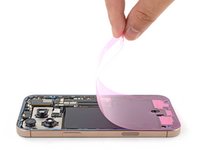
    • Use your fingers or a spudger to peel away all perimeter liners, exposing the adhesive.

    • As you remove the liners, make sure nothing touches the exposed adhesive.

    • Check the frame and back glass for any stray liners and remove them. There should be no liners remaining.

  63. iPhone 16 Pro Loudspeaker Replacement: passo 63, immagine 1 di 3 iPhone 16 Pro Loudspeaker Replacement: passo 63, immagine 2 di 3 iPhone 16 Pro Loudspeaker Replacement: passo 63, immagine 3 di 3
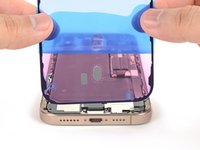
    • Lower the back glass onto the frame, beginning with the top edge.

    • If you feel resistance, a perimeter clip may have bent out of place and is being crushed by the frame. Look at the point of resistance and gently straighten any bent clips.

    • Press along the edges of the iPhone until the back glass sits flush against the frame.

  64. iPhone 16 Pro Loudspeaker Replacement, Apply heat to the perimeter: passo 64, immagine 1 di 1
    • Use a hair dryer, heat gun, or an iOpener to heat the back glass perimeter until it's slightly too hot to touch.

    • The heat softens the adhesive and helps create a better bond.

  65. iPhone 16 Pro Loudspeaker Replacement, Apply pressure to the perimeter: passo 65, immagine 1 di 2 iPhone 16 Pro Loudspeaker Replacement, Apply pressure to the perimeter: passo 65, immagine 2 di 2
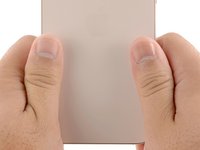
    • Use your fingers to firmly squeeze around the perimeter of the iPhone.

  66. iPhone 16 Pro Loudspeaker Replacement: passo 66, immagine 1 di 2 iPhone 16 Pro Loudspeaker Replacement: passo 66, immagine 2 di 2
    • Place your iPhone screen-side down on a clean, flat work surface.

    • Lay a strip of tape around the perimeter of the back glass to protect the finish.

    • Stack coins around the perimeter of the back glass until you create a wall that's as tall as the rear camera protrusions.

    • Alternatively, you can use vise clamps around the perimeter of your device to set the new adhesive.

  67. iPhone 16 Pro Loudspeaker Replacement: passo 67, immagine 1 di 2 iPhone 16 Pro Loudspeaker Replacement: passo 67, immagine 2 di 2
    • Place 3-4 heavy books squarely on top of your iPhone.

    • The coins may leave a slight impression on the bottom book cover, so don't use anything valuable.

    • Leave the books in place for about 30 minutes.

    • The pressure will help activate the adhesive.

  68. iPhone 16 Pro Loudspeaker Replacement, Install the pentalobe screws: passo 68, immagine 1 di 2 iPhone 16 Pro Loudspeaker Replacement, Install the pentalobe screws: passo 68, immagine 2 di 2
    • Use a P2 pentalobe screwdriver to install the two 7.4 mm‑long screws on either side of the USB-C port.

Conclusione

Take your e-waste to an R2 or e-Stewards certified recycler.

Repair didn’t go as planned? Try some basic troubleshooting, or ask our iPhone 16 Pro Answers community for help.

Nick Schultz

Membro da: 03/24/24

37.233 Reputazione

226 Guide realizzate

Team

iFixit Membro di iFixit

Staff

123 Membri

23.623 Guide realizzate

0Commenti sulla guida

Aggiungi Commento

Visualizza Statistiche:

Ultime 24 Ore: 3

Ultimi 7 Giorni: 35

Ultimi 30 Giorni: 122

Tutti i Tempi: 886