Questa traduzione è stata generata automaticamente e non è stata ancora revisionata da una persona. Parli questa lingua? Dai un’occhiata.

Sostituzione trackpad MacBook Air 13" metà 2011

Ultimo aggiornamento il 3 ago 2026
Visualizzazioni: 88.098
Visualizza statistiche:
- Ultime 24 ore:
- 4
- Ultimi 7 giorni:
- 24
- Ultimi 30 giorni:
- 115
- Tutti i Tempi:
- 88.098
Commenti: 132
123 commenti sui passaggi, 9 commenti sulla guida.
Vai ai commenti della guidaCompletato: 56 57
56 persone hanno contrassegnato questa guida come "completata". Sarai il prossimo?
57 persone hanno contrassegnato questa guida come "completata". Compreso te, ottimo lavoro!
Preferiti: 22 23
22 persone hanno aggiunto ai preferiti (e si sono iscritte a) questa guida. Sarai il prossimo?
23 persone hanno aggiunto ai preferiti (e si sono iscritte a) questa guida, incluso te!
Introduzione
Vai al passo 1 ↓Utilizza questa guida per sostituire il trackpad.
Cosa ti serve


-
-
-
Usa un cacciavite P5 Pentalobe per rimuovere le dieci viti che tengono in posizione il case inferiore, delle seguenti lunghezze:
-
Due viti da 9 mm
-
Otto viti da 2,6 mm
 Chiedi a FixBot
-
-
-
Inserisci le tue dita tra il display e il case inferiore e tira verso l'alto per separare il case inferiore dal MacBook Air.
-
Rimuovi il case inferiore e mettilo da parte.
-
-
-
-
-
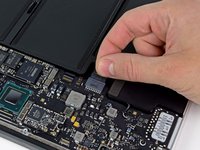
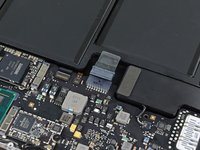
Afferra la linguetta di estrazione in plastica trasparente attaccata al connettore della batteria e tirala verso il lato frontale dell'Air per disconnettere il pacco dalla scheda madre.
-
-
-
Rimuovi le seguenti cinque viti che tengono ancorata la batteria alla parte superiore del case:
-
Tre viti Torx T5 da 6,3 mm
-
Due viti Torx T5 da 2,4 mm
-
-
-
-
Alza la batteria dal lato più vicino alla scheda logica e rimuovila dalla parte superiore del case.
-
Caricala al 100% e lasciala caricare per altre due ore. Poi, scollegala e lascia che si scarichi normalmente. Quando vedi il segnale di batteria scarica, salva tutto il tuo lavoro, e lascia che il portatile si spenga per via della batteria scarica. Aspetta almeno 5 ore, e poi ricarica il portatile ininterrottamente fino al 100%.
-
Se noti qualsiasi comportamento anomalo o problemi dopo l'installazione della nuova batteria, probabilmente dovrai resettare il SMC del MacBook.
-
-
-
-
-
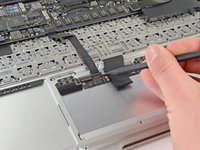
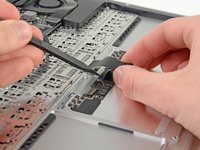
Usa la punta di uno spudger o l'unghia per sollevare la linguetta di fermo sul connettore ZIF del cavo piatto del trackpad.
-
Estrari il cavo piatto del trackpad dal suo connetore, tirandolo verso il bordo posteriore dell'Air.
-
-
-
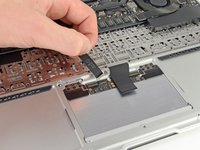
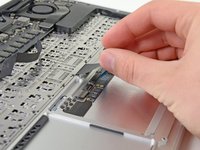
Sollevando con cautela il cavo piatto della tastiera con una mano, utilizza la punta di uno spudger o l'unghia per sollevare la linguetta di fissaggio sul connettore ZIF del cavo piatto della tastiera.
-
Estrai il cavo piatto della tastiera dal suo connettore, tirandolo verso il bordo anteriore dell'Air.
-
-
-
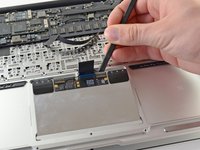
Rimuove le seguenti dodici viti:
-
Sei viti con testa a croce Phillips da 1,6 mm che fissano il trackpad alla scocca superiore.
-
Sei viti con testa a croce Phillips da 1,6 mm che fissano le staffe del trackpad al trackpad stesso.
-
Una vite con testa a croce Phillips #000 dovrebbe essere sufficiente, ma anche una JIS #000 potrebbe andare bene.
-
-
-
Rimuovi le staffe destra e sinistra del trackpad dalla parte superiore del case.
-
-
-
Rimuovi la vite di fissaggio Torx T5 da 1,4 mm dal foro filettato vicino al bordo anteriore del case superiore.
-
-
-
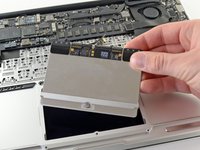
Utilizza il bordo piatto di uno spudger per sollevare con cautela il bordo del trackpad più vicino alla tastiera dal suo alloggiamento nella scocca superiore, staccandolo dalle staffe fissate alla scocca superiore.
-
Rimuovi il trackpad dalla scocca superiore.
-
-








Per rimontare il dispositivo, segui queste istruzioni in ordine inverso.
Annulla: non ho completato questa guida.
Altre 56 persone hanno completato questa guida.


9Commenti sulla guida
The Apple tech repair guide for this model of Macbook Air states that the flexures use Phillips #000 screws, but I didn't have good luck using #000 drivers on them. A high quality precision Phillips #00 driver worked a little better, but I'm wondering if this is actually a JIS cross point phillips #00 or #000 screwdriver? The screws look more like JIS (Japanese Industry Standard) instead of Phillips, anyone try a JIS with better luck on these?
Great guide, all worked as described. Thanks!
Yes, the screws don't seem to quite match expectations; I used three different #00/#000 drivers before I got a good fit.
Step 7: Could use just a bit more detailed explanation and/or picture. The retainer is on the "back" edge of the connector (facing off the long edge of the trackpad, opposite of Step 6), and takes a mix of delicate firmness to raise. Practice on your replacement (if available).
Step 8: My replacement trackpad came with the trackpad bracket attached, so no need to remove the 6 (orange-circled) screws attaching bracket to trackpad, which can be removed and installed with the bracket attached.
Step 10, reinstalling: Getting the set-screw correctly adjusted was a bit hit-n-miss. My assumption was in far enough to just stop movement, then back off a turn or so. That ended up too loose. YMMV.
I have just finished, there was a scary moment when I managed to somehow cause the retainer clip for keyboard ribbon to fall off the new track pad while I was fitting the cable. I put it together anyway but - of course the keyboard did not work!!! I then took it apart and somehow with the use of an illuminated magnifier, I managed to push the retainer clip back on to the prongs and it works!!
Michael S
Hi,
friend mine did replacement of complete top case with keyboard and trackpad. Seller claimed it is ok but we face one problem. when I touch case (palm rest) trackpad stops responding. Both cases were from A1369 model but on mine was black plastic foil over part of keyboard whiel on other not. So I am not sure there could be some other differences that could cause this.
Would anybody has any suggestion.
Thanks
Frank
