Salta al contenuto principale
Unisciti alla Community delle riparazioni - Crea un account

Solid-State Drive Replacement in ThinkPad E14 Gen 2 (AMD)

Cosa ti serve

  1. Solid-State Drive Replacement in ThinkPad E14 Gen 2 (AMD), Solid-State Drive: passo 1, immagine 1 di 1
    • Ensure the laptop is powered off.

    Chiedi a FixBot

    Aggiungi Commento

  2. Solid-State Drive Replacement in ThinkPad E14 Gen 2 (AMD): passo 2, immagine 1 di 3 Solid-State Drive Replacement in ThinkPad E14 Gen 2 (AMD): passo 2, immagine 2 di 3 Solid-State Drive Replacement in ThinkPad E14 Gen 2 (AMD): passo 2, immagine 3 di 3
    • Unscrew all 7 of the Phillips #0 back plate screws on the bottom of the laptop.

    • These will be "captive" and will not come out of the backplate, so you do not need to worry about them getting lost.

    • Separate the back from the laptop assembly using the opening pick tool.

    • If you have trouble with just using one pick tool, feel free to use multiple ones to keep sections of the back plate separated.

    Chiedi a FixBot

    Aggiungi Commento

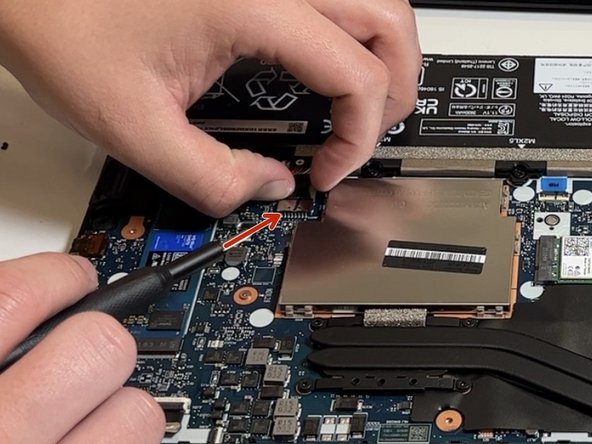
  3. Solid-State Drive Replacement in ThinkPad E14 Gen 2 (AMD): passo 3, immagine 1 di 2 Solid-State Drive Replacement in ThinkPad E14 Gen 2 (AMD): passo 3, immagine 2 di 2
    • Unplug the battery connector and press the power button to ensure the device has no power running.

    Chiedi a FixBot

    Aggiungi Commento

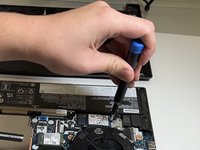
  4. Solid-State Drive Replacement in ThinkPad E14 Gen 2 (AMD): passo 4, immagine 1 di 2 Solid-State Drive Replacement in ThinkPad E14 Gen 2 (AMD): passo 4, immagine 2 di 2
    • Use a Phillips #0 screwdriver to remove the single 4 mm screw that secures the solid-state drive.

    Chiedi a FixBot

    Aggiungi Commento

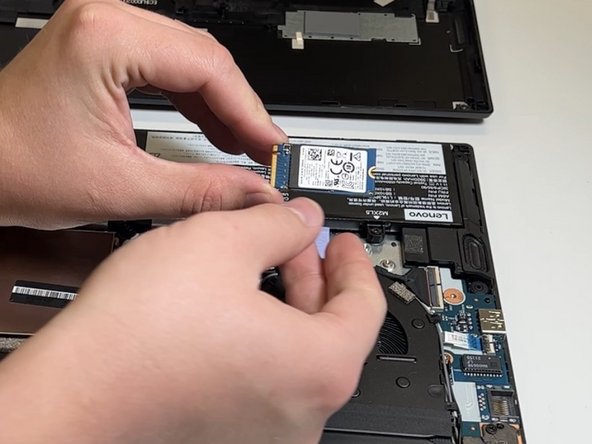
  5. Solid-State Drive Replacement in ThinkPad E14 Gen 2 (AMD): passo 5, immagine 1 di 3 Solid-State Drive Replacement in ThinkPad E14 Gen 2 (AMD): passo 5, immagine 2 di 3 Solid-State Drive Replacement in ThinkPad E14 Gen 2 (AMD): passo 5, immagine 3 di 3
    • Slide the Solid-State Drive out of its slot.

    Chiedi a FixBot

    Aggiungi Commento

  6. Solid-State Drive Replacement in ThinkPad E14 Gen 2 (AMD): passo 6, immagine 1 di 3 Solid-State Drive Replacement in ThinkPad E14 Gen 2 (AMD): passo 6, immagine 2 di 3 Solid-State Drive Replacement in ThinkPad E14 Gen 2 (AMD): passo 6, immagine 3 di 3
    • Replace the Solid-State Drive with the new one.

    Chiedi a FixBot

    Aggiungi Commento

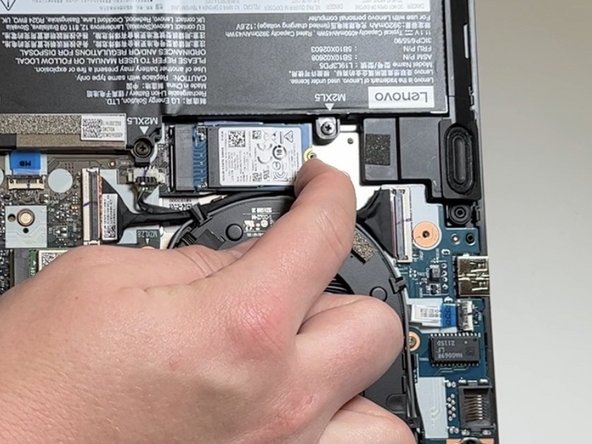
  7. Solid-State Drive Replacement in ThinkPad E14 Gen 2 (AMD): passo 7, immagine 1 di 1
    • Screw in the Solid-State Drive 4 mm Retaining screw in the new Solid-State Drive using the phillips #0 screwdriver.

    Chiedi a FixBot

    Aggiungi Commento

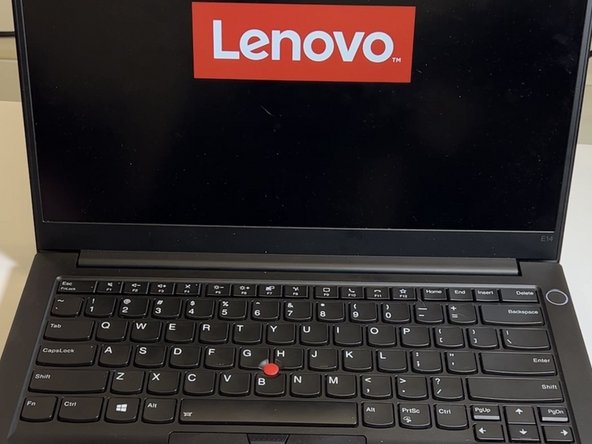
  8. Solid-State Drive Replacement in ThinkPad E14 Gen 2 (AMD): passo 8, immagine 1 di 1
    • Power the laptop back on to ensure the computer starts up without issues.

    Chiedi a FixBot

    Aggiungi Commento

Conclusione

A good end of repair practice is to check to make sure that your laptop powers up safely and is able to boot into the new drive that has been installed in your laptop. Following this repair if your Operating System has not been installed, the next step is to install Windows / whichever Operating System you prefer.

Annulla: non ho completato questa guida.

Ahmed Alrimawi

Membro da: 10/06/22

157 Reputazione

Una guida realizzata

0Commenti sulla guida

Aggiungi Commento

Visualizza statistiche:

Ultime 24 ore: 1

Ultimi 7 giorni: 28

Ultimi 30 giorni: 94

Tutti i Tempi: 3,795