Salta al contenuto principale
Unisciti alla Community delle riparazioni - Crea un account

Samsung Chromebook Series 3 Motherboard Replacement

Cosa ti serve

  1. Samsung Chromebook Series 3 Motherboard Replacement, Bottom Cover: passo 1, immagine 1 di 3 Samsung Chromebook Series 3 Motherboard Replacement, Bottom Cover: passo 1, immagine 2 di 3 Samsung Chromebook Series 3 Motherboard Replacement, Bottom Cover: passo 1, immagine 3 di 3
    • Lay the Chromebook down so that the bottom cover is facing up.

    • Remove the rubber feet on the four corners of the Chromebook in order to get to the screws underneath. They are stuck on with an adhesive.

    Chiedi a FixBot

    Aggiungi Commento

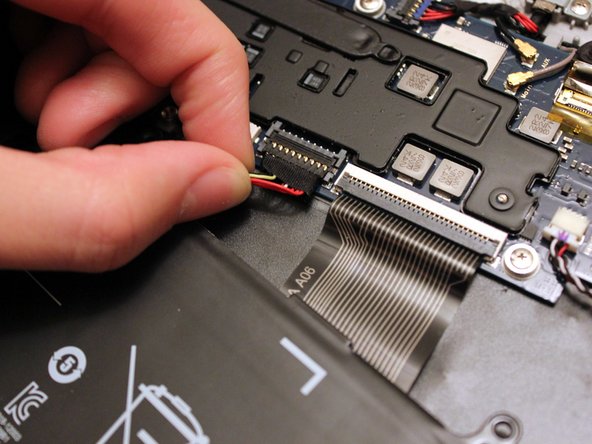
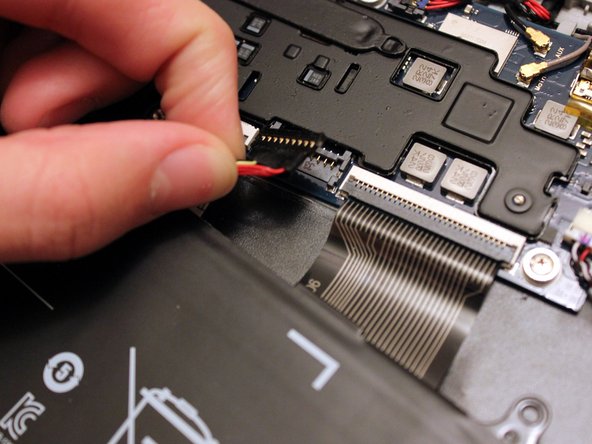
  2. Samsung Chromebook Series 3 Motherboard Replacement: passo 2, immagine 1 di 3 Samsung Chromebook Series 3 Motherboard Replacement: passo 2, immagine 2 di 3 Samsung Chromebook Series 3 Motherboard Replacement: passo 2, immagine 3 di 3
    • Remove the nine 4.7 mm screws on the bottom cover using a Phillips #00 screwdriver.

    Chiedi a FixBot

    Aggiungi Commento

  3. Samsung Chromebook Series 3 Motherboard Replacement: passo 3, immagine 1 di 3 Samsung Chromebook Series 3 Motherboard Replacement: passo 3, immagine 2 di 3 Samsung Chromebook Series 3 Motherboard Replacement: passo 3, immagine 3 di 3
    • Pry up the plastic strip on the back of the Chromebook using a plastic opening tool.

    • It is not necessary to remove it completely. It just needs to be separated from the bottom cover.

    Chiedi a FixBot

    Aggiungi Commento

  4. Samsung Chromebook Series 3 Motherboard Replacement: passo 4, immagine 1 di 3 Samsung Chromebook Series 3 Motherboard Replacement: passo 4, immagine 2 di 3 Samsung Chromebook Series 3 Motherboard Replacement: passo 4, immagine 3 di 3
    • Pry off the bottom cover using a plastic opening tool.

    Chiedi a FixBot

    Aggiungi Commento

  5. Samsung Chromebook Series 3 Motherboard Replacement, Battery: passo 5, immagine 1 di 3 Samsung Chromebook Series 3 Motherboard Replacement, Battery: passo 5, immagine 2 di 3 Samsung Chromebook Series 3 Motherboard Replacement, Battery: passo 5, immagine 3 di 3
    • Remove six 3.5 mm screws holding the battery using a Phillips #00 screwdriver.

    • Pull out the battery partway in order to easily get to the battery connector.

    Chiedi a FixBot

    Aggiungi Commento

  6. Samsung Chromebook Series 3 Motherboard Replacement: passo 6, immagine 1 di 3 Samsung Chromebook Series 3 Motherboard Replacement: passo 6, immagine 2 di 3 Samsung Chromebook Series 3 Motherboard Replacement: passo 6, immagine 3 di 3
    • Disconnect the battery connector by pulling straight up at its base.

    • When reassembling, simply position the connector above it's original place, and push down.

    Chiedi a FixBot

    Aggiungi Commento

  7. Samsung Chromebook Series 3 Motherboard Replacement: passo 7, immagine 1 di 2 Samsung Chromebook Series 3 Motherboard Replacement: passo 7, immagine 2 di 2
    • You can now remove the battery.

    Chiedi a FixBot

    Aggiungi Commento

  8. Samsung Chromebook Series 3 Motherboard Replacement, Motherboard: passo 8, immagine 1 di 3 Samsung Chromebook Series 3 Motherboard Replacement, Motherboard: passo 8, immagine 2 di 3 Samsung Chromebook Series 3 Motherboard Replacement, Motherboard: passo 8, immagine 3 di 3
    • Unscrew the four 3.1 mm screws holding the motherboard with a Phillips #00 screwdriver.

    Chiedi a FixBot

    Aggiungi Commento

  9. Samsung Chromebook Series 3 Motherboard Replacement: passo 9, immagine 1 di 3 Samsung Chromebook Series 3 Motherboard Replacement: passo 9, immagine 2 di 3 Samsung Chromebook Series 3 Motherboard Replacement: passo 9, immagine 3 di 3
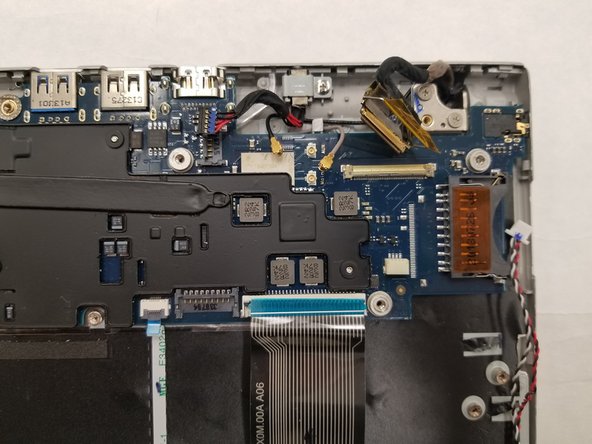
    • The audio cable can be removed by simply pulling gently.

    • Use the iFixit opening tool to pop out the 2 antennae lines from the motherboard.

    • When reinstalling these Wifi Antenna connections, align the antenna on top of the fitting and gently use the Plastic Spudger to apply pressure and seat the connection. Do not use your fingers to press down on the connector, or you risk permanently damaging the connector by bending it.

    Chiedi a FixBot

    Aggiungi Commento

  10. Samsung Chromebook Series 3 Motherboard Replacement: passo 10, immagine 1 di 3 Samsung Chromebook Series 3 Motherboard Replacement: passo 10, immagine 2 di 3 Samsung Chromebook Series 3 Motherboard Replacement: passo 10, immagine 3 di 3
    • Now, disconnect the keyboard and trackpad ribbon cables.

    • This requires lifting the lever securing the cables to free them, and then gently pulling them out.

    Chiedi a FixBot

    Aggiungi Commento

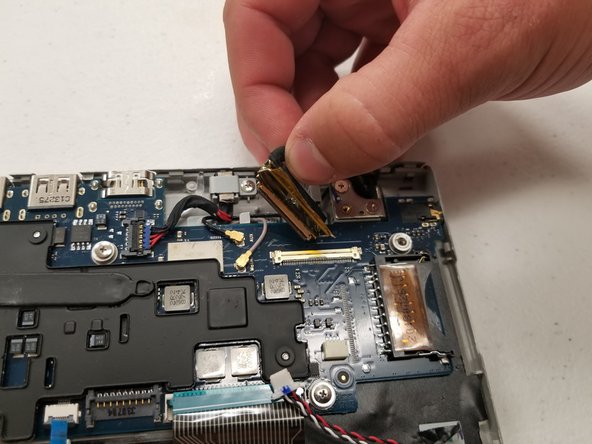
  11. Samsung Chromebook Series 3 Motherboard Replacement: passo 11, immagine 1 di 3 Samsung Chromebook Series 3 Motherboard Replacement: passo 11, immagine 2 di 3 Samsung Chromebook Series 3 Motherboard Replacement: passo 11, immagine 3 di 3
    • The screen cable is secure in place by a lever. Lift the lever to release it, then gently pull it out.

    Chiedi a FixBot

    Aggiungi Commento

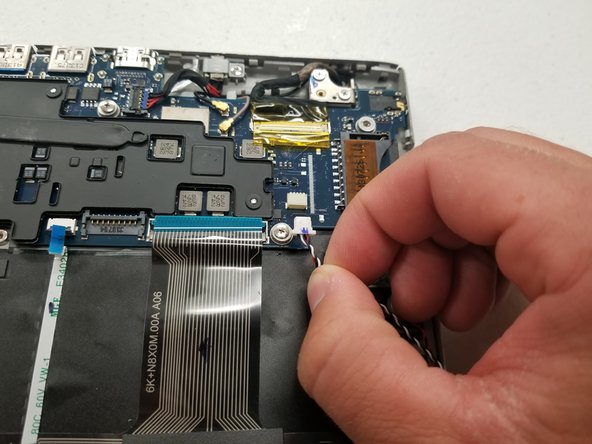
  12. Samsung Chromebook Series 3 Motherboard Replacement: passo 12, immagine 1 di 1
    • This cable comes out by just pulling gently.

    Chiedi a FixBot

    Aggiungi Commento

  13. Samsung Chromebook Series 3 Motherboard Replacement: passo 13, immagine 1 di 2 Samsung Chromebook Series 3 Motherboard Replacement: passo 13, immagine 2 di 2
    • Lift the motherboard out of place and pull out the CMOS battery cable.

    Chiedi a FixBot

    Aggiungi Commento

  14. Samsung Chromebook Series 3 Motherboard Replacement: passo 14, immagine 1 di 2 Samsung Chromebook Series 3 Motherboard Replacement: passo 14, immagine 2 di 2
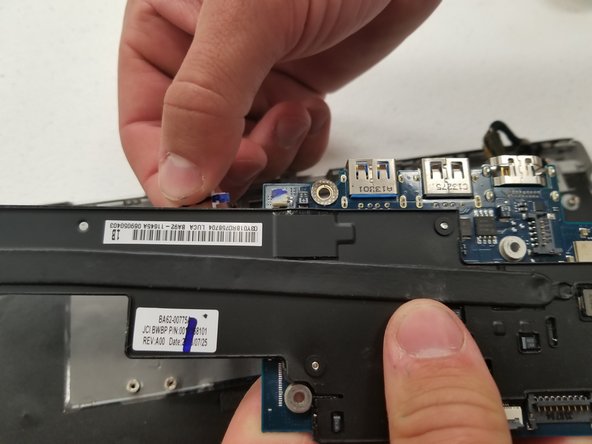
    • Finally, remove the three 3.1 mm screws with the Phillips #00 screwdriver to remove the plastic cover and completely free the motherboard.

    Chiedi a FixBot

    Aggiungi Commento

Conclusione

To reassemble your device, follow these instructions in reverse order.

Annulla: non ho completato questa guida.

Altre 5 persone hanno completato questa guida.

Team

IUPUI, Team S2-G1, Henning Spring 2019 Membro di IUPUI, Team S2-G1, Henning Spring 2019

IUPUI-HENNING-S19S2G1

3 Membri

6 guide realizzate

1Commento della guida

One other thing I thought I'd add is if you're doing this and get to as far as removing the motherboard, personally after removing the plastic cover I'd also replace the thermal paste and re-paste the CPU (grey paste you can see smothered between the chip and the plastic/metal heat spreader). Something like PTM7950 would be good in this use case, and saves you having to do it later on as well/better performance and longevity :)

Aadi Bhamidipati - Rispondi Condividi

Aggiungi Commento

Visualizza statistiche:

Ultime 24 ore: 4

Ultimi 7 giorni: 11

Ultimi 30 giorni: 72

Tutti i Tempi: 2,520