Salta al contenuto principale
Unisciti alla Community delle riparazioni - Crea un account

Replacement of CMOS Battery in a Dell G3 15-3579 Gaming Laptop

Cosa ti serve

  1. Replacement of CMOS Battery in a Dell G3 15-3579 Gaming Laptop, CMOS Battery: passo 1, immagine 1 di 1
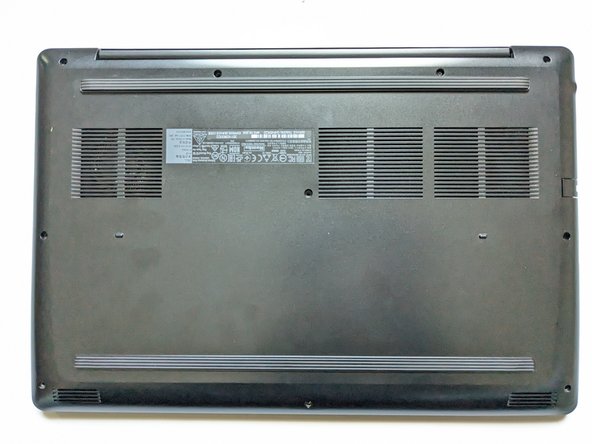
    • Make sure the laptop is off and has been unplugged from any power source.

    • Flip the laptop over to gain access to ten M2.5 x 6mm flat head screws.

    Chiedi a FixBot
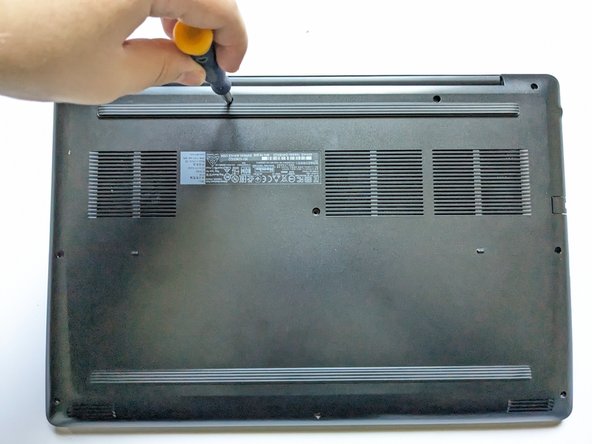
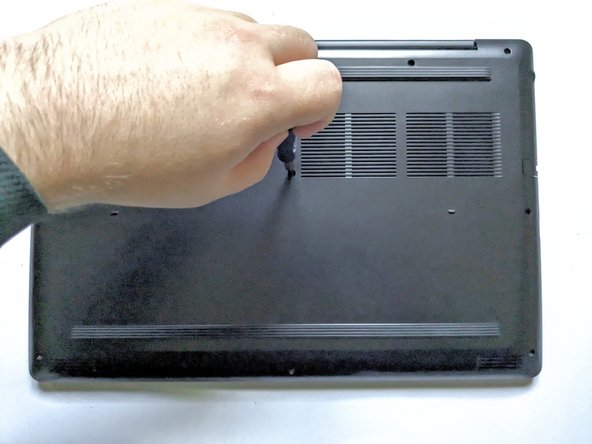
  2. Replacement of CMOS Battery in a Dell G3 15-3579 Gaming Laptop: passo 2, immagine 1 di 3 Replacement of CMOS Battery in a Dell G3 15-3579 Gaming Laptop: passo 2, immagine 2 di 3 Replacement of CMOS Battery in a Dell G3 15-3579 Gaming Laptop: passo 2, immagine 3 di 3
    • Use a Phillips #0 screwdriver to unscrew all the screws.

    • If you have another screwdriver that fits you can use that as well.

    Chiedi a FixBot
  3. Replacement of CMOS Battery in a Dell G3 15-3579 Gaming Laptop: passo 3, immagine 1 di 2 Replacement of CMOS Battery in a Dell G3 15-3579 Gaming Laptop: passo 3, immagine 2 di 2
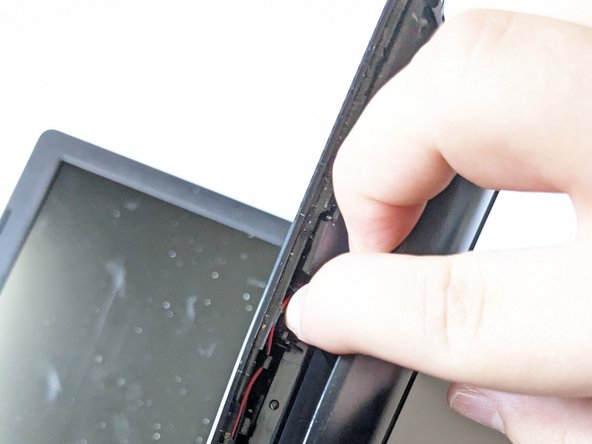
    • Gently pry open the bottom cover of the laptop.

    • If this is the first time you are opening the laptop it might be harder to separate.

    • If it seems to be stuck at any point DO NOT pull harder you may have forgotten one screw.

    Chiedi a FixBot
  4. Replacement of CMOS Battery in a Dell G3 15-3579 Gaming Laptop: passo 4, immagine 1 di 3 Replacement of CMOS Battery in a Dell G3 15-3579 Gaming Laptop: passo 4, immagine 2 di 3 Replacement of CMOS Battery in a Dell G3 15-3579 Gaming Laptop: passo 4, immagine 3 di 3
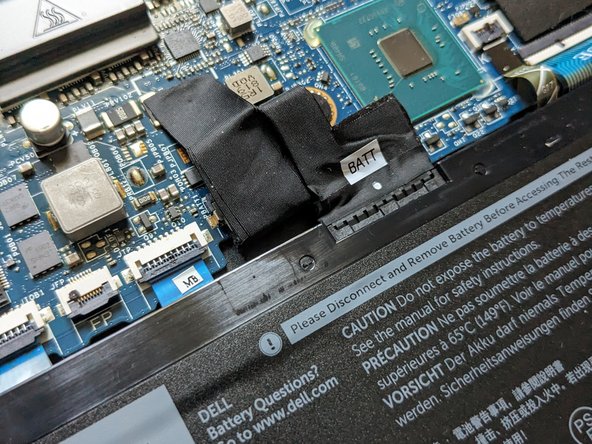
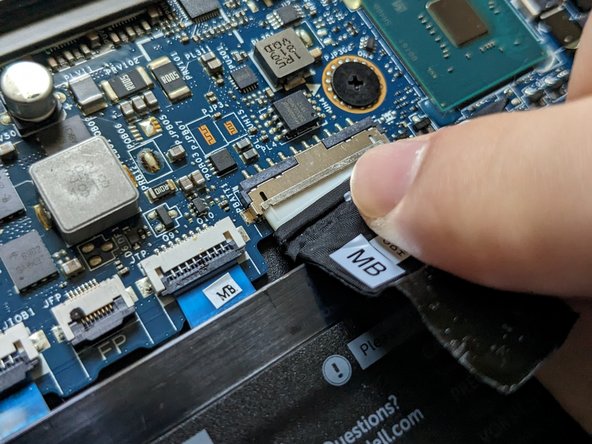
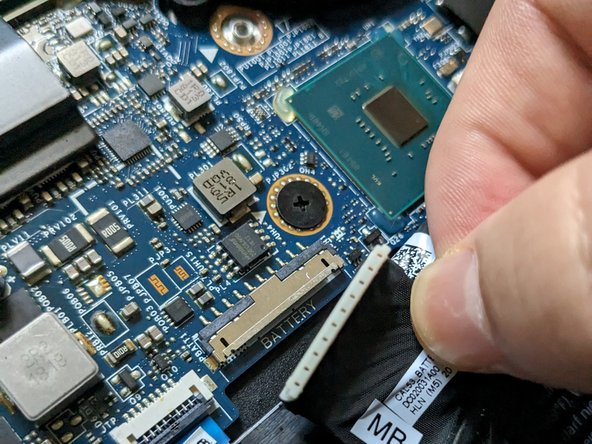
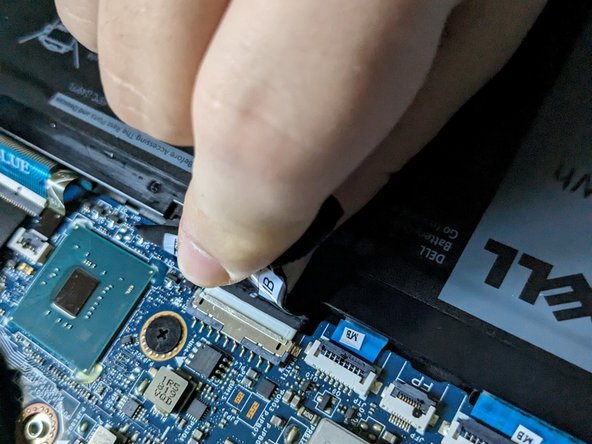
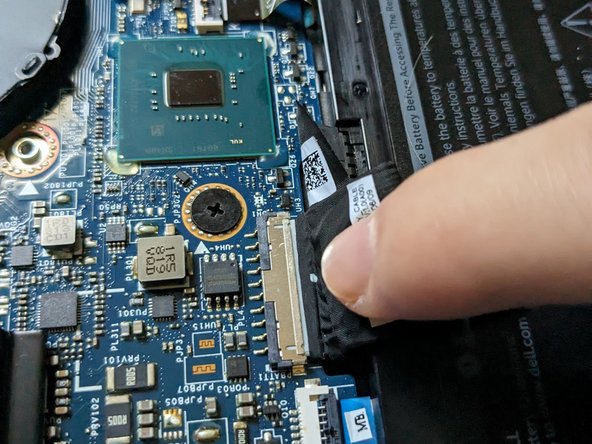
    • You need to unplug the battery to make sure that you don't get any potential static shock when you unplug any other component.

    • Lightly shake the connector to disconnect.

    Chiedi a FixBot
  5. Replacement of CMOS Battery in a Dell G3 15-3579 Gaming Laptop: passo 5, immagine 1 di 2 Replacement of CMOS Battery in a Dell G3 15-3579 Gaming Laptop: passo 5, immagine 2 di 2
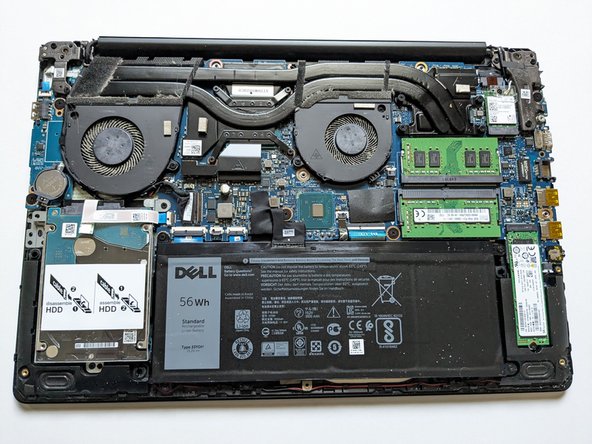
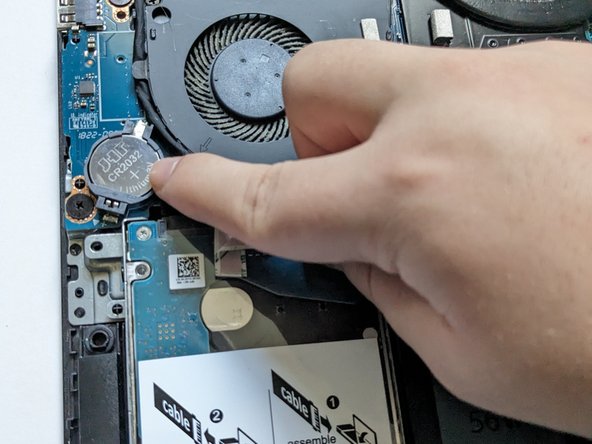
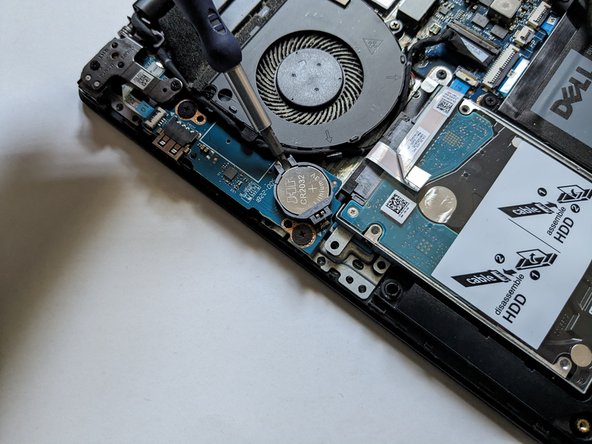
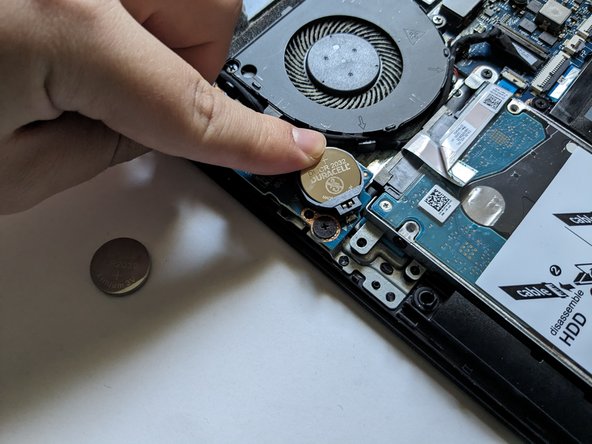
    • Use a spudger or plastic opening tool to pry under the battery, and push forward to pop it free.

    • Be gentle when pushing to avoid potential damage to the battery holder, as your tool may slip.

    Chiedi a FixBot
  6. Replacement of CMOS Battery in a Dell G3 15-3579 Gaming Laptop: passo 6, immagine 1 di 2 Replacement of CMOS Battery in a Dell G3 15-3579 Gaming Laptop: passo 6, immagine 2 di 2
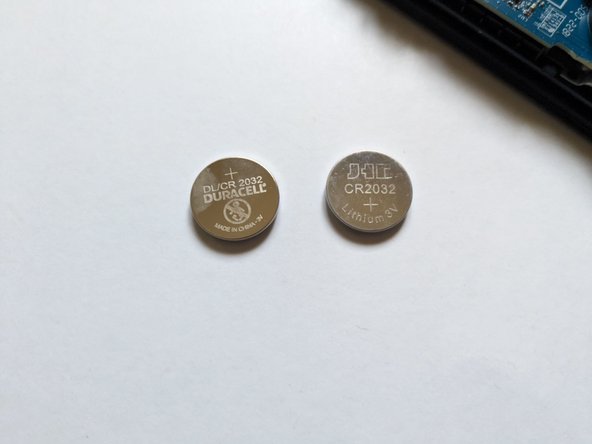
    • Place the new battery in by placing it over the holder and lightly pressing down.

    Chiedi a FixBot
  7. Replacement of CMOS Battery in a Dell G3 15-3579 Gaming Laptop: passo 7, immagine 1 di 2 Replacement of CMOS Battery in a Dell G3 15-3579 Gaming Laptop: passo 7, immagine 2 di 2
    • Reconnect the battery connector by gently pushing it in until you barely see the white.

    Chiedi a FixBot
  8. Replacement of CMOS Battery in a Dell G3 15-3579 Gaming Laptop: passo 8, immagine 1 di 3 Replacement of CMOS Battery in a Dell G3 15-3579 Gaming Laptop: passo 8, immagine 2 di 3 Replacement of CMOS Battery in a Dell G3 15-3579 Gaming Laptop: passo 8, immagine 3 di 3
    • Re-screw back on the cover.

    • The cover will snap back on as you screw on more screws.

    Chiedi a FixBot
Conclusione

When you turn back on the laptop you will have to redo your BIOS settings.

Brayden Keltz

Membro da: 09/04/23

166 Reputazione

Una guida realizzata

Team

York University, Team 2-11, O'Regan Fall 2023 Membro di York University, Team 2-11, O'Regan Fall 2023

YORK-O'REGAN-F23S2G11

Membro di 1

2 guide realizzate

0Commenti sulla guida

Aggiungi Commento

Visualizza statistiche:

Ultime 24 ore: 7

Ultimi 7 giorni: 21

Ultimi 30 giorni: 87

Tutti i Tempi: 1,168