Salta al contenuto principale

PXN Arcade Stick Button Replacement

Cosa ti serve

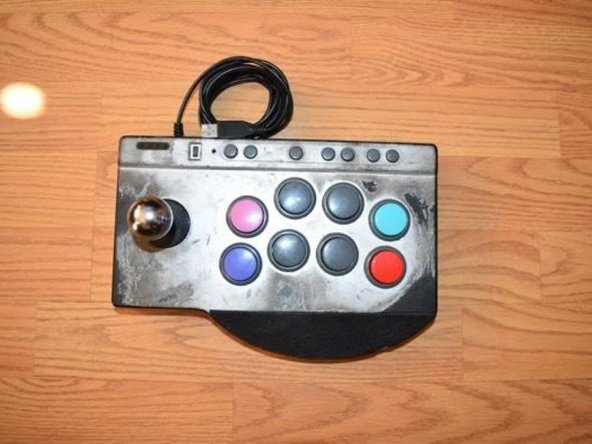
  1. PXN Arcade Stick Button Replacement, Buttons: passo 1, immagine 1 di 1
    • Place the PXN Arcade Stick on a flat surface.

  2. PXN Arcade Stick Button Replacement: passo 2, immagine 1 di 1
    • Turn the controller upside down.

    • Remove the four screws from the bottom of the device.

  3. PXN Arcade Stick Button Replacement: passo 3, immagine 1 di 1
    • Set the back cover aside, being cautious of the cable connected to the motherboard.

    • Unplug the controller converter plug.

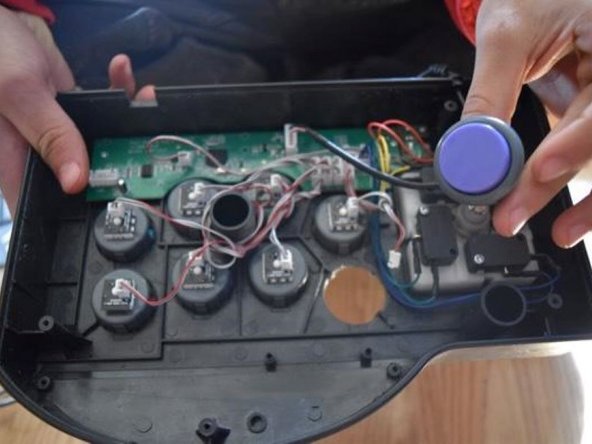
  4. PXN Arcade Stick Button Replacement: passo 4, immagine 1 di 1
    • Unplug the button you wish to replace.

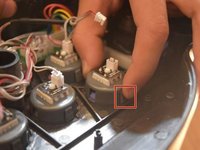
  5. PXN Arcade Stick Button Replacement: passo 5, immagine 1 di 2 PXN Arcade Stick Button Replacement: passo 5, immagine 2 di 2
    • Push in and down on the button components.

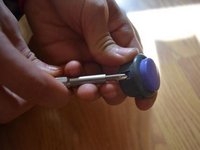
  6. PXN Arcade Stick Button Replacement: passo 6, immagine 1 di 2 PXN Arcade Stick Button Replacement: passo 6, immagine 2 di 2
    • Use a spudger to push in and up on the button housing.

  7. PXN Arcade Stick Button Replacement: passo 7, immagine 1 di 1
    • Line up the replacement button with the socket and push down.

  8. PXN Arcade Stick Button Replacement: passo 8, immagine 1 di 1
    • Push the new button down into the back case of the controller.

Conclusione

To reassemble your device, follow these instructions in reverse order.

Derek Rosales

Membro da: 10/21/24

157 Reputazione

1 Guida realizzata

Team

0Commenti sulla guida

Aggiungi Commento

Visualizza Statistiche:

Ultime 24 Ore: 26

Ultimi 7 Giorni: 57

Ultimi 30 Giorni: 219

Tutti i Tempi: 2,081