Salta al contenuto principale
Unisciti alla Community delle riparazioni - Crea un account

Motorola Lapdock 100 Screen Replacement

Visualizzazioni: 1301

Visualizza statistiche:

Ultime 24 ore:
1
Ultimi 7 giorni:
17
Ultimi 30 giorni:
101
Tutti i Tempi:
1.301
Commenti: 0

Nessuno ha lasciato commenti su questa guida. Sarai il primo?

Vai ai commenti della guida
Completato: 1

1 persona ha contrassegnato questa guida come "completata". Sarai il prossimo?

Preferiti: 0

Nessuno ha preferito (e si è iscritto) questa guida. Sarai il primo?

Tempo necessario: 25 minuti
Difficoltà: Moderato
Dettagli Mancanti

Alcuni dettagli di questa guida sono mancanti. Aiuta gli utenti aggiungendo strumenti, livello di difficoltà o tempo di esecuzione.

Motorola Lapdock 100 Screen Replacement

Introduzione

Vai al passo 1 ↓

This is one of the more complicated procedures for the lapdock replacement guides. To start you will need to remove the bottom case of the lapdock. Then you will follow by removing the lapdock battery and unplugging the connections to the motherboard as directed in the guide. After doing so, you will then remove a top case of the lapdock and unfasten the screen by removing four screws that hold the screen in place.

Cosa ti serve

Strumenti

    1. Motorola Lapdock 100 Screen Replacement, Lower Case: passo 1, immagine 1 di 2 Motorola Lapdock 100 Screen Replacement, Lower Case: passo 1, immagine 2 di 2
      • To take off the Keyboard there are three tabs at the top of the Keyboard in the locations shown in the picture that you must press and unclip. They are located behind each of the keys that are removed.

      • You do not need to remove any keys to unclip the keyboard. We did this for picture purposes only.

      Chiedi a FixBot

      Aggiungi Commento

    2. Motorola Lapdock 100 Screen Replacement: passo 2, immagine 1 di 1
      • You can use a small metal spudger to depress each tab to avoid scratching the keyboard.

      Chiedi a FixBot

      Aggiungi Commento

    3. Motorola Lapdock 100 Screen Replacement: passo 3, immagine 1 di 1
      • Lift up keyboard so that you are able to see the ribbon cable connected to the contact.

      Chiedi a FixBot

      Aggiungi Commento

    4. Motorola Lapdock 100 Screen Replacement: passo 4, immagine 1 di 2 Motorola Lapdock 100 Screen Replacement: passo 4, immagine 2 di 2
      • Flip up the ZIF connector holding the ribbon cable on the contact as shown in the two pictures and then gently disconnect the ribbon cable.

      Chiedi a FixBot

      Aggiungi Commento

    5. Motorola Lapdock 100 Screen Replacement: passo 5, immagine 1 di 2 Motorola Lapdock 100 Screen Replacement: passo 5, immagine 2 di 2
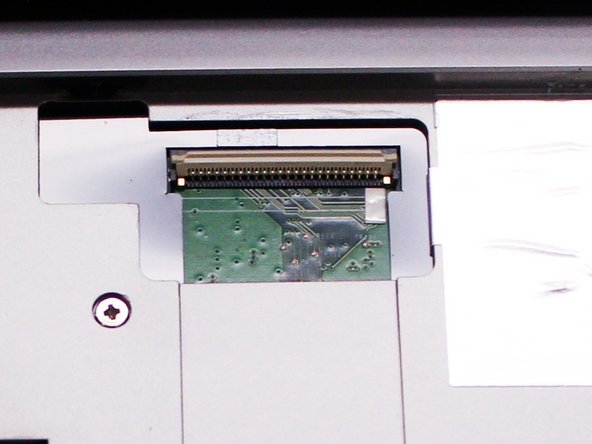
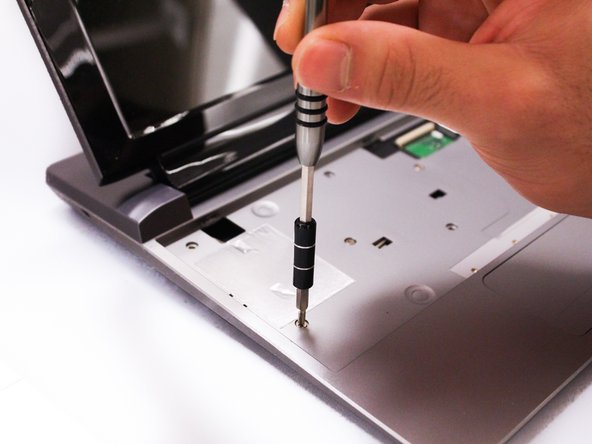
      • After we remove the Keyboard, you can clearly see the screws under it. Remove the ten 3mm long phillips head screws.

      Chiedi a FixBot

      Aggiungi Commento

    6. Motorola Lapdock 100 Screen Replacement: passo 6, immagine 1 di 3 Motorola Lapdock 100 Screen Replacement: passo 6, immagine 2 di 3 Motorola Lapdock 100 Screen Replacement: passo 6, immagine 3 di 3
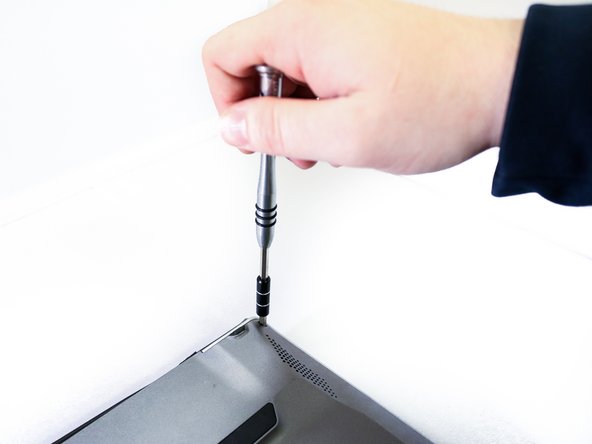
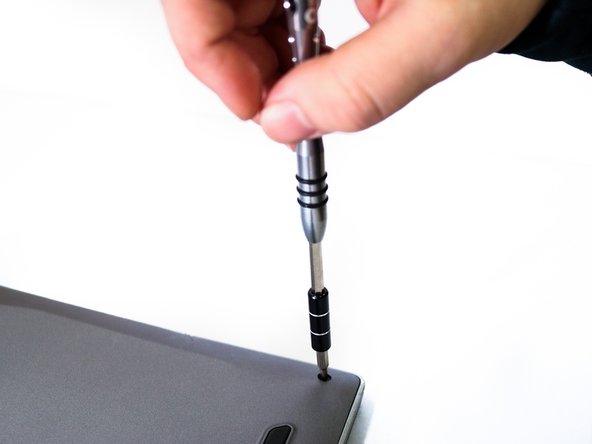
      • Flip over the Lapdock and remove the four 3.5mm long phillips head screws from the bottom.

      Chiedi a FixBot

      Aggiungi Commento

    7. Motorola Lapdock 100 Screen Replacement: passo 7, immagine 1 di 2 Motorola Lapdock 100 Screen Replacement: passo 7, immagine 2 di 2
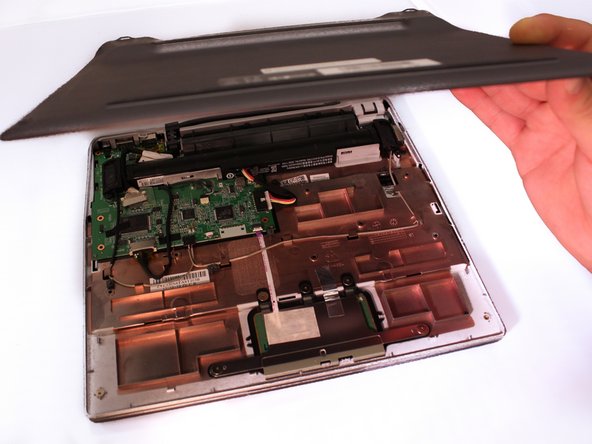
      • Use a plastic prying tool to take off the bottom case. Make sure that all of the clips are unclipped before trying to remove the case.

      Chiedi a FixBot

      Aggiungi Commento

    1. Motorola Lapdock 100 Screen Replacement, Battery: passo 8, immagine 1 di 2 Motorola Lapdock 100 Screen Replacement, Battery: passo 8, immagine 2 di 2
      • Unplug battery from motherboard.

      Chiedi a FixBot

      Aggiungi Commento

    2. Motorola Lapdock 100 Screen Replacement: passo 9, immagine 1 di 1
      • Remove the battery.

      Chiedi a FixBot

      Aggiungi Commento

    1. Motorola Lapdock 100 Screen Replacement, Screen: passo 10, immagine 1 di 2 Motorola Lapdock 100 Screen Replacement, Screen: passo 10, immagine 2 di 2
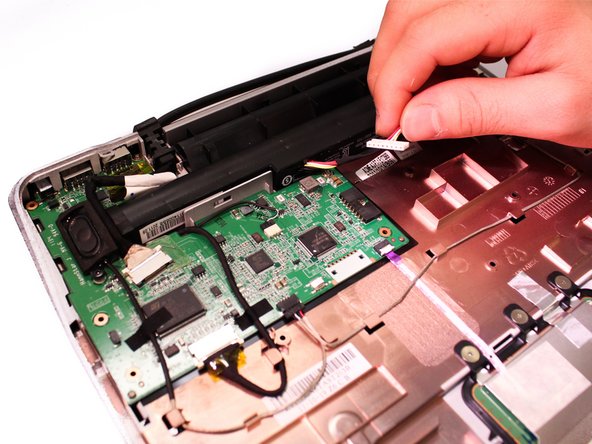
      • Disconnect the two wires that attach to the screen.

      Chiedi a FixBot

      Aggiungi Commento

    2. Motorola Lapdock 100 Screen Replacement: passo 11, immagine 1 di 1
      • Now flip the lapdock back over. Using a plastic prying tool, unclip and remove the small plastic cover at the top of the lapdock.

      Chiedi a FixBot

      Aggiungi Commento

    3. Motorola Lapdock 100 Screen Replacement: passo 12, immagine 1 di 1
      • Insert wisdom here.

      Chiedi a FixBot

      Aggiungi Commento

    4. Motorola Lapdock 100 Screen Replacement: passo 13, immagine 1 di 1
      • Insert wisdom here.

      Chiedi a FixBot

      Aggiungi Commento

    5. Motorola Lapdock 100 Screen Replacement: passo 14, immagine 1 di 2 Motorola Lapdock 100 Screen Replacement: passo 14, immagine 2 di 2
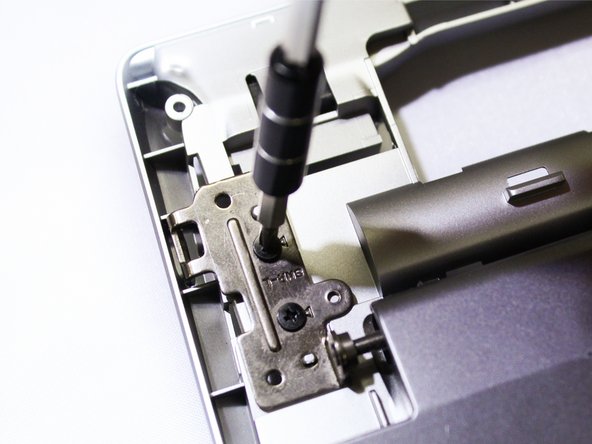
      • Remove the four 3.5 mm long phillips head screws from the two screen flanges holding the screen.

      • The screen should be free from the lapdock after doing the prior step.

      Chiedi a FixBot

      Aggiungi Commento

Conclusione

To reassemble your device, follow these instructions in reverse order.

Annulla: non ho completato questa guida.

Un'altra persona ha completato questa guida.

0Commenti sulla guida

Aggiungi Commento

Visualizza statistiche:

Ultime 24 ore: 1

Ultimi 7 giorni: 17

Ultimi 30 giorni: 101

Tutti i Tempi: 1,301