Salta al contenuto principale

Motorola Edge Plus 2022 Display Assembly Replacement

Cosa ti serve

  1. Motorola Edge Plus 2022 Display Assembly Replacement, Battery: passo 1, immagine 1 di 1
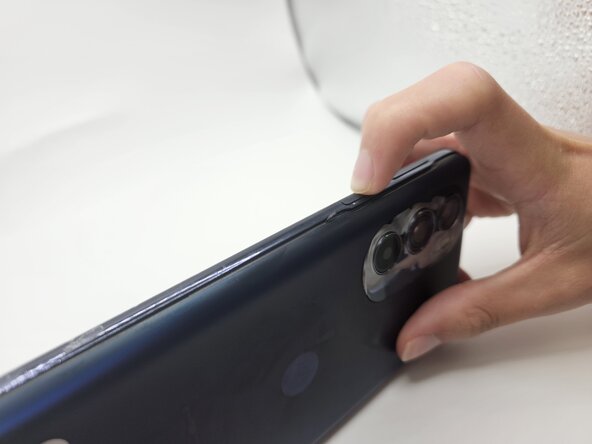
    • Press and hold the power button for 7 seconds.

    • You will know the phone is fully powered off when the Motorola logo appears on the screen.

  2. Motorola Edge Plus 2022 Display Assembly Replacement: passo 2, immagine 1 di 1
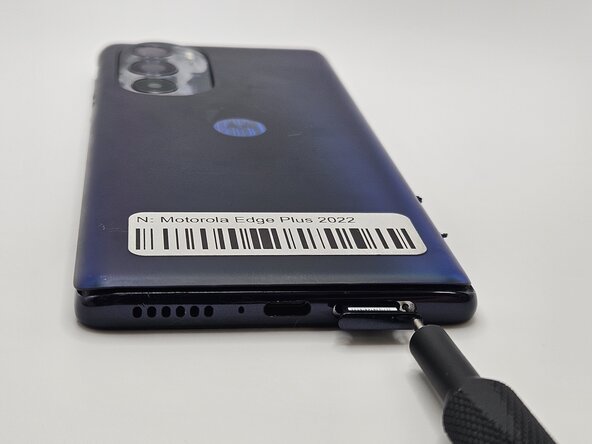
    • Insert a paperclip or SIM card ejector into the small hole located at the bottom of phone.

    • Gently push to release and remove the SIM card.

  3. Motorola Edge Plus 2022 Display Assembly Replacement: passo 3, immagine 1 di 3 Motorola Edge Plus 2022 Display Assembly Replacement: passo 3, immagine 2 di 3 Motorola Edge Plus 2022 Display Assembly Replacement: passo 3, immagine 3 di 3
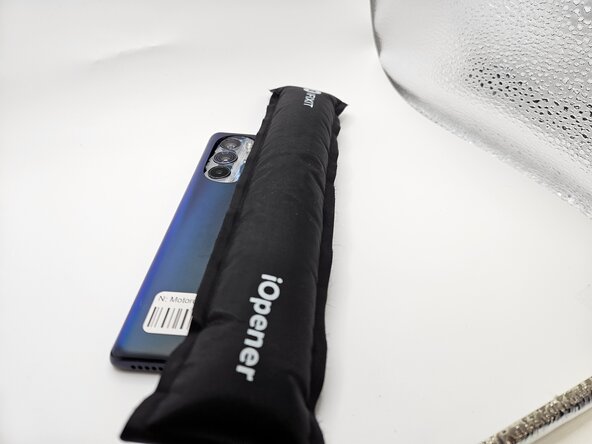
    • Use an iOpener, heat gun, or hairdryer to gently heat the perimeter of the phone.

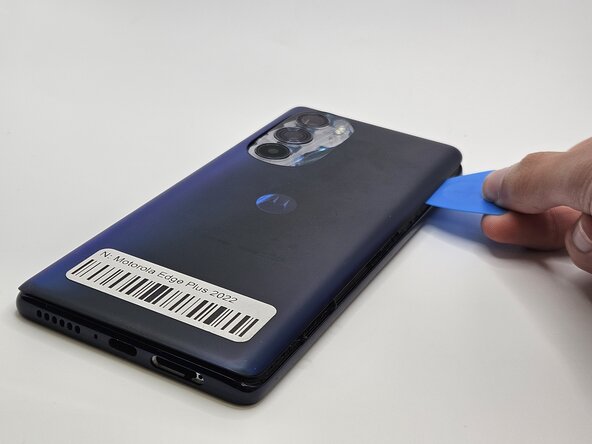
    • Insert and slide the iFixit opening pick around heated edges to sever the adhesive securing the rear cover.

  4. Motorola Edge Plus 2022 Display Assembly Replacement: passo 4, immagine 1 di 3 Motorola Edge Plus 2022 Display Assembly Replacement: passo 4, immagine 2 di 3 Motorola Edge Plus 2022 Display Assembly Replacement: passo 4, immagine 3 di 3
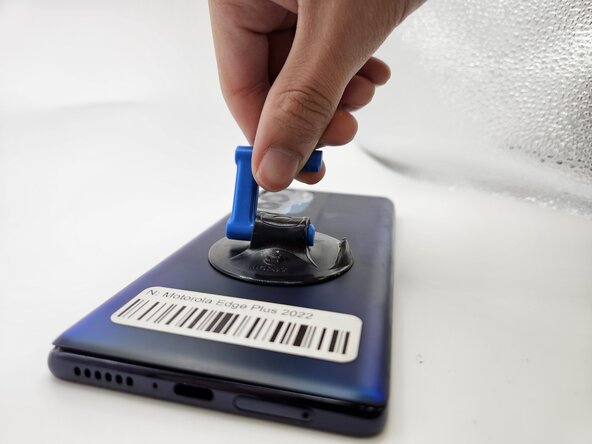
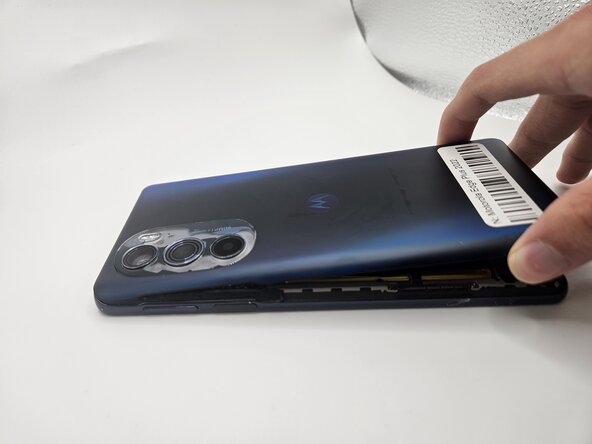
    • Gently remove the back cover using the suction handle or your bare hands.

  5. Motorola Edge Plus 2022 Display Assembly Replacement: passo 5, immagine 1 di 2 Motorola Edge Plus 2022 Display Assembly Replacement: passo 5, immagine 2 di 2
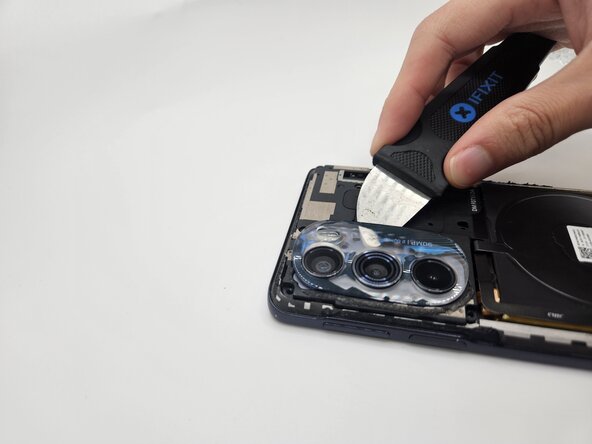
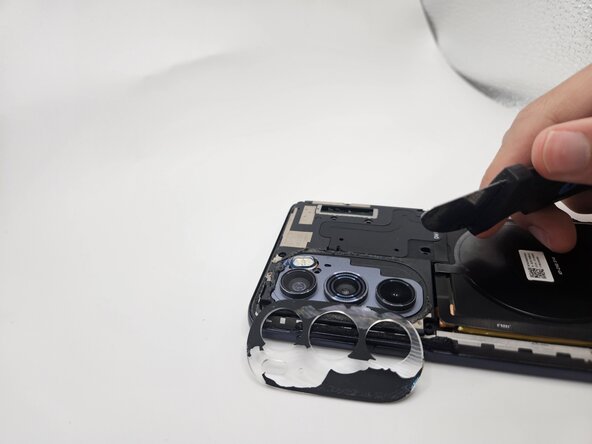
    • While applying light pressure, remove the camera bezel cover by sliding the jimmy along the edges.

  6. Motorola Edge Plus 2022 Display Assembly Replacement: passo 6, immagine 1 di 2 Motorola Edge Plus 2022 Display Assembly Replacement: passo 6, immagine 2 di 2
    • Use a Phillips #00 screwdriver to remove the twelve 1.5 mm black screws.

    • In case a screw gets lost, the exact specifications for all screws in this guide are OEM MOTOROLA EDGE+ PLUS 5G UW.

  7. Motorola Edge Plus 2022 Display Assembly Replacement: passo 7, immagine 1 di 3 Motorola Edge Plus 2022 Display Assembly Replacement: passo 7, immagine 2 di 3 Motorola Edge Plus 2022 Display Assembly Replacement: passo 7, immagine 3 di 3
    • Remove the logic board by lifting gently with the flat end of the spudger.

  8. Motorola Edge Plus 2022 Display Assembly Replacement: passo 8, immagine 1 di 3 Motorola Edge Plus 2022 Display Assembly Replacement: passo 8, immagine 2 di 3 Motorola Edge Plus 2022 Display Assembly Replacement: passo 8, immagine 3 di 3
    • Use the flat end of a spudger to to pry up and disconnect the two press connectors on either side of the battery.

    • Located in the bottom left corner of the battery, remove the tape (black in the image) with a spudger.

  9. Motorola Edge Plus 2022 Display Assembly Replacement: passo 9, immagine 1 di 3 Motorola Edge Plus 2022 Display Assembly Replacement: passo 9, immagine 2 di 3 Motorola Edge Plus 2022 Display Assembly Replacement: passo 9, immagine 3 di 3
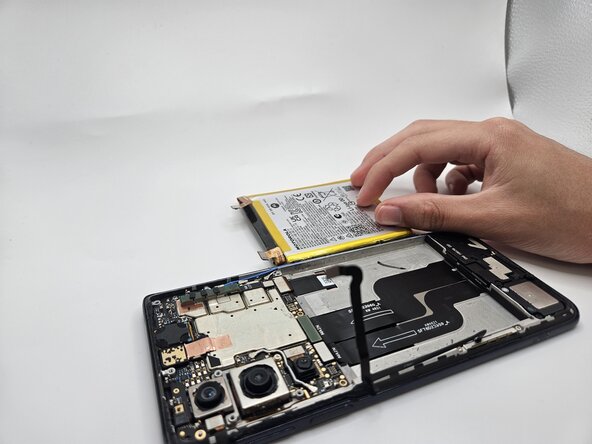
    • Gently lift the battery up using the black spudger and remove.

    • Applying too much force when removing the battery may damage it. Take care not to bend, warp, or puncture the battery.

    • Apply a few drops of isopropyl alcohol if the battery is tightly adhered.

  10. Motorola Edge Plus 2022 Display Assembly Replacement, Display Assembly: passo 10, immagine 1 di 3 Motorola Edge Plus 2022 Display Assembly Replacement, Display Assembly: passo 10, immagine 2 di 3 Motorola Edge Plus 2022 Display Assembly Replacement, Display Assembly: passo 10, immagine 3 di 3
    • Use an iOpener or heat gun to heat the perimeter of the phone.

    • Only apply heat for 30-45 seconds. Using the iOpener for longer may damage the insides of the phone.

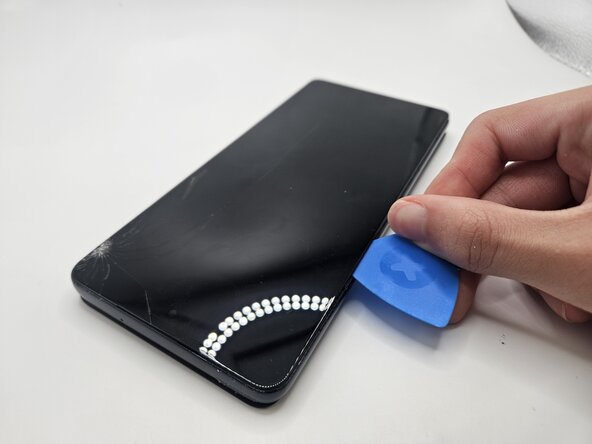
    • Insert an opening pick 3 mm into the seam between the display and chassis.

    • Slide the opening pick around the heated edges to sever the adhesive securing the display.

Conclusione

To reassemble your device, follow these instructions in reverse order.

0Commenti sulla guida

Aggiungi Commento

Visualizza Statistiche:

Ultime 24 Ore: 1

Ultimi 7 Giorni: 9

Ultimi 30 Giorni: 36

Tutti i Tempi: 36