Salta al contenuto principale

Logitech Wireless K360 Key Cap Replacement

Cosa ti serve

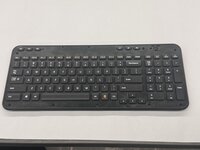
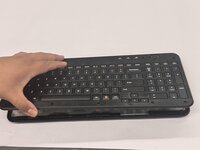
  1. Logitech Wireless K360 Key Cap Replacement, Key Cap: passo 1, immagine 1 di 3 Logitech Wireless K360 Key Cap Replacement, Key Cap: passo 1, immagine 2 di 3 Logitech Wireless K360 Key Cap Replacement, Key Cap: passo 1, immagine 3 di 3
    • Use a Jimmy to pry off the keyboard cover.

    • When reapplying the keyboard cover, glue may be required to keep adhesive properties.

  2. Logitech Wireless K360 Key Cap Replacement: passo 2, immagine 1 di 2 Logitech Wireless K360 Key Cap Replacement: passo 2, immagine 2 di 2
    • Remove the eight 6 mm screws using a Phillips #0 screwdriver.

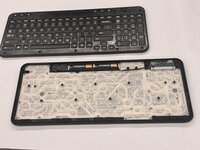
  3. Logitech Wireless K360 Key Cap Replacement: passo 3, immagine 1 di 3 Logitech Wireless K360 Key Cap Replacement: passo 3, immagine 2 di 3 Logitech Wireless K360 Key Cap Replacement: passo 3, immagine 3 di 3
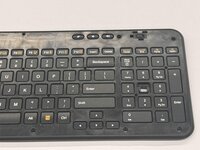
    • Remove the top half of the keyboard.

    • If there are issues removing the top half of the keyboard you can try using something thin to get into the crevices.

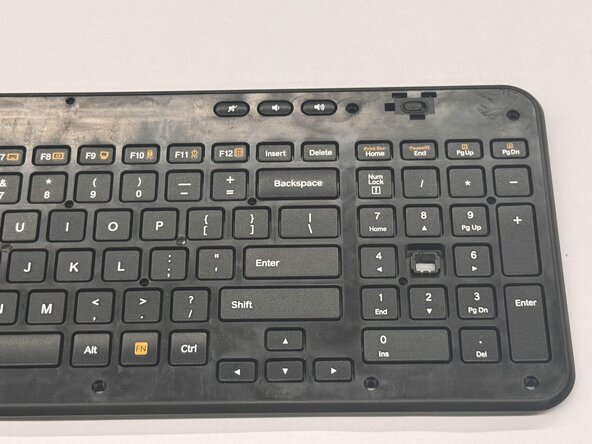
  4. Logitech Wireless K360 Key Cap Replacement: passo 4, immagine 1 di 3 Logitech Wireless K360 Key Cap Replacement: passo 4, immagine 2 di 3 Logitech Wireless K360 Key Cap Replacement: passo 4, immagine 3 di 3
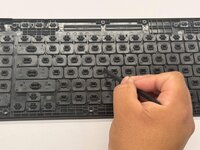
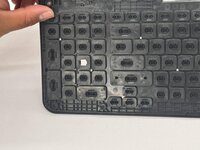
    • Flip the top half of the keyboard over.

    • Use tweezers or an iFixit opening tool to pinch the damaged key cap out of the top half.

Conclusione

To reassemble your device, follow these instructions in reverse order.

Othon Sanchez

Membro da: 02/20/25

321 Reputazione

2 Guide realizzate

Team

0Commenti sulla guida

Aggiungi Commento

Visualizza Statistiche:

Ultime 24 Ore: 2

Ultimi 7 Giorni: 8

Ultimi 30 Giorni: 44

Tutti i Tempi: 244