Salta al contenuto principale

Logitech Harmony 1100 Screen Replacement

Cosa ti serve

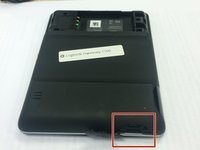
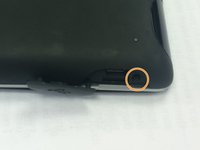
  1. Logitech Harmony 1100 Screen Replacement, How to Open Logitech Harmony 1100: passo 1, immagine 1 di 2 Logitech Harmony 1100 Screen Replacement, How to Open Logitech Harmony 1100: passo 1, immagine 2 di 2
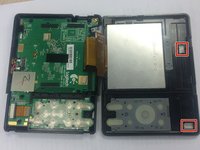
    • Remove the battery cover by pushing down on the circled areas and pushing outward.

    • Remove the battery by lifting up the battery on the corner exposed by the indent in the case

  2. Logitech Harmony 1100 Screen Replacement: passo 2, immagine 1 di 1
    • Use a J0 screwdriver head

    • Remove the 3 screws from battery compartment

  3. Logitech Harmony 1100 Screen Replacement: passo 3, immagine 1 di 2 Logitech Harmony 1100 Screen Replacement: passo 3, immagine 2 di 2
    • Open the connector port on the side.

    • Remove screw with a PH00 screwdriver head.

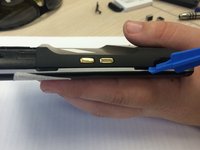
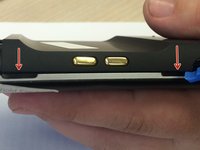
  4. Logitech Harmony 1100 Screen Replacement: passo 4, immagine 1 di 3 Logitech Harmony 1100 Screen Replacement: passo 4, immagine 2 di 3 Logitech Harmony 1100 Screen Replacement: passo 4, immagine 3 di 3
    • Use plastic opening tool to pry at the open slits on the side.

    • One or two silver foam cubes may pop out of the device. These belong in the slots shown in the third picture. They do not need to go back until reassembly.

    • The plastic connector door will fall off. It will need to be put back upon reassembly.

  5. Logitech Harmony 1100 Screen Replacement, Screen: passo 5, immagine 1 di 1
    • Pop out the plastic screen backing on front of device.

    • Loosen the screen backing by pushing back on the plastic clips that hold the screen backing in place.

  6. Logitech Harmony 1100 Screen Replacement: passo 6, immagine 1 di 2 Logitech Harmony 1100 Screen Replacement: passo 6, immagine 2 di 2
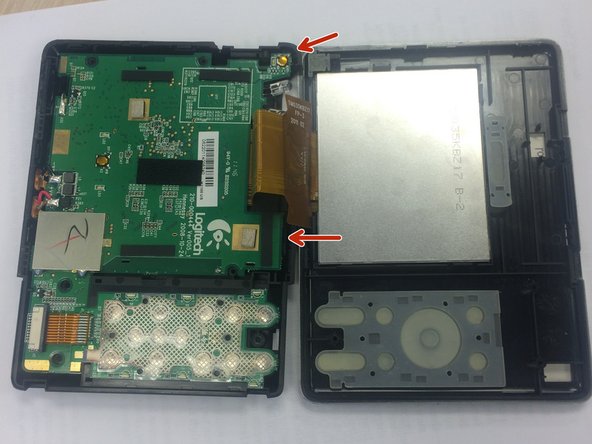
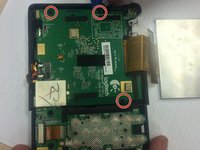
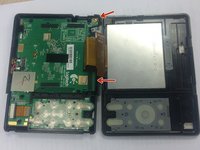
    • Use the PH00 Phillips head from the iFixit Tool Kit to remove the 3 screws from the circuit on the back half of the device.

    • Use the edge of the larger circuit board to flip the board over to the left.

    • The connector port in the top right corner may make removal difficult. Lift the logic board above the screw ports, and the connector port should slide out easily.

  7. Logitech Harmony 1100 Screen Replacement: passo 7, immagine 1 di 2 Logitech Harmony 1100 Screen Replacement: passo 7, immagine 2 di 2
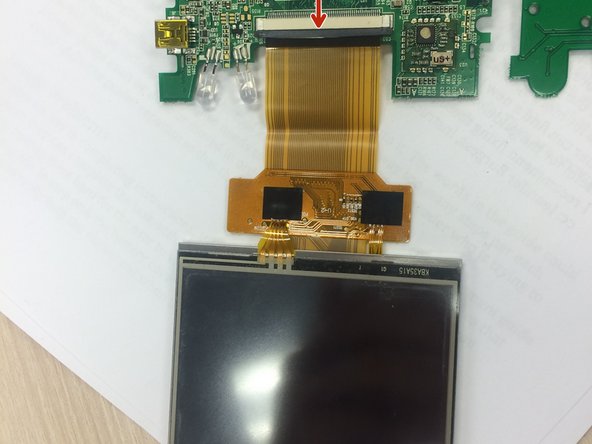
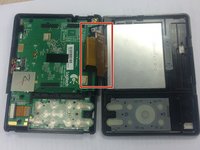
    • Find the wire that attaches to the screen.

    • Push the dark grey bar that is used to lock the screen in place, outward from the beige bar to disconnect it.

    • Remove the screen wire.

Linea Traguardo

Altre 3 persone hanno completato questa guida.

Team

Ohio State, Team 1-5, Burgess Spring 2016 Membro di Ohio State, Team 1-5, Burgess Spring 2016

OSU-BURGESS-S16S1G5

4 Membri

2 Guide realizzate

0Commenti sulla guida

Aggiungi Commento

Visualizza Statistiche:

Ultime 24 Ore: 0

Ultimi 7 Giorni: 3

Ultimi 30 Giorni: 10

Tutti i Tempi: 1,588