Salta al contenuto principale

LeapFrog LeapPad Ultra XDi Screen Replacement

Cosa ti serve

  1. LeapFrog LeapPad Ultra XDi Screen Replacement, Battery: passo 1, immagine 1 di 2 LeapFrog LeapPad Ultra XDi Screen Replacement, Battery: passo 1, immagine 2 di 2
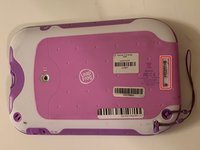
    • Orient the tablet so it’s laying screen down and the barcode sticker is facing up.

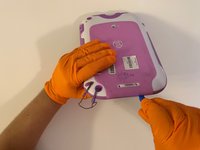
    • Remove the barcode sticker to expose the two screws.

  2. LeapFrog LeapPad Ultra XDi Screen Replacement: passo 2, immagine 1 di 2 LeapFrog LeapPad Ultra XDi Screen Replacement: passo 2, immagine 2 di 2
    • Remove the two 5.0mm Phillips #0 screws.

  3. LeapFrog LeapPad Ultra XDi Screen Replacement: passo 3, immagine 1 di 3 LeapFrog LeapPad Ultra XDi Screen Replacement: passo 3, immagine 2 di 3 LeapFrog LeapPad Ultra XDi Screen Replacement: passo 3, immagine 3 di 3
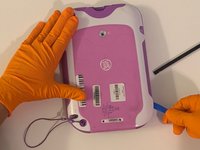
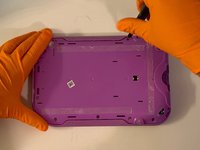
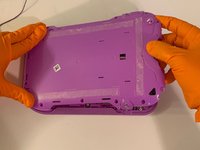
    • Using the iFixit opening tool, pry off the purple and white child-proof casing to expose the twelve screws.

  4. LeapFrog LeapPad Ultra XDi Screen Replacement: passo 4, immagine 1 di 2 LeapFrog LeapPad Ultra XDi Screen Replacement: passo 4, immagine 2 di 2
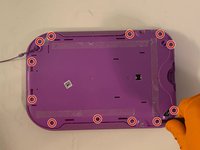
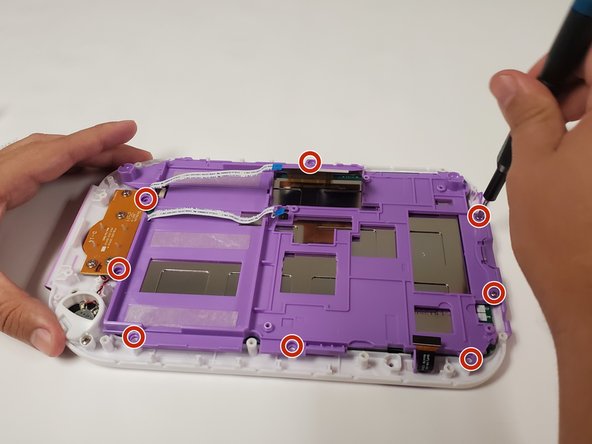
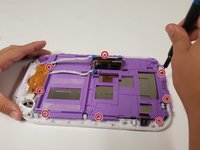
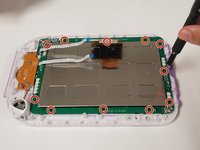
    • Remove all twelve 7mm Phillips #1 screws located along the edges of the device.

  5. LeapFrog LeapPad Ultra XDi Screen Replacement: passo 5, immagine 1 di 2 LeapFrog LeapPad Ultra XDi Screen Replacement: passo 5, immagine 2 di 2
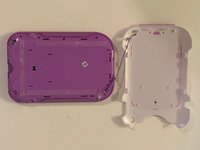
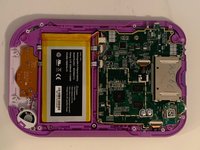
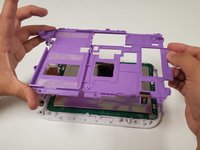
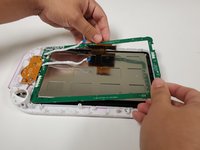
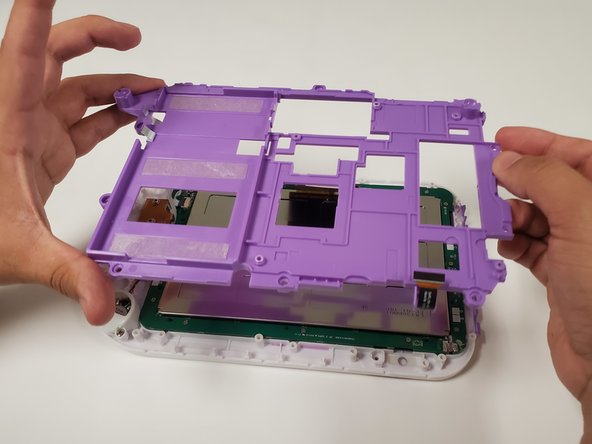
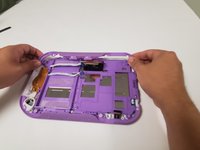
    • Remove the purple case, exposing the motherboard and battery.

  6. LeapFrog LeapPad Ultra XDi Screen Replacement: passo 6, immagine 1 di 3 LeapFrog LeapPad Ultra XDi Screen Replacement: passo 6, immagine 2 di 3 LeapFrog LeapPad Ultra XDi Screen Replacement: passo 6, immagine 3 di 3
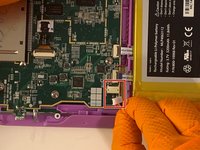
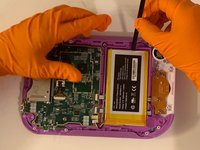
    • Using your fingers, grab the battery wires and carefully unplug them from the motherboard.

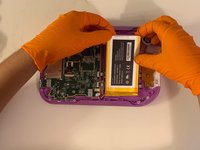
    • Use the Spudger to remove the glued down battery.

  7. LeapFrog LeapPad Ultra XDi Screen Replacement, Screen: passo 7, immagine 1 di 3 LeapFrog LeapPad Ultra XDi Screen Replacement, Screen: passo 7, immagine 2 di 3 LeapFrog LeapPad Ultra XDi Screen Replacement, Screen: passo 7, immagine 3 di 3
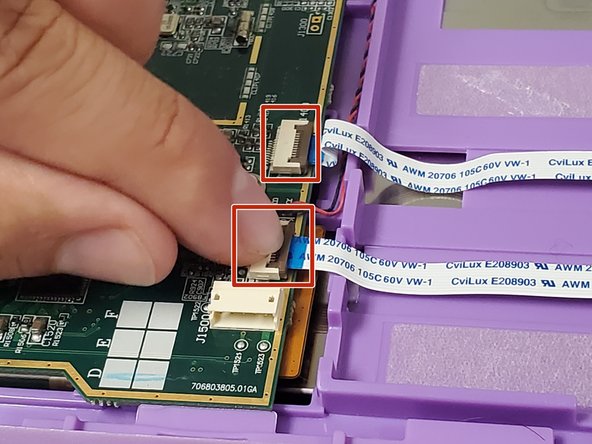
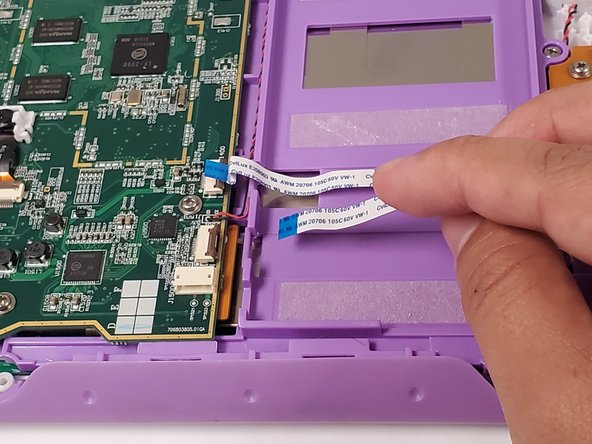
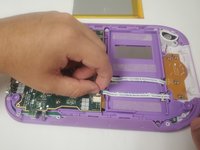
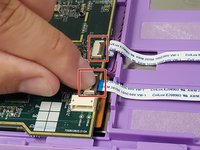
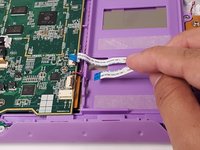
    • Locate the two ribbon cables on top of the motherboard.

    • Flip up the locking clip on the ribbon cable connector to release the cable.

    • Disconnect the cables from their connectors.

  8. LeapFrog LeapPad Ultra XDi Screen Replacement: passo 8, immagine 1 di 1
    • Unscrew the four 5.0 mm Phillips #0 screws securing the motherboard.

  9. LeapFrog LeapPad Ultra XDi Screen Replacement: passo 9, immagine 1 di 3 LeapFrog LeapPad Ultra XDi Screen Replacement: passo 9, immagine 2 di 3 LeapFrog LeapPad Ultra XDi Screen Replacement: passo 9, immagine 3 di 3
    • Pull the two side grips up to remove them from the casing.

    • Unscrew the eight 7.0 mm Phillips #1 screws securing the base. Remove the base.

  10. LeapFrog LeapPad Ultra XDi Screen Replacement: passo 10, immagine 1 di 2 LeapFrog LeapPad Ultra XDi Screen Replacement: passo 10, immagine 2 di 2
    • Unscrew the eleven 7.0 mm Phillips #1 screws securing the circuit board to the case. Remove the circuit board.

  11. LeapFrog LeapPad Ultra XDi Screen Replacement: passo 11, immagine 1 di 1
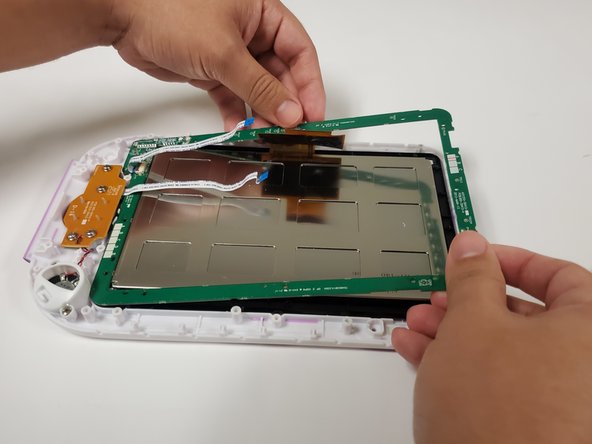
    • Lift the screen from the front case. Replace the screen.

Conclusione

To reassemble your device, follow these instructions in reverse order.

Un'altra persona ha completato questa guida.

2Commenti sulla guida

Where exactly can I find a replacement screen? I have looked everywhere with no luck.

Siblings have a cracked one i would really like to fix so any help would be greatly appreciated.

Derp Dude - Replica
So I would suggest ebay or buy one that's not chargable on macari and use it for parts that's the route I'm taking with what ever I find .hope that helps since this post is old

Cherry -
Aggiungi Commento

Visualizza Statistiche:

Ultime 24 Ore: 1

Ultimi 7 Giorni: 9

Ultimi 30 Giorni: 20

Tutti i Tempi: 1,221