Introduzione
How to Refill Ink in HP Smart Tank 516 Printer
-
-
Make sure the printer is turned on. Place it on a flat surface covered with paper towels or cloth in case of ink spills. Prepare the correct HP ink bottles for your printer model (black, cyan, magenta, and yellow).
-
-
-
-
Identify the correct color tank , Each tank is clearly labeled with its color (K for black, C for cyan, M for magenta, Y for yellow). Make sure you’re opening the correct one before refilling.
-
-
-
Lift the plastic cap of the tank you want to refill.
-
Shake the ink bottle gently (do not squeeze it hard). Remove the bottle cap and the inner seal, then screw the bottle tip back on.
-
Refill the tank Insert the bottle’s nozzle into the tank opening — it should fit securely. The ink will start flowing automatically; no squeezing is needed. Wait until the ink stops flowing, then remove the bottle and close its cap tightly.
-
Close the tank Close the rubber cap of the tank securely. Wipe any spilled ink with a soft, dry cloth.
-
Repeat for other colors Repeat the same steps for the other colors if necessary. Close the cover and check ink levels Close the ink tank cover and the scanner lid. On the printer’s display or in the HP Smart app, check that the ink levels are updated correctly.
-
Print a test page Once all tanks are refilled, print a test page to make sure the ink flows correctly and the colors look normal.
-
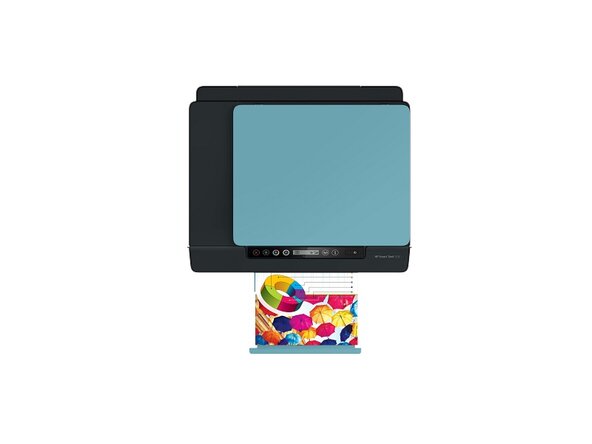
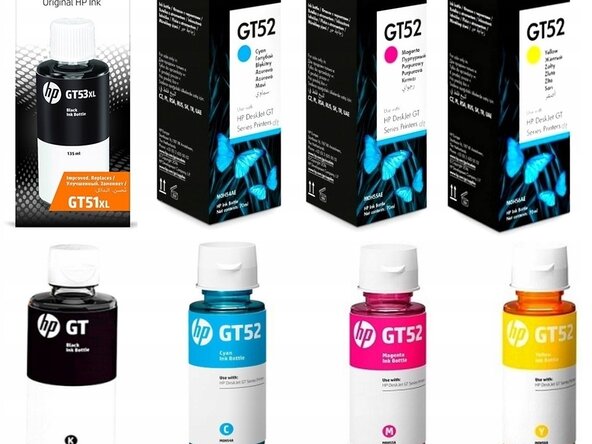
To reassemble your device, follow these instructions in reverse order.


