Salta al contenuto principale

How to Install and Remove Side Panels

Cosa ti serve

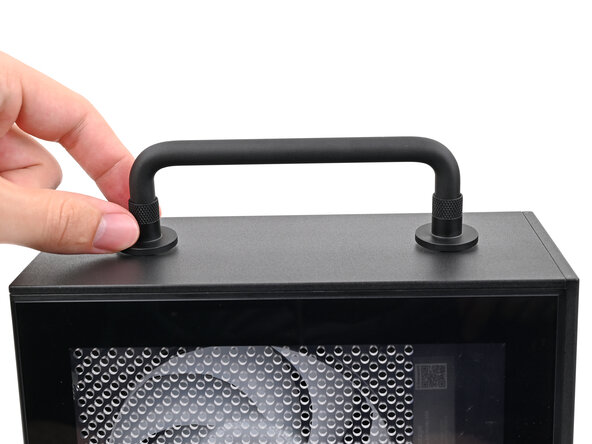
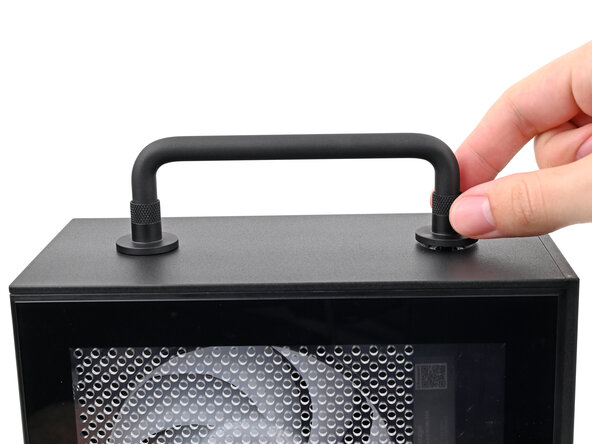
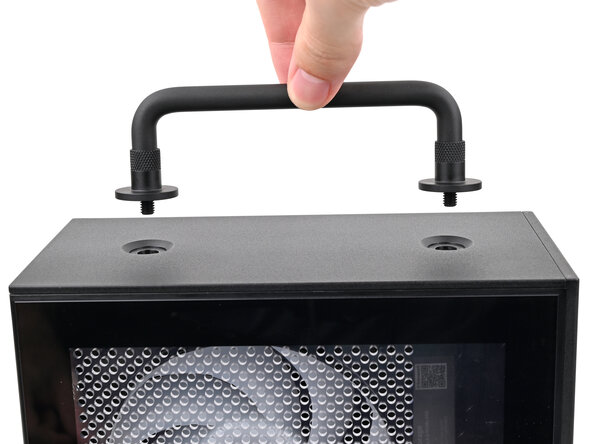
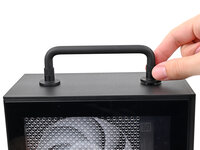
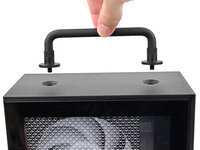
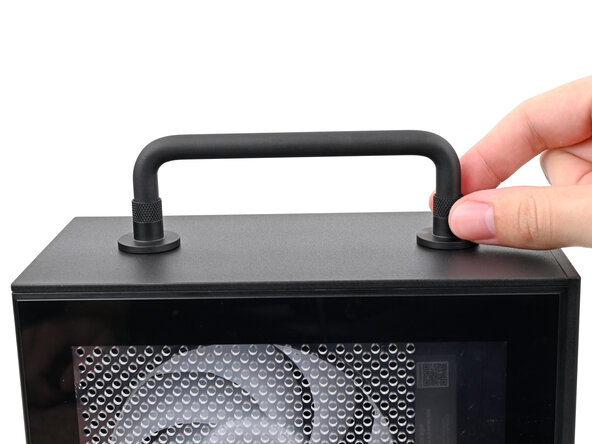
  1. How to Install and Remove Side Panels, Remove the Handle: passo 1, immagine 1 di 3 How to Install and Remove Side Panels, Remove the Handle: passo 1, immagine 2 di 3 How to Install and Remove Side Panels, Remove the Handle: passo 1, immagine 3 di 3
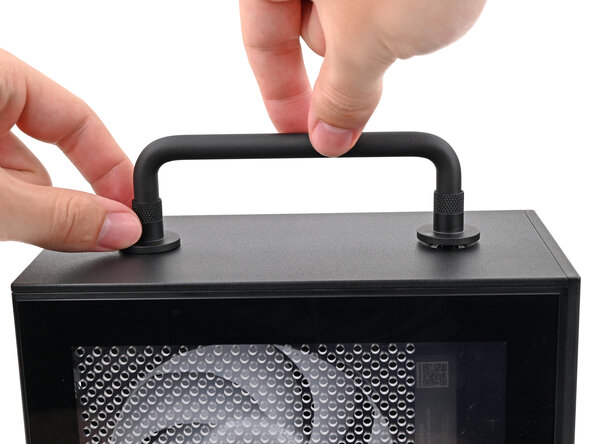
    • If you installed the Handle on your Desktop, follow this step. Otherwise, skip it.

    • Rotate the Handle's screw threads counterclockwise on both sides until it comes free.

    • Remove the Handle.

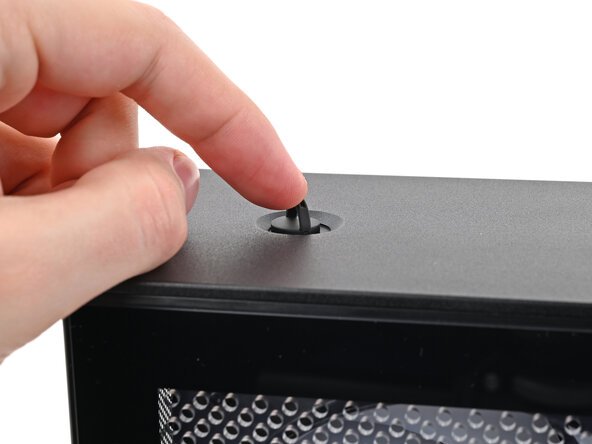
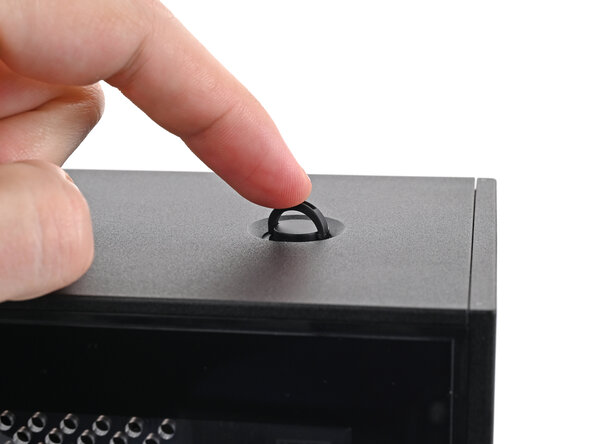
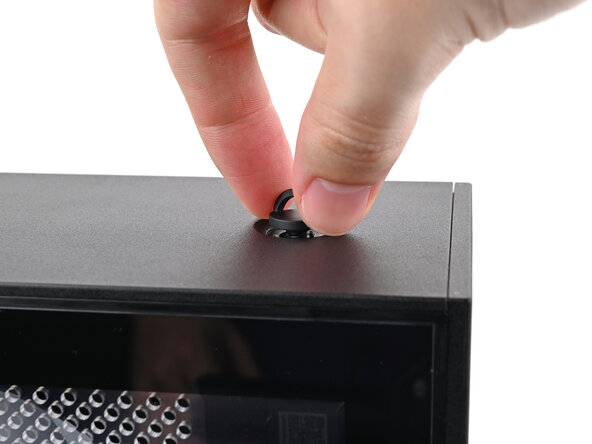
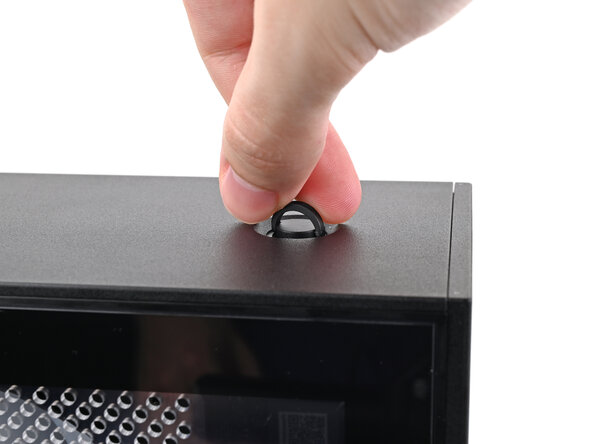
  2. How to Install and Remove Side Panels, Remove the Top Panel screws: passo 2, immagine 1 di 3 How to Install and Remove Side Panels, Remove the Top Panel screws: passo 2, immagine 2 di 3 How to Install and Remove Side Panels, Remove the Top Panel screws: passo 2, immagine 3 di 3
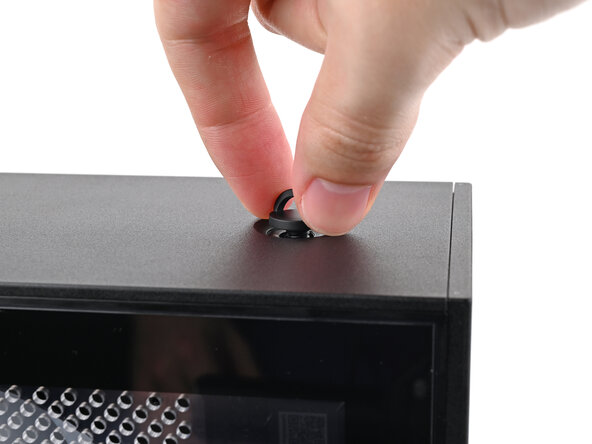
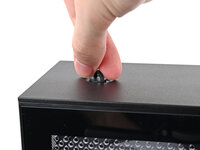
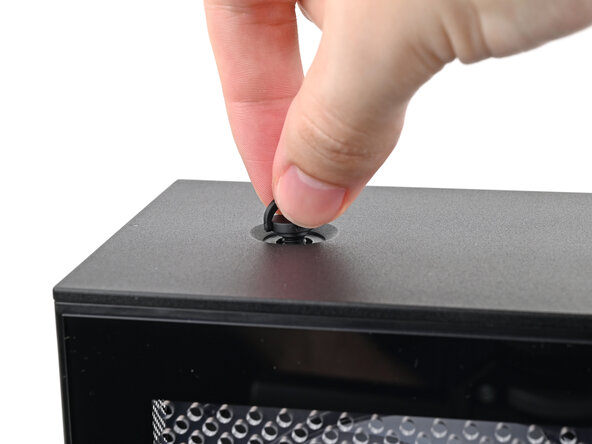
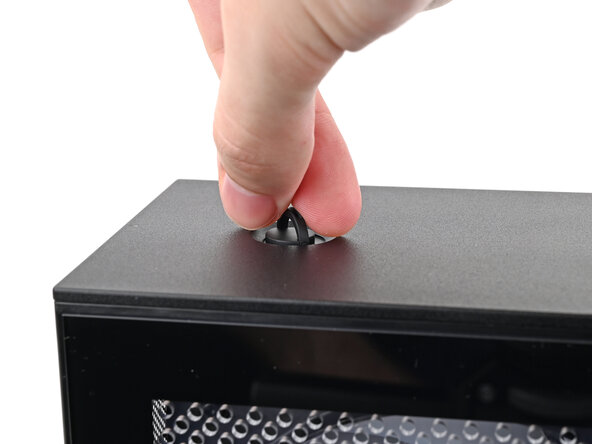
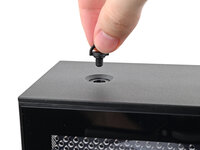
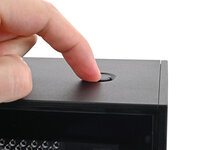
    • Use your finger to lift up the two D-rings on the Top Panel screws.

  3. How to Install and Remove Side Panels: passo 3, immagine 1 di 3 How to Install and Remove Side Panels: passo 3, immagine 2 di 3 How to Install and Remove Side Panels: passo 3, immagine 3 di 3
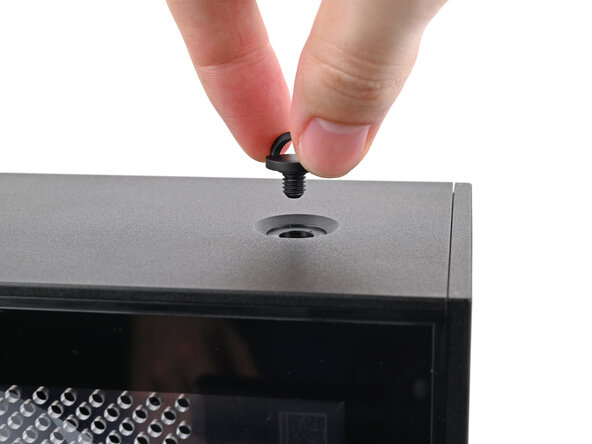
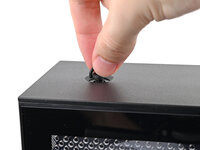
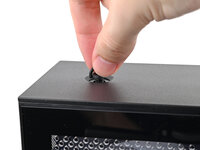
    • Use your fingers to twist the screw counter-clockwise and loosen it.

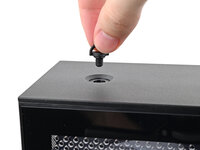
    • Remove the Top Panel screw.

  4. How to Install and Remove Side Panels: passo 4, immagine 1 di 3 How to Install and Remove Side Panels: passo 4, immagine 2 di 3 How to Install and Remove Side Panels: passo 4, immagine 3 di 3
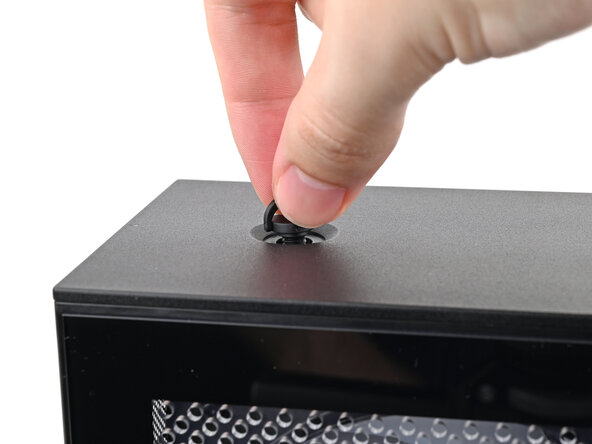
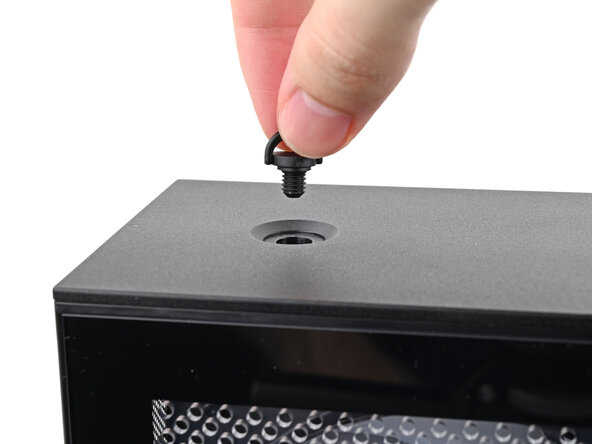
    • Repeat the same procedure for the other Top Panel screw.

  5. How to Install and Remove Side Panels, Remove the Top Panel: passo 5, immagine 1 di 3 How to Install and Remove Side Panels, Remove the Top Panel: passo 5, immagine 2 di 3 How to Install and Remove Side Panels, Remove the Top Panel: passo 5, immagine 3 di 3
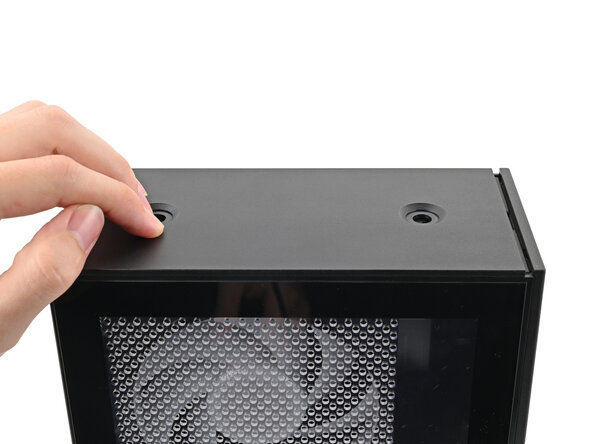
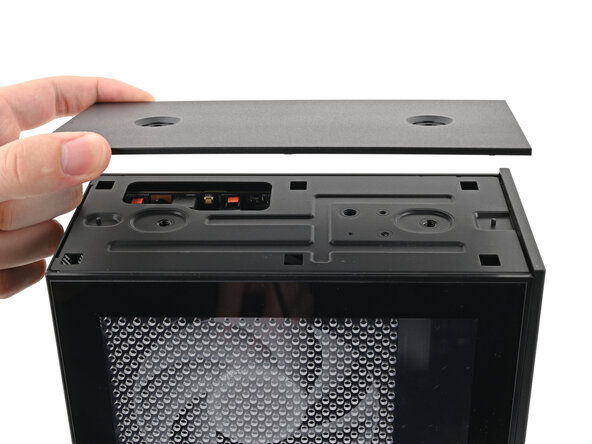
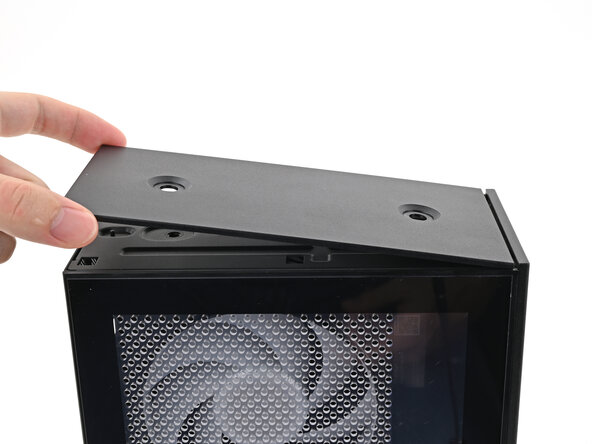
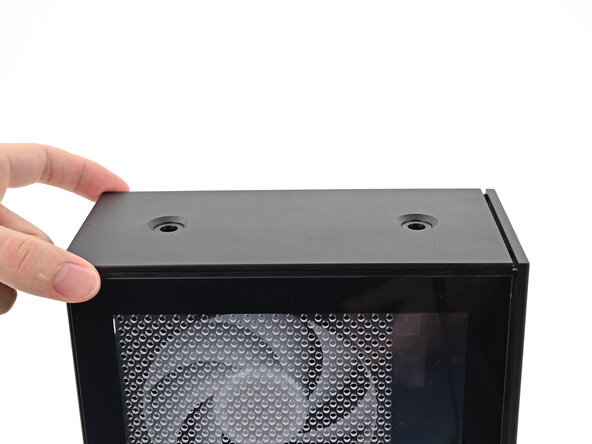
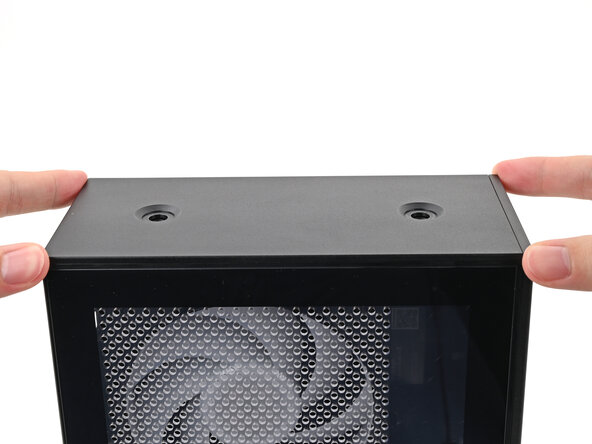
    • Slide the Top Panel towards the rear of the computer to release the clips securing it to the chassis.

    • If you're having a hard time gripping the Top Panel, use the screw holes to get a better handhold.

    • Lift the Top Panel off the chassis and remove it.

  6. How to Install and Remove Side Panels, Remove the Left Panel: passo 6, immagine 1 di 3 How to Install and Remove Side Panels, Remove the Left Panel: passo 6, immagine 2 di 3 How to Install and Remove Side Panels, Remove the Left Panel: passo 6, immagine 3 di 3
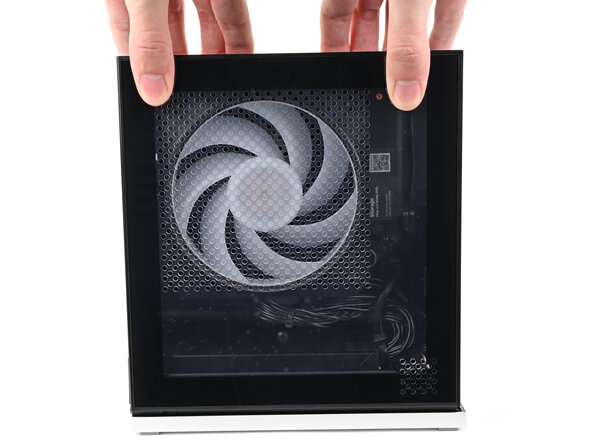
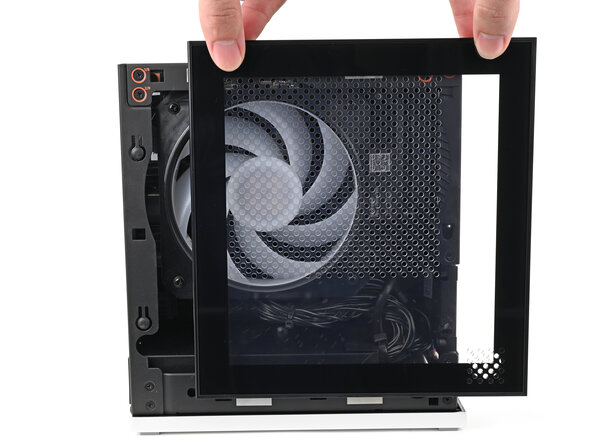
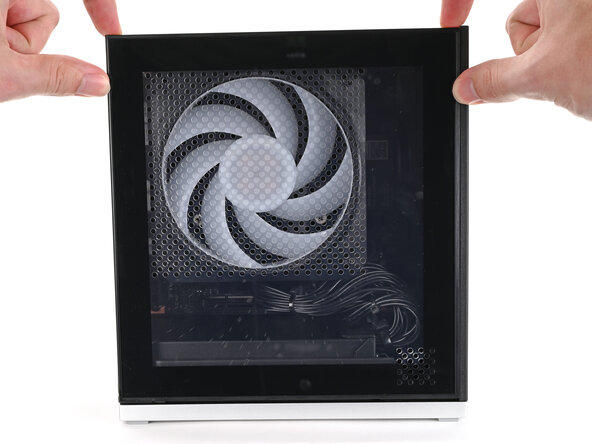
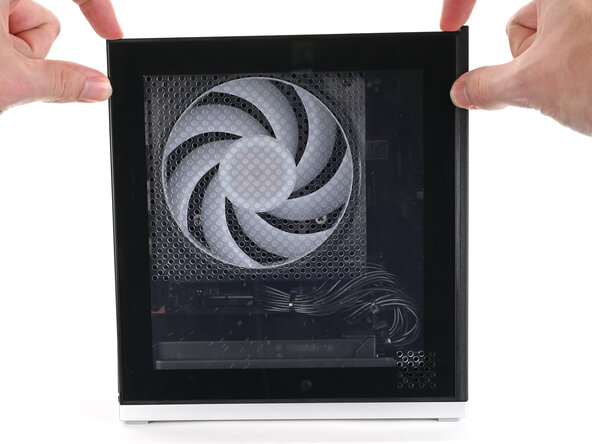
    • Use your fingers to grip the top of the Left Panel and slide it upward to release its clips.

    • Remove the Left Panel.

  7. How to Install and Remove Side Panels, Remove the Right Panel: passo 7, immagine 1 di 3 How to Install and Remove Side Panels, Remove the Right Panel: passo 7, immagine 2 di 3 How to Install and Remove Side Panels, Remove the Right Panel: passo 7, immagine 3 di 3
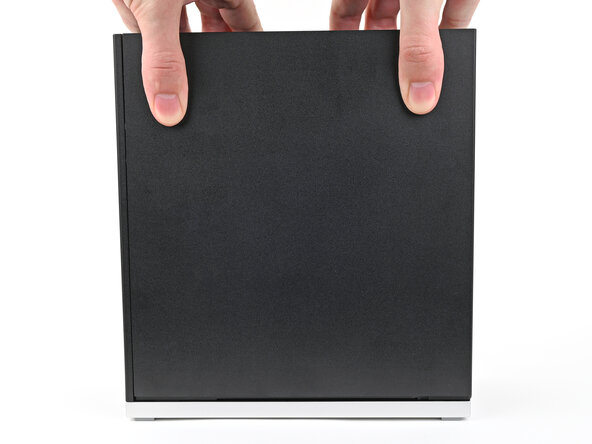
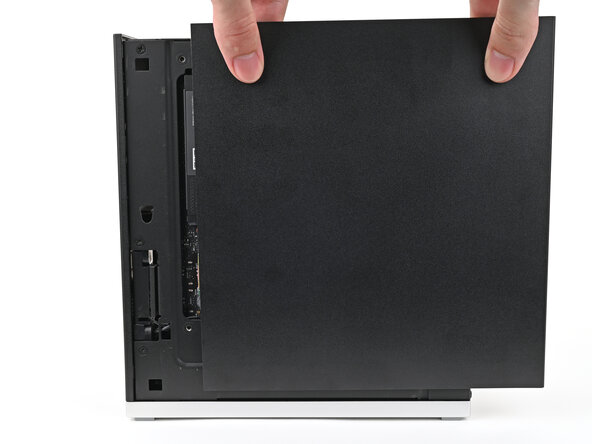
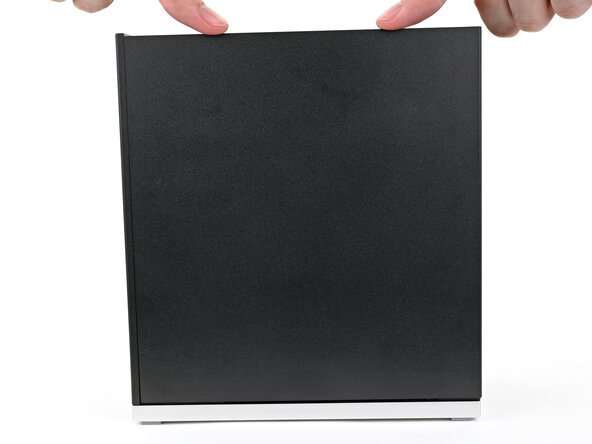
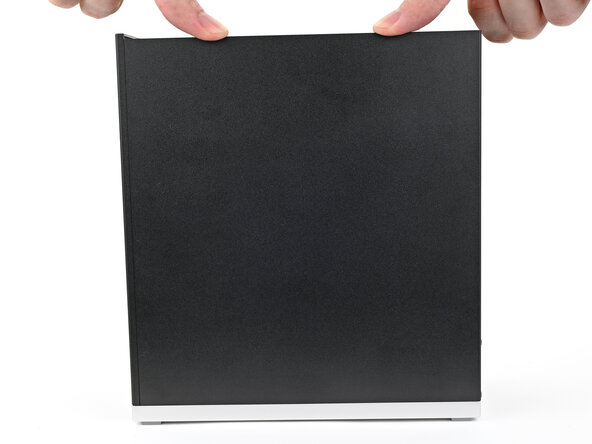
    • Use your fingers to grip the top of the Right Panel and slide it upward to release its clips.

    • Remove the Right Panel.

  8. How to Install and Remove Side Panels, Disassembly complete: passo 8, immagine 1 di 1
    • Congratulations on completing disassembly! The remaining steps will show how to reassemble your Framework Desktop.

  9. How to Install and Remove Side Panels, Install the Right Panel: passo 9, immagine 1 di 3 How to Install and Remove Side Panels, Install the Right Panel: passo 9, immagine 2 di 3 How to Install and Remove Side Panels, Install the Right Panel: passo 9, immagine 3 di 3
    • Slide the Right Panel onto the right edge of the chassis, from top to bottom, and press it flat to ensure its clips are slotted into place.

    • There should be a small gap between the bottom of the Right Panel and the silver base.

    • Push the Right Panel towards the base of the computer to engage the clips.

  10. How to Install and Remove Side Panels, Install the Left Panel: passo 10, immagine 1 di 3 How to Install and Remove Side Panels, Install the Left Panel: passo 10, immagine 2 di 3 How to Install and Remove Side Panels, Install the Left Panel: passo 10, immagine 3 di 3
    • Slide the Left Panel onto the left edge of the chassis and press it flat to ensure its clips are slotted into place.

    • There should be a small gap between the bottom of the Left Panel and the silver base.

    • Push the Left Panel towards the base of the computer to close the gap and engage the clips.

  11. How to Install and Remove Side Panels, Install the Top Panel: passo 11, immagine 1 di 3 How to Install and Remove Side Panels, Install the Top Panel: passo 11, immagine 2 di 3 How to Install and Remove Side Panels, Install the Top Panel: passo 11, immagine 3 di 3
    • Orient the Top Panel so its arrow is pointing towards the rear of the computer.

    • While holding the Top Panel at a slight downward angle, slide it across the top of the chassis (from rear to front) until you feel its clips catch.

    • There should be a small gap between the Top Panel and the front of the Desktop.

    • Lay the Top Panel flat on the chassis to align the remaining clips.

  12. How to Install and Remove Side Panels: passo 12, immagine 1 di 2 How to Install and Remove Side Panels: passo 12, immagine 2 di 2
    • While securing the computer with one hand, use the other hand to slide the Top Panel towards the front of the computer to close the gap and engage the clips.

  13. How to Install and Remove Side Panels, Install the Handle: passo 13, immagine 1 di 2 How to Install and Remove Side Panels, Install the Handle: passo 13, immagine 2 di 2
    • If you're installing the Handle on your Desktop, follow this step. Otherwise, skip it.

    • Place the Handle over the Top Panel screw holes.

    • While holding the Handle in place, twist the screw threads on both sides clockwise until they're snug on the Top Panel.

  14. How to Install and Remove Side Panels, Install the top panel screws: passo 14, immagine 1 di 3 How to Install and Remove Side Panels, Install the top panel screws: passo 14, immagine 2 di 3 How to Install and Remove Side Panels, Install the top panel screws: passo 14, immagine 3 di 3
    • Insert the top panel screw into its hole and twist clockwise until it feels snug.

  15. How to Install and Remove Side Panels: passo 15, immagine 1 di 3 How to Install and Remove Side Panels: passo 15, immagine 2 di 3 How to Install and Remove Side Panels: passo 15, immagine 3 di 3
    • Repeat the same procedure for the other top panel screw.

  16. How to Install and Remove Side Panels: passo 16, immagine 1 di 3 How to Install and Remove Side Panels: passo 16, immagine 2 di 3 How to Install and Remove Side Panels: passo 16, immagine 3 di 3
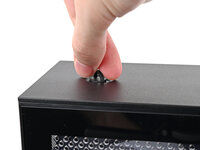
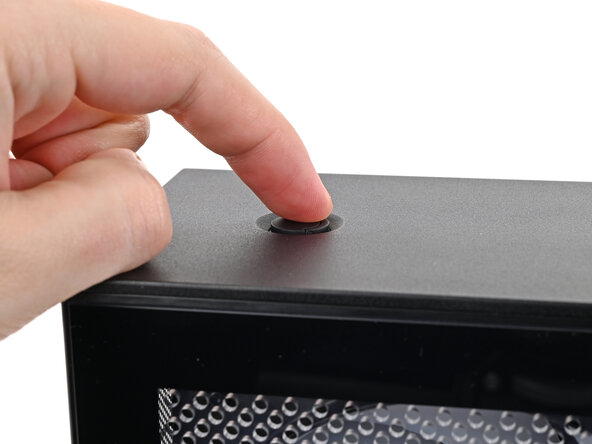
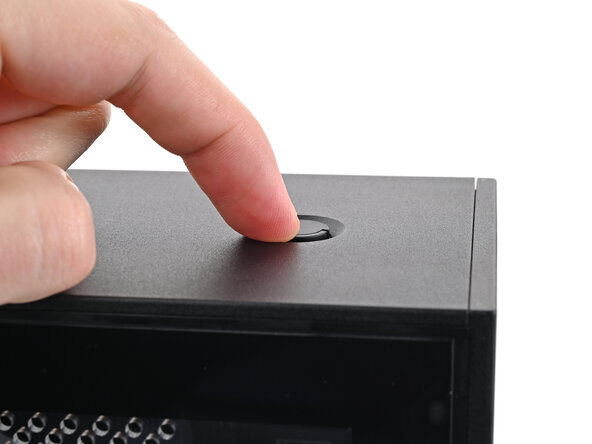
    • Use your finger to close the two D-rings on the top panel screws.

Conclusione

If you need help, contact Framework support.

Alex Diaz-Kokaisl

Membro da: 01/16/22

212.530 Reputazione

1.039 Guide realizzate

0Commenti sulla guida

Aggiungi Commento

Visualizza Statistiche:

Ultime 24 Ore: 1

Ultimi 7 Giorni: 7

Ultimi 30 Giorni: 37

Tutti i Tempi: 201