
How to Factory Reset an iPhone

Alisha C e
Ultimo aggiornamento il 26 giu 2024
Visualizzazioni: 12.487
Visualizza statistiche:
- Ultime 24 ore:
- 12
- Ultimi 7 giorni:
- 109
- Ultimi 30 giorni:
- 419
- Tutti i Tempi:
- 12.487
Commenti: 2
2 commenti sui passaggi.
Completato: 17 18
17 persone hanno contrassegnato questa guida come "completata". Sarai il prossimo?
18 persone hanno contrassegnato questa guida come "completata". Compreso te, ottimo lavoro!
Preferiti: 0 1
Nessuno ha preferito (e si è iscritto) questa guida. Sarai il primo?
1 persona ha aggiunto ai preferiti (e si è iscritta a) questa guida, e sei tu!
Introduzione
Vai al passo 1 ↓This guide may be of use if you are selling, giving away or otherwise repurposing your iPhone. If your device does not boot properly, reference the How to Put an iPhone Into Recovery Mode Guide.
-
-
-
Select the Settings App.
-
If you are unsure where your Settings App is, swipe all the way to the left and use the Search function to pull it up for you.
 Chiedi a FixBot
-
-
-
Select General. It will likely be along the bottom edge of the first screen.
-
Scroll to the bottom of the following menu. Tap the Reset option. Depending on the version of iOS your phone is running it may alternatively read Transfer or Reset iPhone.
-
-
-
-
Select the Erase All Content and Settings option.
-
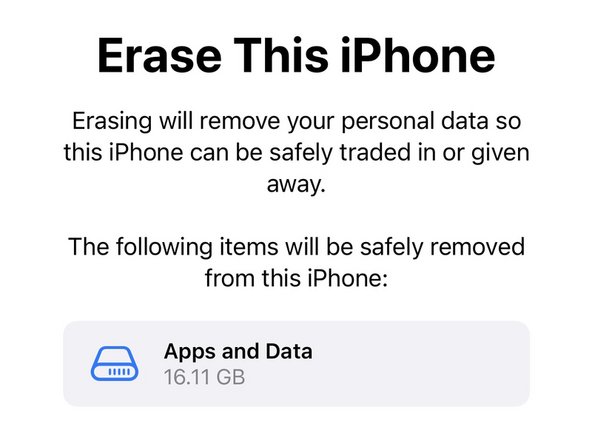
The iPhone will confirm what information will be removed during this process. Click Continue at the bottom of the screen.
-
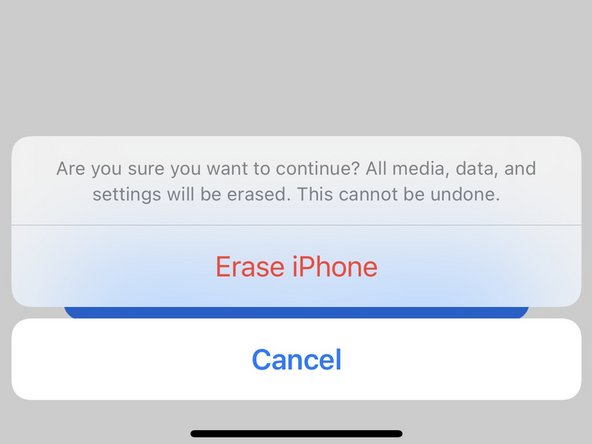
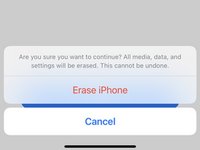
It will confirm one final time that you want to Erase it. It may ask for your Apple ID password to authenticate.
-
-
-
The phone will restart to an Apple logo. A progress bar will appear and fill as the the phone removes data and reinstalls the Operating System.
-
It may restart a few times during the process, or appear to be off for longer than usual between restarts.
-
After patiently waiting, the device will restart to the Setup Assistant allowing you to start configuration from scratch or someone else to do the same.
-
-



The iPhone Setup Assistant will walk you through reactivating and configuring your device. If this reset was done to rule out a software problem, restore your data later. Be sure your issue is resolved without all the additional apps, data and settings changes.
Annulla: non ho completato questa guida.
Altre 17 persone hanno completato questa guida.


