Salta al contenuto principale

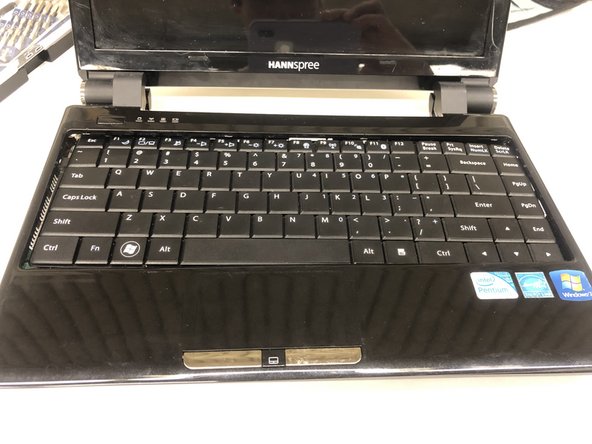
Hannspree SN12E2 Touchpad Plane/Keyboard Replacement

Cosa ti serve

  1. Hannspree SN12E2 Touchpad Plane/Keyboard Replacement, Battery: passo 1, immagine 1 di 1
    • Unplug and power off your laptop.

  2. Hannspree SN12E2 Touchpad Plane/Keyboard Replacement: passo 2, immagine 1 di 1
    • Close your laptop .

    • Place your laptop face down on a flat surface.

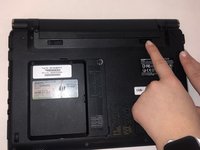
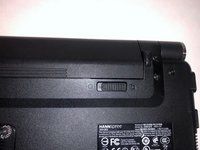
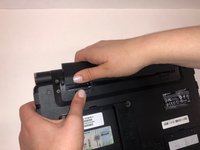
  3. Hannspree SN12E2 Touchpad Plane/Keyboard Replacement: passo 3, immagine 1 di 3 Hannspree SN12E2 Touchpad Plane/Keyboard Replacement: passo 3, immagine 2 di 3 Hannspree SN12E2 Touchpad Plane/Keyboard Replacement: passo 3, immagine 3 di 3
    • Unlatch the lock on the top right of your laptop first.

    • You will need to pull on the lock on the left side and remove the battery at the same time

    • The left lock is a spring lock and needs constant pressure applied in order to stay open.

  4. Hannspree SN12E2 Touchpad Plane/Keyboard Replacement, Touchpad Plane/Keyboard: passo 4, immagine 1 di 1
    • Remove all the 5mm PH0 screws on the back cover

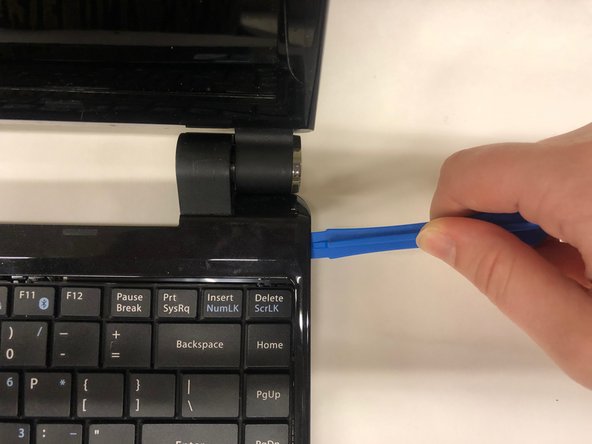
  5. Hannspree SN12E2 Touchpad Plane/Keyboard Replacement: passo 5, immagine 1 di 3 Hannspree SN12E2 Touchpad Plane/Keyboard Replacement: passo 5, immagine 2 di 3 Hannspree SN12E2 Touchpad Plane/Keyboard Replacement: passo 5, immagine 3 di 3
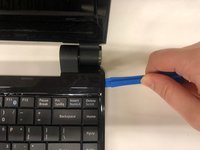
    • Gently pry the case apart starting at the lower right corner using the small spudger

    • Move around the case gently prying until the touchpad plane is free from the rest of the case

  6. Hannspree SN12E2 Touchpad Plane/Keyboard Replacement: passo 6, immagine 1 di 2 Hannspree SN12E2 Touchpad Plane/Keyboard Replacement: passo 6, immagine 2 di 2
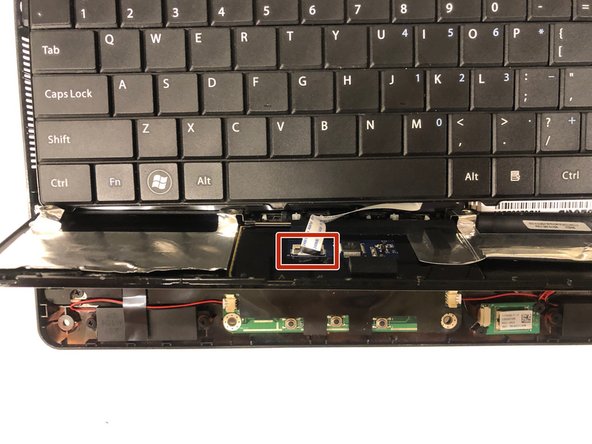
    • Gently lift up on the touchpad portion of the touchpad plane

    • Unplug the ZIFF connector by pulling gently on the black retaining blade and removing the white flat flex cable

    • Pull the touchpad away from the rest of the case

  7. Hannspree SN12E2 Touchpad Plane/Keyboard Replacement: passo 7, immagine 1 di 1
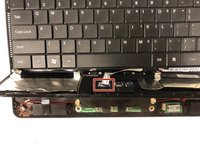
    • Gently lift up on the loose keyboard to expose the ZIFF connector.

    • Unplug the keyboard ZIFF following the same instructions as the touchpad ZIFF

Conclusione

To reassemble your device, follow these instructions in reverse order.

Tim Chase

Membro da: 03/25/19

363 Reputazione

3 Guide realizzate

Team

0Commenti sulla guida

Aggiungi Commento

Visualizza Statistiche:

Ultime 24 Ore: 0

Ultimi 7 Giorni: 1

Ultimi 30 Giorni: 3

Tutti i Tempi: 264