Salta al contenuto principale

HP Pavilion p6 Wireless Card Replacement

Cosa ti serve

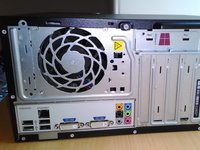
  1. HP Pavilion p6 Wireless Card Replacement, Side Panel Removal: passo 1, immagine 1 di 3 HP Pavilion p6 Wireless Card Replacement, Side Panel Removal: passo 1, immagine 2 di 3 HP Pavilion p6 Wireless Card Replacement, Side Panel Removal: passo 1, immagine 3 di 3
    • Before you start make sure that all of the leads have been disconnected from the computer.

    • It is strongly recomended to wait at least 15 minutes after turning it off to allow the computer and internal components to cool down.

    • It is recomended to lay the computer down with the pull tab at the top to allow it to be easily opened.

    • It is also worth mentioning at this point that for complete safety when working inside the computer that wearing an anti-static band and touching a grounded metal object before starting is good practice.

  2. HP Pavilion p6 Wireless Card Replacement: passo 2, immagine 1 di 3 HP Pavilion p6 Wireless Card Replacement: passo 2, immagine 2 di 3 HP Pavilion p6 Wireless Card Replacement: passo 2, immagine 3 di 3
    • In order to remove the side panel a single screw needs to first be removed.

    • The side panel can then be pulled towards the back of the computer using the pull tab provided.

    • The panel then needs to be rotated as showen in order to remove it from the computer.

  3. HP Pavilion p6 Wireless Card Replacement, Wireless Card: passo 3, immagine 1 di 3 HP Pavilion p6 Wireless Card Replacement, Wireless Card: passo 3, immagine 2 di 3 HP Pavilion p6 Wireless Card Replacement, Wireless Card: passo 3, immagine 3 di 3
    • First locate the wireless card, it should look like this.

    • Next using a spudger or equivalent carefully pry the antenna cable off the wireless card, it should now look like the second picture.

    • A single screw then needs to be removed in order to free the card.

  4. HP Pavilion p6 Wireless Card Replacement: passo 4, immagine 1 di 2 HP Pavilion p6 Wireless Card Replacement: passo 4, immagine 2 di 2
    • The card can then just be easily removed by pulling it out and up.

    • The wireless card should then be kept in a safe place and care taken not to lose the small screw that goes with it.

Conclusione

To reassemble your device, follow these instructions in reverse order.

Altre 8 persone hanno completato questa guida.

Oli

Membro da: 01/03/14

1.523 Reputazione

4 Guide realizzate

2Commenti sulla guida

Thx this helped a lot with my pc

Nathan Moore - Replica

Also will the card still work without the antenna cable?

Nathan Moore - Replica

Aggiungi Commento

Visualizza Statistiche:

Ultime 24 Ore: 0

Ultimi 7 Giorni: 4

Ultimi 30 Giorni: 41

Tutti i Tempi: 3,210