Salta al contenuto principale

HP Pavilion 15-cs3065cl WiFi Module Upgrade/Replacement

Cosa ti serve

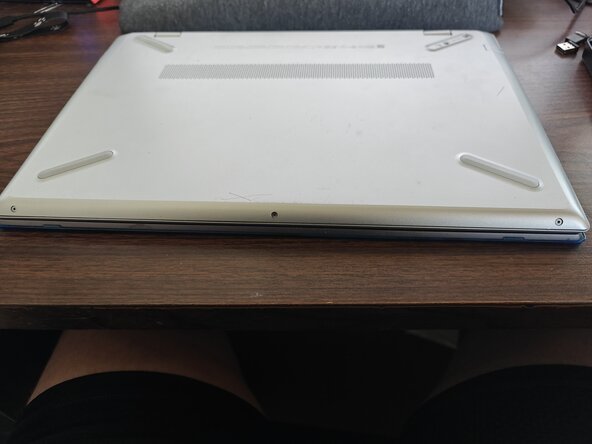
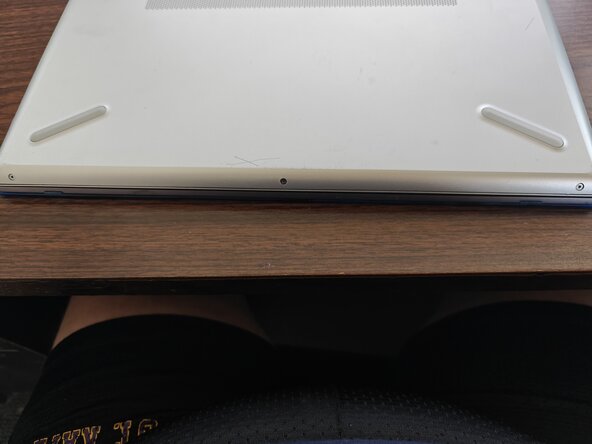
  1. HP Pavilion 15-cs3065cl WiFi Module Upgrade/Replacement, Flip it over: passo 1, immagine 1 di 1
    • First thing you'll do is flip it over, remove any SD cards, USBs, and remove any case.

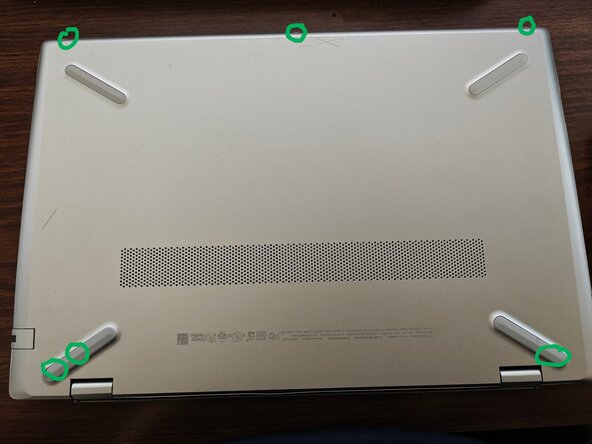
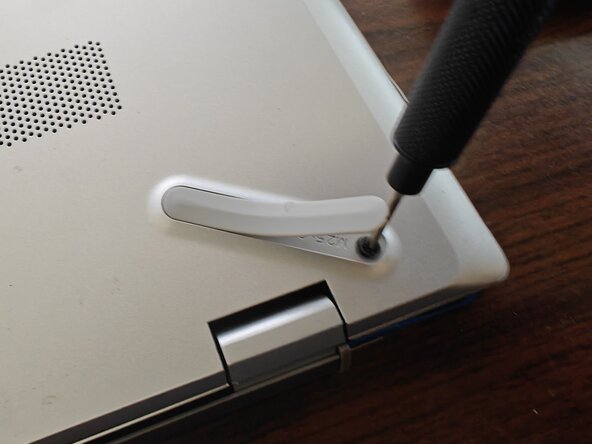
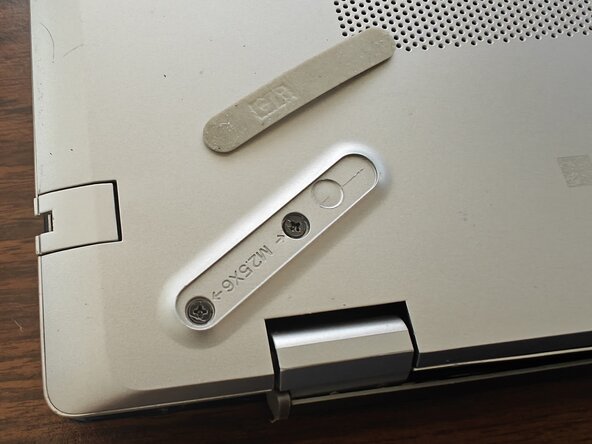
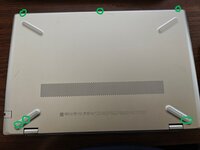
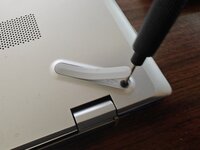
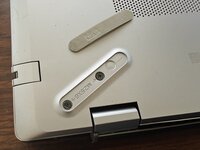
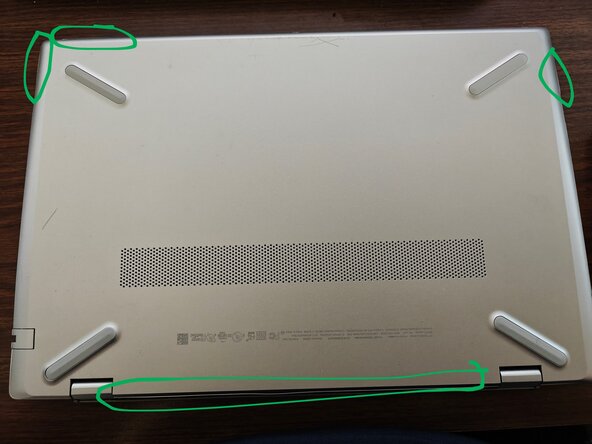
  2. HP Pavilion 15-cs3065cl WiFi Module Upgrade/Replacement, Remove screws: passo 2, immagine 1 di 3 HP Pavilion 15-cs3065cl WiFi Module Upgrade/Replacement, Remove screws: passo 2, immagine 2 di 3 HP Pavilion 15-cs3065cl WiFi Module Upgrade/Replacement, Remove screws: passo 2, immagine 3 di 3
    • There will be about 6 screws you'll need to remove.

    • You will have to at least partially remove the rubber feet to access 3 of the screws.

    • The screws are really tiny, so I recommend putting them in a Tupperware or Ziploc if you don't have a magnetic screw tray.

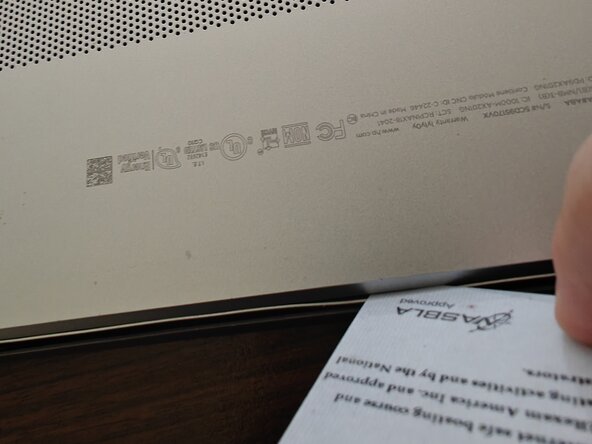
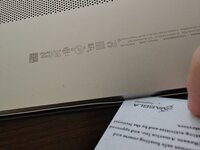
  3. HP Pavilion 15-cs3065cl WiFi Module Upgrade/Replacement, Credit Card or Pry Tool: passo 3, immagine 1 di 2 HP Pavilion 15-cs3065cl WiFi Module Upgrade/Replacement, Credit Card or Pry Tool: passo 3, immagine 2 di 2
    • You'll use a credit card, ID card, or pry tool to separate the bottom of the laptop from the rest of it. Make sure it's plastic, not metal.

    • You might want to use multiple to hold sections open as you work your way around.

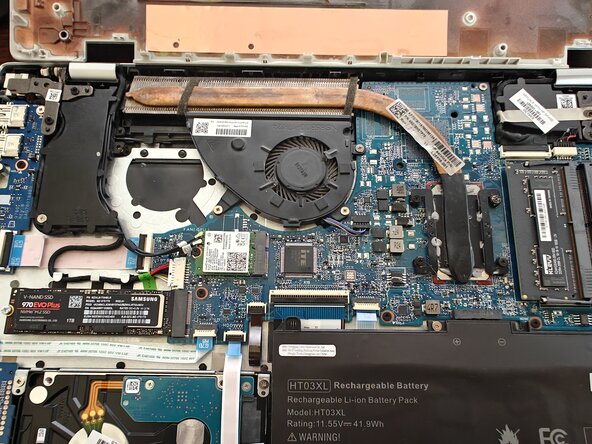
  4. HP Pavilion 15-cs3065cl WiFi Module Upgrade/Replacement, Pop That Sucker Off: passo 4, immagine 1 di 1
    • You remove the bottom to reveal the guts.

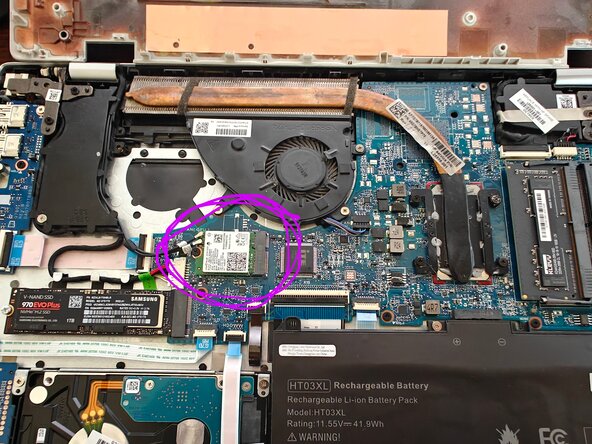
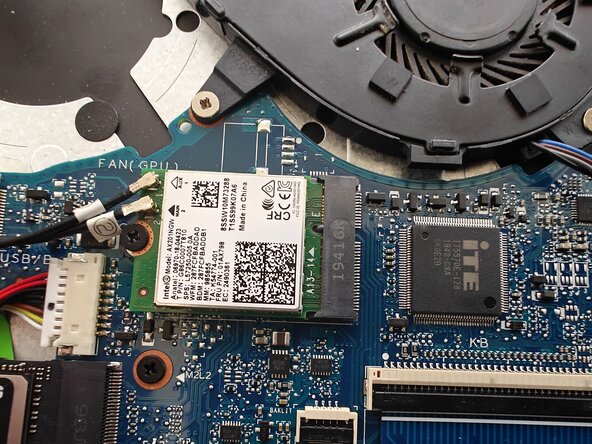
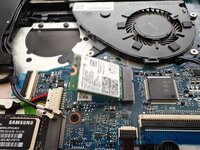
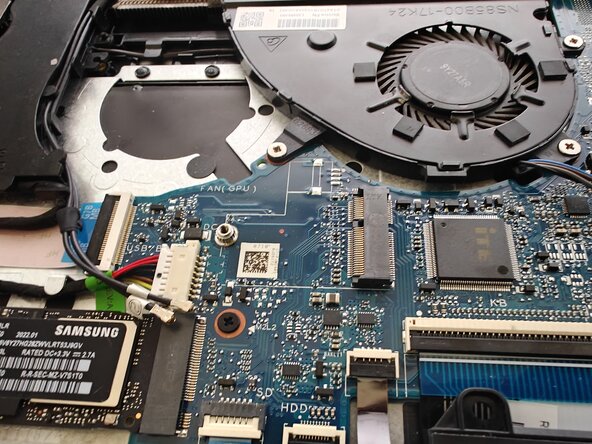
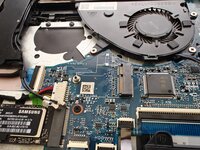
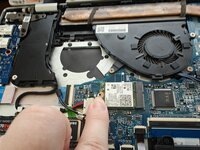
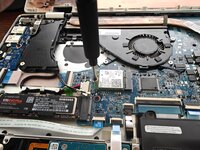
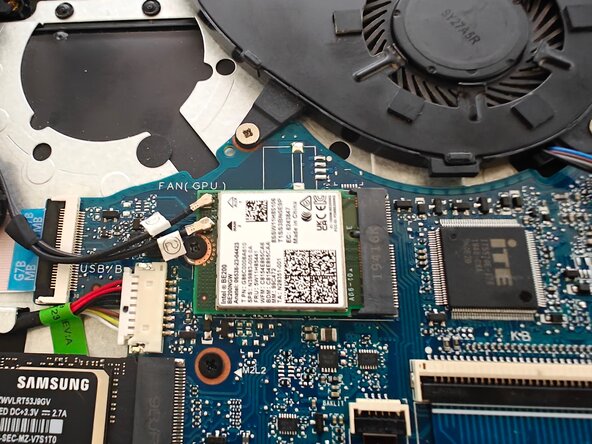
  5. HP Pavilion 15-cs3065cl WiFi Module Upgrade/Replacement, Where's Waldo?: passo 5, immagine 1 di 2 HP Pavilion 15-cs3065cl WiFi Module Upgrade/Replacement, Where's Waldo?: passo 5, immagine 2 di 2
    • Find the WiFi module.

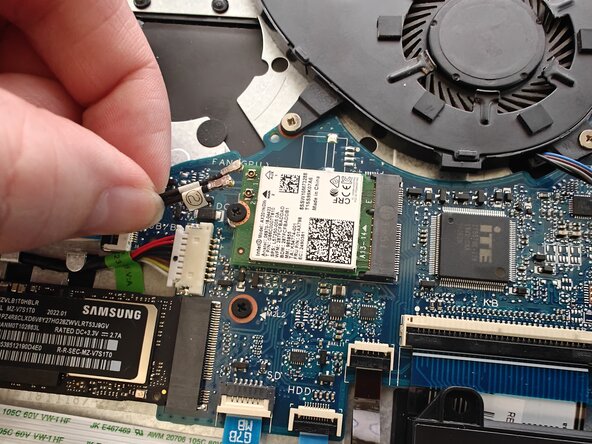
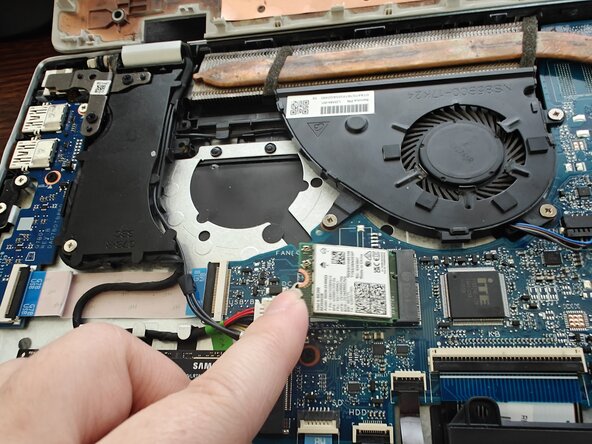
  6. HP Pavilion 15-cs3065cl WiFi Module Upgrade/Replacement, Unplugging: passo 6, immagine 1 di 1
    • Detach the antenna cables.

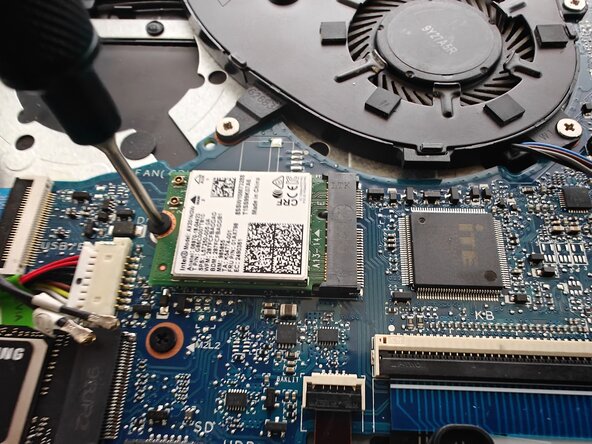
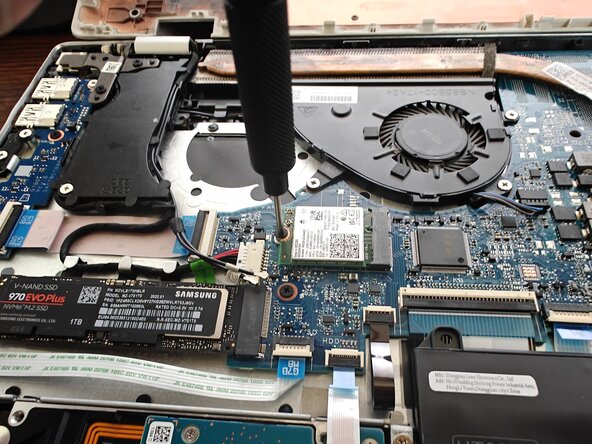
  7. HP Pavilion 15-cs3065cl WiFi Module Upgrade/Replacement, Unscrew the Module: passo 7, immagine 1 di 2 HP Pavilion 15-cs3065cl WiFi Module Upgrade/Replacement, Unscrew the Module: passo 7, immagine 2 di 2
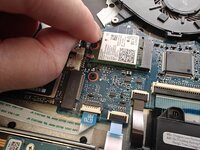
    • Unscrew the screw.

    • It will pop up once it's unscrewed. That's normal.

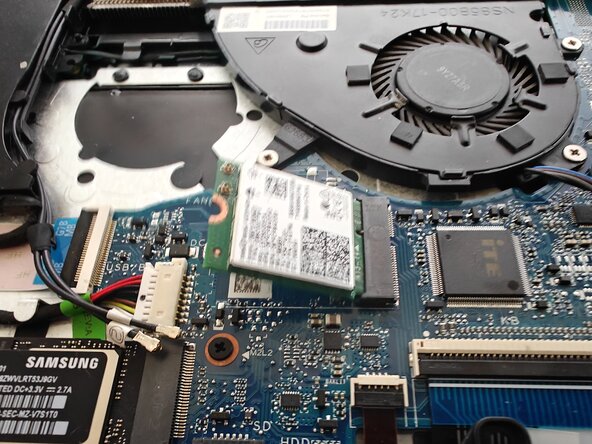
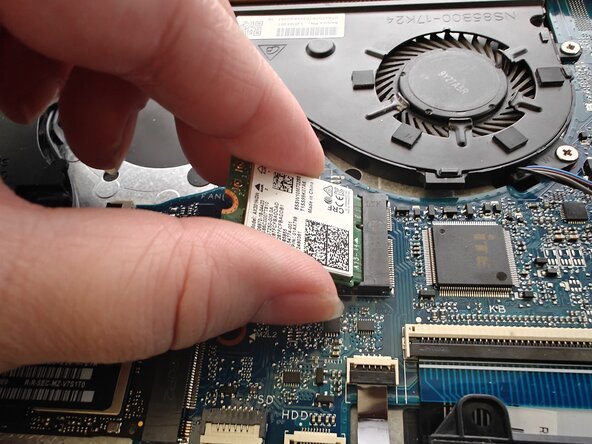
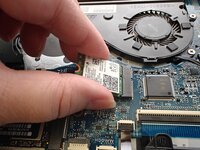
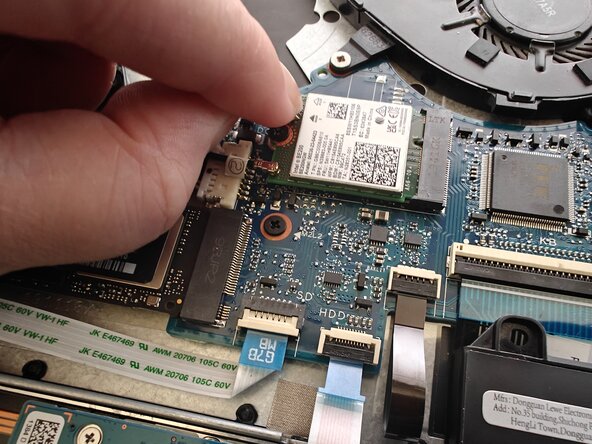
  8. HP Pavilion 15-cs3065cl WiFi Module Upgrade/Replacement, Yoink: passo 8, immagine 1 di 2 HP Pavilion 15-cs3065cl WiFi Module Upgrade/Replacement, Yoink: passo 8, immagine 2 di 2
    • Pull the module out.

  9. HP Pavilion 15-cs3065cl WiFi Module Upgrade/Replacement, Put in the New Module: passo 9, immagine 1 di 1
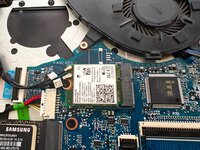
    • Put in the new module.

    • You might need to push the end to get it to seat.

  10. HP Pavilion 15-cs3065cl WiFi Module Upgrade/Replacement, Screw it in: passo 10, immagine 1 di 2 HP Pavilion 15-cs3065cl WiFi Module Upgrade/Replacement, Screw it in: passo 10, immagine 2 di 2
    • Push it flat and screw it in.

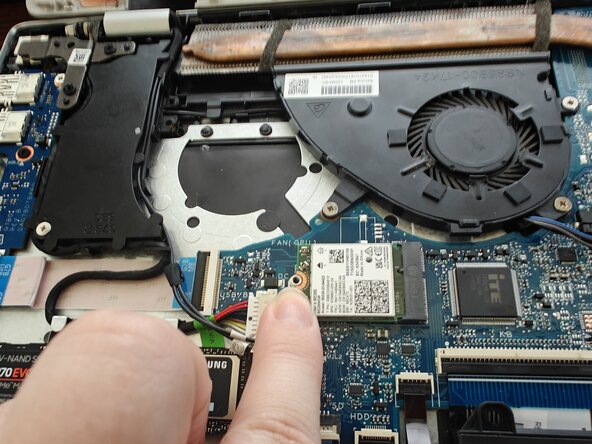
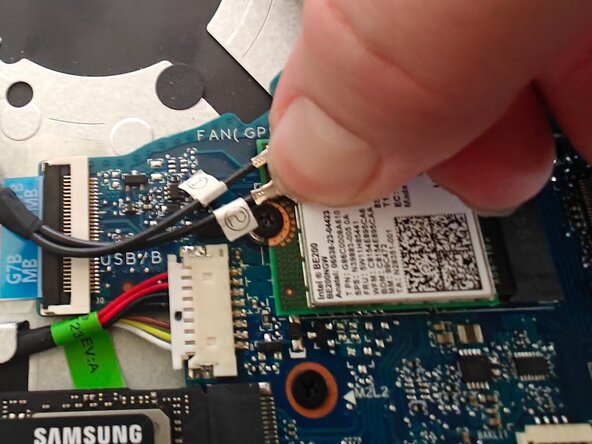
  11. HP Pavilion 15-cs3065cl WiFi Module Upgrade/Replacement, Reattach Cables: passo 11, immagine 1 di 3 HP Pavilion 15-cs3065cl WiFi Module Upgrade/Replacement, Reattach Cables: passo 11, immagine 2 di 3 HP Pavilion 15-cs3065cl WiFi Module Upgrade/Replacement, Reattach Cables: passo 11, immagine 3 di 3
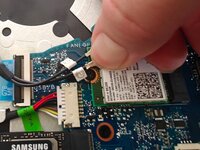
    • Reattach the antenna cables.

    • They should have labels "1" and "2" on the cables. Attach them to the points labeled "1" and "2" on your new WiFi module.

    • They're teeny-tiny snap buttons, like miniature versions of what you'd find on a jacket.

    • Make sure they snap on properly, you might need to use your thumbnail. You can give them a gentle tug to make sure they're actually attached.

  12. HP Pavilion 15-cs3065cl WiFi Module Upgrade/Replacement, Close it up!: passo 12, immagine 1 di 1
    • Snap the lid back on

    • Put the lid screws back in

    • Stick the sticky rubber feetsies back on

    • Plug back in any SD cards, USBs, and put your case back on if you have one

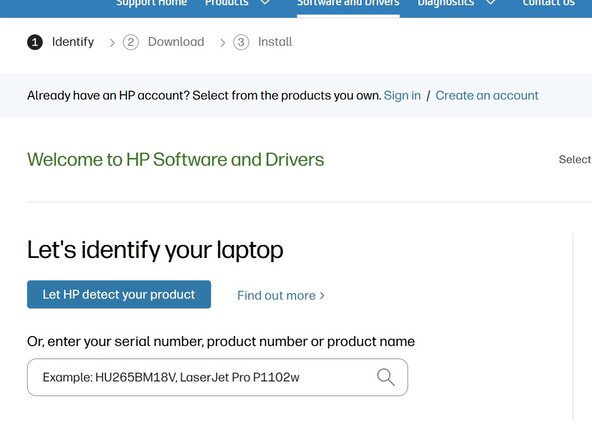
  13. HP Pavilion 15-cs3065cl WiFi Module Upgrade/Replacement, Drivers (Software): passo 13, immagine 1 di 1
    • Go to this link and install the WiFi and Bluetooth drivers that Intel recommends.

    • Power cycle your laptop (off and on again).

    • That's it, you're good to go!

Conclusione

You're all set!

0Commenti sulla guida

Aggiungi Commento

Visualizza Statistiche:

Ultime 24 Ore: 0

Ultimi 7 Giorni: 0

Ultimi 30 Giorni: 6

Tutti i Tempi: 31