Salta al contenuto principale

HASEE Z6-SL7D1 RAM Replacement

Cosa ti serve

  1. HASEE Z6-SL7D1 RAM Replacement, RAM: passo 1, immagine 1 di 2 HASEE Z6-SL7D1 RAM Replacement, RAM: passo 1, immagine 2 di 2
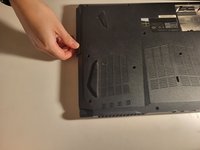
    • Flip your laptop over so the bottom is facing up and set it on a flat surface.

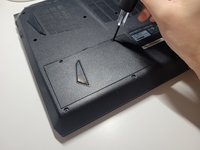
    • Use a Phillips #0 screwdriver to remove the two 6 mm screws that secure the battery.

  2. HASEE Z6-SL7D1 RAM Replacement: passo 2, immagine 1 di 2 HASEE Z6-SL7D1 RAM Replacement: passo 2, immagine 2 di 2
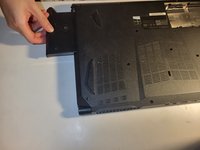
    • Gently lift the battery from the laptop.

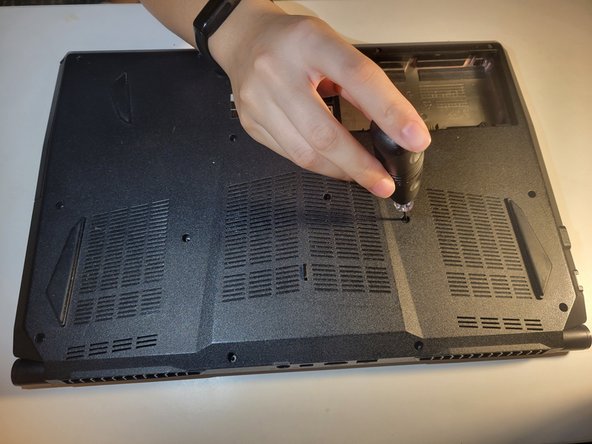
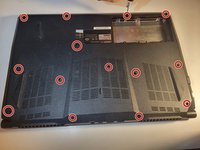
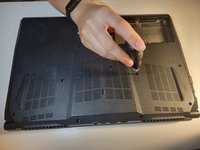
  3. HASEE Z6-SL7D1 RAM Replacement: passo 3, immagine 1 di 2 HASEE Z6-SL7D1 RAM Replacement: passo 3, immagine 2 di 2
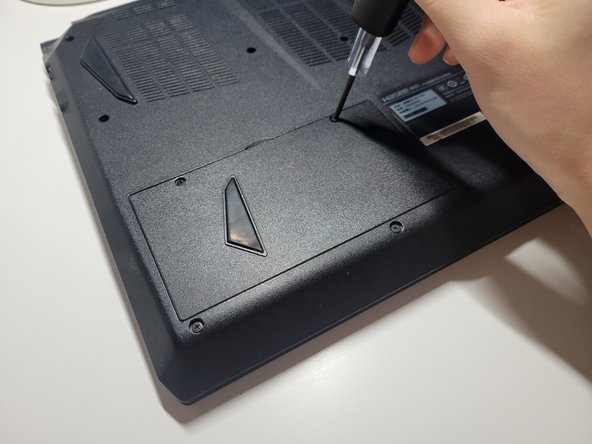
    • Use a Phillips #0 screwdriver to remove fourteen 6 mm screws from the back panel.

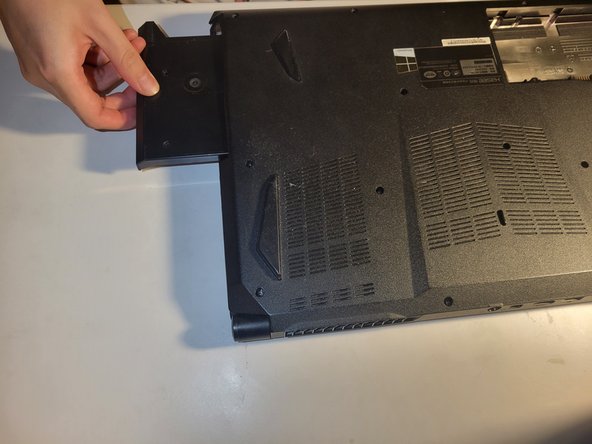
  4. HASEE Z6-SL7D1 RAM Replacement: passo 4, immagine 1 di 2 HASEE Z6-SL7D1 RAM Replacement: passo 4, immagine 2 di 2
    • If your laptop is equipped with an optical drive, carefully slide it out.

    • Alternatively, if the optical drive bay houses a hard drive tray, remove the tray by unscrewing any securing screws and gently pulling it out.

  5. HASEE Z6-SL7D1 RAM Replacement: passo 5, immagine 1 di 2 HASEE Z6-SL7D1 RAM Replacement: passo 5, immagine 2 di 2
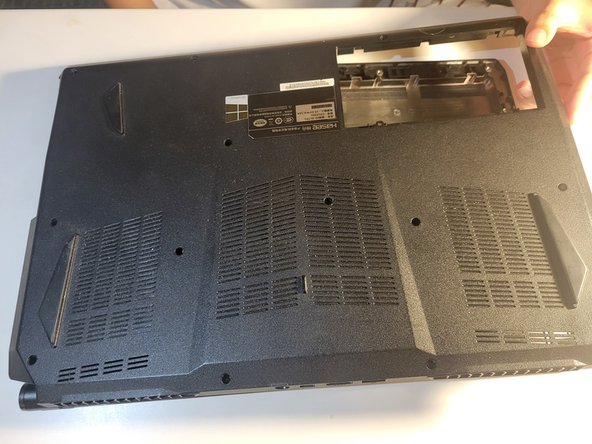
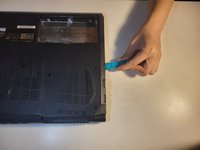
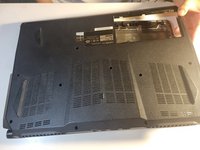
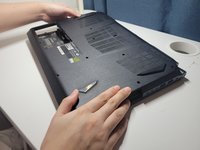
    • Carefully slide a plastic spudger or opening tool along the edges of the back panel.

    • Gradually lift the panel away from the laptop chassis, ensuring not to force it and risking damage to internal components.

  6. HASEE Z6-SL7D1 RAM Replacement: passo 6, immagine 1 di 3 HASEE Z6-SL7D1 RAM Replacement: passo 6, immagine 2 di 3 HASEE Z6-SL7D1 RAM Replacement: passo 6, immagine 3 di 3
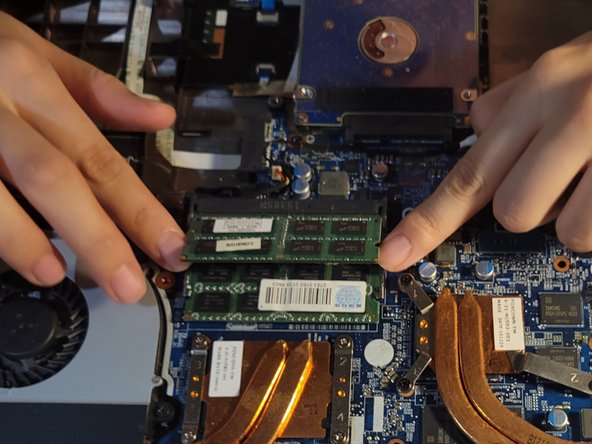
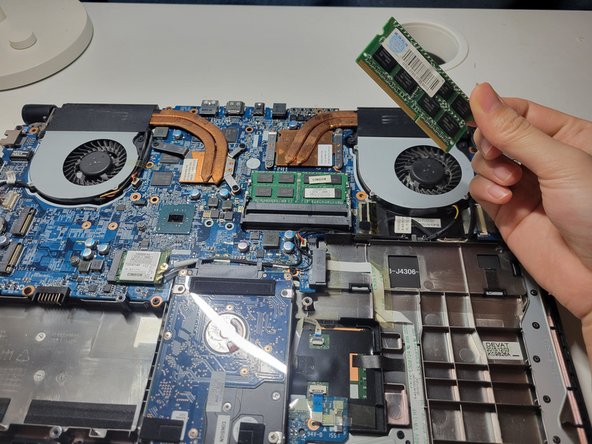
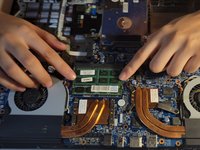
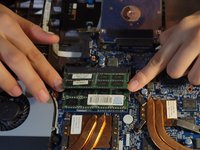
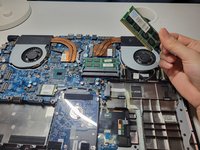
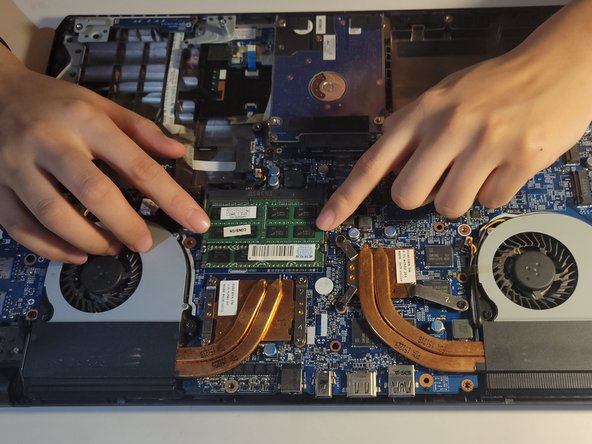
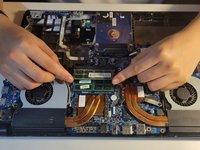
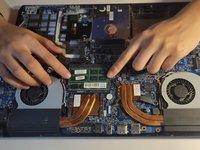
    • Use your fingers or a spudger to gently press the clips on the sides of the SO-DIMM slots outward to release the memory modules.

    • The RAM sticks will pop out at about a 45-degree angle.

    • Once the RAM sticks disengage, carefully slide them out of the slot at the same angle.

  7. HASEE Z6-SL7D1 RAM Replacement: passo 7, immagine 1 di 2 HASEE Z6-SL7D1 RAM Replacement: passo 7, immagine 2 di 2
    • When installing new memory sticks, align them with the SO-DIMM slots at the same angle and gently press them downward.

    • You will hear a click, indicating that it is securely in place.

  8. HASEE Z6-SL7D1 RAM Replacement: passo 8, immagine 1 di 2 HASEE Z6-SL7D1 RAM Replacement: passo 8, immagine 2 di 2
    • Replace the back case.

    • Insert the optical drive back into its designated slot.

    • Replace the battery.

    • Use a Phillips #0 screwdriver to secure the fourteen 6 mm screws on the back case.

    • Use a Phillips #0 screwdriver to replace the two 6 mm screws that secure the battery.

Conclusione

To reassemble your device, follow these instructions in reverse order.

Altre 2 persone hanno completato questa guida.

Jiayi Liu

Membro da: 02/11/24

175 Reputazione

1 Guida realizzata

Team

0Commenti sulla guida

Aggiungi Commento

Visualizza Statistiche:

Ultime 24 Ore: 4

Ultimi 7 Giorni: 17

Ultimi 30 Giorni: 105

Tutti i Tempi: 1,533