Salta al contenuto principale

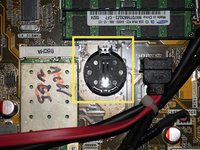
Full method - HP Touchsmart IQ506 CMOS Battery Replacement
Cosa ti serve

  1. Attrezzo utilizzato in questo passaggio:
    Essential Electronics Toolkit
    $23.96
  2. Full method - HP Touchsmart IQ506 CMOS Battery Replacement, Unplug the system: passo 2, immagine 1 di 2 Full method - HP Touchsmart IQ506 CMOS Battery Replacement, Unplug the system: passo 2, immagine 2 di 2
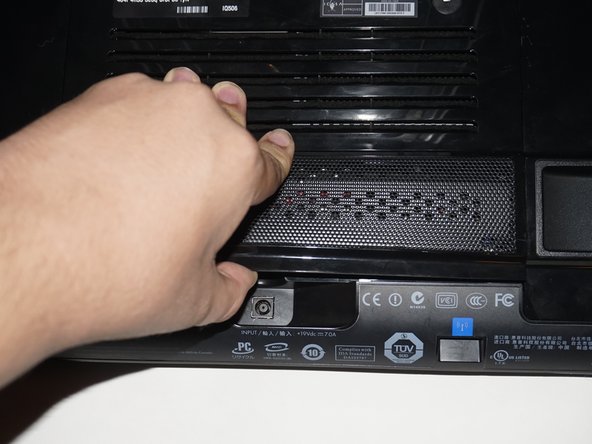
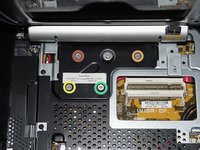
    • Unplug the system from the power brick.

  3. Full method - HP Touchsmart IQ506 CMOS Battery Replacement, Remove the Wireless keyboard receiver: passo 3, immagine 1 di 1
    • READ: I did not get the original keyboard with my system and the receiver mine came with was broken. Since the HP OEM keyboard is NLA, I installed a USB hub to use another keyboard.

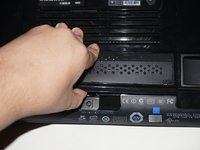
    • To remove the back cover from the system, the keyboard receiver must be removed. To do this, pull the receiver by the notch to release it. Once you do this, it should come out of the internal USB port to free the back cover.

  4. Full method - HP Touchsmart IQ506 CMOS Battery Replacement, Remove the RAM door: passo 4, immagine 1 di 3 Full method - HP Touchsmart IQ506 CMOS Battery Replacement, Remove the RAM door: passo 4, immagine 2 di 3 Full method - HP Touchsmart IQ506 CMOS Battery Replacement, Remove the RAM door: passo 4, immagine 3 di 3
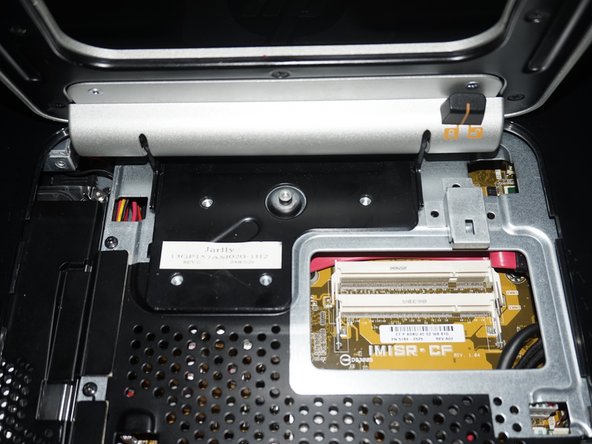
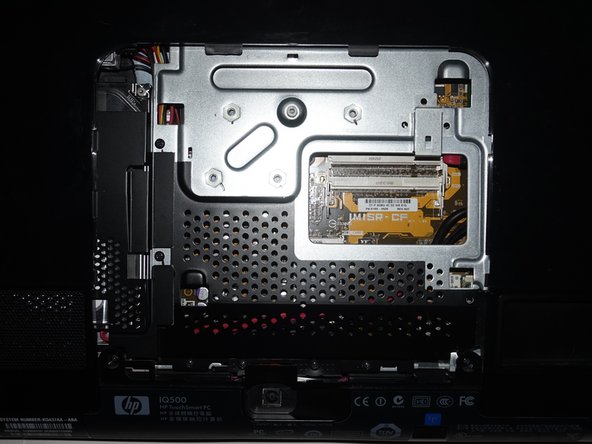
    • Remove the screw on the RAM door. Once you remove the screw, unclip the door.

  5. Full method - HP Touchsmart IQ506 CMOS Battery Replacement, Legacy iFixit driver ONLY - how to access the screws on the top: passo 5, immagine 1 di 1
    • THIS STEP ONLY APPLIES FOR LEGACY iFixit 54-BIT DRIVER KIT USERS.

    • When usjng the legacy driver handle, the top hinge screws can be difficult to get to. If you have the legacy 54-bit iFixit driver kit, lock the stand upright and slide it under the stand from the rear to access the top screws. This should be less of an issue with a standalone driver or modern driver kits like the 64-bit/Manta kit.

  6. Full method - HP Touchsmart IQ506 CMOS Battery Replacement, Remove the stand: passo 6, immagine 1 di 3 Full method - HP Touchsmart IQ506 CMOS Battery Replacement, Remove the stand: passo 6, immagine 2 di 3 Full method - HP Touchsmart IQ506 CMOS Battery Replacement, Remove the stand: passo 6, immagine 3 di 3
    • It may be easier to remove the top screws from the stand first due to their placement.

    • Remove the stand from the system. Use a Phillips #1 screwdriver to loosen the 4 screws. A standalone driver may work best for this step.

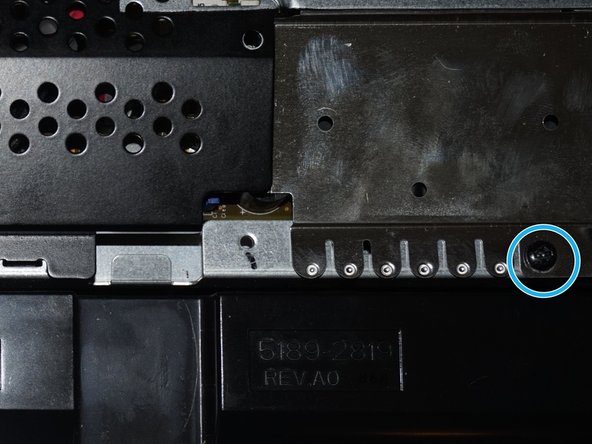
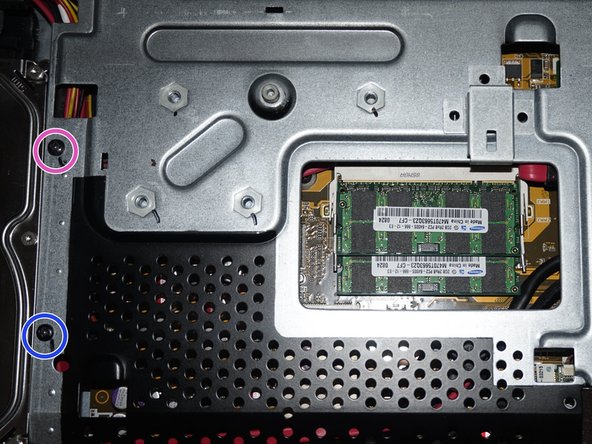
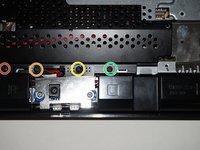
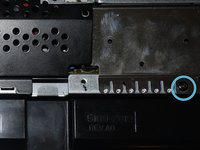
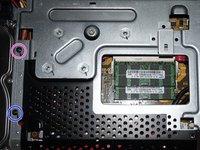
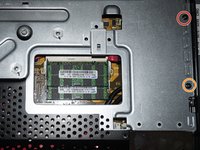
  7. Full method - HP Touchsmart IQ506 CMOS Battery Replacement, Remove the I/O panel screws: passo 7, immagine 1 di 3 Full method - HP Touchsmart IQ506 CMOS Battery Replacement, Remove the I/O panel screws: passo 7, immagine 2 di 3 Full method - HP Touchsmart IQ506 CMOS Battery Replacement, Remove the I/O panel screws: passo 7, immagine 3 di 3
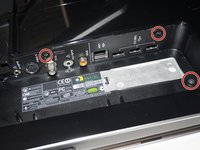
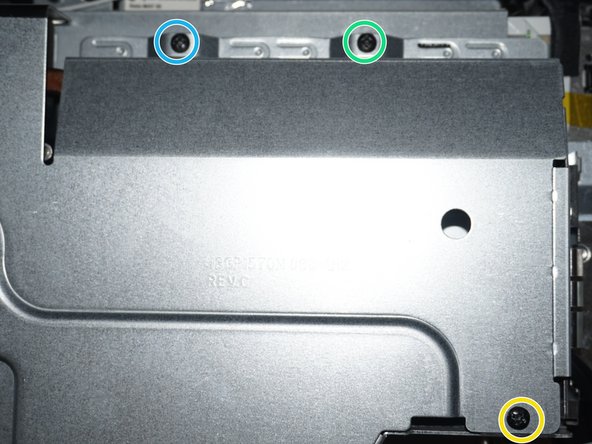
    • Remove the 3 screws in the I/O bay of the system.

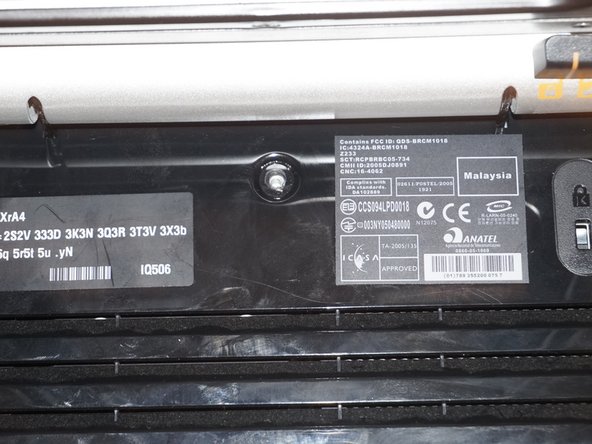
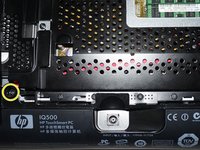
    • Remove the 2 screws from under the RAM panel. Note: My system is missing a screw, but it is marked accordingly. Yoy may or may not need to keep this in mind.

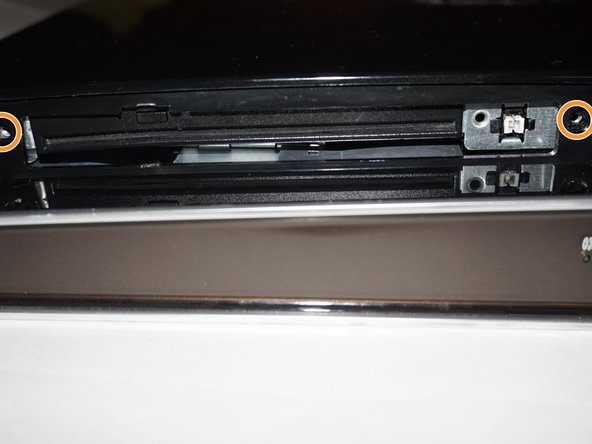
    • Remove the 2 screws from under the ODD cover. Tip: If you are having trouble with this cover, use a spudger or plastic pry tool to remove it.

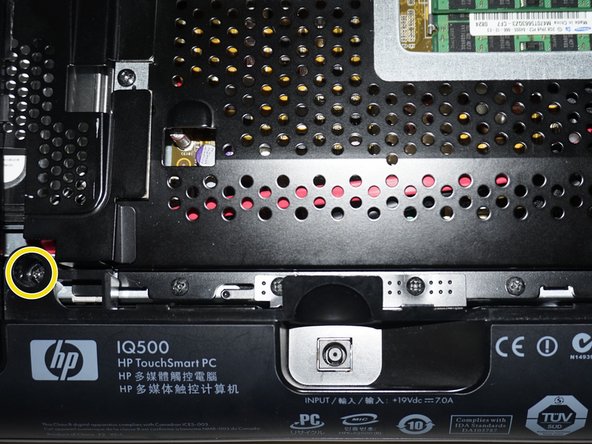
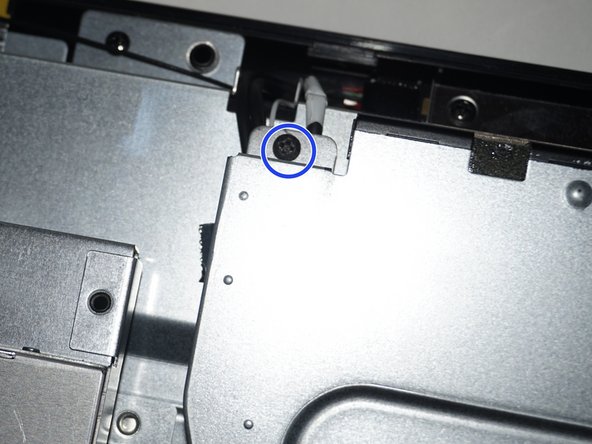
    • NOTE: ONE SCREW NOT SHOWN DUE TO PHOTO LIMIT. Remove the 2 screws above the model number palte.

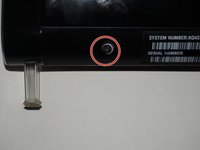
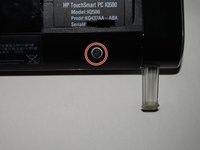
  8. Full method - HP Touchsmart IQ506 CMOS Battery Replacement, Remove the screws from the system 2: passo 8, immagine 1 di 2 Full method - HP Touchsmart IQ506 CMOS Battery Replacement, Remove the screws from the system 2: passo 8, immagine 2 di 2
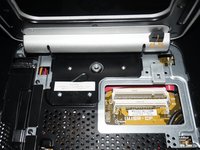
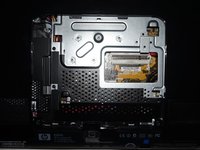
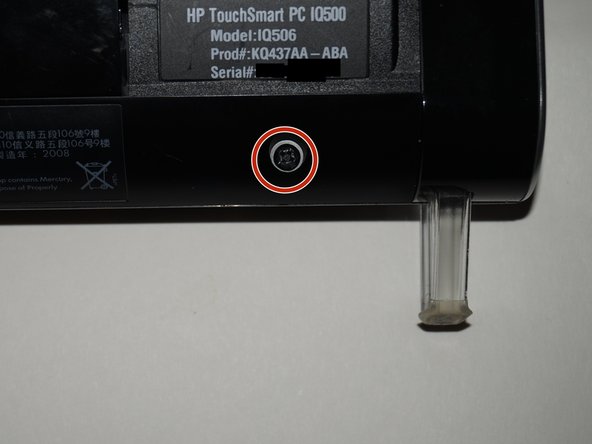
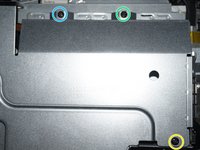
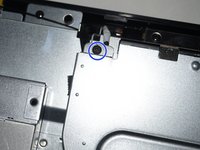
    • Remove the 2 screws by the feet on the system chassis.

  9. Full method - HP Touchsmart IQ506 CMOS Battery Replacement, Remove the back from the system: passo 9, immagine 1 di 1
    • If you have difficulty removing the back of the system, a spudger may help you release the tabs.

    • Remove the back from the system. The quickest way to do this is to start from the bottom and then unsnap the sides.

  10. Full method - HP Touchsmart IQ506 CMOS Battery Replacement, Remove the motherboard shield: passo 10, immagine 1 di 3 Full method - HP Touchsmart IQ506 CMOS Battery Replacement, Remove the motherboard shield: passo 10, immagine 2 di 3 Full method - HP Touchsmart IQ506 CMOS Battery Replacement, Remove the motherboard shield: passo 10, immagine 3 di 3
    • The metal EMI shield over the power jack has to be removed to pull the motherboard shield off. This must be replaced when reassembling the system.

    • Remove the 7 screws to reveal the motherboard and other major components. Use a Phillips #1 screwdriver to do this.

  11. Full method - HP Touchsmart IQ506 CMOS Battery Replacement, Remove the motherboard shield 2: passo 11, immagine 1 di 3 Full method - HP Touchsmart IQ506 CMOS Battery Replacement, Remove the motherboard shield 2: passo 11, immagine 2 di 3 Full method - HP Touchsmart IQ506 CMOS Battery Replacement, Remove the motherboard shield 2: passo 11, immagine 3 di 3
    • Remove the 6 remaining screws from the motherboard shield. Use the same Phillips #1 screwdriver as you used the first time.

  12. Full method - HP Touchsmart IQ506 CMOS Battery Replacement, Remove the battery: passo 12, immagine 1 di 3 Full method - HP Touchsmart IQ506 CMOS Battery Replacement, Remove the battery: passo 12, immagine 2 di 3 Full method - HP Touchsmart IQ506 CMOS Battery Replacement, Remove the battery: passo 12, immagine 3 di 3
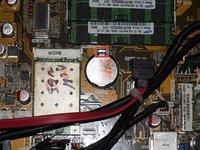
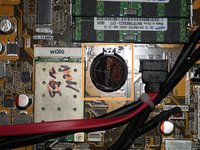
    • If you want to track when you replaced the battery, put a mark on the battery with the month and year so you know when it was replaced. If you cannot write on the battery, putting a hidden note under the memory panel is also an option.

    • Optional: Put a note on the RAM door out of sight or write when the battery was replaced on the new battery.

    • Push the tab on the battery in and then remove it. Put the new battery in the reverse way of removal. Once this is done, write when the battery was replaced (Example: 5/16) on the battery.

Conclusione

To reassemble your device, follow these instructions in reverse order.

Nick

Membro da: 11/10/09

98.168 Reputazione

61 Guide realizzate

Team

Master Techs Membro di Master Techs

Community

329 Membri

1.451 Guide realizzate

0Commenti sulla guida

Aggiungi Commento

Visualizza Statistiche:

Ultime 24 Ore: 1

Ultimi 7 Giorni: 5

Ultimi 30 Giorni: 24

Tutti i Tempi: 2,221