Introduzione
This guide walks through the replacement of the keyboard in a Dell XPS laptop. It also includes instructions to remove of all the components necessary to access the keyboard.
Make sure to have a safe location to store all of the small screws while completing this guide, as the screws are very small and easy to lose.
Cosa ti serve
-
-
Turn the laptop upside down.
-
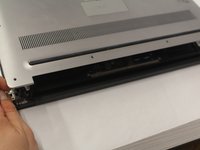
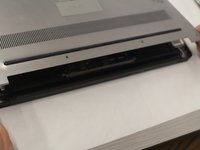
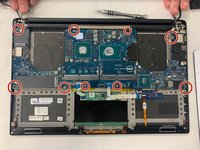
Use a T5 Torx Screwdriver to remove the ten 3 mm long screws from the perimeter of the back of the laptop.
-
-
-
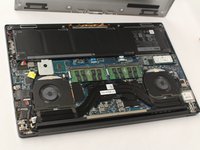
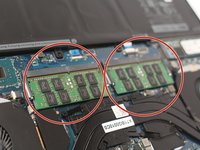
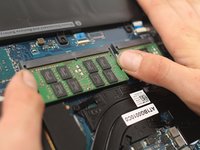
There are 2 separate RAM sticks.
-
Gently push down on the 2 outside tabs of the RAM stick you want to replace.
-
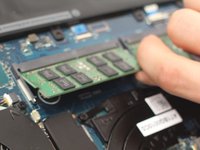
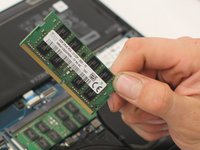
While still pushing down, gently push the tabs outwards, causing the RAM stick to flip up.
-
-
-
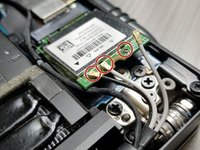
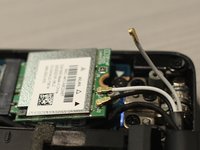
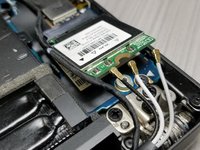
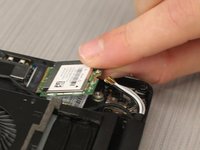
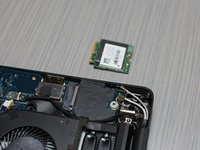
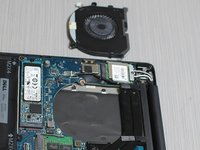
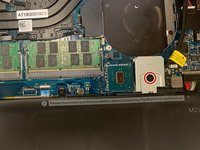
With a Philips #00 Screwdriver bit, remove one 4 mm long black screw located by the antenna connections on the wireless card.
-
Set the screw and metal holder aside.
-
-
-
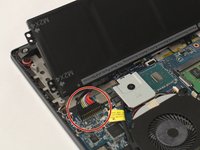
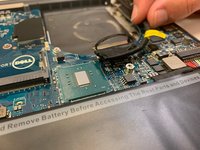
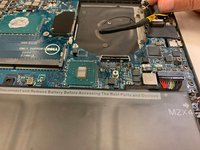
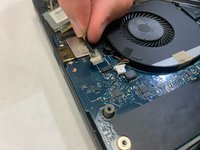
Use the Small Plastic Spudger to carefully disconnect the white connector from the black port.
-
-
-
-
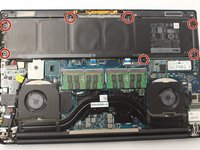
Use a Philips #00 Screwdriver to remove the seven 3 mm long screws from the perimeter of the battery.
-
-
-
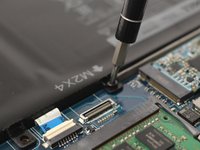
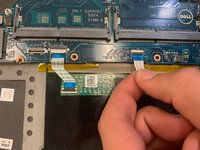
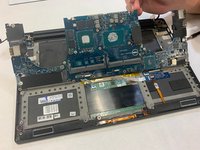
The touchpad has two ZIF connectors at the bottom of the motherboard. Use a flat plastic tool to lift the tabs (see picture 2) and gently pull the ribbon cables free.
-












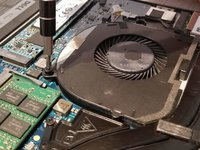
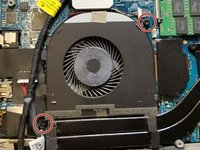
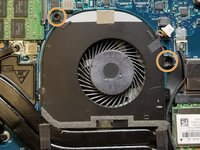


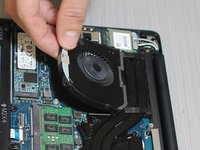




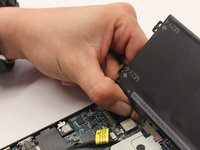
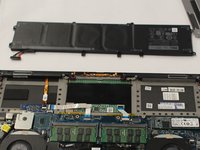


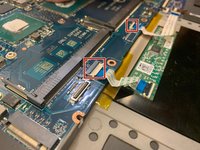
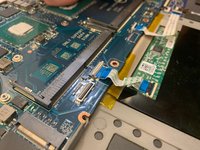




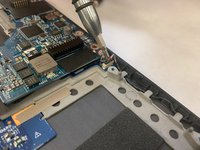
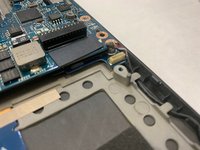

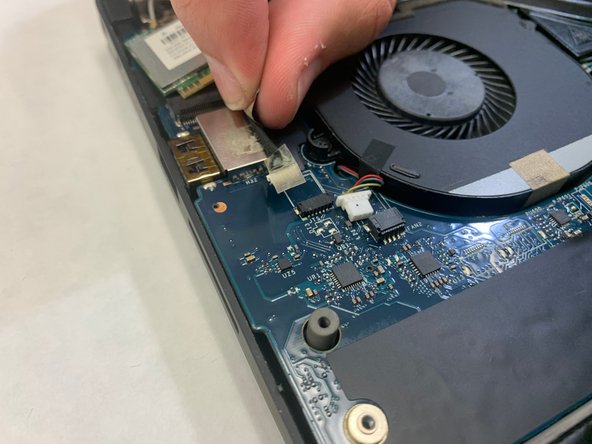
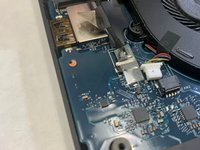




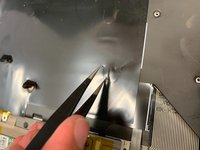
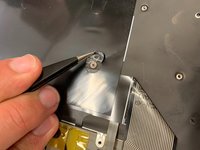
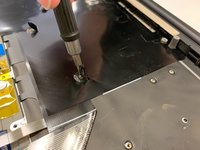

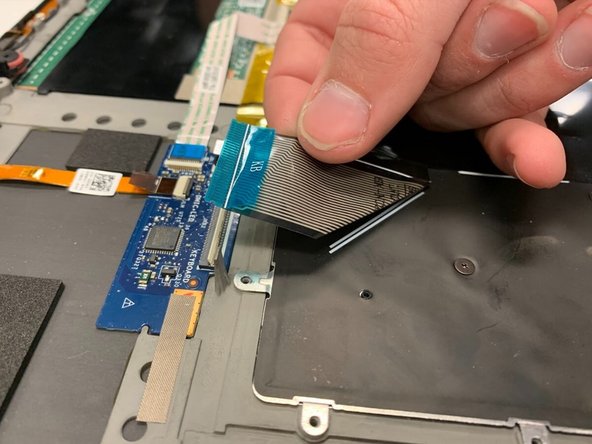
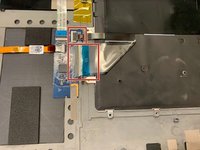
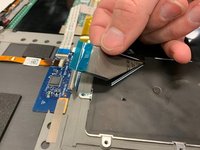

Now you have successfully removed your keyboard. To reassemble your device, follow these instructions in reverse order.
Annulla: non ho completato questa guida.
Altre 8 persone hanno completato questa guida.



Team

IUPUI, Team 2-4, Harley Spring 2022 Membro di IUPUI, Team 2-4, Harley Spring 2022
IUPUI-HARLEY-S22S2G4
3 Membri
3 Guide realizzate
4Commenti sulla guida
Will this work with a Dell Precision 5520? I have noticed that these two laptops use many of the same components.
This was an excellent guide! The entire process took me a full two hours. Most of the time was spent trying to figure out how to fix a broken antenna filament on the wifi card. See my note regarding that step. My daughter's laptop keyboard is now brand new and I was able to remove all the dog hair and dust at the same time!
This was super-helpful. I have an XPS 7590, and a few things were slightly different, but this guide matched my machine closely enough. I now have a fully working machine with a new keyboard. Thanks!
wonderfully written & diagrammed guide, thank you internet friend!
