Salta al contenuto principale

Dell Chromebook 3100 2-in-1 Touchpad Replacement

Cosa ti serve

  1. Dell Chromebook 3100 2-in-1 Touchpad Replacement, Touchpad: passo 1, immagine 1 di 1
    • To start replacing the touch-pad, unscrew the 9 Phillips head screws holding down the rear cover (It is recommended to use a PH1 bit for the screwdriver).

  2. Dell Chromebook 3100 2-in-1 Touchpad Replacement: passo 2, immagine 1 di 1
    • Once all 9 screws are removed, wedge an iFixit Opening Tool in the gap between the rear cover and the rest of the laptop.

    • Once in, gently run the tool around the perimeter of the rear cover. You will hear popping sounds as the plastic tabs detach.

    • After enough tabs have been detached, simply pull off the rear cover.

  3. Dell Chromebook 3100 2-in-1 Touchpad Replacement: passo 3, immagine 1 di 1
    • Now that the rear cover is off, the first thing that must be done is to locate and unplug the battery cable from the motherboard.

    • This cable can simply be grabbed and gently pulled out.

  4. Dell Chromebook 3100 2-in-1 Touchpad Replacement: passo 4, immagine 1 di 2 Dell Chromebook 3100 2-in-1 Touchpad Replacement: passo 4, immagine 2 di 2
    • Using the same PH1 bit for your screw driver, remove the 3 Phillips head screws holding down the battery.

    • Next, lift the battery and remove it from the laptop.

  5. Dell Chromebook 3100 2-in-1 Touchpad Replacement: passo 5, immagine 1 di 1
    • Once again, use the PH1 bit for your screwdriver to unscrew the 6 Phillips head screws holding down the touch-pad.

  6. Dell Chromebook 3100 2-in-1 Touchpad Replacement: passo 6, immagine 1 di 1
    • With all the screws removed, lift out the metal bracket holding down the touch-pad.

  7. Dell Chromebook 3100 2-in-1 Touchpad Replacement: passo 7, immagine 1 di 1
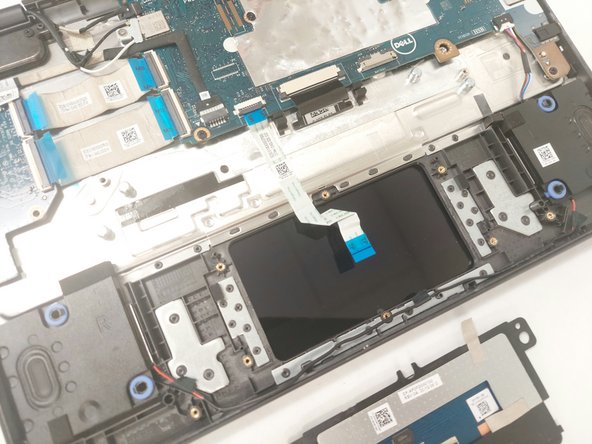
    • Next is to unplug the ribbon cable connecting to the touch-pad.

    • This can be done by flipping the black tab up and gently tugging on the blue handle to remove it.

    • The ribbon cable is very fragile! Be very careful when unplugging it!

  8. Dell Chromebook 3100 2-in-1 Touchpad Replacement: passo 8, immagine 1 di 2 Dell Chromebook 3100 2-in-1 Touchpad Replacement: passo 8, immagine 2 di 2
    • With the cable unplugged and the metal bracket removed, grab the touch-pad along its edges and lift it off of the laptop.

Conclusione

To reassemble your device, follow these instructions in reverse order.

Un'altra persona ha completato questa guida.

ot moya

Membro da: 11/09/23

481 Reputazione

3 Guide realizzate

Team

IUPUI, Team 3-2, Harley Fall 2023 Membro di IUPUI, Team 3-2, Harley Fall 2023

IUPUI-HARLEY-F23S3G2

3 Membri

3 Guide realizzate

0Commenti sulla guida

Aggiungi Commento

Visualizza Statistiche:

Ultime 24 Ore: 2

Ultimi 7 Giorni: 8

Ultimi 30 Giorni: 29

Tutti i Tempi: 505