Salta al contenuto principale
Unisciti alla Community delle riparazioni - Crea un account

Canon PowerShot SD850 IS Function Set Button Replacement

Cosa ti serve

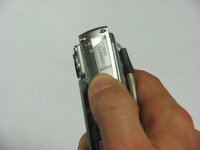
    1. Canon PowerShot SD850 IS Function Set Button Replacement, Battery: passo 1, immagine 1 di 3 Canon PowerShot SD850 IS Function Set Button Replacement, Battery: passo 1, immagine 2 di 3 Canon PowerShot SD850 IS Function Set Button Replacement, Battery: passo 1, immagine 3 di 3
      • Slide the light grey tab toward the edge of the camera using your fingernail.

      • Pull the light grey tab up to open the door.

      • These photos do not show the camera’s memory card or battery, which should be visible inside.

      Chiedi a FixBot

      Aggiungi Commento

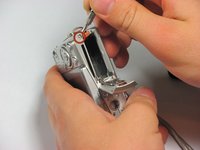
    2. Canon PowerShot SD850 IS Function Set Button Replacement: passo 2, immagine 1 di 2 Canon PowerShot SD850 IS Function Set Button Replacement: passo 2, immagine 2 di 2
      • Slide the small brown tab toward the edge of the camera using your fingernail.

      • Let go of the brown tab when the battery pops up.

      • Grab battery and pull straight up to remove from holder.

      • When inserting the battery, orient it so that the terminals connect.

      Chiedi a FixBot

      Aggiungi Commento

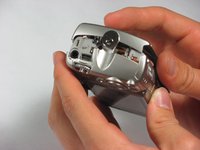
    1. Canon PowerShot SD850 IS Function Set Button Replacement, Case: passo 3, immagine 1 di 2 Canon PowerShot SD850 IS Function Set Button Replacement, Case: passo 3, immagine 2 di 2
      • Remove the following 4 screws:

      • Two 2.8 mm Phillips #00 at the bottom of the camera.

      • Two 2.75 mm Phillips #00 on the opposite side of the wrist strap.

      Chiedi a FixBot

      Aggiungi Commento

    2. Canon PowerShot SD850 IS Function Set Button Replacement: passo 4, immagine 1 di 3 Canon PowerShot SD850 IS Function Set Button Replacement: passo 4, immagine 2 di 3 Canon PowerShot SD850 IS Function Set Button Replacement: passo 4, immagine 3 di 3
      • Open the A/V OUT DIGITAL flap on the side of the wrist strap.

      • Remove the 2.75 mm Phillips #00 under the A/V OUT DIGITAL flap on the side of the wrist strap.

      Chiedi a FixBot

      Aggiungi Commento

    3. Canon PowerShot SD850 IS Function Set Button Replacement: passo 5, immagine 1 di 2 Canon PowerShot SD850 IS Function Set Button Replacement: passo 5, immagine 2 di 2
      • On the bottom of the camera, use your fingernail to slide the light gray tab towards the edge of the camera.

      • Slide light gray door and pull up to open the door.

      • Remove the 8.35 mm Phillips #00 next to the brown tab that holds the battery.

      Chiedi a FixBot

      Aggiungi Commento

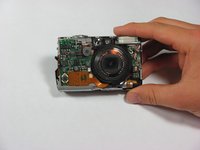
    4. Canon PowerShot SD850 IS Function Set Button Replacement: passo 6, immagine 1 di 2 Canon PowerShot SD850 IS Function Set Button Replacement: passo 6, immagine 2 di 2
      • Gently pull the front cover straight out from the camera. This will expose the wiring on the front of the camera.

      Chiedi a FixBot

      Aggiungi Commento

    5. Canon PowerShot SD850 IS Function Set Button Replacement: passo 7, immagine 1 di 1
      • Remove the 2.75 mm Phillips #00 next to A/V OUT DIGITAL.

      Chiedi a FixBot

      Aggiungi Commento

    6. Canon PowerShot SD850 IS Function Set Button Replacement: passo 8, immagine 1 di 1
      • Slide the back casing (with the screen protector) off to reveal the LCD and back wiring.

      Chiedi a FixBot

      Aggiungi Commento

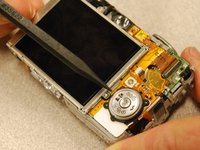
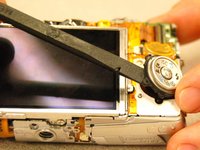
    1. Canon PowerShot SD850 IS Function Set Button Replacement, Function Set Button: passo 9, immagine 1 di 2 Canon PowerShot SD850 IS Function Set Button Replacement, Function Set Button: passo 9, immagine 2 di 2
      • Identify and remove the plastic function set button. Do this by gently prying up as indicated in the photo.

      Chiedi a FixBot

      Aggiungi Commento

    2. Canon PowerShot SD850 IS Function Set Button Replacement: passo 10, immagine 1 di 1
      • Lift the function set button ribbon cable from the two guide pins.

      Chiedi a FixBot

      Aggiungi Commento

    3. Canon PowerShot SD850 IS Function Set Button Replacement: passo 11, immagine 1 di 1
      • Remove the ribbon cable by lifting on the flat tab and pulling the ribbon cable from the connection.

      Chiedi a FixBot

      Aggiungi Commento

Conclusione

To reassemble your device, follow these instructions in reverse order.

Annulla: non ho completato questa guida.

iDeleted

Membro da: 07/07/10

2.101 Reputazione

39 guide realizzate

0Commenti sulla guida

Aggiungi Commento

Visualizza statistiche:

Ultime 24 ore: 3

Ultimi 7 giorni: 30

Ultimi 30 giorni: 100

Tutti i Tempi: 1,693