Salta al contenuto principale
Unisciti alla Community delle riparazioni - Crea un account

Canon PowerShot G7X Lens Replacement

Cosa ti serve

  1. Canon PowerShot G7X Lens Replacement, Dial: passo 1, immagine 1 di 1
    • Remove the five 2mm Phillips #000 screws that are under the screen of the camera.

    Chiedi a FixBot

    Aggiungi Commento

  2. Canon PowerShot G7X Lens Replacement: passo 2, immagine 1 di 1
    • Remove the two 3mm Phillips #000 screws under the AV-out digital flap.

    • Remove the two 3 mm Phillips #000 screws from the side of the camera.

    Chiedi a FixBot

    Aggiungi Commento

  3. Canon PowerShot G7X Lens Replacement: passo 3, immagine 1 di 1
    • Remove the two 3 mm Phillips #000 screws on the side of camera with the flash toggle.

    Chiedi a FixBot

    Aggiungi Commento

  4. Canon PowerShot G7X Lens Replacement: passo 4, immagine 1 di 1
    • Remove the four 4 mm Phillips #000 screws from the plate on the bottom of the camera.

    Chiedi a FixBot

    Aggiungi Commento

  5. Canon PowerShot G7X Lens Replacement: passo 5, immagine 1 di 1
    • Remove the back plate.

    Chiedi a FixBot

    Aggiungi Commento

  6. Canon PowerShot G7X Lens Replacement: passo 6, immagine 1 di 1
    • Remove the three 3 mm Phillips #000 screws around the dial.

    Chiedi a FixBot

    Aggiungi Commento

  7. Canon PowerShot G7X Lens Replacement: passo 7, immagine 1 di 2 Canon PowerShot G7X Lens Replacement: passo 7, immagine 2 di 2
    • Using the nylon spudger, gently lift the ZIF tab.

    • Disconnect the ribbon cable that connects the dial to the motherboard.

    • Remove the dial from the device.

    Chiedi a FixBot

    Aggiungi Commento

  8. Canon PowerShot G7X Lens Replacement, Flash: passo 8, immagine 1 di 2 Canon PowerShot G7X Lens Replacement, Flash: passo 8, immagine 2 di 2
    • Remove the three, blue 5 mm Phillips screws from the back plate.

    • Remove seven 2 mm Phillips #000 screws.

    Chiedi a FixBot

    Aggiungi Commento

  9. Canon PowerShot G7X Lens Replacement: passo 9, immagine 1 di 2 Canon PowerShot G7X Lens Replacement: passo 9, immagine 2 di 2
    • While using the plastic opening tool, gently pry the top plate off the camera.

    Chiedi a FixBot

    Aggiungi Commento

  10. Canon PowerShot G7X Lens Replacement: passo 10, immagine 1 di 2 Canon PowerShot G7X Lens Replacement: passo 10, immagine 2 di 2
    • Using the black nylon spudger, gently lift the ribbon cable connected to the LCD screen housing until it comes out then remove the housing.

    Chiedi a FixBot

    Aggiungi Commento

  11. Canon PowerShot G7X Lens Replacement: passo 11, immagine 1 di 2 Canon PowerShot G7X Lens Replacement: passo 11, immagine 2 di 2
    • Remove the 2 mm Phillips #000 screw underneath the top plate.

    • Remove silver plate.

    Chiedi a FixBot

    Aggiungi Commento

  12. Canon PowerShot G7X Lens Replacement: passo 12, immagine 1 di 1
    • Take the Phillips #000 and remove the three 5 mm screws from the front plate.

    Chiedi a FixBot

    Aggiungi Commento

  13. Canon PowerShot G7X Lens Replacement: passo 13, immagine 1 di 2 Canon PowerShot G7X Lens Replacement: passo 13, immagine 2 di 2
    • Using the spudger, gently lift the ribbon cable from underneath the front plate.

    • Remove the front plate.

    Chiedi a FixBot

    Aggiungi Commento

  14. Canon PowerShot G7X Lens Replacement: passo 14, immagine 1 di 2 Canon PowerShot G7X Lens Replacement: passo 14, immagine 2 di 2
    • Remove flash toggle plate.

    • Remove the 2mm Phillips #000 screws under the flash toggle.

    Chiedi a FixBot

    Aggiungi Commento

  15. Canon PowerShot G7X Lens Replacement: passo 15, immagine 1 di 2 Canon PowerShot G7X Lens Replacement: passo 15, immagine 2 di 2
    • Flash contains charged capacitor. Shock hazard.

    • Using the black nylon spudger, gently lift the ribbon cable that connects the flash to motherboard and remove the flash from the device.

    Chiedi a FixBot

    Aggiungi Commento

  16. Canon PowerShot G7X Lens Replacement, Lens: passo 16, immagine 1 di 1
    • Remove the 5 mm Phillips #000 screw from the copper plate.

    Chiedi a FixBot

    Aggiungi Commento

  17. Canon PowerShot G7X Lens Replacement: passo 17, immagine 1 di 1
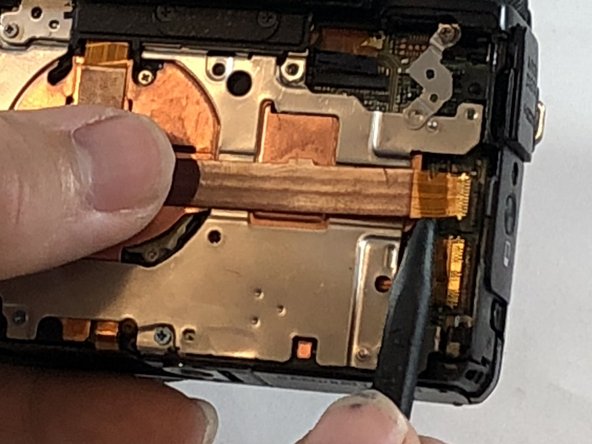
    • Using the black nylon spudger, lift the ribbon cable gently until it comes out.

    Chiedi a FixBot

    Aggiungi Commento

  18. Canon PowerShot G7X Lens Replacement: passo 18, immagine 1 di 1
    • Remove the copper plate to reveal connections to the lens.

    Chiedi a FixBot

    Aggiungi Commento

  19. Canon PowerShot G7X Lens Replacement: passo 19, immagine 1 di 1
    • Using the black nylon spudger, lift gently on the pin connector until it comes off.

    Chiedi a FixBot

    Aggiungi Commento

  20. Canon PowerShot G7X Lens Replacement: passo 20, immagine 1 di 2 Canon PowerShot G7X Lens Replacement: passo 20, immagine 2 di 2
    • Using the spudger, gently lift on the ribbon cable until it comes out.

    • Separate the lens from the motherboard.

    Chiedi a FixBot

    Aggiungi Commento

Conclusione

To reassemble your device, follow these instructions in reverse order.

Annulla: non ho completato questa guida.

Altre 2 persone hanno completato questa guida.

3Commenti sulla guida

Not that great of step by step. Lots of missed steps and lots different screw length and thread. Over all it's just an ok guide.

Nick Thomas - Rispondi Condividi

how do you tell if the lens is CCD or not

kingwayne77none - Rispondi Condividi

Poor instructions indeed. At step 11 silver plate still stuck. More screws than indicated.

Hugo Lyppens - Rispondi Condividi

Aggiungi Commento

Visualizza statistiche:

Ultime 24 ore: 7

Ultimi 7 giorni: 66

Ultimi 30 giorni: 185

Tutti i Tempi: 8,913