Introduzione
If your Asus Chromebook C202 model C202SA is experiencing USB connection or charge issues due to a faulty power adapter port, then it's time to swap out the Input/Output (I/O) board. The I/O board regulates external connectors like USB connectors and the input for charging.
Make sure that such a failure is not due to loose connections, software errors, or damaged cables prior to attempting this repair. If multiple USB devices and sources of power do not work, replacing the I/O board is a necessary step.
This repair takes some minimal disassembly. Be gentle with brittle ribbon cables. Before starting, power off the device completely and take out the battery to prevent electrical harm.
Cosa ti serve
-
-
What you need: 10 8mm screws, Tweezers, and a Phillips #1 Screwdriver
-
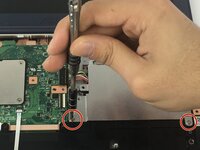
Remove Phillips #1 screws from the bottom of the Chromebook using a Phillips #1 screwdriver.
-
Use tweezers to get two of the screws are hidden by rubber caps along the rubber rest of the device out.
-
-
Attrezzo utilizzato in questo passaggio:iFixit Opening Tool$1.99
-
What you need: plastic opening tool, Chromebook
-
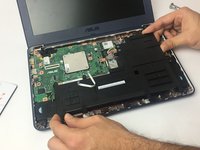
Open the top portion of the Chromebook
-
To unhinge the top portion of the Chromebook, push down on the plastic opening tool.
-
Place the plastic opening tool facing upward using the upper scoop, into the edges between the front and back of the Chromebook.
-
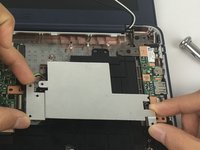
In order to avoid damaging ribbon cables, gently lift the top portion of the Chromebook from the bottom portion.
-
-
-
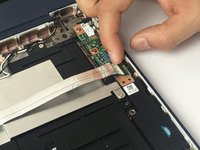
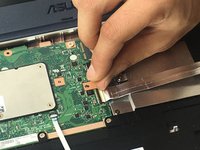
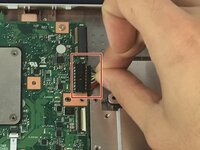
Use a spudger or a clean fingernail to flip up the locking flap on each end of the cable—this is the unlocked position.
-
Gently remove the ribbon cable connecting the I/O board to the motherboard.
-
-
-
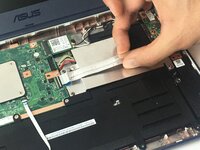
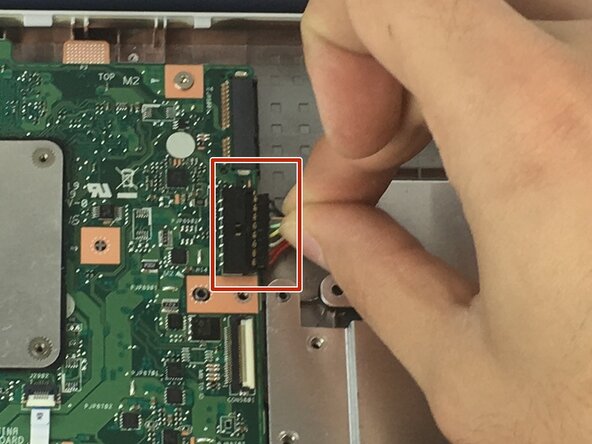
Use the point of a spudger to push on alternating sides of the connector to "walk" it out of its socket and disconnect the battery from the motherboard.
-
If that doesn't work, grip all the cables at once as close to the connector as possible and pull the connector slowly and steadily out of its socket.
-
Lift the battery from the bottom edge to to remove it from the Chromebook.
-
-
-
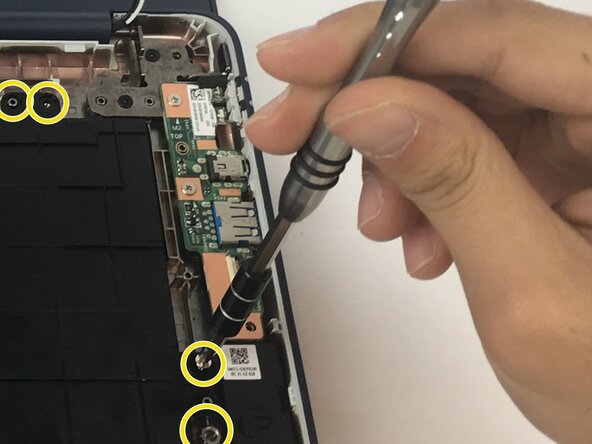
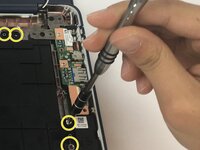
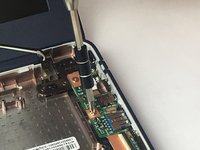
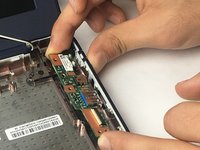
Remove two 4 mm Phillips #1 screws connecting the I/O board to your Chromebook.
-
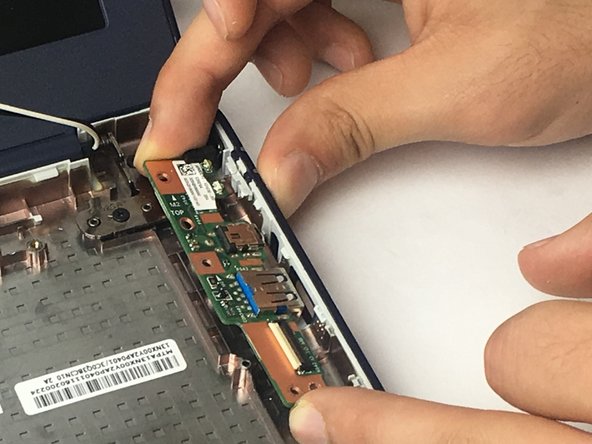
Slide the I/O board out from the edge of your Chromebook.
-






To reassemble your device, follow these instructions in reverse order. Take your e-waste to an R2 or e-Stewards certified recycler.
Annulla: non ho completato questa guida.
Altre 3 persone hanno completato questa guida.



Team

USF Tampa, Team 3-1, Passmore Fall 2016 Membro di USF Tampa, Team 3-1, Passmore Fall 2016
USFT-PASSMORE-F16S3G1
4 Membri
16 Guide realizzate
1Commento della guida
Thanks for all your ASUS guides — saved me a packet when my son breaks his!
