Introduzione
Use this guide to replace a cracked or malfunctioning screen of your A52F-XE2 laptop. If the screen of your laptop has physical damage such as cracks, breaks, faulty CCFL (back-light), a dim or flickering screen, dead pixels, or vertical/horizontal lines on the screen, it may need to be replaced since it can prevent the screen from displaying. Before following this guide, make sure your laptop is completely powered off and any external power sources are disconnected.
Cosa ti serve
-
-
Remove the six rubber pads around the border of the screen using a spudger.
 Chiedi a FixBot
-
-
-
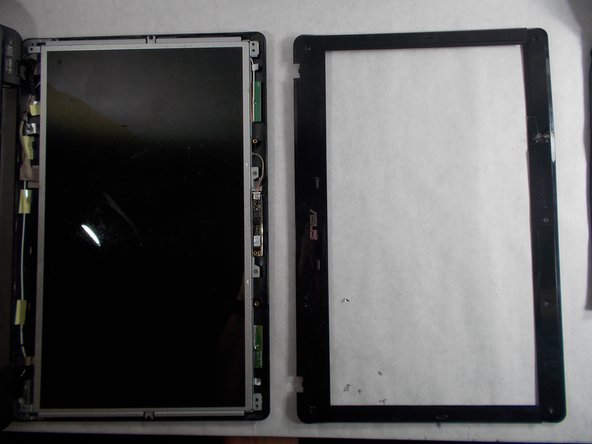
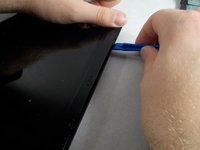
Separate the plastic bezel from the rest of the screen using an opening tool.
-
-
-
-
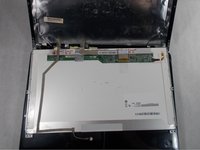
Carefully pull the screen toward you and lay it on the keyboard.
-
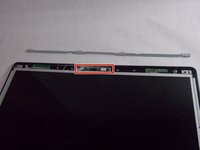
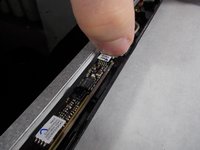
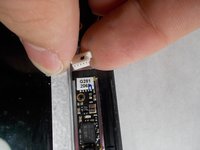
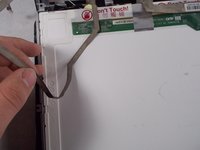
Peel the webcam wire off the back of the screen.
-
-
-
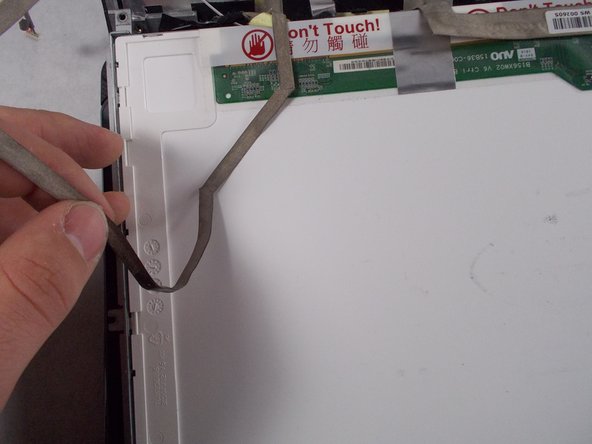
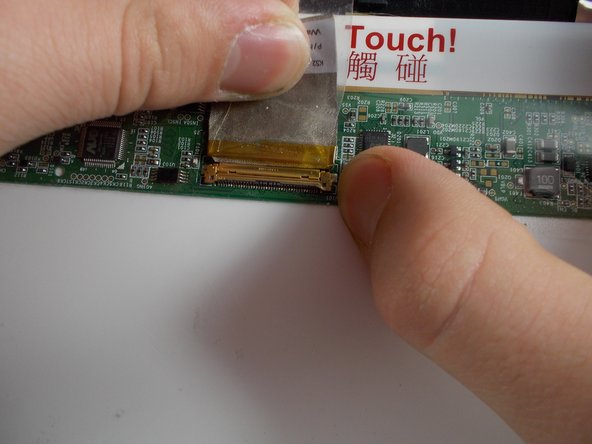
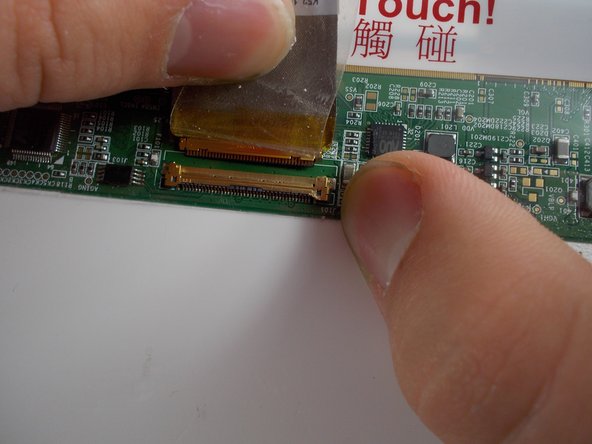
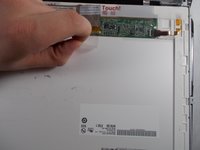
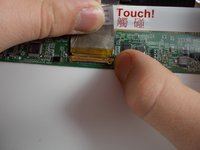
Peel back the tape holding the screen cable in its socket.
-
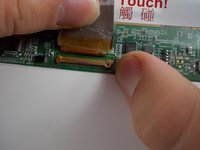
Gently pull the tape and cable away from you to remove the cable from the socket.
-
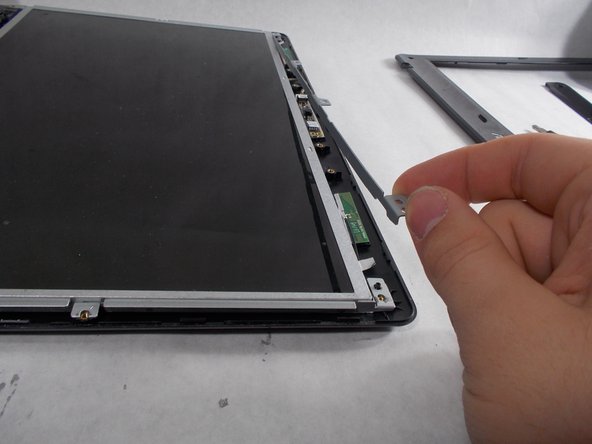
The screen is now disconnected and can be removed.
-



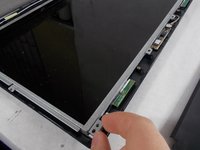
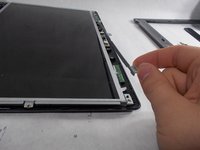

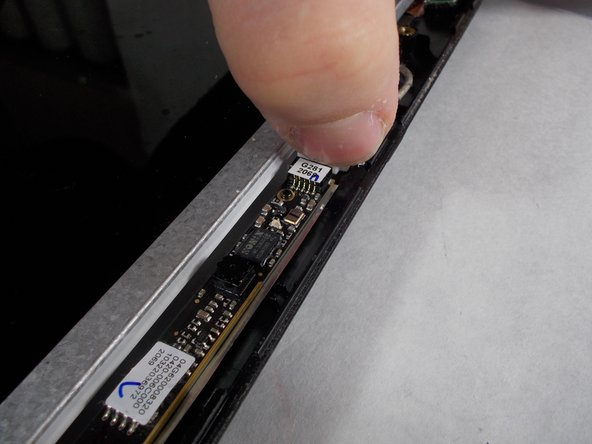
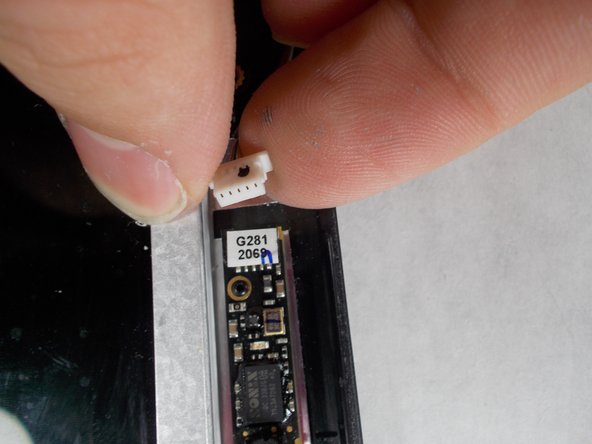


To reassemble your device, follow these instructions in reverse order.
Annulla: non ho completato questa guida.
Altre 2 persone hanno completato questa guida.

Team

UMass Dartmouth, Team S5-G1, Botvin Spring 2017 Membro di UMass Dartmouth, Team S5-G1, Botvin Spring 2017
UMASSD-BOTVIN-S17S5G1
4 Membri
7 guide realizzate
